


 Video Converter Ultimate
 Gravador de ecrã
 Reparo de vídeo
 Secure Download
Por que os vídeos do Twitter não têm som? Vamos consertar isso
Twitter serves as one of the most renowned online social networking platforms today. This platform particularly serves as a hub for individuals to stay informed about daily news and engage in communication through the exchange of tweets. However, a common challenge arises when attempting to watch a video, but Twitter videos no sound issues show up. Similarly, issues may arise when clicking on images or GIFs, leading to non-loading instances. These disruptions can be particularly challenging and tend to show frequently on some of the most used platforms. In response to this concern, we present a comprehensive guide designed to assist you in resolving the problem when Twitter videos are not playing sound.

Parte 1. Por que um vídeo não tem som no Twitter
Um vídeo no Twitter pode não ter som por vários motivos, geralmente decorrentes de problemas técnicos ou configurações relacionadas ao usuário. Assim, esta parte irá ajudá-lo a identificar os motivos e posteriormente ficar bem informado sobre a melhor solução a utilizar.
Razão 1. Problema no aplicativo do Twitter ou no navegador
Problemas de áudio em vídeos do Twitter podem ser decorrentes de desafios no navegador ou no aplicativo do Twitter em uso. A presença de versões de software desatualizadas ou incompatíveis pode causar interrupções na reprodução do áudio.
Razão 2. Problema de rede
O desempenho da rede desempenha um papel crucial ao influenciar a experiência de reprodução de vídeos do Twitter. Se não houver som, a qualidade de rede insuficiente pode resultar em reprodução de vídeo distorcida, afetando não apenas os aspectos visuais, mas também auditivos do conteúdo.
Razão 3. Vídeo corrompido com arquivo de áudio
A seguir está a possível corrupção do arquivo. Quando o arquivo de vídeo é corrompido, isso pode levar à perda de dados de áudio do vídeo. Isto afeta a experiência geral de reprodução do conteúdo de vídeo.
Razão 4. Vídeo e áudio fora de sincronia
Aside from video file corruption, another viable reason for the absence of video sound is the conflict of their timing. This issue typically arises due to improper recording or editing of the video content, leading to a noticeable misalignment between the visual and auditory components. The audio being out of sync with the video is a common occurrence, and it becomes apparent when there is a disruption in the temporal coordination of the two media elements.
Razão 5. Caches no Twitter
Seguindo em frente, aqui estão os cookies e caches. Essa falta de experiência de áudio com vídeos do Twitter pode ser atribuída a possíveis conflitos decorrentes dos cookies ou cache armazenados pelo navegador ou pelo aplicativo do Twitter.
Parte 2. Como corrigir a falta de som em vídeos do Twitter
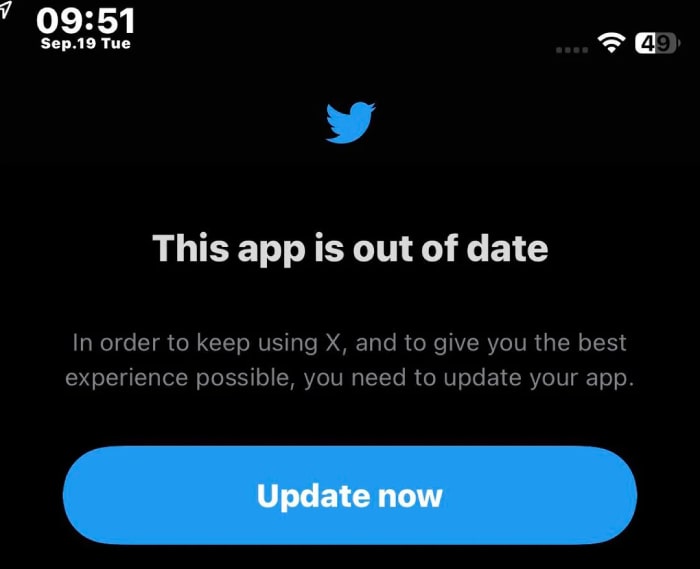
Solução 1. Atualize o aplicativo do Twitter
Certifique-se de que uma atualização regular seja feita no aplicativo do Twitter. Isso é essencial ao encontrar problemas de som durante a reprodução de vídeos do Twitter, que podem ser atribuídos a conflitos ou extensões que afetam a reprodução de áudio em seu navegador ou aplicativo. Solucione esses possíveis conflitos e verifique se o navegador e o aplicativo estão operando nas versões mais recentes. Assim, você pode abordar e resolver com eficácia quaisquer problemas de compatibilidade que possam surgir se mantiver o aplicativo ou software atualizado. Isto não só melhorará o desempenho geral do sistema, mas também desempenhará um papel crítico na manutenção de experiências de reprodução de áudio contínuas, especialmente ao acessar conteúdo multimídia.
Solução 2. Tenha uma rede de Internet forte
Verifique sempre a confiabilidade da sua conexão com a internet sempre que acessar os vídeos no Twitter. Uma rede forte pode evitar possíveis problemas de áudio com seu conteúdo de vídeo. Dito isto, é importante sempre verificar o teste de velocidade e descansar o roteador conforme necessário.
Solução 3. Corrija o arquivo corrompido
The best solution to fix a corrupted file is to utilize a repair tool like Video Repair picked by FVC. This software is capable of addressing different video playback challenges, as it extends its functionality to include Twitter video with no sound. Moreover, it showcases its adaptability by seamlessly mending high-definition videos, even those with resolutions as high as 16K, ensuring that the repaired output retains its original quality without any compromise. This makes FVC Video Repair an indispensable tool for not only fixing common playback issues but also for handling a broad spectrum of video sources and maintaining optimal video quality during the repair process. Thus, it is a handy solution if you are looking for a tool to rescue your precious memories or important content from the woes of video corruption. How do you fix corrupted videos with FVC? See the steps below.
Free DownloadFor Windows 7 or laterSecure Download
Free DownloadFor MacOS 10.7 or laterSecure Download
Step 1. Launch the software after the installation process.
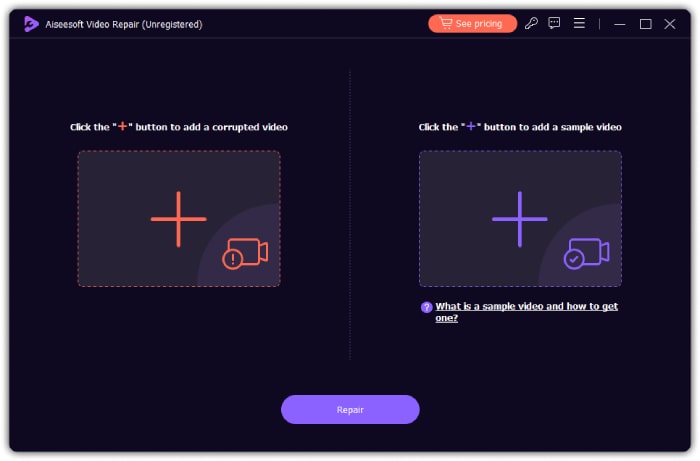
Step 2. Click the red Add button to upload the corrupted video and the blue Add button to upload a sample video.
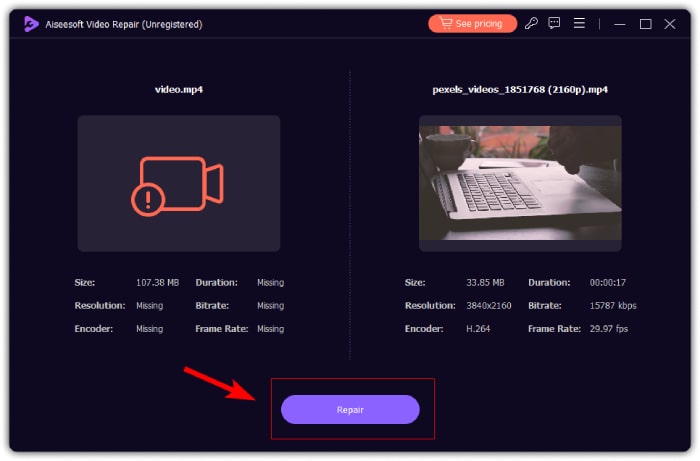
Step 3. Once uploaded, click the Repair button to initialize the repair process. After the process, the tool will enable you to repair another video, export the output, and preview the video.
Solução 4. Sincronize o vídeo e o áudio
For your videos that are not harmonious with their audio, the Sync Audio feature of Video Converter Ultimate is the best tool to utilize. This tool simplifies the process of achieving perfect audio-video harmony. Furthermore, it empowers you to enhance your content by effortlessly fine-tuning the timing of audio elements, providing a polished and professional-like touch to your outputs. Luckily, this tool contains super easy steps to follow, which are stated below.
Free DownloadFor Windows 7 or laterSecure Download
Free DownloadFor MacOS 10.7 or laterSecure Download
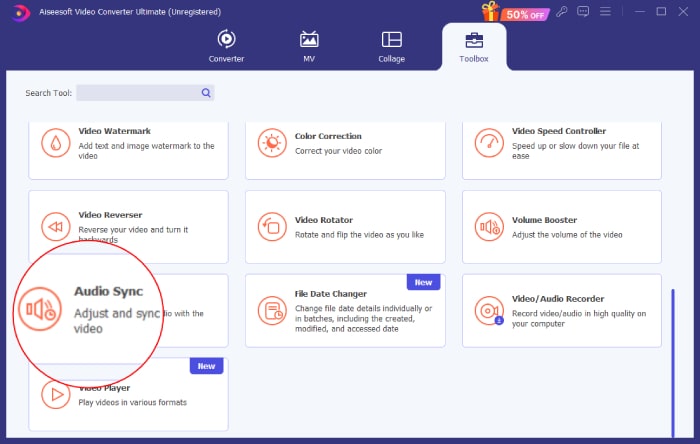
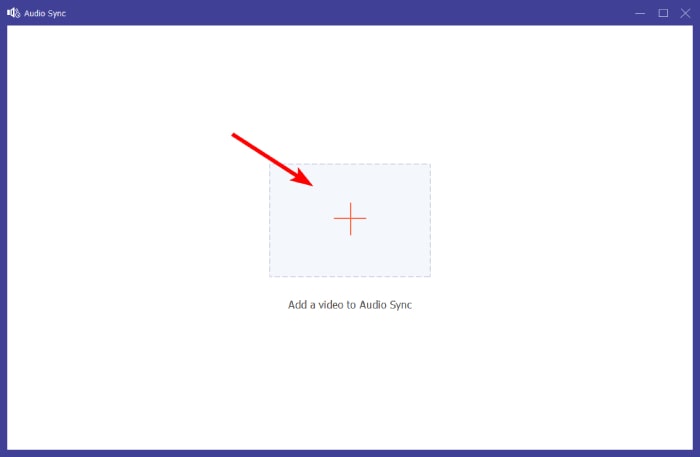
Step 1. Using your PC, launch the software and go to its Toolbox tab menu. Scroll down till you reach the Sync Audio tool and click it.
Step 2. Click the Plus button on the next window to upload the no-sound Twitter video.
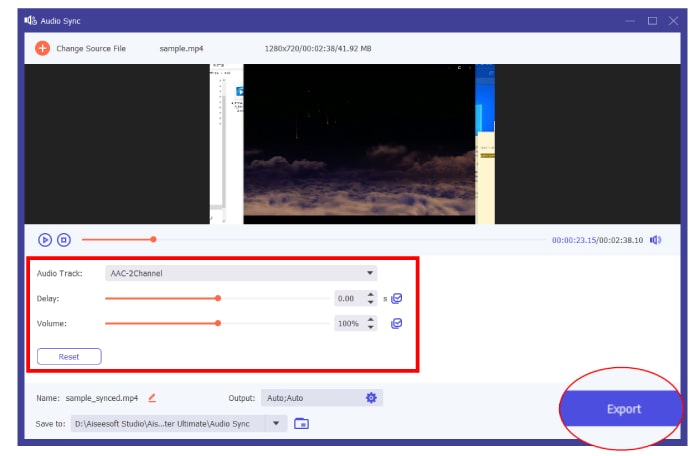
Step 3. After that, start adjusting the presets to get the best harmony, and click the Export button once done.
Solução 5. Limpe o cache
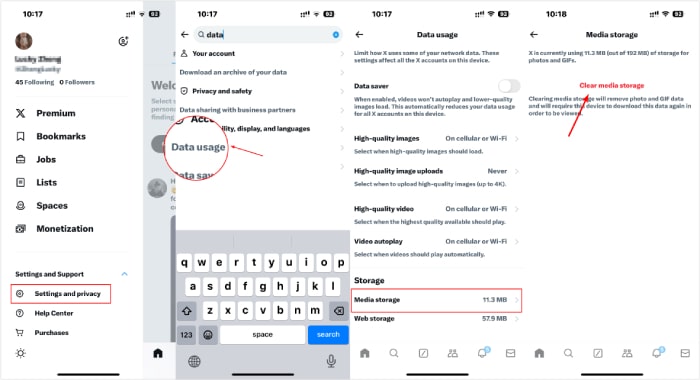
Por fim, reserve um tempo para limpar o cache do aplicativo. Para remover cookies, navegue até as configurações do seu navegador e pesquise os cookies específicos que deseja excluir. Depois de limpar os cookies com sucesso, verifique se o áudio dos seus vídeos do Twitter está funcionando no seu dispositivo.
Parte 3. Perguntas frequentes sobre vídeos do Twitter
Por que os vídeos no Twitter não têm som?
Os vídeos no Twitter podem não ter som devido a alguns fatores, como problemas de aplicativos, problemas de rede, problemas de arquivos de vídeo e muito mais.
Por que os vídeos do Twitter não estão sendo reproduzidos?
Um dos motivos comuns pelos quais os vídeos não são reproduzidos no Twitter é a má conexão com a Internet.
Posso desligar o som do vídeo no Twitter?
Sim, você pode desligar o som do vídeo no Twitter. Para fazer isso, basta tocar no ícone do alto-falante localizado no canto inferior direito do vídeo para ativar ou desativar o som.
Conclusão
To wrap it up, If you encounter the issue of experiencing no sound on Twitter videos, there are various factors you should take into account in order to identify and implement the most suitable solution for resolving this problem. If you have a hunch that the video files are the problem, then you can repair them using FVC Video Repair and FVC Video Converter Ultimate.
-
 Como usar o FFmpeg para corrigir vídeos corrompidos | Guia 2025
 Aprenda como usar o FFmpeg para consertar vídeos corrompidos facilmente e descubra todos os seus principais recursos, prós e contras, e como ele difere de outras ferramentas de reparo de vídeo.
-
 5 métodos para reparar arquivos MOV corrompidos
 Descubra soluções eficazes para reparo de MOV. Aprenda como reparar facilmente seus arquivos MOV corrompidos para garantir streaming de vídeo ininterrupto e seguro.
-
 3 maneiras de redimensionar a imagem para o Twitter sem perder a qualidade
 Para redimensionar a imagem para o Twitter, você precisará ter um redimensionador de fotos na mão. Não tem um? Em seguida, escolha na lista.
