


 Video Converter Ultimate
 Gravador de ecrã
 Reparo de vídeo
 Secure Download
4 maneiras simples de salvar capturas de tela em JPG [Guia 2025]
Screenshot images are usually saved in PNG format. Therefore, changing them to your preferred format will take you some time especially when it is already saved. So, if you experience this and you want to save your screenshots to JPG, this article is for you. In this article, we'll cover various methods and tools you can use, from third-party software to your device's built-in options. This way, you can pick or choose the method that best works for you. Let's get started!

Parte 1: Maneira mais fácil de salvar capturas de tela em JPG no Windows e Mac
If you're looking for an easy way to save screenshots to JPG on both Windows and Mac, FVC Screen Recorder is the perfect solution for you. This screen recording tool is designed to simplify the process of capturing and saving screenshots into any format you prefer. With its intuitive interface, you can effortlessly take screenshots of your Mac or Windows’ entire screen, specific windows, or custom regions and eventually save them to JPG or whatever format you prefer with just a few clicks. Moreover, if you like to enhance or customize your screenshot it has plenty of advanced features that can help you edit your screenshot before saving them to JPG.
Step 1. First, download and install the FVC Screen recorder on your Windows or Mac computers.
Free DownloadFor Windows 7 or laterSecure Download
Free DownloadFor MacOS 10.7 or laterSecure Download
Step 2. Now, after you run the tool, click on the Snapshot icon in the right corner.
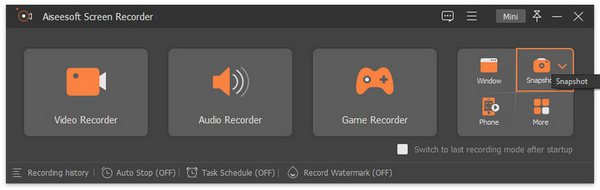
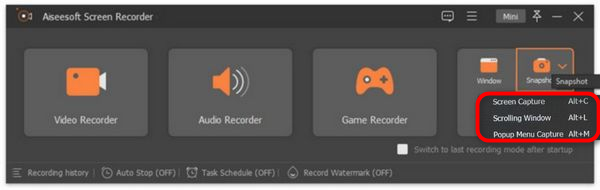
Step 3. After clicking the Snapshot icon, you have three options on how you will take a screenshot. You can choose either from Screen Capture, Scrolling Window, or Pop-up Menu Capture.
Step 4. Now, drag the cursor to the area of the screen on your Windows device to select the part that you want to screenshot.
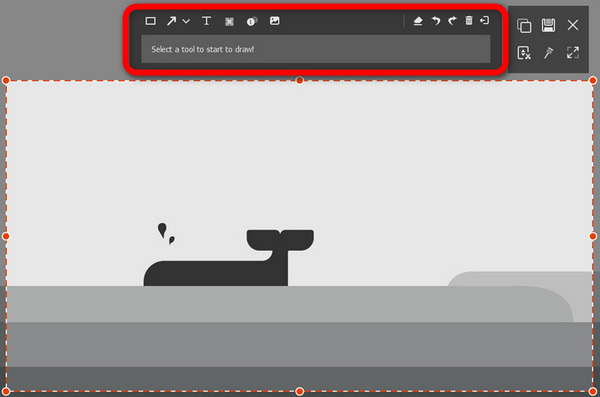
Step 5. After that, click the Save button, go to the Save as Type, and from the drop-down menu, select JPG.

Com sua interface amigável para fazer capturas de tela e salvá-las em JPG ou qualquer arquivo de formato de sua preferência, o FVC Screen Recorder é de fato a melhor escolha para quem procura uma maneira descomplicada de capturar e salvar capturas de tela no formato JPG no Windows e Plataformas Mac.
Parte 2: Salvar captura de tela como JPG no Windows com ferramenta de recorte
A Ferramenta de Recorte é um dos aplicativos integrados mais comuns disponíveis nos sistemas operacionais Windows atualmente, projetado para fazer capturas de tela. Com o uso da Ferramenta de Recorte, os usuários podem salvar suas capturas de tela em JPG após capturá-las.
Step 1. First, you need to go to the Start on your Windows.
Step 2. After that, proceed to the search bar and look for the Snipping Tool .
Step 3. Now, you’ll see the New button. Click on it to start taking a screenshot.
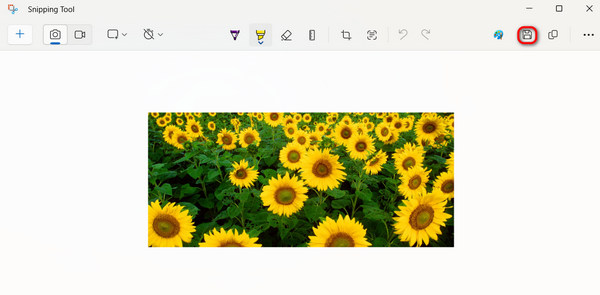
Step 4. Lastly, to save the screenshot image and convert it to JPG, click the Save button and choose JPG in the Save as Type drop-down menu.
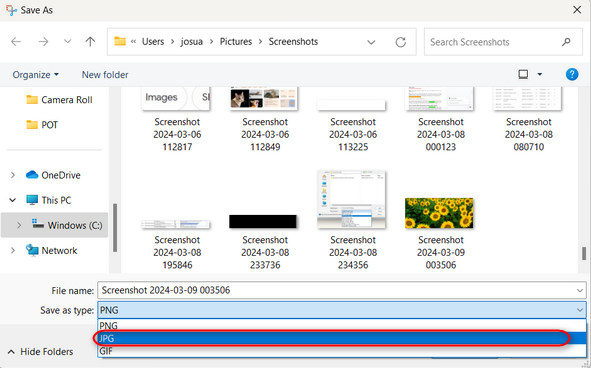
Portanto, se você é usuário do Windows e deseja salvar capturas de tela em JPG, usar a Ferramenta de Recorte é definitivamente uma opção conveniente. No entanto, observe que faltam recursos avançados encontrados em ferramentas de terceiros e pode parecer desatualizado para alguns usuários.
Parte 3: Salvar captura de tela como JPG no Mac usando visualização
Meanwhile, if you are a Mac user, you can use the Preview tool to save and take screenshots on Mac as JPGs. This tool is built-in in Mac, so this doesn’t need installation to use this tool. You will just need to open the screenshot image using the app and save it as JPG.
Step 1. First, you need to take a screenshot using the built-in screenshot shortcuts on your Mac
Screenshot the entire screen: Press Command + Shift + 3.
Screenshot selected area of the screen: Press Command + Shift + 4.
Screenshot a specific window: Press Command + Shift + 4, then the Spacebar.
Step 2. Once you've taken a screenshot, click on the thumbnail to open it in Preview, which appears at the bottom right corner of your screen.
Step 3. Now, in Preview, you need to go to the File menu.
Step 4. From the File menu, select Export or press Command + Shift + S.
Step 5. Lastly, choose JPG as the file format from the dropdown menu, and then click Save.
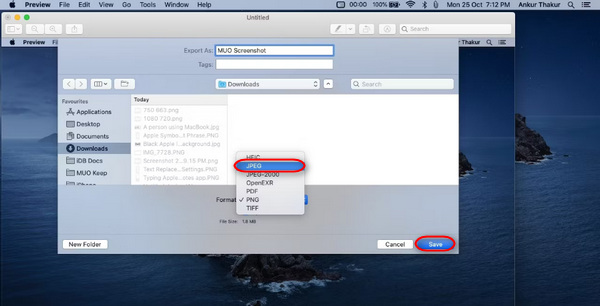
Embora possa parecer fácil e rápido de fazer, fazer uma captura de tela e alterar manualmente seu formato para JPG na visualização ainda é inconveniente e levará algum tempo. No entanto, se isso não for um problema para você, você pode usar este método para salvar capturas de tela em JPG no seu Mac.
Parte 4: Dica: Como converter uma captura de tela em JPG online
If you’re looking for a converter tool online to convert screenshots to JPG, FVC Free Image Converter is the best for you. This tool allows you to convert image formats, like JPG, JPEG, PNG, GIF, BMP, TIFF, WEBP, ICO, and SVG, to JPG, PNG, and GIF. Also, it’s quick and easy to do, and its user-friendly interface makes it more accessible to any type of user.
Step 1. Visit the official website of FVC Free Image Converter.
Step 2. Click the Add Images, and in the Convert To option, choose JPG.
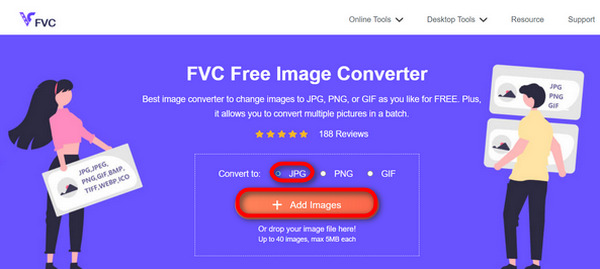
Step 3. Once the process is complete, just click on the Download All button to save your converted screenshot to JPG.
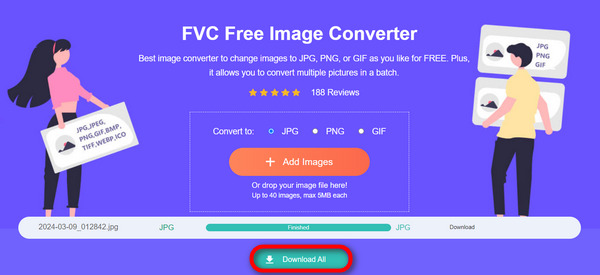
Com o FVC Free Image Converter, converter capturas de tela em JPG é rápido e fácil. É a melhor alternativa quando você está tendo problemas com outros métodos mencionados acima.
Parte 5: Perguntas frequentes sobre como converter capturas de tela em JPG
Posso converter várias capturas de tela para o formato JPG simultaneamente?
Sim. Você pode converter várias capturas de tela para o formato JPG simultaneamente usando ferramentas de conversão que possuem um recurso de conversão em lote, como o FVC Free Image Converter. Esta ferramenta permite selecionar várias capturas de tela e convertê-las para o formato JPG de uma só vez, economizando tempo e esforço.
A conversão de imagens de captura de tela em JPG afeta sua qualidade?
Sim, mas não tanto. A conversão de capturas de tela para JPG terá apenas um rebaixamento mínimo de qualidade, mas é algo tolerável. Ao escolher a compactação JPG, certifique-se de equilibrar o tamanho do arquivo e as configurações de qualidade da imagem para obter resultados satisfatórios.
Posso ajustar a qualidade da imagem ao salvar capturas de tela em JPG?
Sim. Existem vários softwares de edição de imagens e conversores online que possuem recursos para ajustar as configurações de qualidade da imagem ao salvar capturas de tela em JPG. Isso permite controlar o nível de compactação aplicado à imagem.
Conclusão
There you have it. Whether you're using Windows or Mac, there are several simple ways to convert them to JPG format. With these methods, you can now easily manage and save your screenshots in JPG format. So, the next time you need to save a screenshot, remember these simple methods, especially when you want to save your screenshot to JPG.
-
 Os 5 principais tutoriais para converter PNG para JPG rapidamente
 Se você precisa converter seu arquivo PNG para o formato JPG, pode aprender as melhores maneiras aqui. Você também aprenderá a diferença entre os formatos de arquivo PNG e JPG.
-
 Como resolver o problema de captura de tela não funcionar no iPhone [2025]
 Tem problemas para fazer capturas de tela no seu iPhone? Nós pegamos você! Aprenda nosso guia completo para ajudá-lo a corrigir capturas de tela que não funcionam em iPhones de maneira rápida e fácil.
-
 Métodos fáceis sobre como converter SVG para o formato JPG
 Encontrando a melhor maneira de converter SVG para JPG? Esta postagem fornecerá alguns tutoriais infalíveis que você pode experimentar. Você também descobrirá o conversor de SVG para JPG para você.
