


 Video Converter Ultimate
 Gravador de ecrã
 Reparo de vídeo
 Secure Download
3 melhores métodos para converter PNG para MP4 [soluções rápidas]
Today, people are getting hooked on turning their photos into videos with effects, text, transitions, and filters. While PNG is a great image format for photos, we can get more creative with it by converting them to MP4. It may sound unusual to some, but some people convert these files to create a short movie or a fun video. So, if you’re looking for a converter tool that turns PNG to MP4, then you are in the right place.
Por isso, preparamos 3 ferramentas que você pode considerar para converter uma imagem para um formato de vídeo facilmente. Conheça cada uma delas e aprenda a usá-las agora mesmo!

Parte 1: Converta PNG para MP4 com a melhor qualidade no desktop
One of the best ways to convert PNG to MP4 is by using the FVC Video Converter Ultimate. This converter tool is not your typical converter as it is integrated with various features like MV that allow you to turn PNG files into an MP4 video. It comes with various pre-set themes that you can freely use. You can also add your music background, add filters and effects, and even make it personalized by placing a watermark on the video. Moreover, you can easily rotate, trim, and cut the image based on your preferences and creative vision. So, if you’re really into the creative side of things and you want to turn your images into a dynamic MP4 file, then this is going to be the perfect converter tool for you.
Step 1. First, on your Windows or Mac, download the software tool and install it.
Free DownloadFor Windows 7 or laterSecure Download
Free DownloadFor MacOS 10.7 or laterSecure Download
Step 2. After that, open the tool and click on the MV tab.

Step 3. Now, add the PNG files that you want to convert to MP4 by clicking the Add File button.

Step 4. Once you have imported the PNG files to the MV maker, you can add, edit, and trim them into a video. Just click the button at the upper part of the Add File button. You can also choose a pre-set theme by clicking the Theme tab above.

Step 5. Meanwhile, to add filters and effects and to crop and rotate the images, just click on the Edit icon below. You can also personalize your MP4 video by adding a watermark.

Step 6. If these are all set, click the Export button to save the MP4 video. Before exporting, remember to specify the folder where you want the output file to be saved, and ensure the output format is set to MP4.

Você também pode modificar a taxa de quadros, a resolução e a qualidade da saída de vídeo.
Step 7. Lastly, you can access the exported video in your selected folder.
Ao converter PNG para MP4 usando o FVC Video Converter Ultimate, você pode realmente garantir um resultado de saída de qualidade. Sua interface intuitiva torna a conversão fácil de processar, e seus recursos de edição podem elevar a aparência visual da sua saída de vídeo. Além disso, você pode selecionar sua resolução de vídeo preferida de até 4K para garantir a compatibilidade com seu dispositivo e vários reprodutores de mídia.
Parte 2: Converta PNG para MP4 com FFmpeg
Another method you can use to convert PNG to MP4 is by using FFmpeg. This tool is free and open-source and provides a comprehensive suite of libraries and programs for managing various multimedia files and streams. With FFmpeg, you can seamlessly convert a sequence of JPG images into an MP4 video file through its command line function. You just need to use a command or a code pasted to the terminal or the command prompt, and it will process the conversion and create the output accordingly.
Step 1. Download and install FFmpeg to your computer device.
Step 2. Open your Terminal or Command prompt.
Step 3. Navigate to the directory containing your sequence of images.
Step 4. Use the following command to create the video. Assume that the image filename is happy: ffmpeg -framerate 1 -i happy%d.png -c:v libx264 -r 30 output.mp4

Step 5. Optionally, you can specify the starting number of your image sequence using the -start_number option. For example, if your image sequence starts from happy3.png, you would add -start_number 3 to the command.
Step 6. Press Enter to execute the command. FFmpeg will start processing the images and create the video.
Step 7. Once the process is complete, you can access the video in the directory you have indicated.
Embora esta ferramenta pareça ter um processo de conversão e um resultado promissores, sua desvantagem é a complexidade de sua interface, o que dificulta o processo de conversão de PNG para MP4 para os usuários.
Prós
- Gratuito e de código aberto.
- Interface de linha de comando poderosa.
Contras
- Curva de aprendizado íngreme para iniciantes.
- Falta de interface gráfica do usuário.
Parte 3: Converta PNG para MP4 online
Another method to transform PNG to MP4 is by using a converter tool. With online converters, you can guarantee compatibility with various devices as it will only require a browser and an internet connection. One of the best online converter tools that we can recommend is the FlexClip. This is a versatile online tool that allows you to convert PNG images to MP4 videos. You’ll only need to import your PNG files, and you are left with an easy to follow interface to turn them into a video file once exported.
Step 1. First, go to the Media tab and click on Browse to import your PNG files.
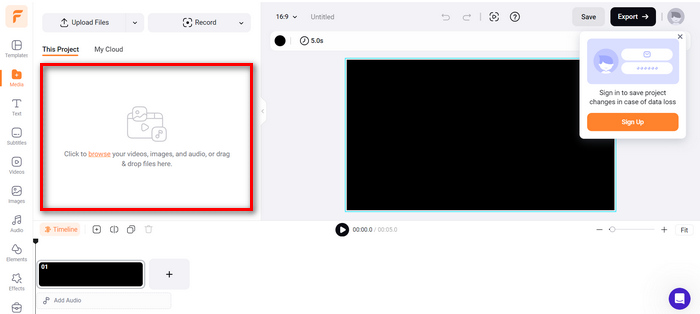
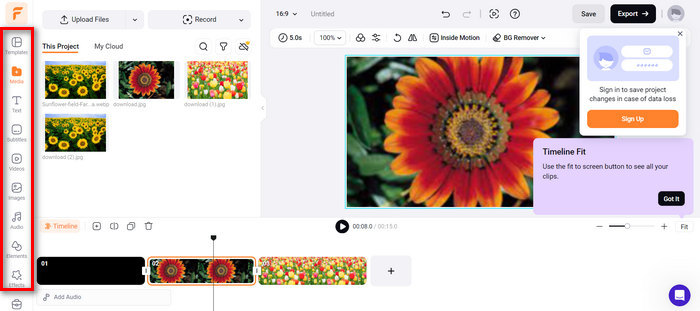
Step 2. After that, drag the PNG files to the timeline so that you can trim and add transitions to the output. Also, by going to the left tab of the software’s interface, you can further enhance the visual quality of your video by adding text, subtitles, audio, elements, and effects.
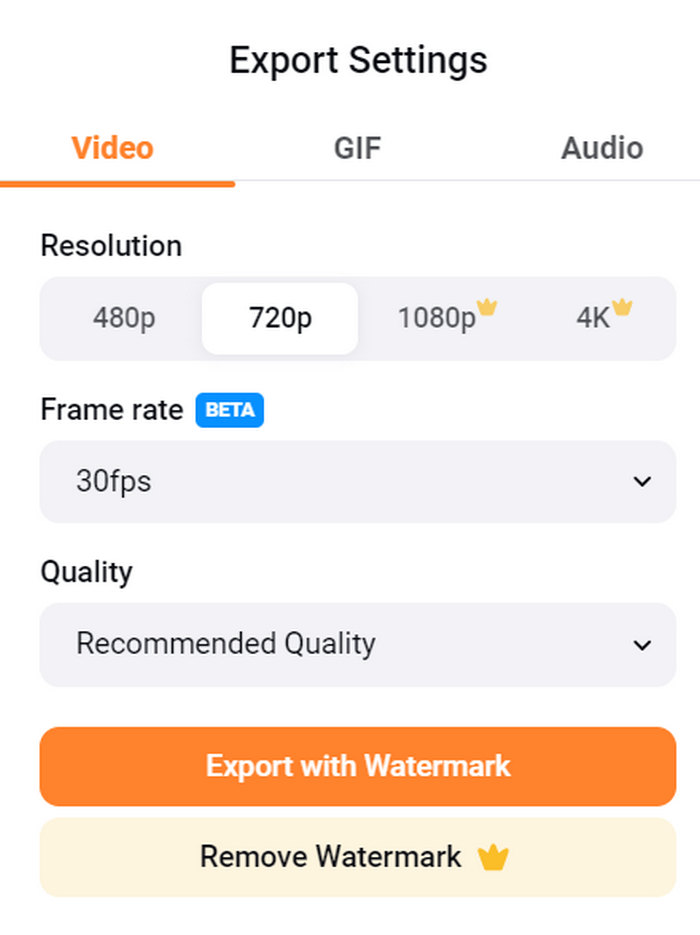
Step 3. Now, you may download your MP4 by clicking the Export button, but remember to choose your preferred video resolution, frame rate, and quality first.
Com o FlexClip, você pode facilmente converter PNG para MP4 online sem se preocupar com o consumo de armazenamento no seu dispositivo. No entanto, se você estiver usando sua versão gratuita, não poderá aproveitar todos os seus recursos, o que o impedirá de modificar sua saída preferida.
Prós
- Interface fácil de usar.
- Recursos de edição versáteis.
- Opções de saída personalizáveis.
- Processo de conversão rápido.
Contras
- Requer conexão com a internet.
- Recursos limitados na versão gratuita.
- Os vídeos exportados têm marcas d'água.
Parte 4: Perguntas frequentes sobre a conversão de PNG para MP4
Por que eu iria querer converter PNG para MP4?
Converting PNG to MP4 allows users to transform static images into dynamic videos, which can be useful for creating slideshows, animations, or adding audio elements. The MP4 format is also widely supported and compatible with various devices and platforms. Therefore, turning PNG to MP4 makes it more suitable for sharing and streaming.
Qual é o melhor método para converter PNG para MP4?
O melhor método depende das preferências e necessidades dos usuários. Se eles preferem software de desktop com recursos avançados de edição, eles podem usar ferramentas como FVC Video Converter Ultimate. Se eles querem uma solução de código aberto com uma interface de linha de comando, FFmpeg é uma boa opção. Se eles preferem uma solução online com simplicidade, FlexClip é recomendado.
Como PNG e MP4 diferem um do outro?
PNG ou Portable Network Graphics é um formato de arquivo comumente usado para imagens estáticas com compressão sem perdas, ideal para gráficos e imagens com transparência. Por outro lado, MP4 ou MPEG-4 é um formato de arquivo de vídeo conhecido por suas capacidades de compressão, armazenando dados de vídeo e áudio.
Conclusão
Converting PNG to MP4 isn’t just about conversion. It’s about creativity and passion. Imagine turning static and still images into dynamic videos. It takes a lot of creativity and, of course, a perfect converter too. With that, don't miss out on this chance and try one of these methods today!
-
 Maneiras completas de converter JPG para PNG online e offline
 Procurando métodos úteis para converter o formato de arquivo JPG para PNG? Este guia tem a resposta que você precisa. Para descobrir esses métodos, leia o artigo.
-
 Os 5 principais tutoriais para converter PNG para JPG rapidamente
 Se você precisa converter seu arquivo PNG para o formato JPG, pode aprender as melhores maneiras aqui. Você também aprenderá a diferença entre os formatos de arquivo PNG e JPG.
-
 Tutoriais passo a passo sobre como converter ICO para PNG
 Clique neste guia para aprender os métodos mais fáceis de converter ICO em PNG. Vamos descobrir os conversores de ICO para PNG para procedimentos online e offline.
