


 Video Converter Ultimate
 Gravador de ecrã
 Reparo de vídeo
 Secure Download
Converta seu PPT para MP4 com 3 métodos eficazes
O PPT é uma ótima ferramenta quando se trata de fazer apresentações, seja na escola, no trabalho, etc. Às vezes, depois de uma apresentação, alguns podem pedir uma cópia do material do PPT para referência.
No entanto, é importante reconhecer que algumas pessoas não conseguem acessar o arquivo porque não têm o aplicativo ou a ferramenta de software instalada em seus dispositivos. Com isso, a maioria dos apresentadores tem uma versão MP4 convertida da apresentação para compartilhar facilmente o material para todos.
So, if you’re looking for a way to convert your PPT to MP4 for quick sharing and accessibility of the file material, you’re on the right page. Therefore, continue reading this article and immerse yourself in learning the 3 different methods of how you can turn your PPT file into a video.

Parte 1: Como converter PowerPoint para MP4 dentro do PPT
Usando a apresentação do PowerPoint, os usuários podem facilmente converter seu PPT para MP4. É um ótimo recurso integrado para conveniência e flexibilidade.
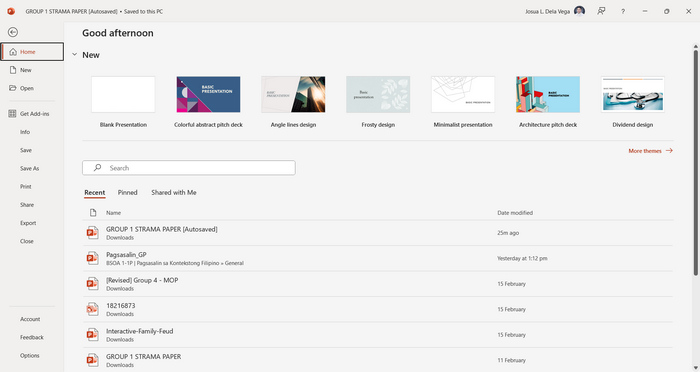
Step 1. Open your presentation using the PowerPoint presentation software tool on your device.
Step 2. Proceed to the File tab, look for the Export button, and click on it.
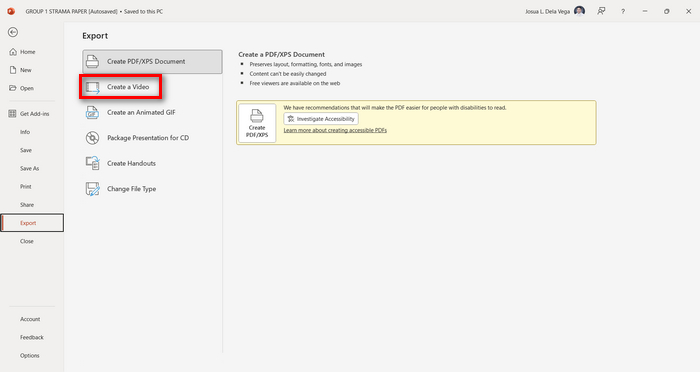
Step 3. Once you’re on the Export tab, click on the Create a Video option.
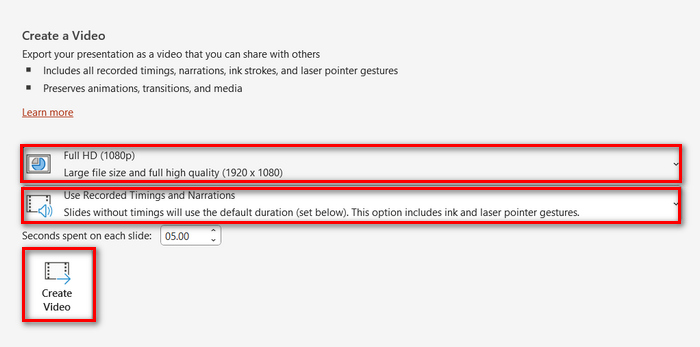
Step 4. Now, set your preferred video resolution. You can choose between 480p to 4K. Also, in the Use Recorded Timings and Narrations option, you can manually set the timing of your slides. After that, click on the Create Video button.
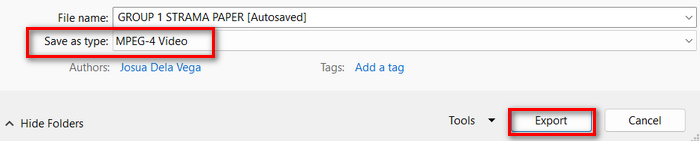
Step 5. After clicking the Create a Video button, there will be a new Window where you can check the format of your file output and where you want it to be saved. When set, just click the Export button and wait for it to be finished.
It is indeed convenient to convert PowerPoint to MP4 using its built-in feature. However, it lacks the customization feature if you want to add some background music. Nevertheless, if your goal is just for sharing purposes, then this is not a problem for you.
Parte 2: Converta PPT para MP4 com áudio online grátis
Se você tem o arquivo PPT e quer convertê-lo online, já que não tem um aplicativo ou ferramenta de apresentação do PowerPoint no seu dispositivo, você pode usar o MagicSlides. Esta ferramenta de conversão online permite que você converta facilmente o PowerPoint para MP4 simplesmente importando o arquivo para o sistema deles.
Step 1. Upload the PPT file that you want to convert into MP4 by clicking the Upload your source file button.
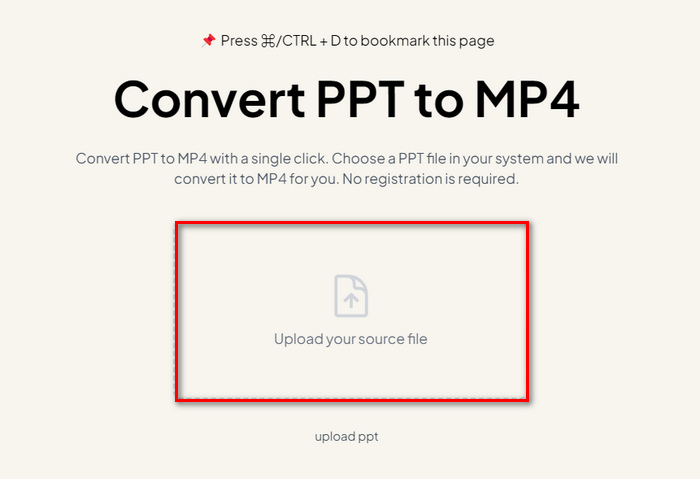
Step 2. Once the file is imported, click on the Create MP4 button to start the Conversion process.
Step 3. When it’s done, you can first preview the converted PPT file, and when you’re satisfied with the result, just click on the Download button to save it directly to your device.
Embora esta ferramenta ofereça passos muito simples para converter PPT para MP4, importar arquivos PPT leva muito tempo, o que pode ser perturbador, especialmente quando você está com pressa. Além disso, ela não tem nenhuma opção de personalização. Ela apenas transforma literalmente arquivos PPT em um vídeo.
Parte 3: Como converter PPT para MP4 com efeitos e áudio
If you want to convert your PPT to MP4, but this time with effects and audio, then this is definitely for you. With FVC Screen Recorder, you are able to turn your PowerPoint presentation into a creative and interactive MP4 file using its editing features. Moreover, you have nothing to worry about the output quality as it supports up to 4K video resolution. So, to use this, follow the guide below:
Step 1. First, download the software tool and install it on your computer.
Free DownloadFor Windows 7 or laterSecure Download
Free DownloadFor MacOS 10.7 or laterSecure Download
Step 2. Open your PowerPoint presentation, and make sure that it is opened in full screen.
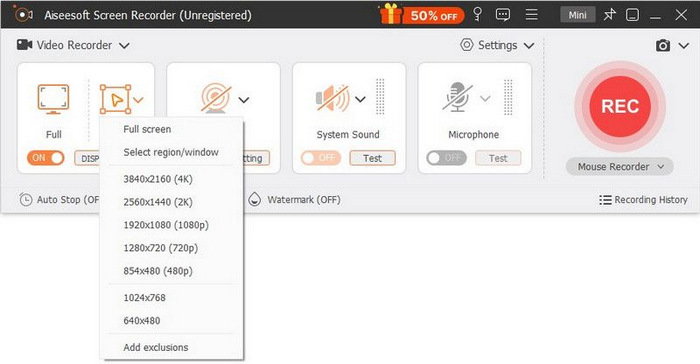
Step 3. Now, on the screen recorder tool, choose the Video Recorder feature and select the recording area as Full.
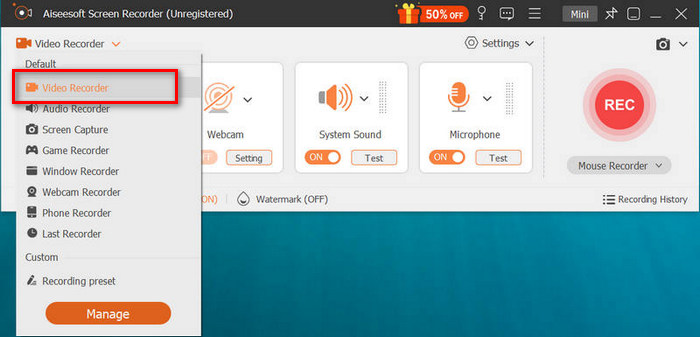
Step 4. After that, start to play the PowerPoint slideshow. Likewise, click the REC button to start recording the PowerPoint.
Step 5. When done, just click the Stop button, and it will bring you to the preview interface. From there, you can find in the bottom corner the editing features that you can utilize to edit audio and effects in converting your PPT to MP4.

Step 6. Lastly, you can access your file by clicking on the Open Folder button.
A coisa boa sobre usar o FVC Screen Recorder para transformar PowerPoint em MP4 é que você pode assumir o controle do tempo e do ritmo dos slides. Além disso, diferente de outras ferramentas que oferecem apenas uma conversão básica, esta ferramenta tem recursos de edição que podem ser usados para aprimorar ainda mais o arquivo MP4 convertido.
Parte 4: Perguntas frequentes sobre a conversão de PPT para MP4
Quanto tempo leva para converter PPT para MP4?
O tempo do processo de conversão depende do tamanho do arquivo que está sendo convertido. Mas, geralmente, apresentações simples não levam muito tempo durante a conversão.
Posso manter animações e transições ao converter PPT para MP4 em PPT?
Sim. O recurso integrado permite que os usuários mantenham animações e transições durante o processo de conversão. Isso é para garantir que os elementos visuais na apresentação, como transições e animações, sejam mantidos durante a conversão para o formato MP4. No entanto, é importante observar que a compatibilidade de animações e transições pode variar dependendo da versão do PowerPoint usada e da complexidade dos efeitos aplicados.
A qualidade da minha apresentação do PowerPoint será preservada ao converter para MP4?
Sim. A apresentação do PowerPoint suporta resolução de vídeo de até 4K. Portanto, escolher uma resolução maior ajudará a manter a qualidade da apresentação. Além disso, quando você escolhe converter seu PPT para MP4 usando alguma ferramenta de conversão avançada que oferece opções para ajustar as configurações de taxa de bits e compressão para otimizar ainda mais a qualidade do vídeo, você pode garantir uma saída de qualidade.
Conclusão
Converting PPT to MP4 format indeed offers convenience and accessibility for sharing the file across various platforms and devices. Now that you have an idea of how to convert them, it's time to put this knowledge into action. Start converting today and enhance the reach and impact of your presentations!
-
 Como redimensionar uma imagem no PowerPoint [maneira mais rápida de alterar o tamanho]
 Aprender a redimensionar imagens no PowerPoint é essencial, especialmente se você quiser usá-lo em sua apresentação. Leia este artigo para saber como fazê-lo.
-
 Revisão do removedor de marca d'água da Apowersoft - recurso, prós e contras e preço
 Apowersoft Watermark Remover é um dos melhores removedores de marcas d'água que suporta online e offline, clique aqui para saber mais!
-
 Como consertar vídeo que não está sendo reproduzido no PowerPoint. Guia rápido
 O seu vídeo do PowerPoint não está sendo reproduzido? Supere a frustração de vídeos incorporados que não são reproduzidos agora com nossas cinco melhores soluções para resolvê-los sem esforço.
