


 Video Converter Ultimate
 Gravador de ecrã
 Reparo de vídeo
 Secure Download
Como converter WebP para MP4 no PC para uma saída de vídeo animado
There are various reasons why we convert WebP to MP4. One of the main reasons is that when you have a collection of animated pictures in the WebP format, your devices do not support it. It is frustrating to know that you cannot enjoy your own files on your own device. For that reason, most users in the same situation chose to transform their WebP files into a format such as MP4 to make their digital stuff more compatible and smaller. But how will you do it for the first time? Fortunately, this post gathered the decent converters that will help you on this big time. Also, we added a professional approach to help you on this matter as well.

Parte 1. Como converter WebP para MP4 online
Esta seção apresentará nossas 3 principais soluções para converter WebP para MP4 online.
1. EZGIF
A primeira das principais soluções online é o EZGIF. É uma ferramenta útil e gratuita que você pode acessar na web. Esta ferramenta ajuda você a criar, alterar e ajustar GIFs. Mas não se trata apenas de GIFs, pois também lida com os formatos WebP, AVIF e APNG. Além disso, o EzGIF permite que você alterne esses formatos com GIF, JPG, PNG e, claro, MP4. Como o nome sugere, o EZGIF tem tudo a ver com simplificar as coisas. Quer você queira criar fotos animadas ou transformar animações em vídeos, esta ferramenta está aqui para você. Portanto, você também pode usá-la para alternar arquivos WebP, tanto os estáticos quanto os em movimento, para MP4. Portanto, aqui estão os passos simples a seguir com o EZGIF.
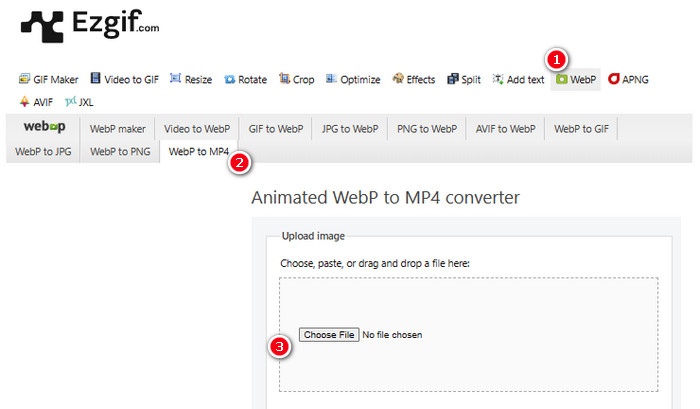
Step 1. On the EZGIF website, navigate to the WebP>WebP to MP4 tool to access its WebP to MP4 converter. Once there, click the Choose File button to upload your WebP file.
Step 2. After uploading the WebP file, you may now proceed to the conversion process. Click the Convert button to start.
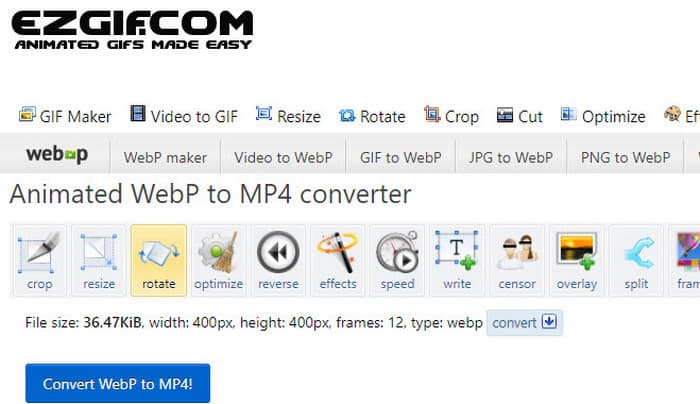
Step 3. When done, download your newly converted file.
2. MConverter
A próxima ferramenta é o MConverter. Este conversor é uma ferramenta muito útil na web que ajuda você a mudar arquivos de um tipo para outro. Notavelmente, se você tem um monte de imagens WebP que deseja transformar em vídeos MP4, o MConverter permite que você faça tudo de uma vez. Não economiza muito tempo? Além disso, ele tem um monte de formatos que ele pode manipular - como vídeos, músicas, imagens, legendas, etc. Mas há um porém com a versão gratuita - ele só permite que você faça arquivos de até 200 MB de tamanho. Enquanto isso, vamos ver como o MConvert funciona quando você converte WebP para MP4 com ele.
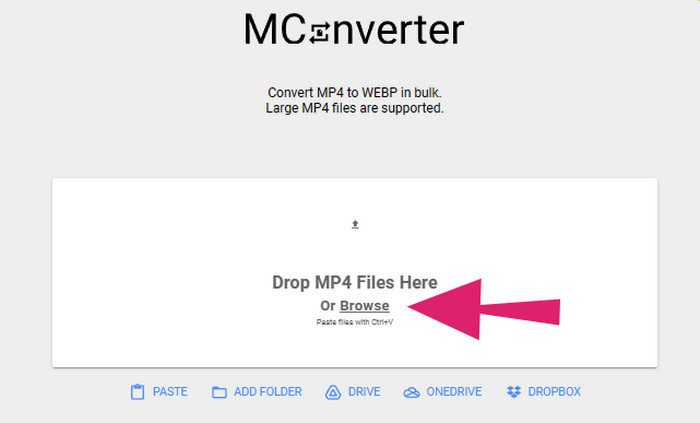
Step 1. On the online tool, click the Browse button to upload the WebP files you need to convert.
Step 2. When the file is successfully uploaded, click the MP4 format among the selections given.
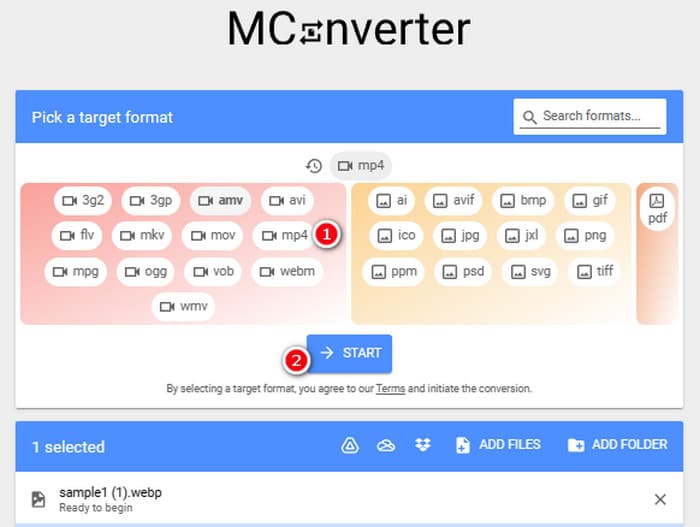
Step 3. Then, click the START button to execute the conversion.
3. Conversão on-line
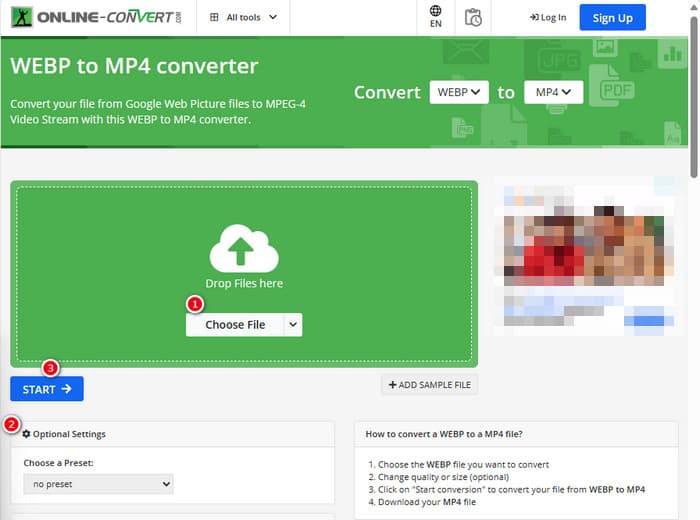
Por fim, permita que o Online Convert preencha a última posição online. Este Online Convert é um conversor notável que pode alterar quase qualquer tipo de arquivo de mídia para você. Apesar disso, não custará um centavo para qualquer conversão que você queira fazer, desde que ele suporte. Além disso, ele funciona muito rápido, exceto quando sua internet está problemática. Agora, se você quiser transformar um arquivo WebP em um MP4, você pode fazer isso no site deles. Não só isso, mas você pode ajustar parâmetros de vídeo como seu tamanho, taxa de quadros e qualidade e até mesmo virá-lo, apará-lo ou cortar partes que você não precisa. Então, se seu arquivo WebP estiver pronto para ser transformado, siga imediatamente as etapas abaixo.
Step 1. Make sure to use the WebP to MP4 converter tool once you reach the official website.
Step 2. Click the Choose File button and bring the Webp file in. Then, you may choose to tweak it by using the settings given in the interface.
Step 3. Otherwise, click the START button to initiate the conversion process.
Parte 2. Abordagem profissional para converter arquivo WebP em MP4: FFmpeg
For an expert approach to converting an image file into a video, you can use FFmpeg. It is a powerful software tool used for processing multimedia files. This program allows you to convert audio, video, and image formats between a wide variety of codecs. However, it works with a command line approach, making it punishing for beginners. Hence, here are the simplified steps that you can follow. For your information, FFmpeg, as a professional video transcoder, can even repair corrupted videos as well.
Step 1. Open the FFmpeg after installing it on your PC. Then, start by pressing CD to initiate the command prompt.
Step 2. You can now navigate to the directory that contains the WebP file. Then, use the command ffmpeg -i input.webp output.mp4.
Step 3. Start the conversion process by pressing the ENTER key from your keyboard.

Parte 3. Dica bônus: a melhor maneira de converter arquivos MP4 para qualquer tipo de vídeo/áudio online
How about converting your MP4 files to your desired video and audio formats online? Well, that would be simple, quick, and efficient if you use FVC Free Video Converter Online. It is your free solution that lets you change your videos in MP4 format into different video and audio formats like WMV, MOV, FLV, AVI, MKV, AAC, MP3, WAV, and more. Also, you can easily convert your high-definition videos to smaller MP4s without losing quality. Even better, you can convert multiple files at once while enjoying the entire process to be easy and fast. Plus, there's no need to worry about watermarks on your videos or losing any data during the conversion because this online converter commits to providing you with clean and safe outputs! Here are the three easy steps to convert your MP4 files to various format types.
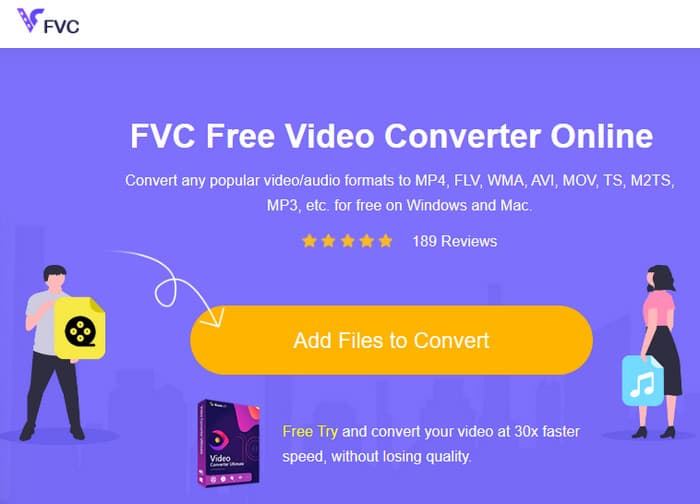
Step 1. Click the Add Files to Convert tab upon reaching the website. This will enable you to upload the MP4 files.
Step 2. After the file importation process, set the files to your desired output format.
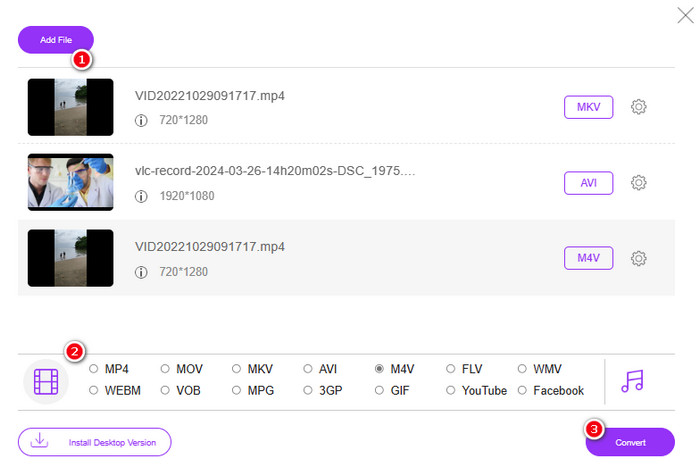
Step 3. As soon as they are set, click the Convert button to begin the conversion.
Abaixo estão mais dicas para conversões de imagens para MP4.
Extended Reading
How to Convert VLC to MP4: the Fastest Procedures to Master
Effortlessly Convert iPhone Videos to MP4 on PC Without Quality Loss
Parte 4. Perguntas frequentes sobre conversão de Webp e MP4
Por que eu converteria um arquivo de imagem como WebP em um vídeo como MP4?
-Você deve converter uma imagem em vídeo para maior compatibilidade e fins de preservação.
Imagens no formato WebP podem ser exibidas em todos os navegadores da web?
-Não. Alguns navegadores mais antigos, particularmente o Internet Explorer, não suportam WebP nativamente. No entanto, navegadores modernos suportam exibi-lo.
Como posso converter uma imagem para WebP?
-Você deve usar um criador WebP dedicado. Além disso, há várias ferramentas e bibliotecas disponíveis para converter imagens para o formato WebP.
Conclusão
With the WebP to MP4 converters presented above, your conversion experience will now be straightforward. Thus, the three commonly employed methods are used to achieve the desired conversion. If you encounter difficulties managing the process in one of them, feel free to do the conversion with the rest.
-
 Aprenda as abordagens mais fáceis para converter WebP em JPG rapidamente
 Vamos todos aprender maneiras eficazes de converter imagens da Web em JPG facilmente. Este artigo fornecerá excelentes conversores de imagem que você pode usar para converter arquivos de imagem.
-
 Métodos perfeitos para converter WebP em PNG sem esforço
 Conheça os métodos notáveis de conversão de WebP para PNG. Este guia fornecerá os conversores de imagens mais úteis que você pode experimentar.
-
 Métodos definitivos sobre como converter perfeitamente WebP em GIF
 Você quer converter WebP para GIF, mas não tem ideia do que fazer? Felizmente, esta postagem apresentará várias maneiras de como converter WebP em GIF instantaneamente.
