


 Video Converter Ultimate
 Gravador de ecrã
 Reparo de vídeo
 Secure Download
Como gravar gameplay no PS5 sem limites [Diretrizes abrangentes]
In just a matter of three years, the PlayStation 5 has flown off the shelves. It has hit over 50 million units sold ever since it was released, as it is a cool hardware and 4K gaming-giving console. Now, If you're keen to show off your gaming skills or share your epic gameplay moments with your fans, recording on a PlayStation 5 is a great option. If you are wondering how to record on PS5, it comes with this cool feature that you can use to capture, tweak, and share your gaming adventures on various platforms. But how exactly do you do all of this? Stick around to discover how to record and snap screenshots on your PS5, even how to do it using a limitless recording technique.

Parte 1. Como gravar gameplay no PS5
Certamente, o PS5 vem com um gravador integrado que ajudará você a gravar sua jogabilidade de tirar o fôlego. No entanto, vale a pena observar que o gravador do seu console vem com limitações e eficácia. Quando se trata de eficácia, é seguro dizer que ele é altamente eficaz na produção de vídeos gravados de alta qualidade. Por outro lado, quando se trata de suas limitações, você deve ter em mente que este console só pode permitir que você grave no máximo 60 minutos de tempo de jogo. Além disso, ele só permitirá que você produza vídeos em MP4 e WebM como seus formatos de saída suportados.
Enquanto isso, para a questão de como gravar a tela no gravador de jogabilidade integrado do PS5, permita que as etapas abaixo forneçam respostas para você.
Grave uma Jogabilidade
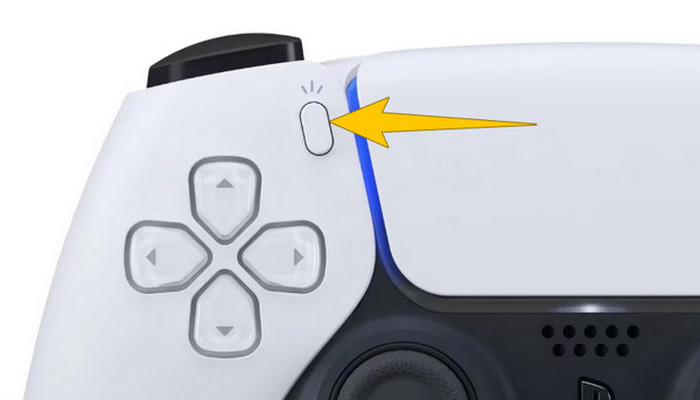
Step 1. Grab your DualSense controller and press the button above the arrow buttons. This represents the Create function and can be pressed when you are about to record your gameplay.
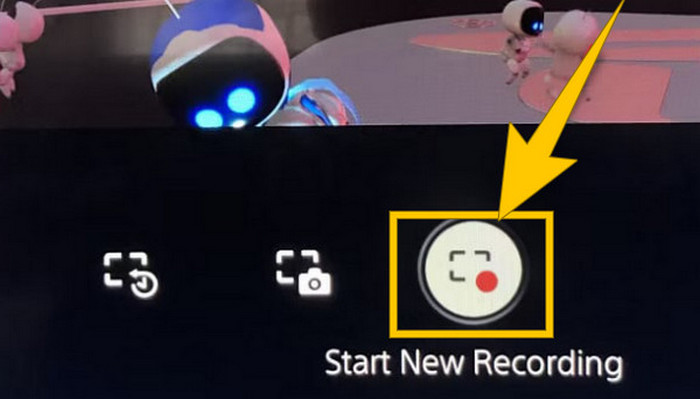
Step 2. After pressing the button, look at your screen and click the Start New Recording option. You will see this option at the bottom part. Immediately, the recording will start so you may begin your gameplay.
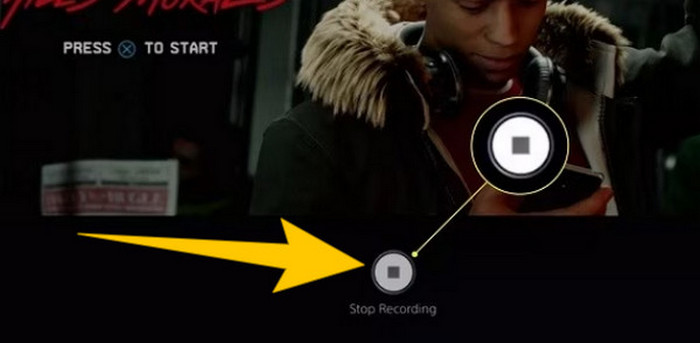
Step 3. Suppose you are done with your game, so here’s how to turn off gameplay recording on PS5. You just need to press the Create button again, and this time, click Stop Recording, which you will see on the screen.
Baixe as gravações
Após a gravação, o PS5 salvará automaticamente a saída na sua Galeria de Mídia, onde todos os arquivos são mantidos. Agora, se você quiser manter uma cópia para seu dispositivo separado, é uma pena informar que a referida galeria não tem a opção de download. No entanto, ainda há uma maneira de manter os arquivos.
Step 1. Connect your external SD or USB drive to your console. Then, go to your Media Gallery and open it.
Step 2. Select the screen recording that you recently saved. Then, click the Ellypsis or the three-dot button at the bottom part of the screen, along with the other options given.
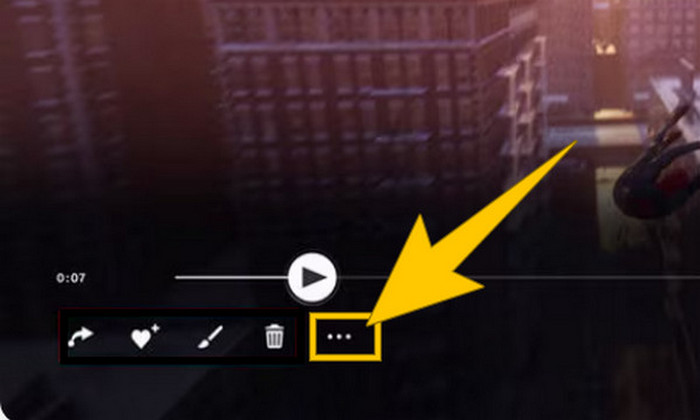
Step 3. Once clicked, select the Copy to USB Drive option to start copying the recorded video to your USB. Once done, transfer the video to the device where you want to keep the recorded file.
Parte 2. Como gravar a tela no PS5 em qualidade 4K sem limites
Do not fret if PlayStation 5 only lets you capture up to an hour of gameplay in good quality. We know how frustrating it is for most gamers, and not all games support this. So, for your unlimited recording with 4K quality on all PS5 games, you might want to check out FVC Screen Recorder. Yes, this screen recorder doesn't limit your recording time, just your computer's storage. Plus, it won't slow down your gameplay. With this amazing game recorder, you can also tweak your recordings before saving them. In fact, you can trim, merge, compress, convert, edit metadata, enhance the recording, and share it to your selected platforms breezily.
Também vale a pena notar que o FVC Screen Recorder oferece várias ferramentas de gravação para atender às suas tarefas de gravação. Com ele, você pode gravar vídeo, áudio, janelas, webcams, telefones, etc. Notavelmente, você pode aproveitar suas gravações sem marcas d'água incorporadas nelas! Então, para saber mais sobre o FVC Screen Recorder, siga as etapas abaixo para ver como gravar a tela no PS5.
Step 1. Get the FVC Screen Recorder by downloading it onto your computer. To do so, just click the Free Download button, then follow the instructions to install and open it.
Free DownloadFor Windows 7 or laterSecure Download
Free DownloadFor MacOS 10.7 or laterSecure Download
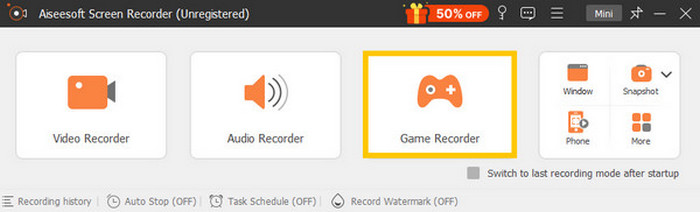
Step 2. Upon reaching the interface of FVC, find and click on the Game Recorder tool. It is located on the right-center side of the screen. From there, click the little arrow beside Select the Game to choose which window where your PS5 is screened.
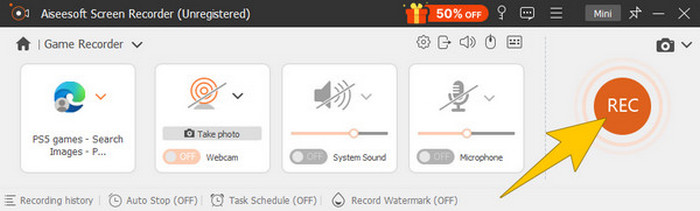
Step 3. Once you have selected the window, you will notice that the recorder will focus on it. Remarkably, you can also decide if you want to include your webcam for picture-in-picture recording, system sound, and microphone audio in your recording. When things are set, click the REC button to begin the game and recording.
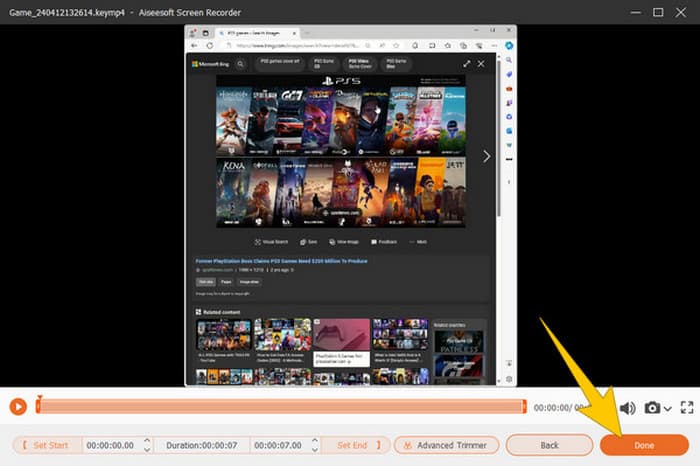
Step 4. When you are done recording, click the Stop button from the floating bar. Then, you can tweak the video using the editing tools provided from the new window. After that, click the Done button to save the recorded file on your gallery.
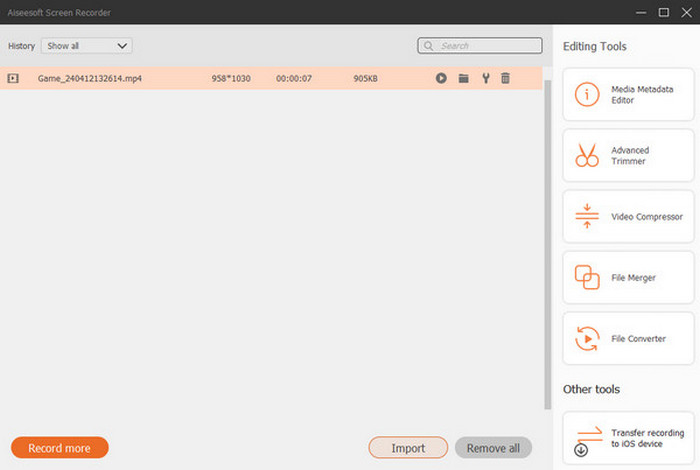
Step 5. This is an optional step. But if you want to share your recording to your social media accounts, you may right-click your most recent gameplay recording and then select the Share option. Also, you can use additional advanced editing tools to enhance your recordings.
Se você quiser saber mais sobre este gravador, aqui estão mais dicas para aprender.
Further Reading
5 Efficient Ways How to Record Screen to GIF on Mac & Windows
How to Record the Epic Stunts, Clutches, or Tutorials on Minecraft
Parte 3. Perguntas frequentes sobre gravação de gameplay no PS5
Como desativar a gravação do jogo no PS5?
Para desligar ou parar a gravação do gameplay no seu PS5, você só precisa pressionar o botão Create do seu controle de jogo. Então, na sua tela, clique na opção Stop Recording.
Onde posso ver meus clipes de jogo gravados no meu PS5?
Os clipes de gameplay gravados são armazenados na seção Capture da Main Gallery. Você pode acessar essa galeria na tela Home. Com ela, você pode visualizar, editar e compartilhar seus clipes conforme sua galeria permitir.
Como compartilharei minhas gravações no PS5?
Você pode compartilhar seus clipes após gravar no seu PS5 diretamente da Capture Gallery. Você só precisa selecionar o clipe que deseja compartilhar, clicar no botão Options no seu controle e selecionar a opção Share.
Conclusão
No more asking how to record on PS5, as this article provided you with the default and best ways. Thus, have qualitative and lengthy gameplay recordings of your desired. Then, share the solutions with your co-gamers for them to have the same exciting recording experience on their PS5!
-
 5 dos principais softwares de gravação de jogos que um jogador deve conhecer [2024]
 Você é um gamer que quer fazer uma gravação de jogo? Então este artigo lhe dará o melhor gravador de jogos que você pode usar para experimentar novas alturas de jogo.
-
 Os 5 principais aplicativos de gravador de tela para Android que você deve adquirir em 2024
 Está com problemas porque não consegue fazer uma gravação de tela no seu Android? Nesse caso, este artigo revisou os gravadores de tela do Android nos quais você pode baixar.
-
 Os 5 principais gravadores de reuniões com zoom para gravar reuniões com zoom [2024]
 Precisa gravar uma reunião de zoom para não perder os detalhes importantes da sua reunião? Nesse caso, este artigo fornece os melhores gravadores de zoom que você deve conhecer.
