


 Video Converter Ultimate
 Gravador de ecrã
 Reparo de vídeo
 Secure Download
Como compactar arquivos de áudio WAV sem perder qualidade
When people want to save their music files in a high-quality form, they often choose WAV as the format for their audio. However, as a general rule, the higher the quality, the more storage space the file will take up. Compared to MP3, WAV can provide high-quality sound, but the file size will be larger. Therefore, if you want to share a WAV file with your friends or want to upload it to social software, it is better to reduce its size first. We will introduce you to three different tools for compressing WAV files. Their advantages, disadvantages and detailed usage will also be shown to you. Read on to find out more.

Parte 1. Melhor maneira de compactar arquivo WAV
We start by recommending a fairly full-featured audio and video editing tool, FVC-picked Video Converter Ultimate. It comes with state-of-the-art analysis tools that can begin processing your files once you upload them. If you are looking for a tool that allows you to adjust the WAV audio compression percentage freely, it will be your best assistant. You can even edit the length of the audio, adjust the audio channel, and change the volume of the audio before exporting the file. After you open its built-in audio compressor, a brand new window pops up. There, you can see a lot of settings to choose from. It offers a high level of customization and allows you to have precise control over the audio parameters. If you think that the size of a WAV file is still too big, you can use the converter provided by FVC to convert the audio to a more easily distributable format, such as MP3.
Free DownloadFor Windows 7 or laterSecure Download
Free DownloadFor MacOS 10.7 or laterSecure Download
Aqui, ensinaremos como compactar arquivos WAV com o FVC Video Converter Ultimate.
Step 1. Download and install FVC Video Converter Ultimate on your computer.
Step 2. Enter the main interface of this software, and choose Toolbox > Audio Compressor.
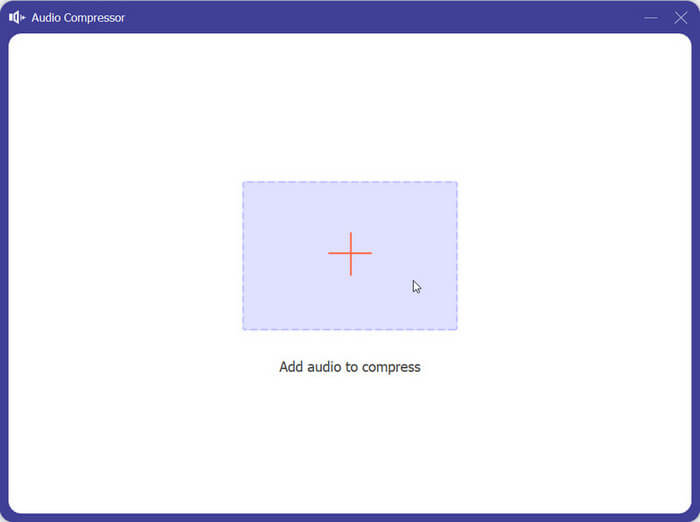
Step 3. After entering the Audio Compressor window, click the big plus button to upload your target WAV file.
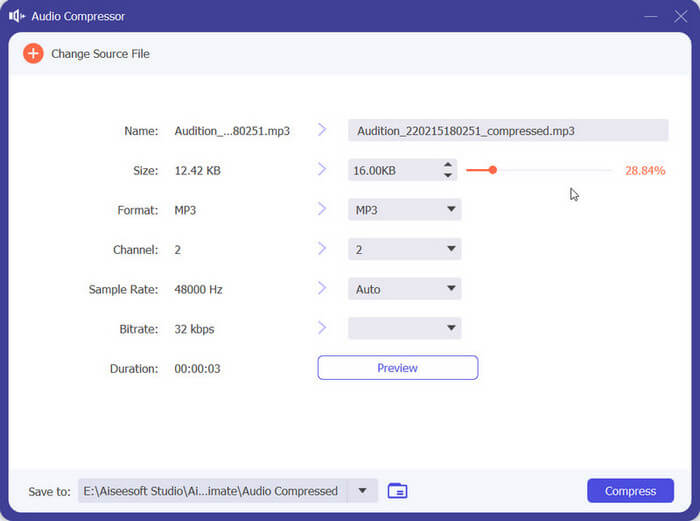
Step 4. You can set the file size after compressing by changing the volume of Size. After the adjustment, you can see the percentage of files that are compressed.
Você também pode definir o nome do arquivo, o formato, o canal de som, a taxa de amostragem e a taxa de bits do seu áudio aqui.
Step 5. To check the output audio, click Preview. If you are satisfied with the effect, click Compress.
Atualmente, ele pode comprimir áudio WAV até 50% do tamanho do arquivo de origem. Sua velocidade de compressão é tão rápida que dificilmente precisamos esperar para exportar o arquivo compactado. Quase não há perda de qualidade. No entanto, temos apenas 5 chances gratuitas e, se quisermos mais, precisamos pagar.
Parte 2. Compactar arquivo WAV online
O software de desktop oferece mais recursos de edição, mas exige que você os baixe e instale no seu computador. Isso também ocupa um pouco da memória do seu computador e leva algum tempo para iniciar o software. Se você quiser experimentar uma compressão de arquivo de áudio WAV mais rápida, experimente ferramentas online. Entre os muitos produtos disponíveis, recomendamos que você experimente o FreeConvert WAV Compressor, um compressor de tamanho livre com uma interface muito amigável. Tudo o que você precisa fazer é ir ao seu site oficial e você encontrará imediatamente o botão de destino. Mesmo que você nunca tenha usado antes, você poderá começar em pouco tempo.
Aqui, ensinaremos como reduzir o tamanho do arquivo WAV com o FreeConvert WAV Compressor.
Step 1. Open FreeConvert WAV Compressor with your browser.
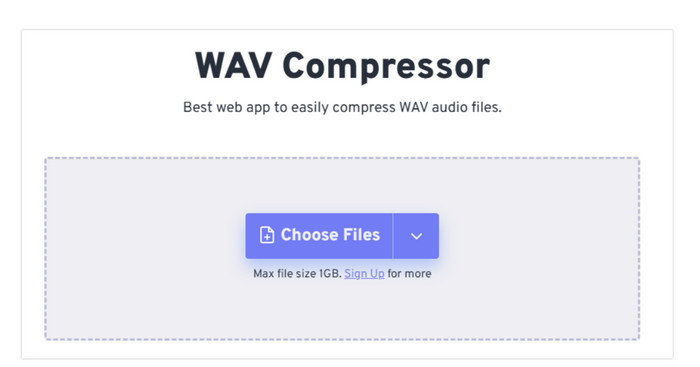
Step 2. Click Choose Files to upload the audio you want to compress.
.
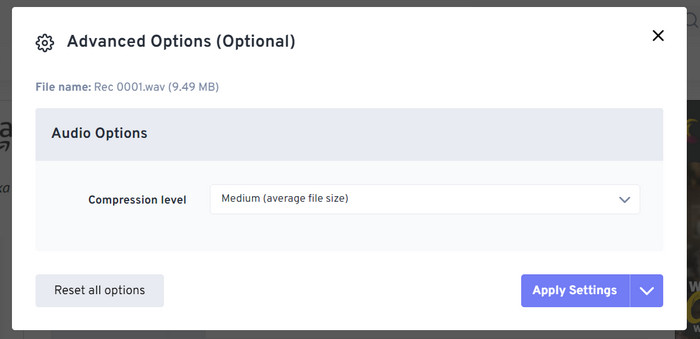
Step 3. To adjust the level of compression, click Advanced settings (optional). You can choose between Low, Medium, and Strong. Then, choose Apply Settings.
Step 4. Finally, click Compress Now. The program will run to compress your WAV file online.
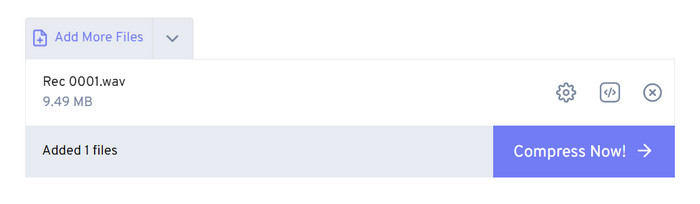
Após nossas tentativas, descobrimos que ele funciona de forma bastante eficiente, e a qualidade do som do arquivo de saída não é muito diferente do arquivo de origem. No entanto, há apenas três taxas de compressão que você pode escolher, e você não pode visualizar a porcentagem de compressão e o tamanho do arquivo compactado. Atualmente, os usuários só podem usá-lo para compactar arquivos de até 1 GB.
Parte 3. Compactar arquivo WAV no Audacity
In addition to all-in-one multimedia processing software, there are many tools designed specifically for audio. They will show more professionalism and sophistication in this aspect of editing music. If you use a professional tool to shrink WAV file size, the sound quality may be protected to the maximum. As one of the best, Audacity stands unbeaten all year round. Users can use it to complete a one-stop audio recording and modification process. The editing operations it can achieve include adjusting the length of the music, compressing the file size, converting the audio format, and adding special sound effects. They are all a piece of cake for it.
A seguir, orientaremos você na compactação de arquivos WAV com o Audacity.
Step 1. Download and install Audacity on your device.
Step 2. Open it, and press File > Open.
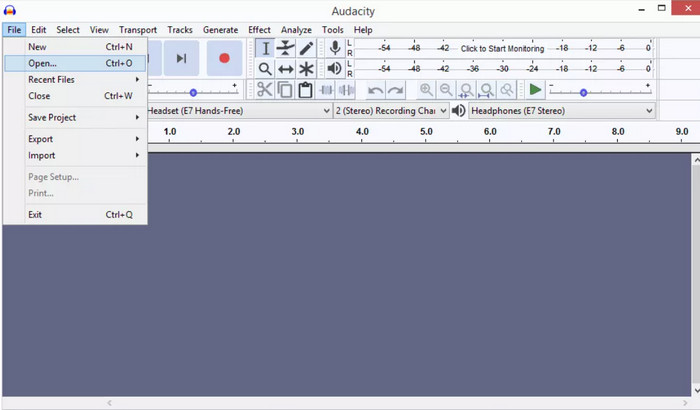
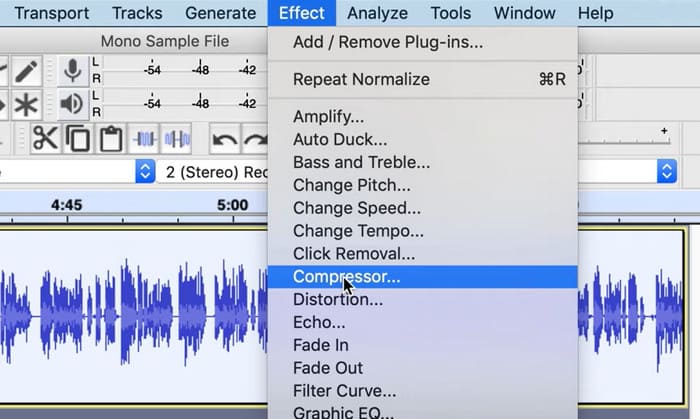
Step 3. Upload the file you want to compress and press Ctrl + A on your keyboard to select the audio track. Then, click Effect > Compressor.
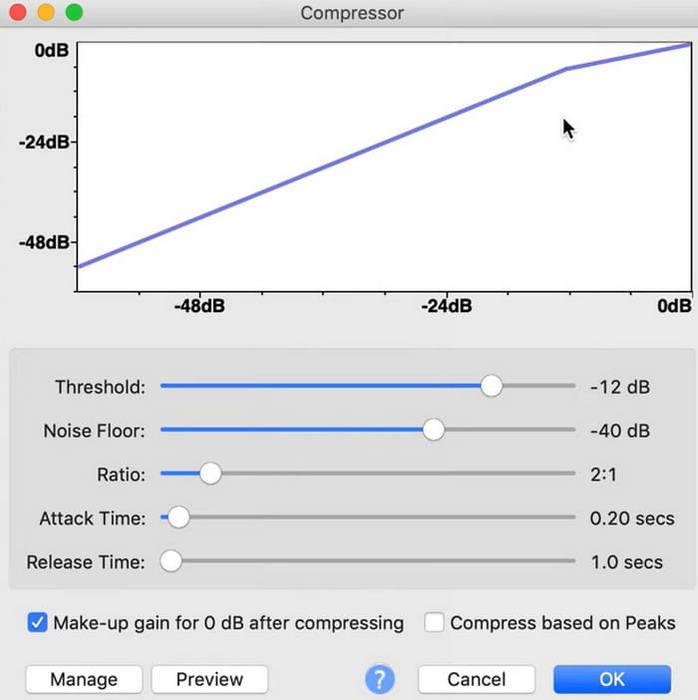
Step 4. Now, you can change the parameters of your WAV file, including the threshold, noise floor, ratio, attack, and release time.
Step 5. Finally, click File again and choose Export.
Ele permite que você compacte arquivos WAV gratuitamente e sem limitações de tamanho de arquivo. Você pode controlar precisamente a taxa de compressão e exportar o produto finalizado assim que aplicar as configurações. Sua interface é bastante complexa, e usuários inexperientes terão dificuldade em encontrar os recursos de que precisam. Levará algum tempo para aprender a usá-lo habilmente.
Parte 4. Perguntas frequentes sobre compactação de arquivos WAV
Por que meu arquivo WAV é tão grande?
WAV files are typically uncompressed audio files that store audio data in a raw format without any loss of quality. Also, WAV files often have a higher bit depth and sample rate than compressed audio formats. If you need to reduce the size of your WAV file, you can consider compressing it or converting WAV to MP3.
A compactação de um arquivo WAV reduz a qualidade?
Quando você compacta um arquivo WAV para um formato de áudio com perdas, como MP3, AAC ou OGG, isso normalmente resulta em uma redução na qualidade do áudio. No entanto, escolher uma boa ferramenta de compactação pode compensar esse problema até certo ponto. É importante considerar o equilíbrio entre o tamanho do arquivo e a qualidade do áudio.
É possível cortar um arquivo WAV no Windows Media Player?
O Windows Media Player não tem recursos internos para edição direta ou corte de arquivos de áudio como arquivos WAV. Para cortar um arquivo WAV no Windows, você pode usar outros aplicativos de software que oferecem recursos de edição de áudio, como FVC Video Converter Ultimate e Audacity.
Conclusão
This article is designed to help you solve the problem of compressing WAV files. We have provided three tools for you to choose from. If you want to enjoy a more comprehensive audio editing service, use FVC-picked Video Converter Ultimate. If you don't want to download additional software to your computer, you can consider FreeConvert WAV Compressor. If you want the most professional audio processing software to compress your files, Audacity will meet your needs.
-
 WAV Player - 5 principais aplicativos de player WAV para Android, iPhone, PC e Mac
 Como reproduzir arquivos WAV no telefone Android? Qual jogador pode jogar WAV? Esta postagem compartilha os 5 melhores reprodutores WAV gratuitos para Android, iPhone, Mac e PC.
-
 Tutorial detalhado de compressão de áudio em 2024 (passo a passo)
 Você precisa compactar áudio, mas precisa de ajuda para descobrir por onde começar? Neste post apresentaremos as melhores opções para reduzir o tamanho do arquivo de suas trilhas.
-
 Compressores de áudio eficazes para usuários offline e online
 Teve algum problema com arquivos de áudio grandes? Existem muitos compressores de arquivos de áudio disponíveis para usuários offline e online. Confira aqui.
