


 Video Converter Ultimate
 Gravador de ecrã
 Reparo de vídeo
 Secure Download
Você pode fazer um toque de um vídeo e como aplicá-lo
Setting your favorite ringtones has always been a popular operation for many smartphone users. Whenever you hear your favorite music, connecting to the phone becomes more enjoyable. With the development of technology, the range of ringtones that people can choose from has broadened considerably. Now, not only can we record our audio and download our favorite songs, but we can even extract the audio from videos as ringtones for incoming calls. This operation is simple, and there are many tools available to help with it. How do we choose between them? In the following, we will provide you with a detailed guide to making a video as a ringtone. Whether you are an Android or Apple user, you will be able to find what you need.

Parte 1. Você pode definir um vídeo como toque
Antes de começarmos, vamos primeiro considerar a viabilidade de definir um vídeo como toque. A resposta, claro, é sim. Em geral, você precisa extrair o áudio do vídeo e convertê-lo para um formato de toque suportado pelo seu telefone para começar. Você também pode considerar a essência desse ato como converter um arquivo do formato de vídeo para o formato de áudio. Softwares profissionais de edição de áudio e vídeo e conversores de formato podem ajudá-lo a converter vídeo em toque gratuitamente. É importante observar que celulares que executam sistemas diferentes suportam diferentes formatos de toque, e você precisa ter certeza de que pesquisou as informações sobre os formatos de áudio suportados pelo seu dispositivo antes de iniciar a operação.
Parte 2. Faça um toque de um vídeo
After learning that we can make a ringtone from a video, we need to pick the right tool for the job. We highly recommend you try FVC-picked Video Converter Ultimate. It's a perfect audio and video converter that allows you to edit the audio in the video individually and adjust the music volume, sound effects, audio track, etc. You can also let it help you change the audio if there is a delay. Currently, it supports more than a hundred formats, which means that it can convert your video to a format suitable for any smartphone, and you won't encounter any compatibility problems. With hardware acceleration technology, it is capable of converting any file at a 30X faster speed. During processing, there will be no loss of sound quality of your files, and your privacy will not be violated.
Free DownloadFor Windows 7 or laterSecure Download
Free DownloadFor MacOS 10.7 or laterSecure Download
Depois de ter uma ideia geral do FVC Video Converter Ultimate, precisamos entender como realmente aplicá-lo para transformar um vídeo em um toque. Em seguida, dissecaremos as etapas detalhadas para você das perspectivas de telefones iPhone e Android.
Crie um vídeo como toque para o iPhone
First, let's discuss how to make a ringtone for your iPhone. The first thing we need to know is that the iPhone currently supports ringtones in M4R format. Then, we can start the operation.
Step 1. Download the video you want to convert on your computer. Also, you need to get FVC Video Converter Ultimate on the device.
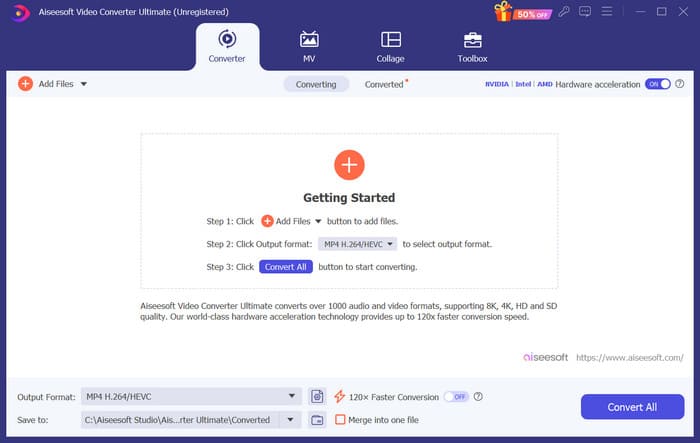
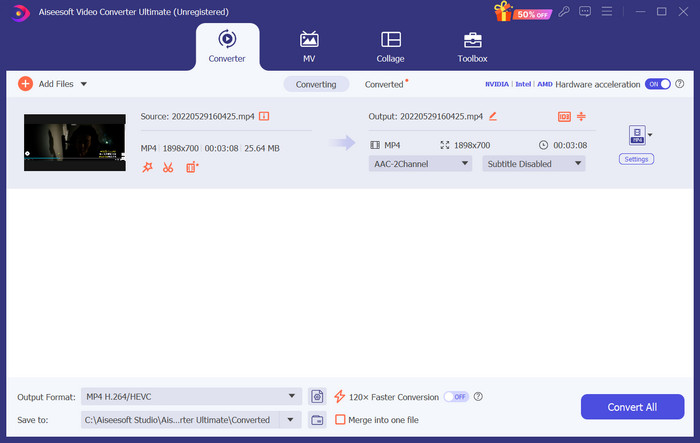
Step 2. Convert the video into M4R format. To apply this operation, click Add Files to upload your video first.
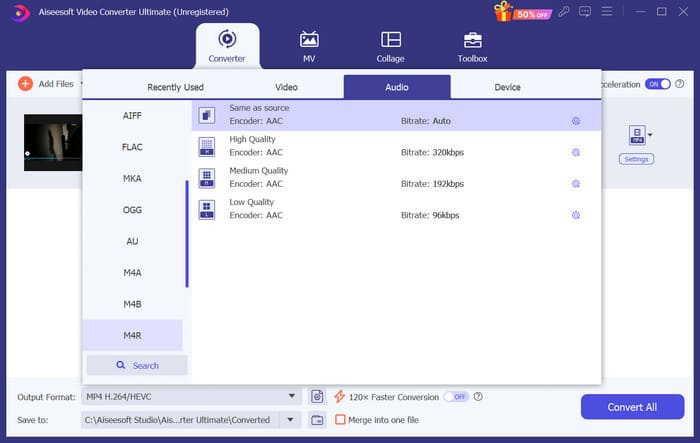
Step 3. Expand the menu next to Output Format. Here, you can find the format you need.
Step 4. Click Audio, and choose M4R among all the options.
Step 5. Then, click Convert All to export the M4R audio.
Step 6. Next, upload the converted video to the program. If you want to trim the audio file, click Cut on the interface. If you want to adjust the audio track or the volume, click Edit.
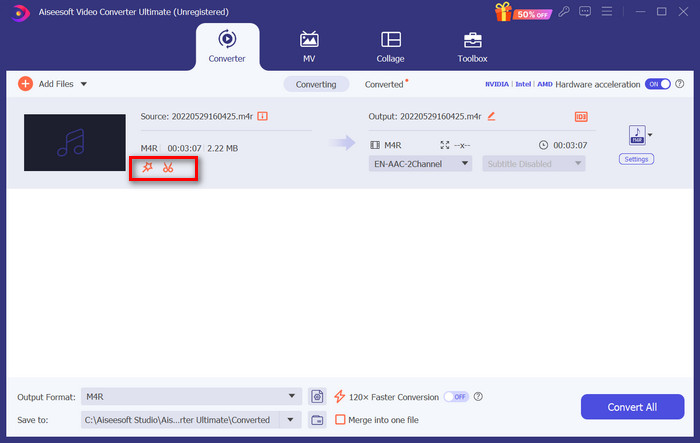
Step 7. Finally, click Convert All again to get your edited M4R ringtone.
Faça um vídeo como toque para Android
Se você quiser transformar um vídeo em um toque de celular Android, considere converter seus arquivos de vídeo para MP3, M4A, WAV ou OGG.
Veja o que você precisa fazer para converter um vídeo em um toque.
Step 1. Download and install FVC Converter Ultimate on your computer. Prepare your video for the conversion.
Step 2. Click Add Files to upload your target video to the platform.
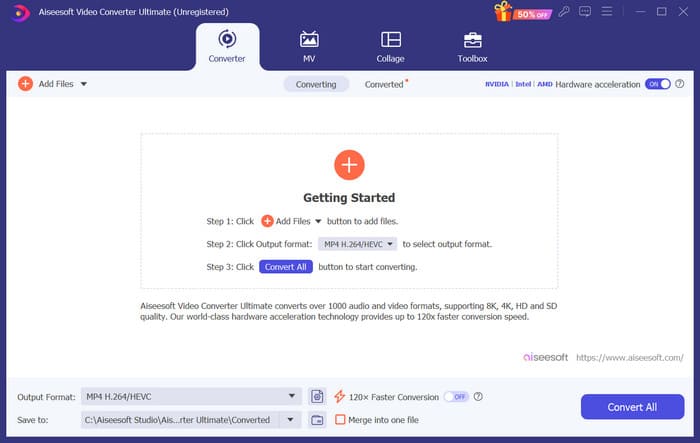
Step 3. Drop down the format list next to Output Format.
Step 4. Click Audio. Depending on your needs, you can convert your video to MP3, M4A, WAV, or OGG.
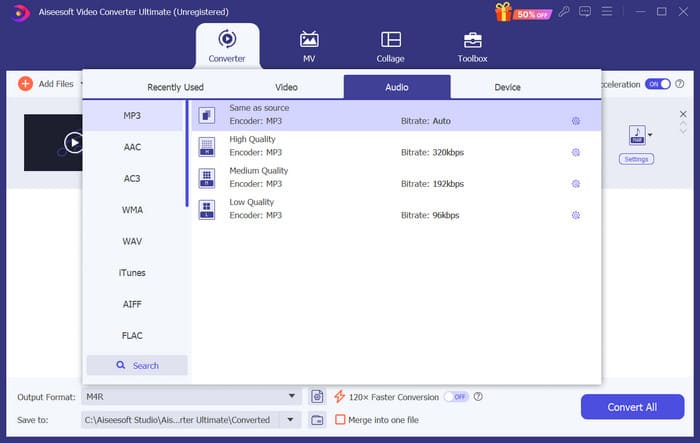
Step 5. Choose Convert All to download your transferred audio first.
Step 6. Add your audio to the software again. Then, click Cut to choose the part you want to use as your ringtone. The functions under Edit can also help you modify some elements of your file.
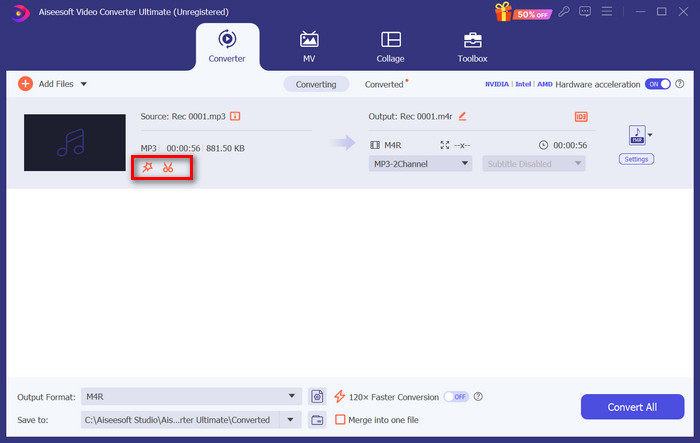
Step 7. After finishing editing, click Convert All.
Parte 3. Defina o áudio convertido como um toque
Agora que editamos o arquivo de áudio, precisamos ir mais longe nas configurações do telefone para definir esse vídeo convertido como toque.
Definir toque no iPhone
If you are using an iPhone, you may need some tools to set your chosen M4R audio as a ringtone. GarageBand is a good choice.
Aqui, ensinaremos como fazer um toque com o GarageBand usando o áudio de um vídeo.
Step 1. Make sure you have your edited audio file on your iPhone. Then, open GarageBand.
Step 2. After launching GarageBand, come to Loop and choose Files. Then, tap Browse items from the Files app to locate the audio you want to use.
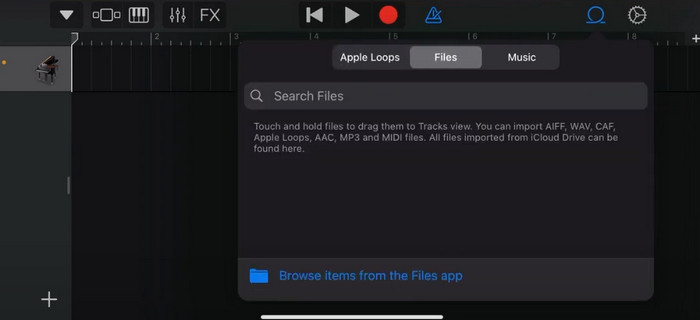
Step 3. Put your chosen M4R audio file on the GarageBand timeline.
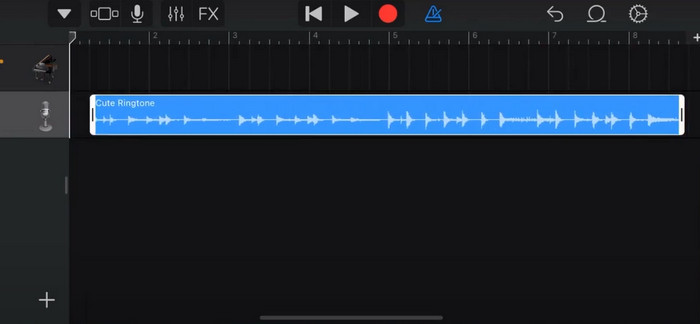
Step 4. Tap Metronome to disable it. Tap the arrow down icon > My Songs.
Step 5. Long press on the sound clip and select Share.
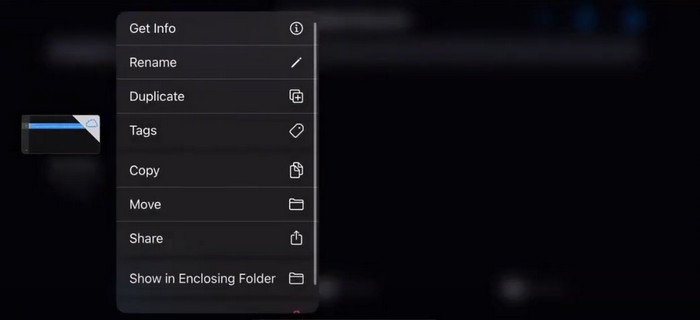
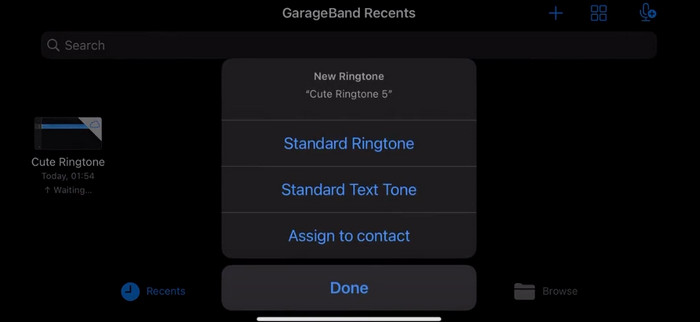
Step 6. Choose Ringtone > Export. When the window of Use sound as appears, tap Standard Ringtone.
Definir toque no Android
Se você quiser fazer com que seu áudio extraído de vídeos seja usado como toques no seu dispositivo Android, faça isso diretamente no aplicativo Configurações. Os passos exatos são um pouco mais fáceis.
Tomaremos o telefone Samsung como exemplo e mostraremos como aplicá-lo em detalhes.
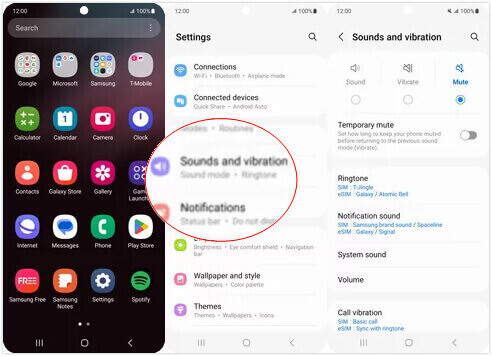
Step 1. Go to Settings on your Android device, and tap Sounds and vibration.
Step 2. Select Sound under the Sound mode section. Next, tap on the Notification sound.
Step 3. Select the audio file you have converted and edited. This setting is applied when you return to the previous page.
Parte 4. Perguntas frequentes sobre como fazer um vídeo como toque
Como adiciono toques ao meu telefone Android?
No seu telefone Android, vá para Configurações e procure pela opção Som ou Sons e vibração. Selecione Toque do telefone ou Toque para escolher um toque personalizado. Seu toque personalizado agora deve aparecer na lista de toques disponíveis. Selecione-o para defini-lo como seu toque.
Posso baixar o toque do iPhone para Android?
Yes, you can download iPhone ringtones and use them on an Android device. However, iPhone ringtones are typically in the M4R format, which is not directly compatible with the Android system. You will need to convert the iPhone ringtone to a format that is supported on Android, such as MP3 or AAC. For example, the converter picked by FVC can help you convert M4R to MP3.
Por que meu telefone não toca nas chamadas recebidas?
Se o seu telefone não estiver tocando em chamadas recebidas, pode haver vários motivos para esse problema. Certifique-se de que o volume do seu telefone esteja alto e não mudo. Além disso, verifique se o seu telefone está no modo Não Perturbe. Este modo silencia todas as chamadas e notificações. Se o problema ainda não for resolvido, tente reiniciar o telefone para atualizar o sistema.
Conclusão
This is a complete guide to making a video of your ringtone. We recommend one of the best tools, FVC Video Converter Ultimate, for you to help you tweak your video files to look the way you want. This tool is available for both iPhone and Android phones, so no matter which system your device is running, you can make your favorite with its help.
-
 As 3 principais soluções para compactar arquivos WAV em um tamanho menor
 Se você também está procurando maneiras de comprimir o tamanho de arquivos de áudio WAV, leia nosso conteúdo. Apresentaremos a você diferentes ferramentas de três aspectos.
-
 Tutorial detalhado de compressão de áudio em 2024 (passo a passo)
 Você precisa compactar áudio, mas precisa de ajuda para descobrir por onde começar? Neste post apresentaremos as melhores opções para reduzir o tamanho do arquivo de suas trilhas.
-
 Compressores de áudio eficazes para usuários offline e online
 Teve algum problema com arquivos de áudio grandes? Existem muitos compressores de arquivos de áudio disponíveis para usuários offline e online. Confira aqui.
