


 Video Converter Ultimate
 Gravador de ecrã
 Reparo de vídeo
 Secure Download
4 métodos eficazes: como reduzir o tamanho do arquivo de fotos no iPhone
Usually, with our iPhones, we need to directly upload photos on certain websites or send them via email or other platforms. However, photos taken from iPhones usually come in large file sizes because of the high quality of the images captured by its advanced cameras. To reduce the file size of photos on your iPhone without compromising too much on quality, here are four effective methods you need to check out. Continue reading to learn them all!

Parte 1. Reduza o tamanho do arquivo de foto no iPhone nas configurações da câmera
The simplest and quickest way to reduce photo file size on iPhone is within its Settings app. With this method, you can choose the format for all of the photos you take with your iPhone camera. The thing with iPhones is that they are usually set in the most compatible format, which, in turn, will save photos taken in large sizes. However, if you want to save storage, you need to adjust your camera format settings to high efficiency and turn off the HEIC format. This kind of camera setting will not reduce the quality of the images, but it will save you lots of space on your iPhone.
Veja como você pode reduzir o tamanho do arquivo nas configurações da câmera:
Step 1. On your iPhone, go to Settings, look for Camera, and choose Formats.
Step 2. At the top of the screen, choose High Efficiency. This format allows you to have the smallest photo size without reducing quality.
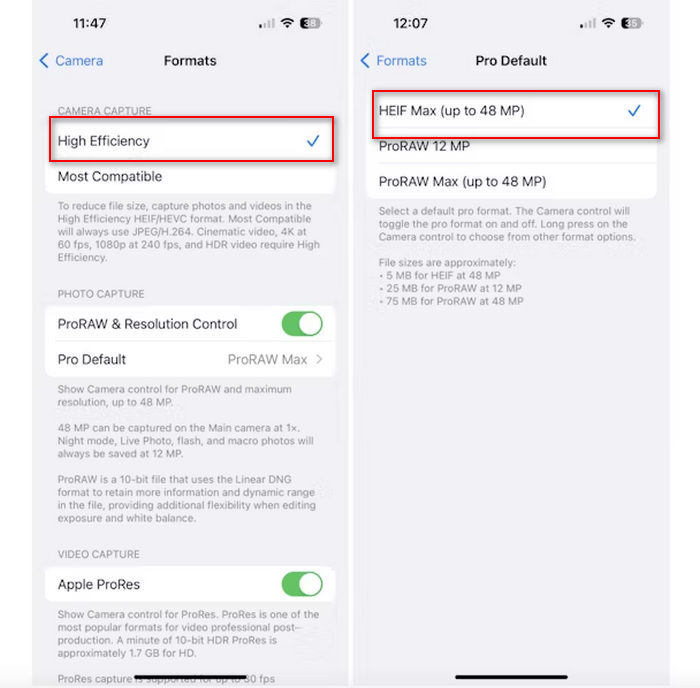
Step 3. To further shrink the size of your image files, tap Pro Default and choose HEIF Max up to 48 MP. This will limit your photo size to approximately 5 MB.
Reduzir o tamanho do arquivo em um iPhone alterando suas configurações de câmera pode ser uma boa maneira de compactar imagens. No entanto, levaria algum tempo quando você quisesse alterar as configurações da câmera quando também quisesse tirar fotos de alta qualidade que podem ter um tamanho de arquivo grande.
Parte 2. Comprimir fotos no iPhone cortando
O corte é um método eficaz para reduzir o tamanho de uma imagem em um iPhone porque remove partes desnecessárias da foto, diminuindo assim o tamanho geral do arquivo. Quando você corta uma foto, você está essencialmente cortando partes da imagem que não precisa, o que não só foca nos elementos importantes da imagem, mas também reduz a quantidade de dados que o arquivo contém. Isso pode ser particularmente útil para economizar espaço de armazenamento no seu iPhone e facilitar o compartilhamento de fotos em várias plataformas.
Veja como você pode compactar fotos no seu iPhone cortando-as:
Step 1. Open the photo in the Photos app that you want to reduce the file size and tap Edit.
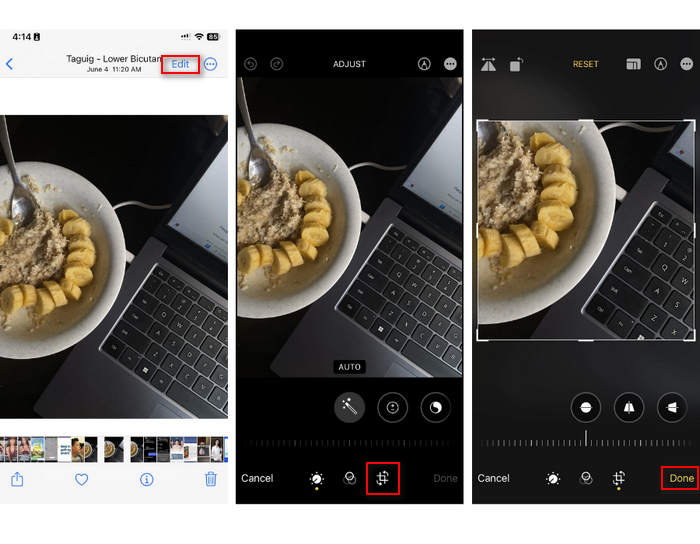
Step 2. Now, tap the Crop button at the bottom and crop the unwanted parts from the photo.
Step 3. Adjust the crop as desired, then tap Done.
Embora isso possa reduzir o tamanho do arquivo de fotos em um iPhone, esse método nem sempre será aplicável em todos os momentos, por isso é recomendável usar outras ferramentas para compactar fotos em um iPhone além desta.
Parte 3. Reduza o tamanho do arquivo de fotos no iPhone por meio do aplicativo de mídia social
WhatsApp allows users to reduce the size of photo files on their iPhones. It provides an option to compress the image to a smaller size before sending it, which helps save storage space and makes it easier to share photos.
Veja como você pode compactar fotos no seu iPhone usando o WhatsApp:
Step 1. On your WhatsApp, open a text message.
Step 2. Next, tap the photo icon and choose the photo you want to send.
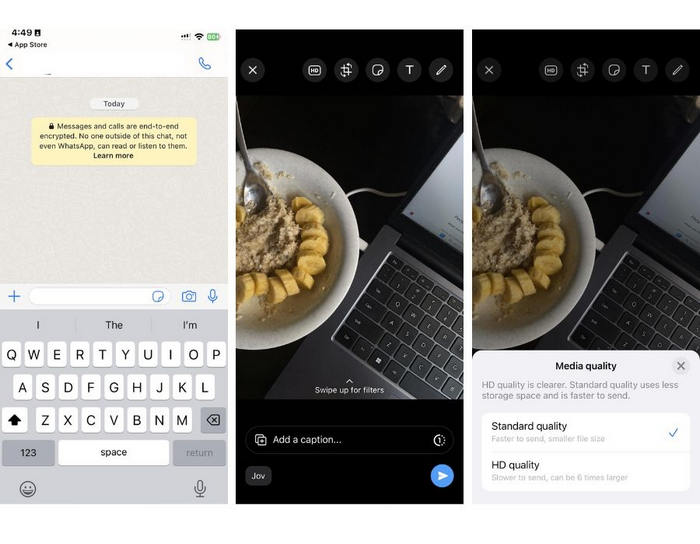
Step 3. After that, tap HD to adjust the file’s size by choosing to send your photo in standard quality.
Step 4. Tap the arrow to send your message and download it.
Este método é altamente recomendado para aqueles que têm o WhatsApp instalado em seus iPhones. Embora seja uma ótima maneira de reduzir o tamanho do arquivo de foto em um iPhone, ele afetará significativamente a qualidade da foto.
Parte 4. Comprimir fotos no iPhone com ferramenta online
Meanwhile, if you’re looking for a direct and easiest way to reduce photo file size on iPhones, the best tool that you can use is the FVC Free Image Compressor. You just need to access this tool online, upload the photo that you want to compress and done. Moreover, with this tool, you can compress multiple photos straight from your iPhone and significantly compress them without losing much of their qualities compared to other methods mentioned above.
Veja como você pode compactar fotos no seu iPhone usando o FVC Free Image Compressor:
Step 1. On your Safari, search for FVC Free Image Compressor.
Step 2. Tap the Upload Images button to import the photos for which you want to reduce the file size.
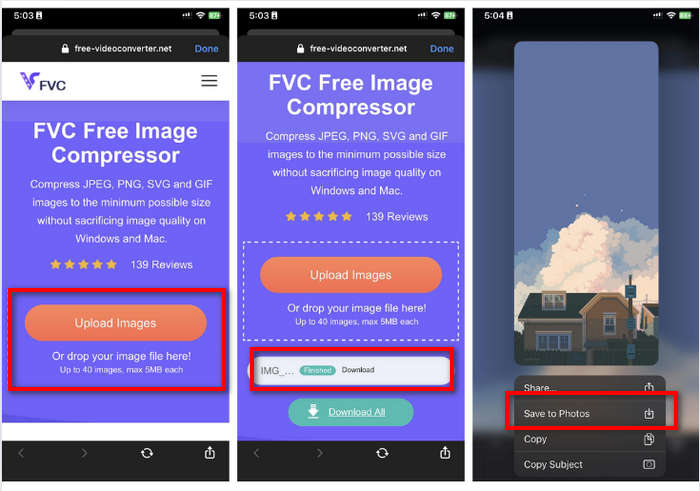
Step 3. After that, it will automatically compress your photos. Tap the Download button, long-press the compressed photo, and choose the Save to Photos option.
Com o FVC Free Image Compressor, reduzir o tamanho do arquivo de foto no iPhone pode ser feito muito rapidamente sem perder muito de sua qualidade. Além disso, sua acessibilidade e interface amigável o tornam uma ferramenta essencial para usuários de iPhone compactarem suas fotos.
Parte 5. Perguntas frequentes sobre como reduzir o tamanho do arquivo de fotos no iPhone
Como posso reduzir o tamanho do arquivo JPEG sem perder a resolução?
Para reduzir o tamanho de um JPEG sem perder a resolução, você pode usar o FVC Free Image Compressor. Esta ferramenta online permite que você compacte suas fotos preservando sua qualidade. Basta carregar ou importar o arquivo de imagem para a ferramenta, e ela o compactará automaticamente para você. Você pode então baixar a foto compactada de volta para seu iPhone.
Como posso ver o tamanho do arquivo de fotos em um iPhone?
Você pode ver o tamanho do arquivo das suas fotos no aplicativo Arquivos do seu iPhone. Se a sua foto não estiver no aplicativo Arquivos, você precisa carregá-la para o seu iCloud primeiro. Depois que a foto estiver no iCloud, você pode ver o tamanho do arquivo acessando-a pelo aplicativo Arquivos.
Que tipo de foto é tirada pelo iPhone?
Os iPhones geralmente salvam fotos no formato HEIC ou High-Efficiency Image Coding por padrão. O HEIC oferece melhor compactação do que o JPEG, mantendo alta qualidade. Você pode alterar essa configuração na seção Câmera do aplicativo Ajustes em Formatos.
Conclusão
Since iPhones take a large file size when taking photos, sharing and uploading can be challenging. Therefore, learning how to reduce photo file size on iPhones is a great move when you want to optimize your photos for seamless utilization. Now, it’s up to you what method you use to compress your photos. What are you waiting for? Compress your photos on your iPhone now!
-
 Como redimensionar uma imagem – Adobe Resize Image [Online e Offline]
 Se você estiver procurando por redimensionamento de imagem da Adobe, temos a solução para você. Veja este post completamente para saber como redimensionar imagens usando o Adobe no seu PC.
-
 Ferramentas criativas do programa de redimensionamento de GIF disponíveis com conveniência
 Redimensionar GIFs pode ser uma tarefa dolorosa. Use os programas certos para redimensionar seus GIFs e realizar seu trabalho perfeitamente. Verifique este artigo para obter mais informações.
-
 3 maneiras de redimensionar a imagem para o Twitter sem perder a qualidade
 Para redimensionar a imagem para o Twitter, você precisará ter um redimensionador de fotos na mão. Não tem um? Em seguida, escolha na lista.
