


 Video Converter Ultimate
 Gravador de ecrã
 Reparo de vídeo
 Secure Download
3 principais maneiras de jogar MP4 no Chromebook
O Chromebook não reproduz mais vídeos MP4? Recentemente, muitos usuários reclamaram do problema de vídeo não reproduzido no Chromebook. Você está enfrentando a mesma situação?
Chromebook is a laptop that produced by Google. It runs the Chrome OS and supports many file types and cloud storage services. It is able to store videos in Google Drive and Google's cloud storage for viewing. Do you know how to play MP4 on Chromebook?

Chromebook has a built-in video player to play media files. However, some MP4 files just fail to be played by it. Considering that, this post like to share 3 effective ways to help you play MP4 files on Chromebook.
Parte 1. Como jogar MP4 no Chromebook com o Google Drive
Quando o reprodutor de vídeo nativo do Chrome OS não consegue ler o codec de contêiner MP4, ele não consegue reproduzir MP4 no Chromebook. Nesse caso, você pode escolher reproduzir arquivos MP4 por meio do Google Drive. O Chromebook permite que você armazene vídeos MP4 no Google Drive, Dropbox e outros serviços de armazenamento em nuvem. Você pode abrir o vídeo MP4 com o Google Drive no Chromebook.
Quando você deseja reproduzir MP4 no Chromebook, primeiro deve fazer upload dos arquivos MP4 para o Google Drive. Depois, você pode localizar o MP4 no Google Drive e reproduzi-lo.
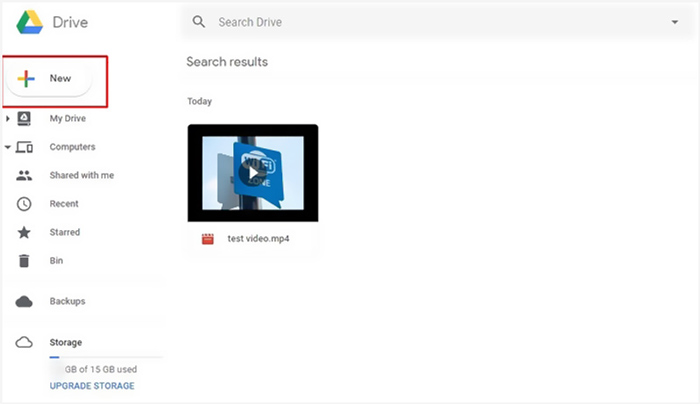
Observe que, para reproduzir arquivos MP4 no Chromebook por meio do Google Drive, é necessária uma boa conexão de rede.
Parte 2. Instale o VLC para Chrome OS para reproduzir MP4 no Chromebook
Besides the method above, you can also get a third-party media player for MP4 playing on your Chromebook. Because Chromebook is running Chrome OS, so you may not have many good player options. Fortunately, the popular VLC Media Player brings a Chrome OS version that allows you to enjoy all types of video and audio files on Chromebook. You can rely on it to play MP4 on Chromebook with ease.
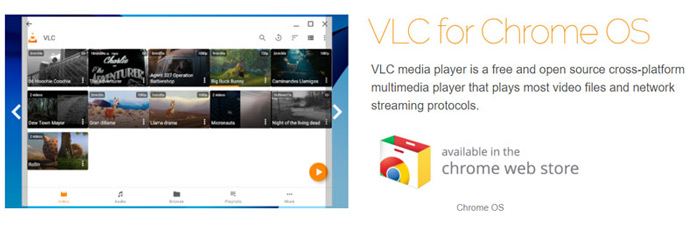
Open Chrome Web Store on your Chromebook and search for the VLC. When you find the VLC for Chrome OS, follow the instructions to install it. Then you can play MP4 files on Chromebook with VLC. It highly supports most media files, network streams and DVDs. Apart from MP4, VLC for Chrome OS can also play MOV, MKV, AVI, OGG, TS, M2TS, AAC, MP3, FLAC, and more.
Parte 3. Converter formato de vídeo para reprodução MP4 no Chromebook
MP4 é um contêiner de arquivo para codecs de vídeo e áudio. O Chromebook suporta apenas vídeo MP4 codificado com o codec de compressão H.264 ou MPEG-4. Portanto, quando quiser reproduzir MP4 no Chromebook, você deve transcodificar MP4 para um formato compatível com o Chromebook. Além de MP4, o Chromebook também oferece suporte a vídeos em 3GP, WebM, MOV e AVI com codec específico.
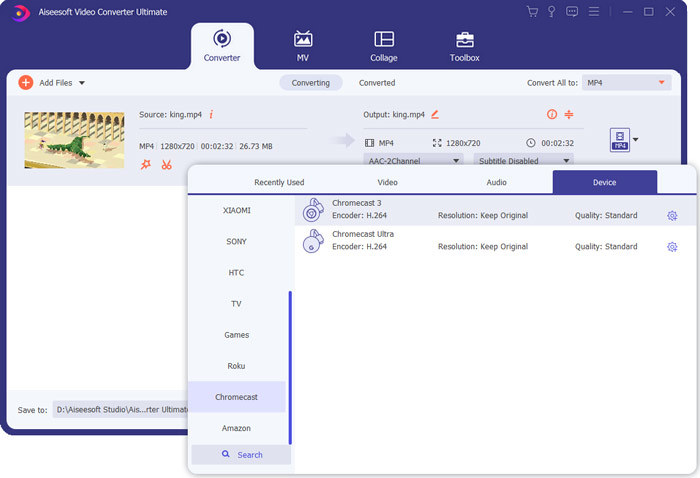
To convert MP4 to Chromebook supported format, you can rely on the professional video to Chromebook converter, Video Converter Ultimate. It has a specific Chromebook category for you to directly convert MP4 to Chromebook supported format. More importantly, it can convert video without quality loss.
- • Converta vídeo MP4 em arquivo compatível com o Chromebook sem perder qualidade.
- • Converta vídeo 8K / 5K / 4K, 1080p / 720p HD e SD para mais de 500 formatos como MOV, MP4, AVI, FLV, MP3 e muito mais.
- • Recursos de edição poderosos, adicione filtros e vários efeitos e melhore a qualidade.
- • Suporta aceleração de hardware sem precedentes e otimização de processador multicore.
Step 1. First, you should free install this MP4 to Chromebook converter on your computer. It is compatible with both Windows 10/8/7 PC and Mac.
Free DownloadFor Windows 7 or laterSecure Download
Free DownloadFor MacOS 10.7 or laterSecure Download
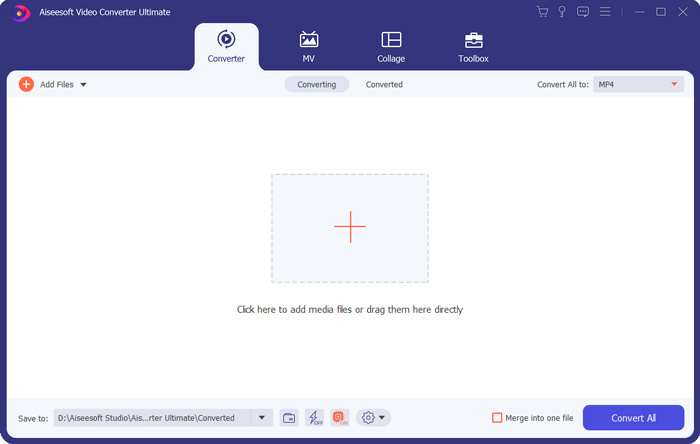
Step 2. Launch it and make sure you are using the Converter feature. Then click the big + or Add Files button to import your MP4 file. You are allowed to add and convert one or more videos at a time.
Step 3. Click on the format icon on the right side of the imported video. Select a suitable output format from the drop-down list. Here you can click on the Device tab to locate a Chromebook supported format.
Step 4. Before the final conversion, you can use different editing features to edit video, enhance its quality and custom output effects. After all these operations, you can simply click on the Convert All button to start converting MP4 to Chromebook.
Com apenas alguns cliques, você pode converter facilmente o vídeo em um arquivo compatível com o Chromebook. Em seguida, você pode transferi-lo para seu Chromebook para reprodução.
Parte 4. Perguntas frequentes sobre como jogar MP4 no Chromebook
Pergunta 1. Quais formatos de vídeo são reproduzidos no Chromebook?
Os Chromebooks podem oferecer suporte a muitos tipos de arquivos, dispositivos externos e sistemas de armazenamento em nuvem. Para os formatos de vídeo, ele pode reproduzir MP4, MOV, M4V, MKV, OGG, 3GP, OGM, WebM, WAV, AVI e muito mais.
Pergunta 2. Por que não consigo usar o Google Play no Chromebook?
Você tem permissão para usar o Google Play no Chromebook. Mas você precisa habilitar esse recurso primeiro. Você pode ir para Configurações no Chromebook, escolher a seção Google Play Store e, em seguida, ativar o recurso. Depois disso, você pode usar o Google Play no Chromebook normalmente.
Pergunta 3. Como habilitar o flash player no Chrome?
Quando quiser usar o flash player no Google Chrome, você pode clicar no ícone de cadeado no lado esquerdo da barra de endereço. Clique na caixa Flash e escolha o botão Permitir. Clique em Recarregar para salvar a alteração. Ao fazer isso, você pode usar o flash player no Chrome.
Conclusão
Can’t play MP4 on Chromebook? After reading this post, you can get 3 useful tips to solve the problem. For more questions about how to play MP4 on Chromebook, you can leave us a message.
-
 Tutorial para abrir e converter arquivos ARF com WebEx ARF Player
 Aqui estão as etapas detalhadas para usar o WebEx ARF Player. Você pode reproduzir e converter arquivos ARF WebEx em seu computador Windows e Mac com facilidade. Além disso, você pode melhorar a experiência de reprodução com um terceiro player ARF também.
-
 Obtenha seu melhor reprodutor MP4 para reproduzir arquivos MP4 com alta qualidade visual
 Leia e obtenha o seu melhor MP4 player com as recomendações dos 10 softwares mais recentes para MP4 video player. Você pode reproduzir arquivos de vídeo MP4 no Windows e Mac sem problemas, sem atrasos.
-
 AVI VS MP4 - Diferenças e semelhanças entre os formatos AVI e MP4 - FVC
 Qual é o melhor formato de vídeo, AVI ou MP4? Se você deseja obter uma comparação detalhada, você pode verificar este artigo AVI VS MP4. Você pode saber as diferenças e semelhanças entre AVI e MP4 em muitos aspectos.
