


 Video Converter Ultimate
 Gravador de ecrã
 Reparo de vídeo
 Secure Download
Como converter e enviar qualquer arquivo de vídeo FLV para o YouTube
“I just uploaded a video file with .flv extension, but I got the warning message said invalid file format, how to upload FLV to YouTube?” FLV is not only a file extension, but also a video container. It means that a FLV video file can store various video and audio codec and some of them are not supported by YouTube. This article will tell you everything you need to know about how to upload FLV to YouTube smoothly.

Parte 1: Quais codecs de vídeo e áudio são compatíveis com o YouTube
De acordo com o Google, o YouTube prefere o formato de transmissão, bem como fluxos MPEG-2 compatíveis com DVD com extensão .mpg. Os codecs suportados pelo YouTube incluem:
- MPEG-2
- Codec de áudio: MPEG Layer II ou Dolby AC-3
- Taxa de bits do áudio: 128 kbps ou melhor
- MPEG-4
- Codec de vídeo: H.264
- Codec de áudio: AAC
- Taxa de bits do áudio: 128 kbps ou melhor
Além disso, o YouTube só oferece suporte a contêineres WAV com áudio MP3 ou PCM, MOV com áudio AAC e áudio FLAC. O YouTube oferece suporte a WMV, AVI, MOV, MP4 e FLV com os codecs corretos.
Quando se trata de FLV, o YouTube acessa vídeos codificados com o codec de vídeo Adobe-FLV1 junto com áudio MP3 e AAC. Se o seu vídeo FLV contiver áudio não compactado ou áudio ADPCM, o YouTube não o aceitará.
Além disso, existem mais regras para enviar FLV para o YouTube:
- Taxa de quadros recomendada: 24 a 60
- Resolução recomendada: 1080p
- Duração mínima: 33 segundos
Parte 2: maneiras mais fáceis de converter FLV para o YouTube
Método 1: converter FLV para YouTube no desktop
If you encounter the error when uploading FLV to YouTube, the first thing is to look for a FLV converter, such as FVC Free FLV Converter. It enables you to adjust video and audio codecs as well as other parameters. So that you can match your FLV files to YouTube rules. Moreover, it utilizes hardware acceleration and multi-thread to improve the performance.
Principais recursos do melhor conversor de FLV para YouTube
- 1. Ajuste os codecs de vídeo e áudio de FLV facilmente.
- 2. Processar em lote vídeos FLV ilimitados de uma só vez.
- 3. Proteja a qualidade do vídeo automaticamente durante a conversão.
Free DownloadFor Windows 7 or laterSecure Download
Free DownloadFor MacOS 10.7 or laterSecure Download
Como converter FLV para YouTube no desktop
Step 1: Add FLV files
Inicie o melhor conversor de FLV depois de instalá-lo em seu computador. Clique no menu Adicionar arquivo (s) no lado superior esquerdo e adicione os arquivos FLV que deseja enviar para o YouTube.

Step 2: Change codecs
Click the dropdown menu next to Output format at the bottom to open the profile dialog. Input FLV in Search Profile box and press Enter key on your keyboard. Then select the FLV format with proper video and audio codecs.
If your FLV video is too long, you'd better split it into clips and then upload to YouTube. You can click the Edit menu to open the video editor window.

Step 3: Convert FLV for YouTube
Next, move to the bottom and click the Open Folder button. Select a specific folder to save the output videos. Finally, click on the Convert button to begin converting FLV for YouTube immediately.

Modo 2: converter FLV para YouTube Online
If you do not like to install video converter software on your hard disk, FVC Free Online Video Converter is a good alternative solution. It is free of charge without any limit, such as watermark. Moreover, it does not have restrictions on file size. Here are the steps below:
Step 1: Visit https://www.free-videoconverter.net/free-online-video-converter/ in a browser and click Add Files to Convert button to get the launcher.

Step 2: Click the Add File button to upload several FLV files. Then press the Gear icon to open the profile dialog. Here you can adjust the Video Encoder and Audio Encoder. Hit OK to confirm it.

Step 3: Choose a YouTube supported format at the bottom and click the Convert button to initiate converting FLV for YouTube. When it is done, download the output files.
Don't Miss:
Parte 3: Como fazer upload de FLV para o YouTube
Após a conversão, você pode enviar seus arquivos FLV para o YouTube em seu computador agora. Compartilhamos as etapas aqui, para que você não se perca.
Step 1: Go to YouTube homepage, sign in your account.
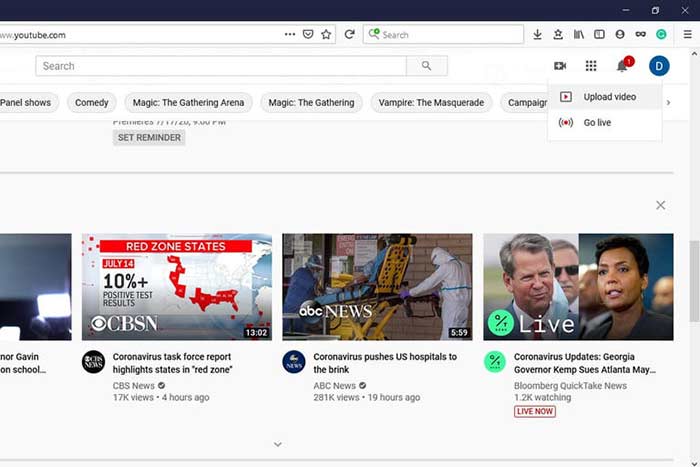
Step 2: Click the Camcorder icon and select Upload video to enter the upload page.
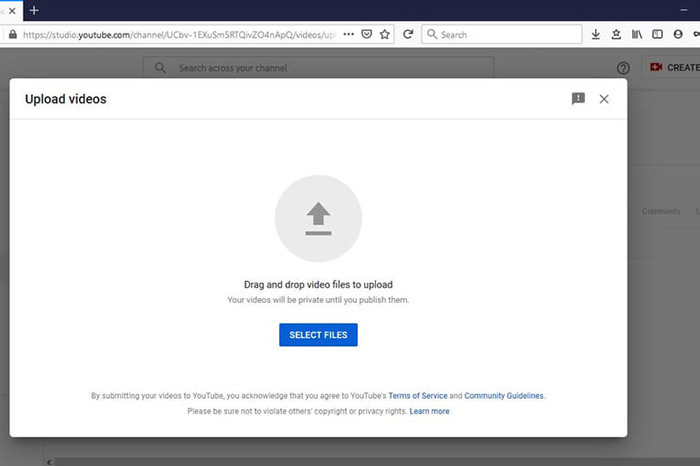
Step 3: Hit the big Select Files button on the page, and then open the converted FLV files for YouTube. Or drag and drop the FLV files into the page to upload them.
Step 4: Then decide the privacy setting. By default, it is Public, but you can change it to Private, Schedule or Unlisted.
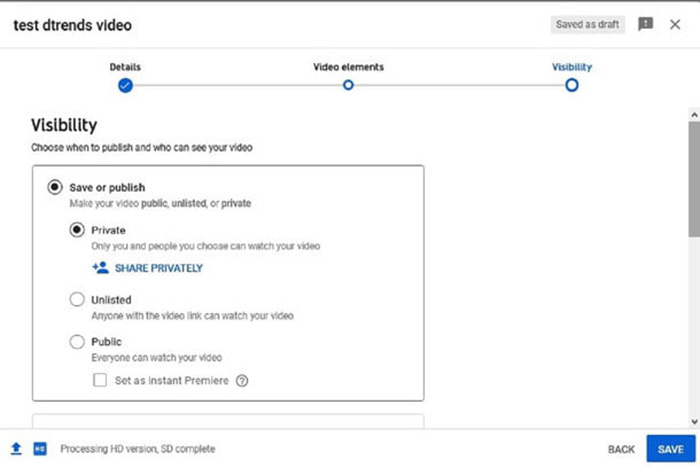
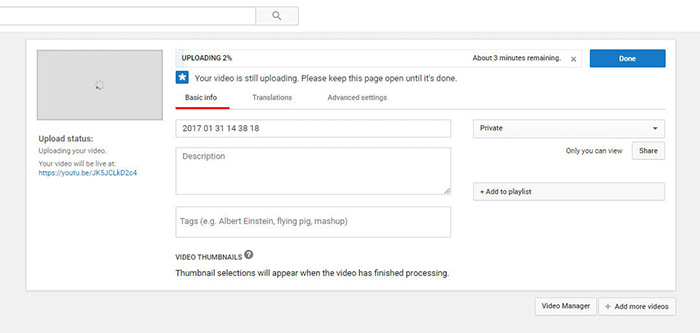
Step 5: Click the Save or Publish button after setting. Then you will be taken to the Dashboard page. Here you can see the FLV uploaded to your YouTube account.
Parte 4: Perguntas frequentes sobre FLV para o YouTube
Você pode fazer upload de FLV para o YouTube?
Sim e não. O YouTube oferece suporte ao formato de vídeo FLV, mas como um contêiner de vídeo, você só pode enviar arquivos FLV com codecs de áudio e vídeo compatíveis; caso contrário, será um fracasso.
Posso baixar vídeos do YouTube em FLV?
Se o vídeo do YouTube oferece o botão de download, você pode clicar nele e selecionar o FLV como formato de saída.
Qual formato de vídeo é melhor para o YouTube?
MP4 é o melhor formato de vídeo para o YouTube. O Google recomenda o uso de MP4 com codec de vídeo H.256 e codec de áudio AAC. Isso ocorre porque ele produz alta qualidade com tamanho de arquivo menor. Além disso, MOV, WMV, AVI, FLV e 3GPP também são compatíveis com o YouTube.
Conclusão
Este guia descreveu quais formatos de vídeo o YouTube aceita e como fazer upload de FLV para o YouTube sem falhas. FVC Free FLV Converter pode ajudá-lo a converter FLV para o YouTube e permitir que você ajuste codecs de vídeo e áudio facilmente. Ele ainda não requer nenhuma habilidade técnica, então os iniciantes podem dominar rapidamente. Se você encontrar outros problemas ao enviar um vídeo para o YouTube, por favor, deixe uma mensagem abaixo deste post.
-
 Como converter seus arquivos de vídeo FLV para MP4 sem pagar um centavo
 Este guia compartilha quatro métodos gratuitos para converter seus arquivos de vídeo FLV para o formato MP4 no Windows 10/8/7 / XP e Mac OS X, para que você possa desfrutar dos vídeos em qualquer dispositivo.
-
 Como converter seus vídeos FLV em arquivos de áudio MP3 na área de trabalho e online
 Como converter um FLV para um arquivo MP3? Tudo que você precisa fazer é ler este artigo com atenção, encontrar seu método favorito e seguir nosso guia passo a passo para obter o que deseja.
-
 3 maneiras gratuitas de converter FLV em WAV
 Como faço para converter um arquivo FLV? O VLC pode converter o FLV do YouTube em WAV? Este post mostra três maneiras gratuitas de converter FLV em WAV sem perda de qualidade.
