


 Video Converter Ultimate
 Gravador de ecrã
 Reparo de vídeo
 Secure Download
HitPaw Video Enhancer Review: Can It Really Upscale to 8K?
Some films or videos shot many years ago appear quite blurry by today's standards. After getting used to 1080p, 4K, or even 8K resolutions, revisiting these older recordings can feel extremely jarring. Is there any way to restore them and breathe new life into these precious archives?
After searching, you might have found something intriguing - a video enhancer like HitPaw Video Enhancer. But concerns immediately arise: Is it effective? Is it complicated to use? Can it truly deliver noticeable results?
All answers lie within this HitPaw Video Enhancer review. Here, you'll explore its concept, features, performance, pricing, usage methods, pros, and cons. We hope this information empowers you to make a confident decision.

Part 1. HitPaw Video Enhancer Reviews
Introdução
First, we need to clarify the current definition of HitPaw Video Enhancer. After several iterations, this product has been officially renamed HitPaw VikPea. It is an AI-powered video enhancer designed to upscale low-resolution videos to 4K or even 8K clarity while simultaneously fixing issues like noise and jitter.
Support Platform & System Requirements
Currently, it offers desktop versions compatible with Windows and Mac devices, as well as app versions for iOS and Android mobile devices. If you wish to use it on your computer, please ensure your device meets at least the following requirements:
| janelas | Mac | |
| Supported OS Minimum | Windows 11/10 | macOS 13 |
| Supported OS Recommended | Windows 11/10 64 bit | macOS 13 or higher |
| CPU Minimum | Intel i3 or AMD RX 580 or higher | Intel/AMD processor from 2015 onward |
| Intel i5 or AMD Ryzen 5 | Apple M1 equivalent or above | |
| Disk Space Minimum | 4 GB+ | 8GB+ |
| 4 GB+ | 8GB+ | |
| RAM Minimum | 8GB+ | 4GB+ |
| RAM Recommended | 16GB+ | 16GB+ |
Principais características
HitPaw AI Video Enhancer currently offers the following services:
- • Upscale low-resolution videos to 4K or even 8K quality.
- • Fix blurry footage and sharpen details.
- • Boost brightness to enhance videos shot in low light or at night.
- • Utilize cloud rendering to accelerate enhancement speed and reduce device load.
- • Provide stabilization models and anti-shake technology to ensure smooth, steady video playback.
- • Colorize black-and-white videos while restoring details and improving overall quality.
- • Additional tools including AI background removal, watermark removal, and damaged video repair.
- • Batch repair multiple videos at once.
Prós e contras
Knowing all these powerful features isn't enough - we also need to see what the actual user experience is like. Based on our hands-on testing and user reviews across major platforms, HitPaw Video Enhancer for Mac and Windows currently stands out with the following pros and cons:
Prós
- Supports an extensive range of video formats. You rarely need to convert videos to MP4 or other formats beforehand.
- Comprehensive video restoration capabilities with outstanding results.
- Supports restoration up to 8K resolution.
- Interface intuitiva e amigável.
- Significant improvements in processing speed.
Contras
- The free version only allows previewing restored videos without exporting. It comes with considerable limitations.
Part 2. Does HitPaw Video Enhancer Work [Steps & Performance]
It's time to get hands-on! If you want to see does HitPaw Video Enhancer work and learn how to use it, follow this step-by-step guide.
Step 1. Download and install HitPaw Video Enhancer on your computer.
Launch the program and go to the main interface.
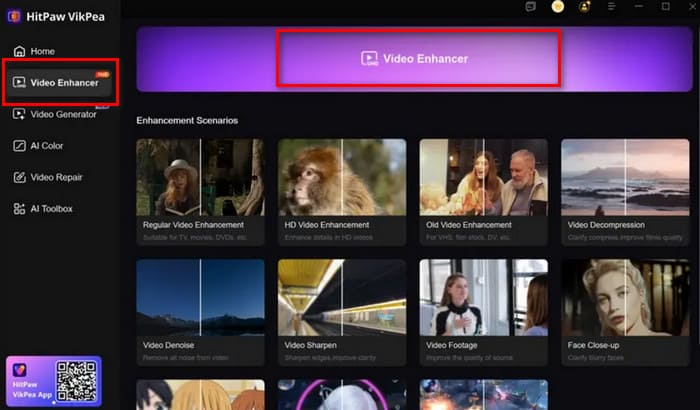
Step 2. Click the Video Enhancer button on the homepage to upload the video you want to enhance.
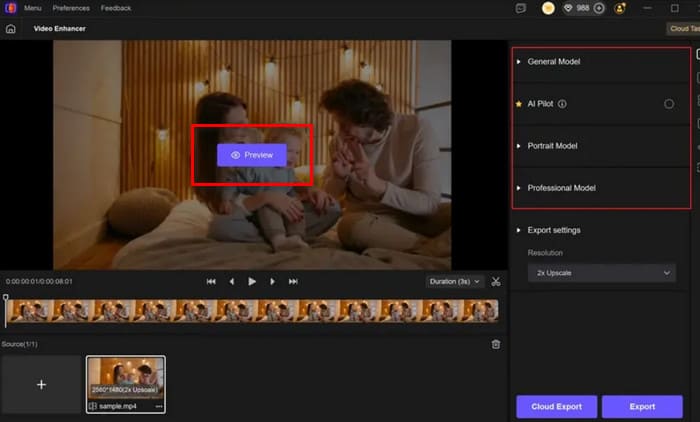
Step 3. Select an AI restoration mode based on your needs or video type.
Step 4. HitPaw Video Enhancer will provide a free preview lasting a few seconds. If you're satisfied with the results after checking, click Export to save the restored video.
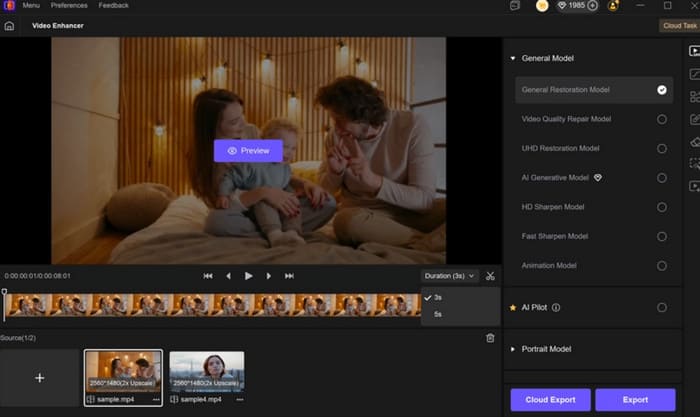
Overall, HitPaw Video Enhancer delivers a very satisfying user experience. The enhanced videos appear noticeably clearer and sharper, and the entire process requires almost no manual fine-tuning - simply select your desired effect. If you're unsure which mode to choose, activate AI Pilot, and it will recommend the most suitable option for you.
Part 3. HitPaw Video Enhancer Price
In the previous section summarizing drawbacks, you'll notice HitPaw Video Enhancer imposes significant limitations on free usage. If you're wondering whether your budget aligns with subscribing to this software, review the following details about HitPaw Video Enhancer pricing.
• Free Plan: You'll find it nearly unusable, limited to basic video processing without AI Colorist features, and unable to export videos.
Unlocking all features requires subscribing to any of the following paid plans:
• Monthly Plan: $43.19
• Yearly Plan: $99.99
• Perpetual Plan: $350.39
Part 4. Best HitPaw Video Enhancer Alternative
In reality, you'll find HitPaw Video Enhancer cost is pretty high. It offers virtually no comprehensive trial experience. If this frustrates you, consider trying an alternative to HitPaw Video Enhancer: FVC Video Converter Ultimate.
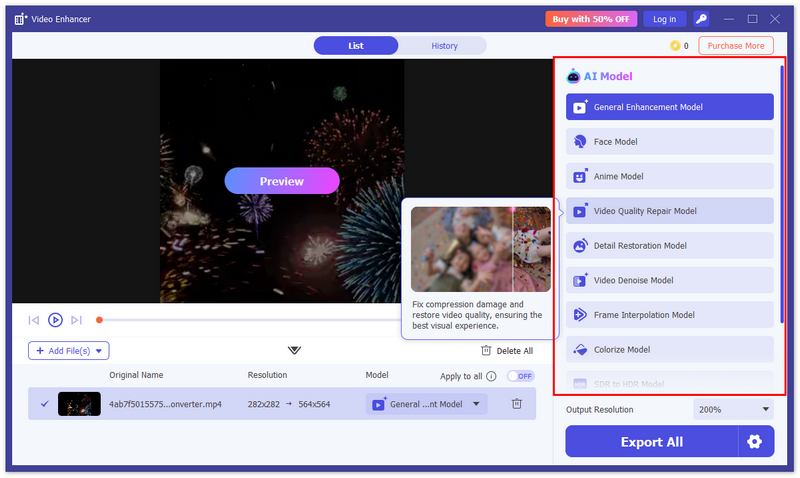
FVC Video Converter Ultimate isn't just a format converter-it's a video editor that rivals professional software. For the video enhancement features we care about, it now offers 10 new AI models to assist with common scenarios, detail restoration, quality improvement, face enhancement, noise reduction, color enhancement, low-light enhancement, and more.
Free DownloadFor Windows 7 or laterSecure Download
Free DownloadFor MacOS 10.7 or laterSecure Download
Let's see how to use it to fix video quality.
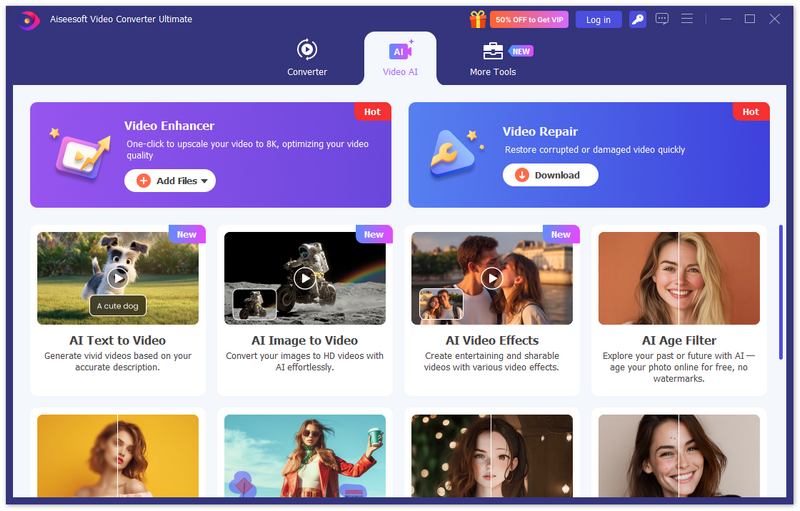
Step 1. Download and install FVC Video Converter Ultimate. On the homepage, select Video Enhancer. Then click Add File to add your file.
Step 2. Select the appropriate AI mode based on the issue you want to address.
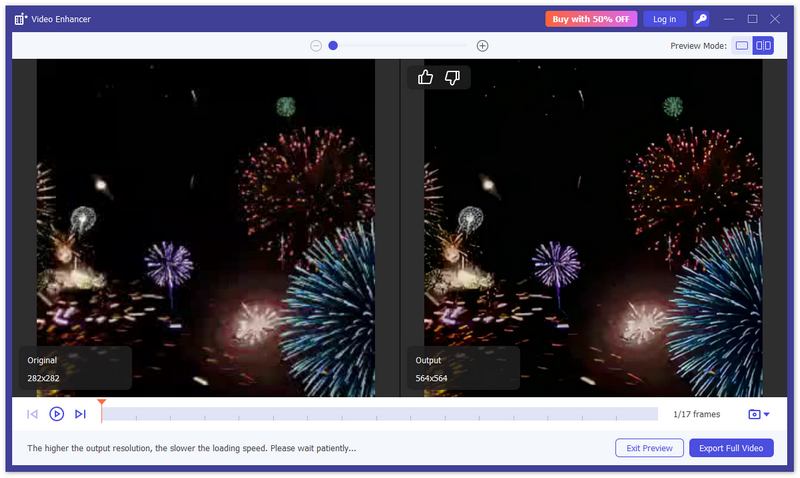
Step 3. After enhancement completes, preview the results. If satisfied, click Export Full Video to output the file.
Part 5. FAQs of HitPaw Video Enhancer Review
Is HitPaw Video Enhancer a good video enhancer?
HitPaw Video Enhancer, with its advanced features and excellent results, is undoubtedly one of the top choices. It supports output resolutions up to 8K and covers all aspects of video enhancement.
Is HitPaw Video Enhancer free to use?
No. The free version only allows you to try basic video processing, and you can't even export videos. To use it normally, you need to subscribe.
What are the alternatives to HitPaw Video Enhancer?
The best free alternative to HitPaw Video Enhancer is likely HitPaw Online Video Enhancer. You can use it without paying or registering. If you prefer a stable desktop software option, consider FVC Video Converter Ultimate.
Conclusão
This HitPaw Video Enhancer review thoroughly showcases its features and strengths. Powered by the latest AI technology, it repairs videos quickly and accurately, instantly resolving issues like low light, blur, noise, and shakiness. However, the lack of a free trial and its high subscription cost may be drawbacks. In this case, we recommend trying FVC Video Converter Ultimate as an alternative.
-
 CapCut Video Enhancer Review: Is Its Performance Impressive?
 This guide provides a comprehensive review of CapCut Video Enhancer, covering its performance, usage methods, pricing, and other key details for your reference.
-
 Enhance Video with DaVinci Resolve: Turn Video Quality High
 Learn how to enhance video with DaVinci Resolve with an easy process. This article is here to guide. Check out all the details you need for the process.
-
 How to Enhance Video Quality on Canva: Things You Must Know
 Wondering if Canva can enhance video quality? Read this article to learn more. Also be guided on how to enhance video as well as the best alternative for Canva.
