


 Video Converter Ultimate
 Gravador de ecrã
 Reparo de vídeo
 Secure Download
How to Convert Video with VLC Media Player: A Detailed Guide
VLC Media Player has always been renowned for its open-source nature and being completely free. Of course, what truly makes it a go-to tool for everyone is its compatibility with nearly all digital media formats. You can use it to open files, rip CDs, perform simple editing tasks - and convert video formats.
However, its video format conversion interface may not be as intuitive as professional converters, and the usage differs significantly. With this in mind, we've prepared this guide to walk you through converting videos with VLC. If you encounter any issues during the process, you can also refer to the recommended troubleshooting methods here.
We hope you find all your VLC video converting questions answered here.

Part 1. Can VLC Convert Video
Can VLC convert video? Let's start with some basics:
Yes. VLC Media Player is a video converter recognized by major platforms and countless users. In its menu, you'll find an option labeled Media. Clicking it opens a window where you'll see the Convert/Save button in the bottom-right corner.
In this new window, you'll see tabs for selecting the output format. Simply choose the one you need from the options provided by the platform. As mentioned earlier, VLC Media Player supports a wide range of video and audio formats, such as MP4, MOV, AVI, MKV, 3GP, MP3, FLAC, and more - more than enough for your needs.
Part 2. How to Convert Video with VLC
Since we've confirmed that converting video formats in VLC is feasible, we can now prepare our video and get started.
This section will thoroughly guide you through how to convert video in VLC Media Player.
Step 1. First, ensure the latest version of VLC Media Player is installed on your device. Double-click the icon to launch the software.
Step 2. In the top-left corner of the main interface, locate the Media tab. Click the dropdown menu and select Convert/Save. This will open a new window.
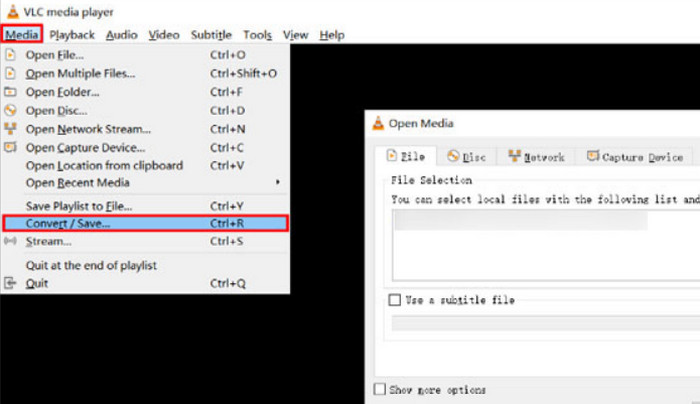
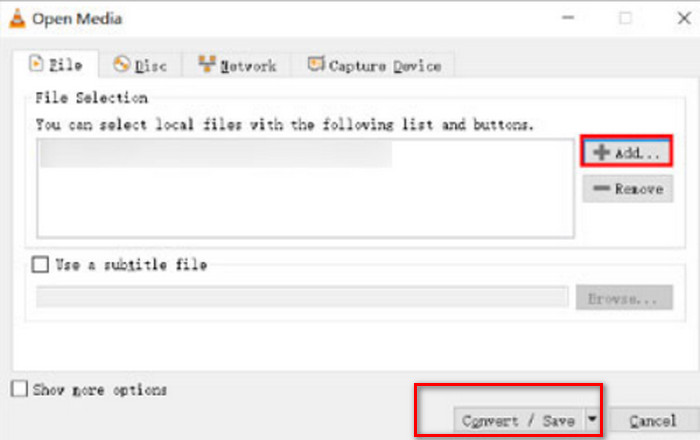
Step 3. In the new window titled Open Media, navigate to the File tab, then click the Add button to upload the video you wish to convert.
If you wish to batch convert multiple videos at once, add them all here.
Finally, click the Convert/Save button in the bottom-right corner.
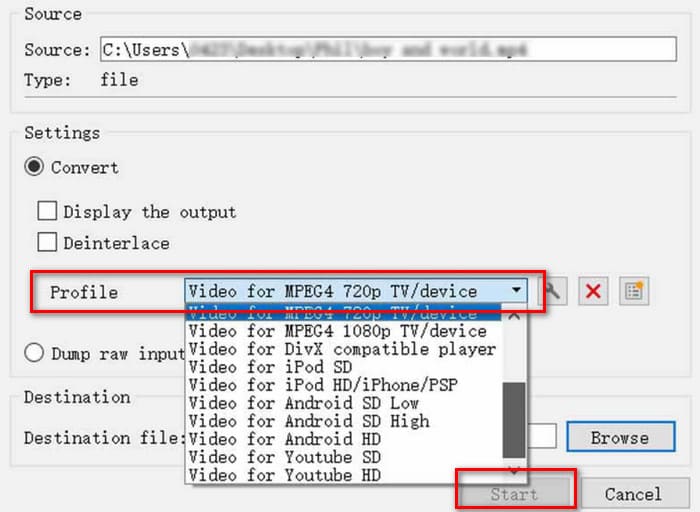
Step 4. You will now be in the Convert window. Open the dropdown menu next to Profile and select your desired output format. Then, click Browse next to Destination file to choose the output path.
Finally, click Start to begin the conversion.
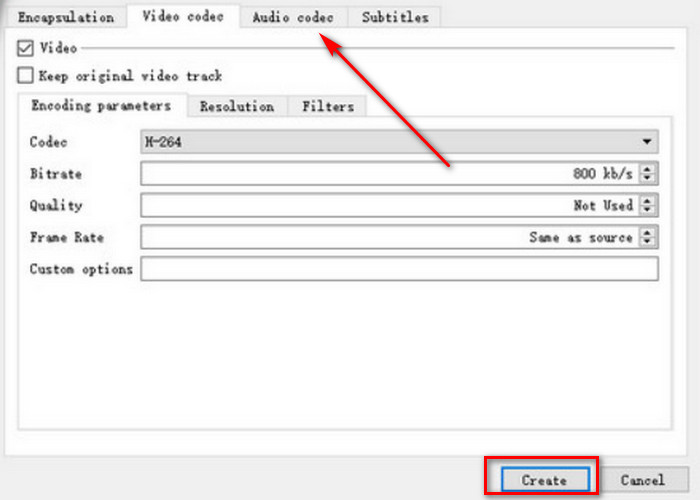
If no existing option suits your needs, you can create a new one. Click the Create a new file button at the end of the Profile entries.
Specify a filename, then configure settings for Encapsulation and Video codec (where you can set new video quality, frame rate, bitrate, and other parameters), as well as Audio codec (audio codec and format). Then click Create.
Part 3. Why My VLC Not Converting Full Video [Fixes]
By following the steps above, you'll master how to use the VLC Media Player video converter.
But that's not the end of the story. Some users have reported encountering the issue where VLC not converting full video. This can be quite perplexing.
After thorough research and testing, this guide identifies the following potential causes for this problem. We'll provide simple solutions for each scenario.
• Your uploaded video is corrupted or missing data.
First, use another video player to check if your video plays normally. If not, you'll need to find a way to repair the file first.
• Your computer lacks sufficient memory to store the converted video in its entirety.
Try freeing up space on your computer by deleting unnecessary files or cache.
• The file you're converting is too large, overloading the software or your computer's GPU.
In this case, you should try a more professional MP4 format converter to assist you.
• The file name or output path you set contains errors.
Check if the file name format is standard and includes the .mp4 extension. Also verify that the output path you set is valid.
• You may have selected the wrong video encoder.
Try switching between H.264 + MP3 (MP4) and H.265 + MP3 (MP4) or other codecs to see if the conversion proceeds normally.
Part 4. Best Alternative to VLC to Convert Video
If you've reviewed the guide on how to convert video using VLC and find its operation somewhat unfamiliar, or if you need to convert large files, we recommend a more professional alternative: FVC Video Converter Ultimate.
FVC Video Converter Ultimate is a video format conversion software compatible with both Windows and Mac. It supports over 200 formats and also enables batch conversion. You won't need to consult complex format combination lists or manually add items. Simply open the supported conversion formats list and select the one you need. Furthermore, FVC Video Converter Ultimate provides a full suite of video enhancement, editing, and compression tools. It's more than capable of helping you output videos in the most perfect state.
Free DownloadFor Windows 7 or laterSecure Download
Free DownloadFor MacOS 10.7 or laterSecure Download
Here's how to convert video with FVC Video Converter Ultimate.
Step 1. Download and install FVC Video Converter Ultimate.
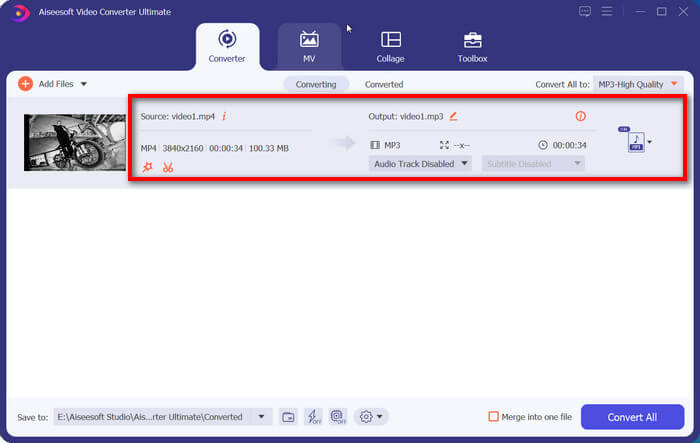
After launching, click Add Files on the main interface to add the videos you want to convert.

Step 2. Click Output Format > Video. Select your desired format from the list.
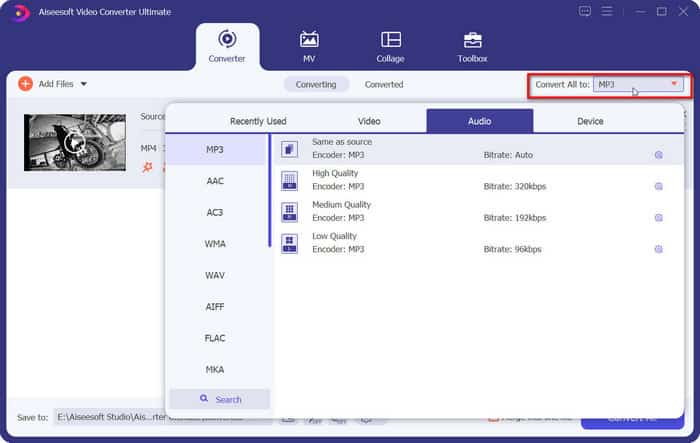
Step 3. Click Convert All in the bottom-right corner.
Part 5. FAQs of Converting Video with VLC
Can you convert videos on VLC?
Of course. VLC Media Player offers built-in Convert/Save functionality. You can choose from existing presets or add new entries to apply.
Is VLC good for converting?
VLC Media Player is quite good. It's open-source and free, capable of handling basic video conversion tasks. However, its interface isn't very intuitive.
Which is the best video converter?
For compatibility and value, VLC Media Player is excellent. For feature diversity and user experience, FVC Video Converter Ultimate is a better choice.
Conclusão
Converting videos with VLC is entirely feasible. The most appealing aspect is that the entire process is completely free. If your current platform doesn't offer the configuration you need, you can also create custom profiles to apply. However, its conversion interface differs significantly from professional converters. If you prefer a clear workflow of upload + format selection + output mode, we recommend trying FVC Video Converter Ultimate.
-
 7 Ways to Convert AVI to MP4 [Comprehensive Guide]
 Converta facilmente seus arquivos AVI para MP4 com estes sete métodos eficazes. Leia este artigo e descubra qual conversor de AVI para MP4 funciona melhor para suas necessidades.
-
 [Grátis e Online] 4 Métodos para Converter MOV para MP4
 Quer converter arquivos MOV (Apple QuickTime Movie) para MP4? Esta postagem compartilha 4 métodos gratuitos para converter seus arquivos de vídeo MOV para o formato MP4 no Windows 10/8/7 / XP e Mac OS X.
-
 Converta vídeos do iPhone para MP4 no PC sem esforço e sem perda de qualidade
 Descubra como converter seus vídeos do iPhone para o formato MP4 sem perder qualidade. Aprenda métodos online e offline para garantir uma reprodução suave em qualquer dispositivo.
