


 Video Converter Ultimate
 Gravador de ecrã
 Reparo de vídeo
 Secure Download
Como mesclar arquivos M4V? Aqui estão as 2 soluções mais rápidas
M4V files, also known as MPEG-4 video files, are usually downloaded from iTunes. They are very similar to MP4 files because they both use MPEG-4 container format. It is very likely to happen that you just downloaded several incomplete video clips in M4V format from iTunes and then want to merge the M4V files into one complete story seamlessly. How to combine M4V files? This article intends to give you two methods to do it efficiently and without losing image quality.

Parte 1: Solução mais rápida - Use uma fusão online gratuita com a M4V
For the quickest solution, you can use FVC Free Online Video Merger, which doesn't take you a long time to learn about the steps and settings. Just load the tool in your browser, add your M4V files, and then give one click to merge the M4V files.
Key Features
- • Combine arquivos M4V de qualquer quantidade e tamanho em um único arquivo gratuitamente.
- • Interface fácil de usar e processos de pré-fusão intuitivos.
- • Você pode salvar os arquivos M4V mesclados como outros 9 formatos principais.
- • Não deixe marca d'água nos vídeos M4V combinados.
- • Carregue seus arquivos de qualquer tamanho em apenas 1 segundo.
Steps to join M4V files online for free
Step 1. Click here to load FVC Free Online Video Merger. On the online tool's webpage, click the Upload Videos to Merge button in the middle of your screen.

Note: The tool will prompt you to download and install a launcher if you are using the tool for the first time. Once you installed the launcher, click the Upload Videos to Merge button again.
Step 2. Now the Open window should pop up. Here you need to select the M4V files and then click the Open button at the bottom of the window.
Step 3. After uploading the M4V files, you can adjust the sequence of the M4V files by removing the existing ones and inserting new ones in the desired places.
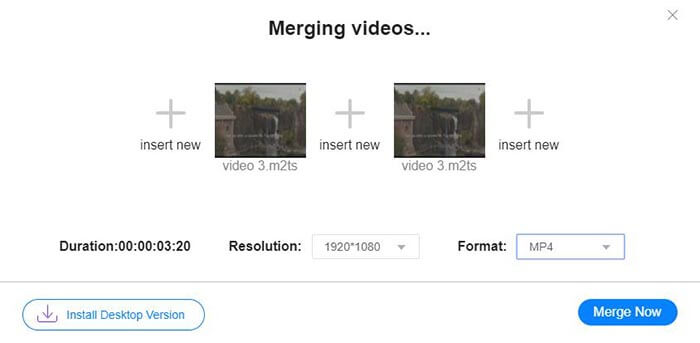
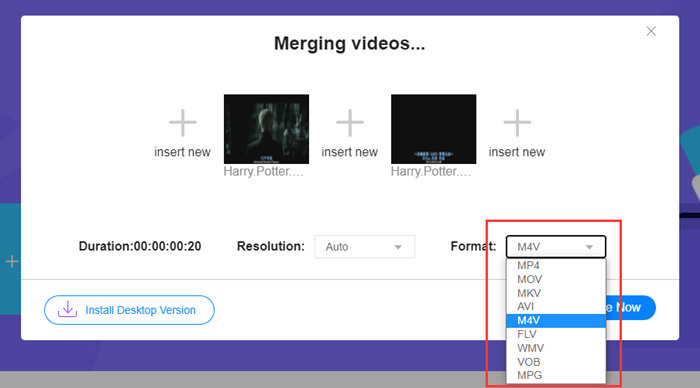
Step 4. To retain the merged file as M4V format, you need to choose M4V on the Format list. You can also choose any of the listed formats to convert the merged M4V video.
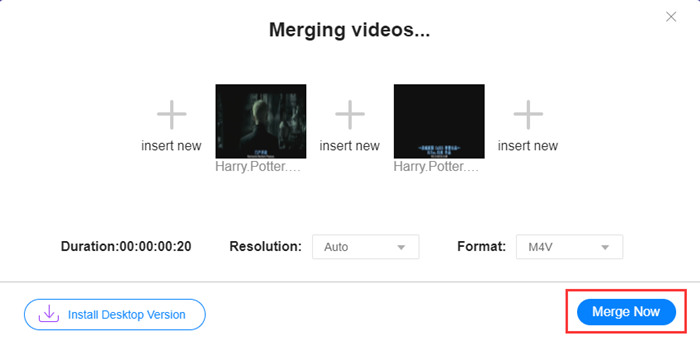
Step 5. Click the Merge Now button to start combining the M4V files. The tool will then ask you to decide the destination of the output file.
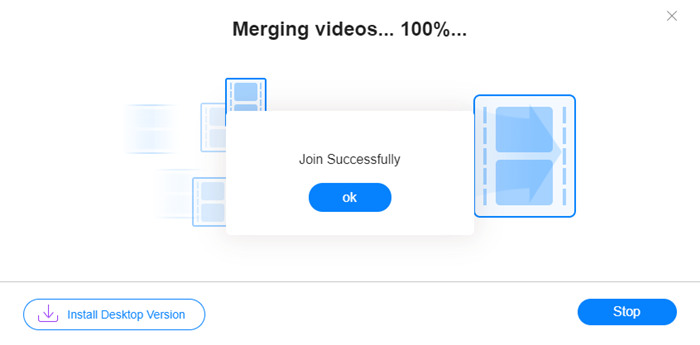
Ao ver o aviso de sucesso abaixo, o vídeo mesclado é salvo no seu computador.
You have already learned about the quickest way to combine M4V files. However, this method only allows you to connect the videos end by end, but cannot help you trim the unwanted ends, which may lead to periods of black screen in the video. Maybe you also need the next method to not only join M4V files, but also trim them seamlessly. You can compress M4V files here.
Parte 2: Um método para mesclar arquivos M4V perfeitamente
To get a complete and seamless video, merely joining the M4V files end by end is not enough. You also need to trim the unwanted segments at the starts and endings. So this involves a video editing tool. You have numerous choices to choose from, but here we'd like to recommend Video Converter Ultimate. The reason is simple. It's easy to use and its features are powerful enough.
Key Features
- • Unir, cortar, girar, cortar e adicionar efeitos aos vídeos M4V.
- • A tecnologia de aceleração de hardware ajuda a finalizar a junção de arquivos M4V 70 vezes mais rápido.
- • Filtros abundantes e coleção de efeitos para embelezar seus vídeos
- • Use o intensificador de vídeo integrado para melhorar a qualidade do vídeo
- • Transforme seus vídeos em 3D e aproveite-os com seus óculos 3D
Free DownloadFor Windows 7 or laterSecure Download
Free DownloadFor MacOS 10.7 or laterSecure Download
Steps to merge M4V files seamlessly
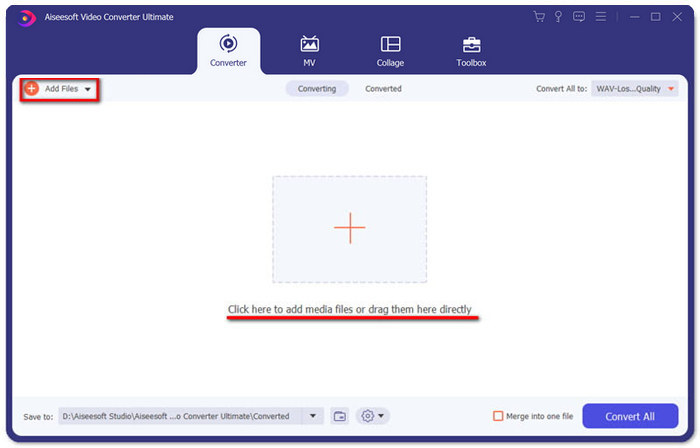
Step 1. Install and launch the Video Converter Ultimate. Click the Add Files button or drag files into the interface to add videos.
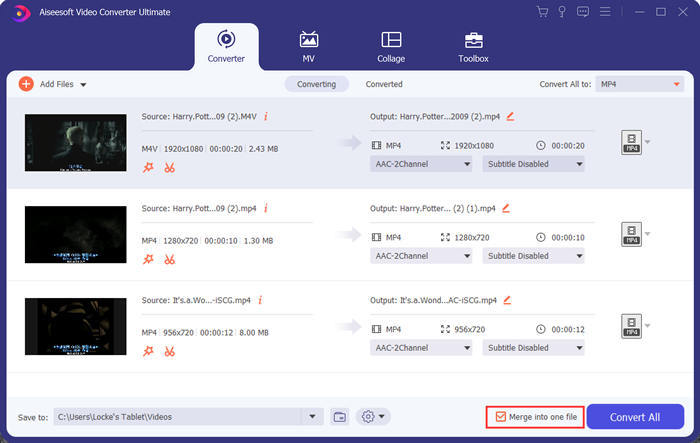
After adding them, you can drag the files up and down to arrange the order of them. Also, you need to tick the box for Merge into one file so that the program won't convert the added videos separately.
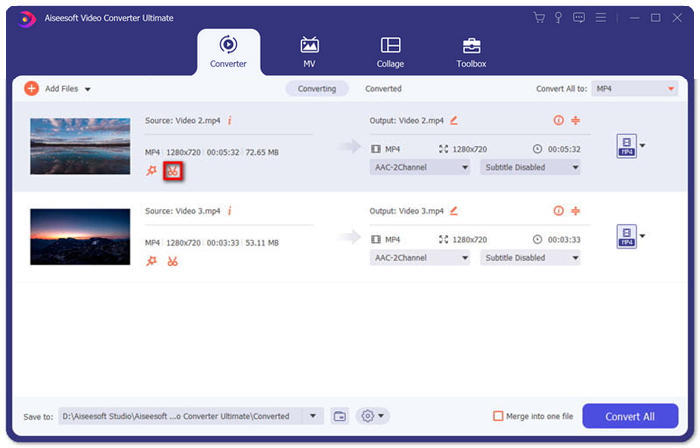
Step 2. To use the trimming feature, you can click the Cut icon on an added video.
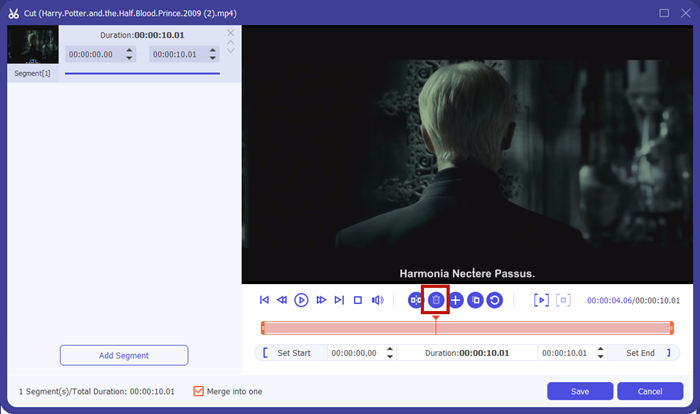
In the Cut interface, you can cut the unwanted parts of a video easily. Just select a segment by setting its start and end points, and then click the dustbin icon to remove it.
Step 3. Back to the main interface, you can choose the output file. Click the down-arrow beside Convert All to. Then you can select M4V or other formats as the output format.
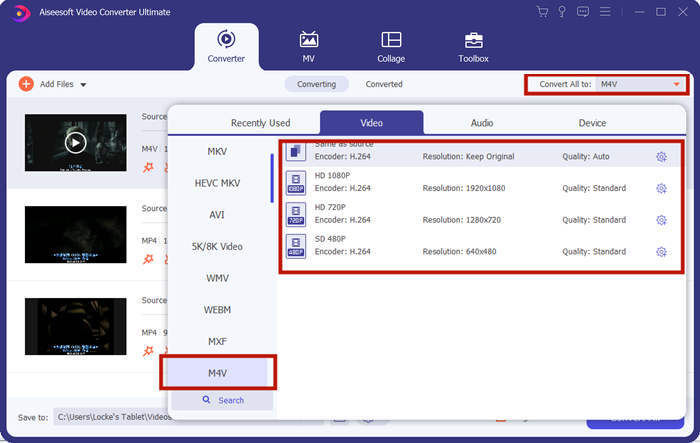
Step 4. Click the Convert All button in the bottom-right corner of the program and wait for the program to join the M4V files.

Quando a fusão for concluída, você verá um aviso de sucesso. Em seguida, você pode encontrar o arquivo M4V mesclado na pasta de destino. Acima estão dois métodos para juntar arquivos de vídeo M4V. Também concluímos várias perguntas mais frequentes abaixo.
Parte 3: Perguntas frequentes sobre como ingressar em arquivos M4V
O que é um arquivo M4V?
M4V, projetado pela Apple, às vezes também é chamado de arquivo de vídeo iTunes. É semelhante ao MP4 porque ambos são baseados no MPEG-4. O recurso mais especial do M4V é que o iTunes pode adicionar proteção DRM para evitar a distribuição não autorizada de vídeos do iTunes.
Como abrir um arquivo M4V?
If not protected by DRM, an M4V file can be played in VLC, QuickTime, Windows Media Player, and many other media players. Sometimes it also works to change the .M4V extension to .MP4 to open it. However, an M4V file with DRM protection can only be played on authorized devices.
Posso remover a proteção DRM de um arquivo M4V?
Sim você pode. Você pode encontrar inúmeros programas de remoção de DRM no mercado. Aqui estão alguns deles: TunesKit DRM M4V Converter, Aimersoft DRM Media Converter, Requiem DRM Remover, Ondesoft iTunes Convertert, Apple Music Converter.
Conclusão
This passage introduced two efficient ways to join several M4V video files into one. For the quickest solution, the FVC Free Online Video Merger is your best choice. You can use it without downloading any program. The uploading process can also be complete immediately. But if you want a higher quality, or not only to combine M4V files but also trim them, you can turn to Video Converter Ultimate. It provides you with powerful editing features while the UI is friendly to beginners. If you have found any better solutions, we'd like to know. Just leave us a comment below.
-
 Como converter M4V para MP4 com / sem DRM
 6 maneiras de converter gratuitamente M4V em MP4 (remoção de DRM incluída)
-
 5 melhores jogadores M4V para reproduzir arquivos M4V facilmente em computadores / celulares
 Os 5 principais players M4V para Windows / Mac / Android / iOS que você deve conhecer
-
 Como extrair MP3 de M4V com 4 métodos excelentes que você deve saber
 Conversor M4V para MP3 - 4 melhores métodos para extrair MP3 de arquivos M4V
