


 Video Converter Ultimate
 Gravador de ecrã
 Reparo de vídeo
 Secure Download
Como converter seus arquivos de música OGG para MP3 na área de trabalho e online
“I downloaded some music files from websites and transferred them to my iPhone, but they cannot be opened at all, how to convert OGG to MP3?” After entering the streaming era, there are some new media formats for streaming including OGG. Therefore, chances are that you download some video or audio files online and they are saved in OGG files. This guide tells you four verified methods to help you turn OGG files into MP3 format on desktop or online.
Parte 1: O que são OGG e MP3
OGG é um formato de contêiner de arquivo multimídia para streaming e conteúdo de alta qualidade. Ele pode conter dados de vídeo e áudio ou conter faixas de áudio e informações sobre o artista. Hoje, muitos reprodutores de mídia podem decodificar e abrir arquivos OGG, como VLC, MPlayer e muito mais. Além disso, a maioria dos principais navegadores pode transmitir arquivos OGG online.
MP3 é um formato de áudio antigo. MP3 e OGG são semelhantes em muitos aspectos. O maior benefício do MP3 é o alto nível de compatibilidade. Quase todos os dispositivos digitais e reprodutores de mídia suportam MP3. Pode ser por isso que você deseja converter OGG para MP3, reproduzindo-os em dispositivos móveis.
Parte 2: melhor maneira de converter OGG para MP3
There are a lot of video and audio converter software available to OGG to MP3. However, most of them are only able to perform destructive conversion. In fact, you do not need to spend lots of money to purchase professional software since FVC OGG to MP3 Converter can meet your need without asking a penny.
Main Features of the Best OGG to MP3 Converter
- 1. Converta arquivos OGG para o formato MP3 gratuitamente.
- 2. Processar em lote vários arquivos OGG ao mesmo tempo.
- 3. Utilize tecnologia avançada para proteger a qualidade do áudio.
Resumidamente, é a melhor opção para converter em lote arquivos OGG em MP3 no Windows e Mac.
Free DownloadFor Windows 7 or laterSecure Download
Free DownloadFor MacOS 10.7 or laterSecure Download
Como alterar OGG para MP3 no desktop
Etapa 1: Adicionar arquivos OGG
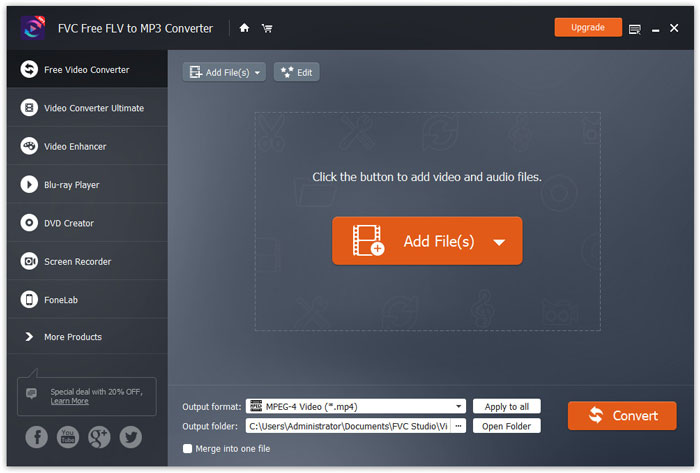
Launch the best OGG to MP3 converter after you installed it to your PC. There is another version for Mac. Click the Add File(s) button to activate the open-file dialog. Find and select the OGG files you wish to convert, and click Open. Alternatively, drag and drop the media files into the main interface.
Etapa 2: Selecione MP3 como formato de saída
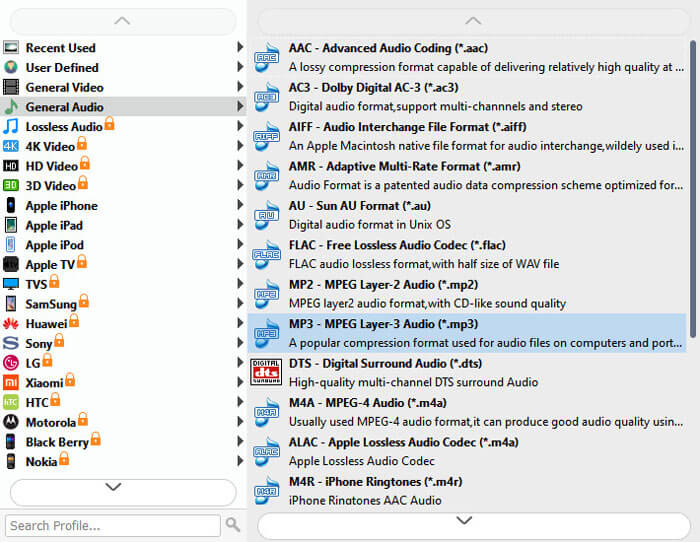
Then go to the bottom. Expand the drop-down list next to Output format and choose MP3 in the General Audio tab. If you wish to enjoy the music on mobile, choose the device model on the list directly.
To edit OGG files, click the Edit menu to open the media editor window.
Etapa 3: converter em lote OGG
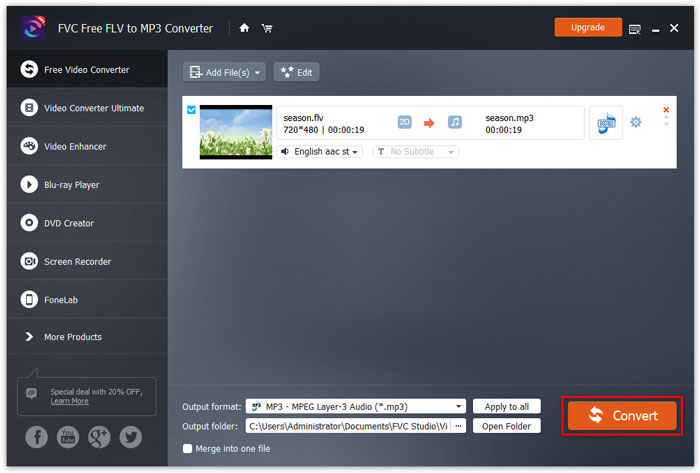
Next, click the Open Folder button at the bottom and select a location to store the output. Finally, click on the Convert button at the bottom right side to start turning OGG into MP3 immediately.
Not only converting audio to MP3, this software also supports video to MP3 conversion like MTS, WMV, MOV, MP4, etc.
Parte 3: Como converter OGG para MP3 gratuitamente
Método 1: Como converter OGG para MP3 com VLC
Embora o VLC seja usado principalmente como um reprodutor de mídia, você pode transformar arquivos OGG em MP3 com ele. Como um projeto de código aberto, todos podem usar o VLC gratuitamente.
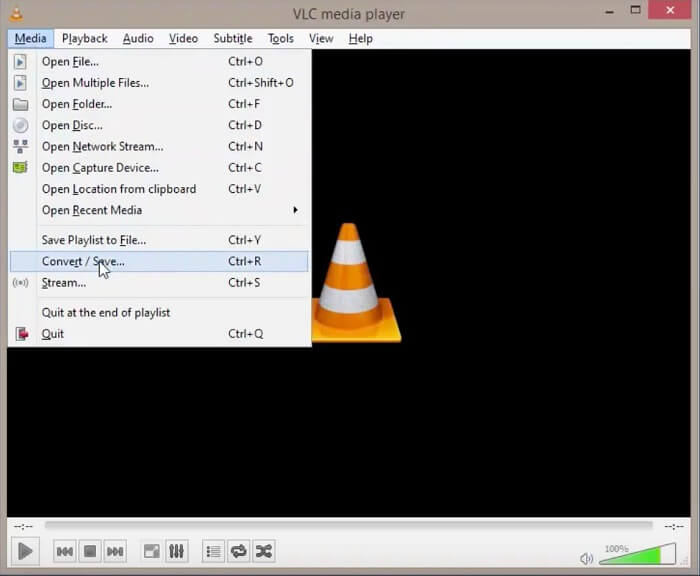
Step 1: Run your VLC, and select Convert/Save from the Media menu.
Step 2: On the Open Media dialog, click the Add button and add all desired OGG into VLC. After loading, click the Convert/Save button.
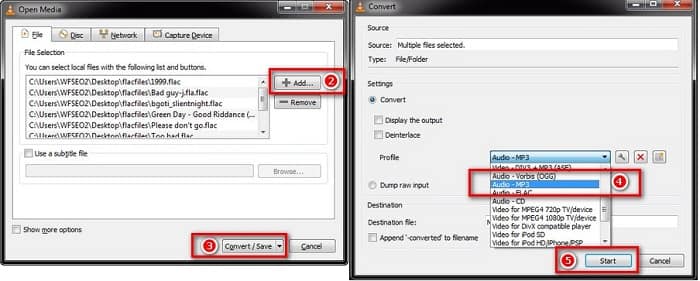
Step 3: Unfold the Profile drop-down option and choose MP3 or relative option. Hit the Start button to initiate changing OGG files into MP3.
A qualidade de saída pode não ser grande, pois o VLC só pode fazer conversões destrutivas.
Método 2: como transformar OGG em MP3 no iTunes
O iTunes foi lançado pela Apple para usuários iOS e Mac para gerenciar arquivos de mídia. No entanto, você pode baixá-lo gratuitamente, mesmo se não tiver um dispositivo Apple. Além disso, é capaz de fazer arquivos MP3 desde OGG e outros formatos multimídia.
Step 1: Start iTunes and update it to the latest version. Make sure to add the source OGG files into iTunes library.
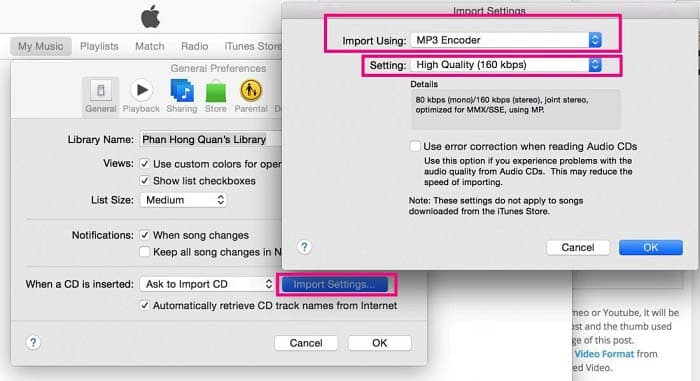
Step 2: Go to the Edit menu and select Preferences on PC or iTunes and Preferences on Mac. Then click the Import Settings button and then choose MP3 Encoder from the Import Using option. Click OK to confirm it.
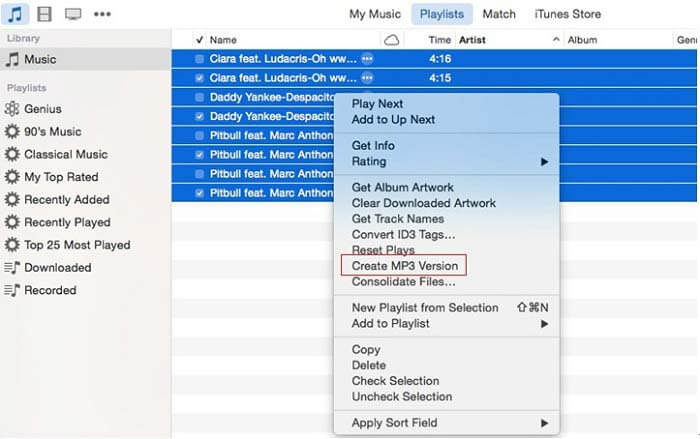
Step 3: Now, go to Library and select all OGG files. Right-click on one selected file and choose Create MP3 Version. The MP3 results will be saved to iTunes library.
Parte 4: Como transformar OGG em MP3 online
If you don’t like to install much software to your computer, then you definitely need to try this online audio converting tool, FVC Free Audio Converter. As a powerful web-based audio converter, it allows you to convert audio files from one format into another with no limit. You can even use it to extract sound from video while maintaining the original quality. Here are the steps to convert OGG to MP3 with this audio converter.
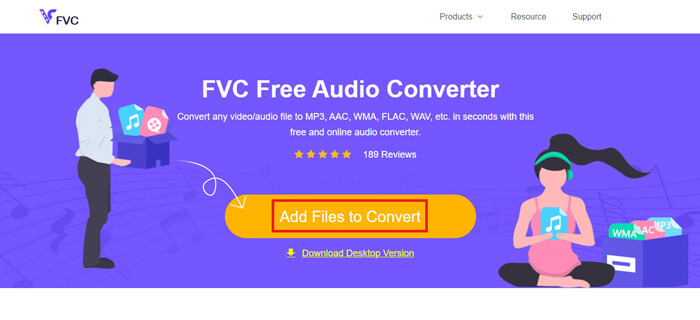
Step 1: Visit the website of FVC Free Audio Converter in your browser. Then click on the Add Files to Convert button to upload your OGG file. There will be no sign-up required.
Download the Desktop Version to convert files in batch.
Step 2: After file uploading, please choose MP3 from the output format list and then hit the Convert button to begin turning OGG to MP3 online.
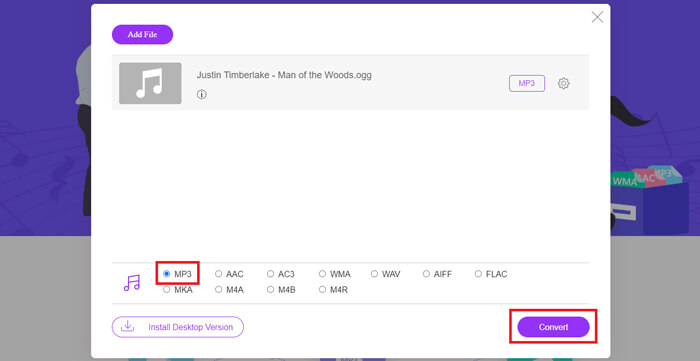
Step 3: When it is done, the folder that you use to save the MP3 file will open automatically. Now you can transmit it to your mobile device.
OGG vs. MP3
O formato do contêiner OGG é na verdade um formato multimídia. Assim, você pode usá-lo para armazenar vários fluxos de vídeo, áudio, texto e metadados. E cada fluxo pode ser compactado com diferentes métodos de compactação. Agora, os arquivos OGG geralmente são usados para armazenar dados de áudio compactados com compactação Vorbis.
O formato MP3 foi lançado em 1993 pelo Moving Picture Experts Group (MPEG). Era o padrão para armazenar música, pois podia compactar áudio em um tamanho muito menor do que outros formatos não compactados. Ainda é amplamente utilizado hoje em dia, especialmente para distribuição de áudio online.
Parte 5: FAQs de OGG para MP3
Como faço para converter OGG para MP3 com o Audacity?
O Audacity é um editor de áudio de código aberto. Ele pode adicionar um arquivo OGG à trilha de áudio e editá-lo facilmente. Por padrão, o Audacity exporta projetos de áudio como WAV no PC, pois não possui o codificador de MP3. Portanto, o Audacity não pode converter OGG para MP3.
O Winamp pode converter OGG para MP3 gratuitamente?
Winamp é um reprodutor multimídia popular. Suporta vários formatos de áudio e vídeo. A função de reprodução OGG é gratuita; entretanto, você terá que pagar pela versão profissional se quiser converter OGG para MP3.
O Windows Media Player pode reproduzir arquivos OGG?
Nativamente, o Windows Media Player não oferece suporte ao formato OGG. A boa notícia é que você pode instalar codecs extras em seu PC e torna o Windows Media Player compatível com OGG. Como alternativa, converta OGG em formatos de áudio compatíveis com WMP.
Conclusão
Este guia compartilhou quatro formas de trabalho do 100% para converter seus arquivos OGG para MP3 no Windows e Mac. Muitas pessoas copiam música no formato OGG, em parte porque ele pode armazenar metadados. No entanto, não é amigável para dispositivos digitais e telefones celulares. O conversor de áudio online é fácil de usar. O freeware pode atender às suas necessidades básicas. O FVC OGG to MP3 Converter, por outro lado, é a forma mais profissional de fazer o trabalho sem perda de qualidade. Mais perguntas? Por favor, deixe uma mensagem abaixo.
-
 5 maneiras fáceis de converter TS para AVI / MKV / MOV / WMV no Windows / Mac
 Quer converter arquivos TS para AVI / MKV / MOV / WMV rapidamente? Este artigo mostra conversores de vídeo online e offline com guia completo. Talvez você possa obter o melhor conversor TS grátis aqui.
-
 Como converter arquivo TS para MP3, AIFF, ALAC, FLAC e mais formatos de áudio no Windows / Mac
 Como converter arquivos TS para MP3 de graça? Neste guia, você encontrará 10 maneiras fáceis de extrair áudio de um arquivo TS com TS para freeware de áudio e ferramentas de conversão online.
-
 Como converter arquivos MTS para MP4
 Não sei como converter arquivos MTS para MP4? Neste guia, você encontrará 6 maneiras fáceis e gratuitas de alterar o formato MTS para MP4 no Windows ou Mac sem perda de qualidade.

