


 Video Converter Ultimate
 Gravador de ecrã
 Reparo de vídeo
 Secure Download
Maneira mais fácil de mesclar trilhas no Audacity [Guia 2025]
Mesclar elementos como outros sons, músicas ou trilhas é essencial para tornar um projeto de áudio criativo e único. Esse processo é comumente feito usando um aplicativo editor de áudio dedicado que tem um recurso para mesclar trilhas em uma. Hoje, uma ferramenta é comumente usada para mesclar várias trilhas, e essa é o Audacity.
This tool is known to many because of its free and open-source nature, but it also has a really good set of editing features that users are drawn to. So, if you’re looking for a guide on how to merge tracks in Audacity or an alternative way to do it easily, continue reading this article.

Parte 1. Como mesclar trilhas no Audacity
O Audacity é um software de edição de áudio gratuito amplamente utilizado que oferece muitos recursos de edição, incluindo a famosa faixa de mesclagem do Audacity.
Com esse recurso, os usuários podem importar facilmente vários elementos sonoros para a linha do tempo de edição. Então, a partir da linha do tempo de edição, eles podem alinhar as trilhas em uma única trilha movendo-as manualmente para a ordem desejada. Além disso, essa ferramenta tem ótimos recursos de edição que são essenciais para polir a trilha combinada. Os recursos de fade-in e fade-out podem criar uma transição suave entre as trilhas. Enquanto isso, o recurso de ajuste de volume fará com que todas as trilhas soem equilibradas quando forem mescladas.
Agora, por que os editores de áudio mesclam faixas?
To create seamless transitions. Merging multiple tracks allows users to create smoother transitions with no obvious cuts or gaps between different audio tracks.
To simplify workflow. Combining multiple tracks consolidates multiple audio layers into one. This process makes it easier for the tracks to manage and edit without juggling separate files.
To create a balanced sound. Merging various audio sound elements will allow audio editors to adjust volume levels, synchronize timing, and blend different tracks.
Veja como mesclar faixas no Audacity:
Step 1: First, download and install Audacity on your computer device.
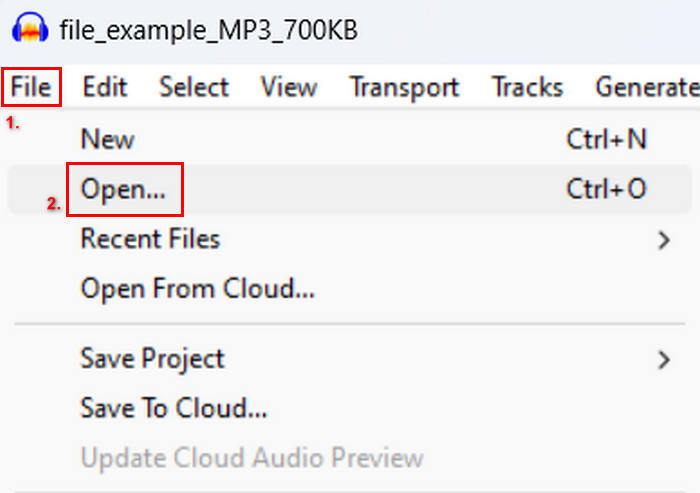
Step 2: Open the tool, go to the File tab, click Open, and import the tracks that you are going to merge.
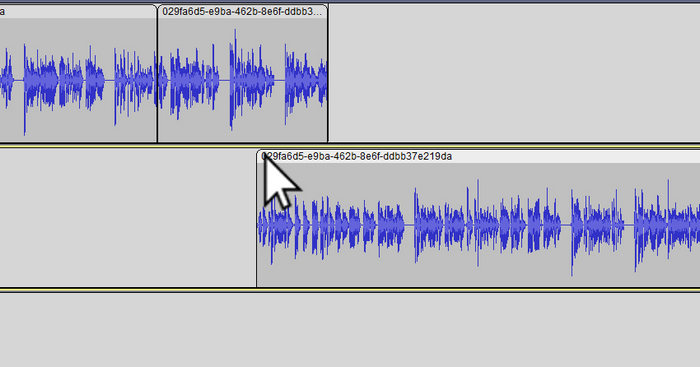
Step 3: Now all of your tracks are imported into your timeline, the next thing that you need to do is to click on the Clip head of the track to move and arange them in your desired order.
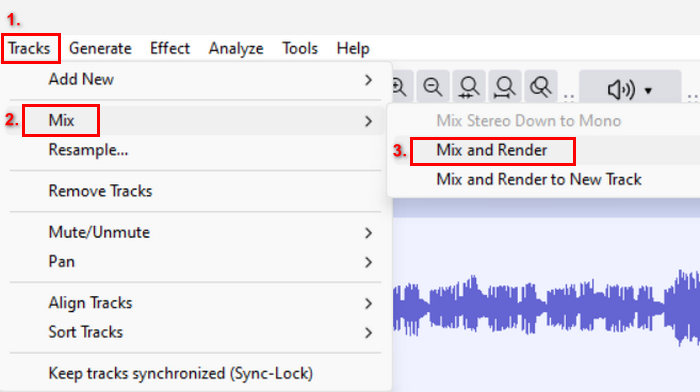
Step 4: Once you’ve lined up your tracks, blend them into a single composition. To select the tracks you want to merge, press and hold Ctrl while clicking on them. After that, to merge the chosen tracks into one track, go to Tracks, click Mix, and choose Mix and Render.
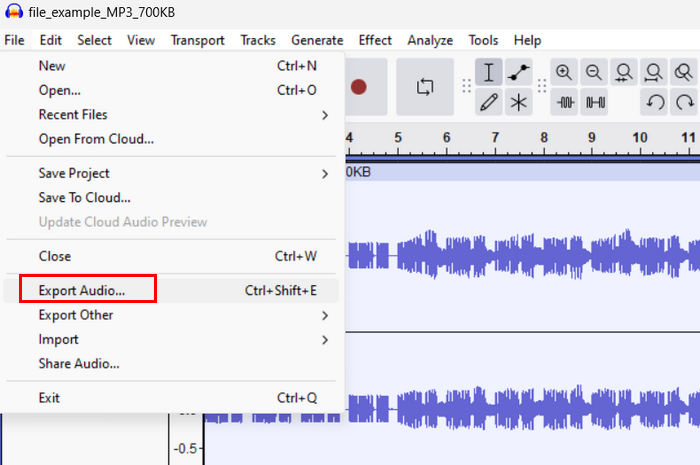
Step 5: To export the file, go to the File tab and choose Export Audio.
To ensure a smooth transition and balanced sounding for the combined audio tracks, use the Amplify or Normalize effects within the tool. Additionally, use fade-ins and fade-outs to create smooth transitions between tracks for a more professional and polished sound. Check here to learn how to fade audio in Audacity..
Parte 2. Mesclar trilhas com a alternativa Audacity
If you’re looking for an excellent alternative because you find it difficult to understand how the Audacity merge tracks feature works. In that case, you can use the FVC picked Video Converter Ultimate. This is a full-featured tool that offers a set of tools for audio and video needs, just like the audio merger. What this tool does is that, after importing the audio that you need to merge, you can easily change the order of the tracks based on how you want it to be and edit them right away before merging them in one click.
Main Features:
• Ele pode mesclar vários arquivos de áudio em 1.000 formatos, como MP3, AAC, WAV, FLAC, OGG e muito mais.
• Contém recursos básicos de edição, como corte, divisão rápida, efeitos de fade-in e fade-out.
• Permite editar a saída de áudio, como codificador, taxa de amostragem, taxa de bits, canal, etc.
• Processo de fusão rápido.
• Disponível para Windows e MacOS.
Veja como mesclar faixas com o FVC escolhido Video Converter Ultimate:
Step 1: First, you need to download and install the tool on your device.
Free DownloadFor Windows 7 or laterSecure Download
Free DownloadFor MacOS 10.7 or laterSecure Download
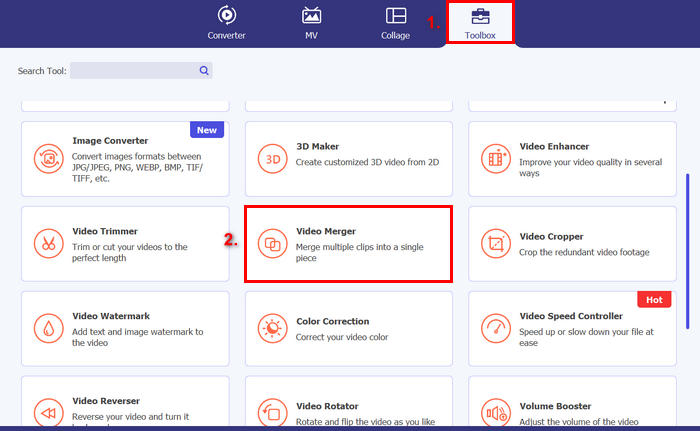
Step 2: Open the tool, go to the Toolbox tab, and choose Video Merger. After that, click on the Plus icon to easily import the audio files that you are going to merge.
Step 3: Now, all the audio tracks that you have imported can be seen at the bottom. If you need to adjust their sequence, simply drag the audio clip to the right place. Or you can select the clip and click on the Forward or Backward button. After that, click on the Export button to save your project.
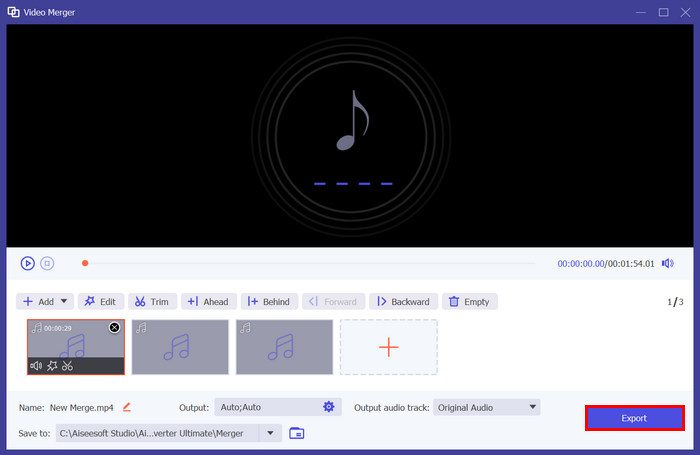
Note: In case you need to change the audio format or customize some audio settings, go to the Output setting. From there, you can change the format, encoder, sample rate, channel, and bitrate of your audio tracks. Once you're done, click on the Export button.
Aí está. O FVC escolheu o Video Converter Ultimate, que é realmente uma ótima alternativa para o Audacity. Com sua interface muito amigável e intuitiva, até mesmo iniciantes podem usar a ferramenta facilmente ao mesclar várias trilhas.
Parte 3. Perguntas frequentes sobre mesclagem de trilhas no Audacity
Como faço para importar vários arquivos de áudio para uma faixa no Audacity?
To import multiple audio files in Audacity, go to the File tab, click Open, and select the audio files you want to merge. Each file will appear in a separate track on the timeline. From there, you can manually align and merge the tracks using the Mix and Render option under the Tracks menu.
Como faço para mover áudio de uma trilha para outra no Audacity?
Há duas maneiras de mover uma trilha ao mesclar várias trilhas no Audacity. Para mover uma única trilha, clique e arraste a alça de clipe da trilha e posicione-a na ordem que você quiser. Enquanto isso, para mover várias trilhas, selecione todas as trilhas que você deseja mover usando a Ferramenta de Seleção. Em seguida, arraste qualquer alça de clipe dentro da área selecionada para mover todos os clipes escolhidos simultaneamente.
Quantas faixas o Audacity tem?
O Audacity não tem um limite fixo para o número de trilhas que você pode editar. Com isso, você pode criar e importar quantas trilhas quiser. No entanto, ao trabalhar com um número de trilhas, você deve considerar a capacidade do seu computador porque o desempenho pode depender do poder de processamento e da memória do seu sistema.
Conclusão
Now that you know how to merge tracks in Audacity, you can easily create smooth transitions and balanced audio for your projects. Moreover, you can explore its other features like fade-ins, fade-outs, and volume adjustments for better sounding. Meanwhile, if you want a simpler or more advanced option, give the FVC picked Video Converter Ultimate a try. It’s easy to use and offers more customization for your audio files.
-
 Como usar o Audacity para reverter áudio no Windows 10/11
 Se você estiver editando um arquivo de áudio no Audacity e se perguntando como reverter todo ou parte dele, leia aqui e aprenda como reverter áudio no Audacity facilmente.
-
 Como fazer fade de áudio no Audacity: 4 maneiras diferentes [2025]
 Descubra os passos sobre como fazer fade de áudio no Audacity de forma eficaz e algum conhecimento extra sobre os efeitos fade-in/out do Audacity. Apertem os cintos agora e vamos mergulhar.
-
 Como dividir áudio no Audacity com grande precisão [Guia]
 Tentando aprender como dividir trilhas no Audacity? Você está na página certa! Neste artigo, aprenda como você pode separar uma trilha em duas com grande facilidade.
