


 Video Converter Ultimate
 Gravador de ecrã
 Reparo de vídeo
 Secure Download
How to Merge Tracks in Audacity Without Complicated Steps
If you're working with different tracks in the same Audacity project, it can be a little tricky. In particular, when you want to combine this set of audio tracks into a single file to export to your desired destination. For example, you might have voice recordings, music, and sound effects, or just a couple of clips that you want to compile before exporting. One good thing is that you won't need a fancy program for this. Audacity brings built-in features that can help you merge these tracks to prepare them for exporting. In this guide, we’ll keep things simple as we walk you through Audacity merging tracks, along with a few tips to help you get better results.

Part 1. What Does “Merge Tracks” Mean in Audacity?
If you want to merge tracks in Audacity, merging tracks refers to joining two or more audio tracks into a single track. This may be useful for you if you have different recordings that you want to manage as one, such as combining different parts into one audio project or voice clips.
To get more specific about how exactly to do that in Audacity, merge 2 tracks. You can put them on one track and keep the audio content together with the help of it, but just know that the tracks will not be automatically repaired for timing, volume, or other audio issues after merging them, so it is better to check those points on the tracks before merging them.
Part 2. How to Merge Tracks in Audacity (Step-by-Step)
If you are working in Audacity and want to merge audio tracks, Audacity will allow you to merge several tracks during the export of the project. This is handy if you have various music or sound recordings, etc that you would like to save as one file.
How to Merge Tracks in Audacity
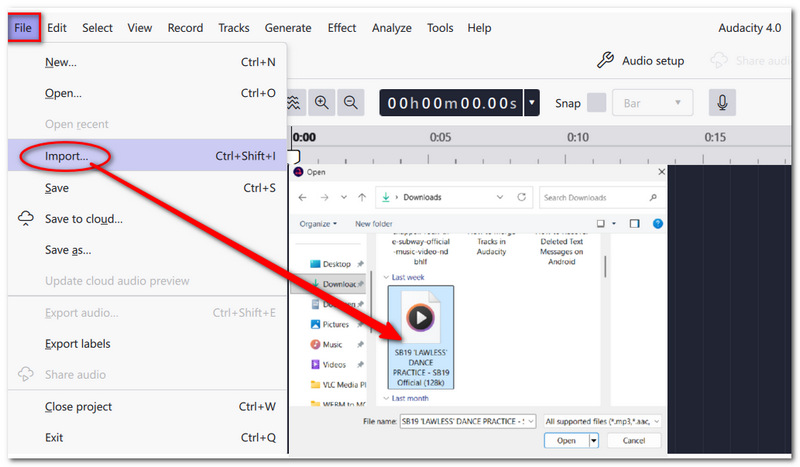
Step 1. Launch Audacity and click on File > Import > Audio to add the audio files you want to join together.
Step 2. Line up the tracks on the timeline and change their timing, volume, or other settings if necessary.
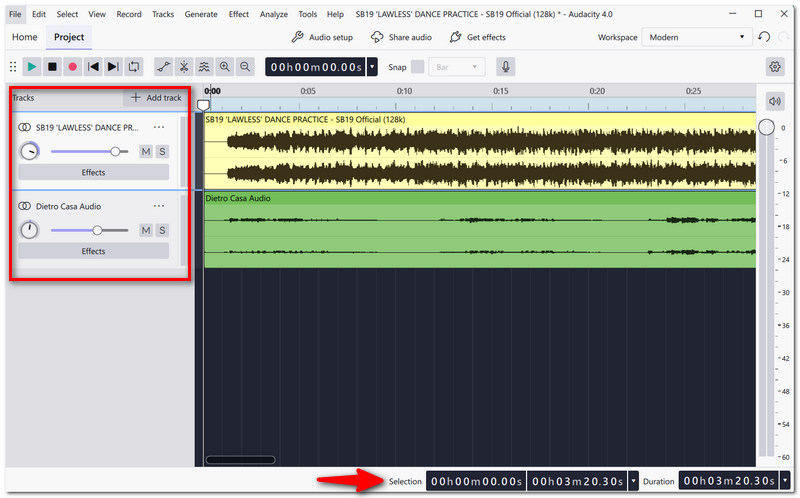
Step 3. Preview the whole project to get a better idea of how the different tracks will blend. Change the volume or position of a track only if it makes better sense.
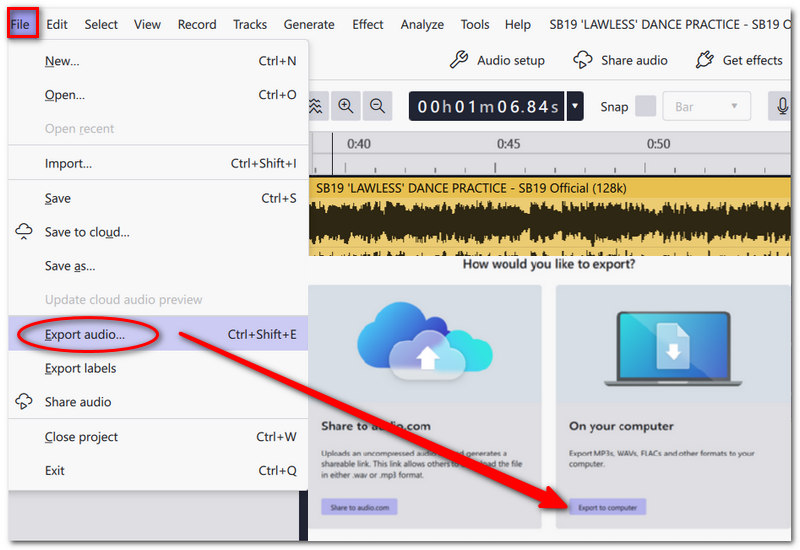
Step 4. Click on File > Export Audio from the top menu. A window for exporting will pop up. You can share it with Audio.com or save it to your computer.
Step 5. You can use the Export full project audio option if you want to get all the audio content of the project into a single file. Write a name for the file and select a destination folder. Pick your output format, for example, MP3 or WAV.
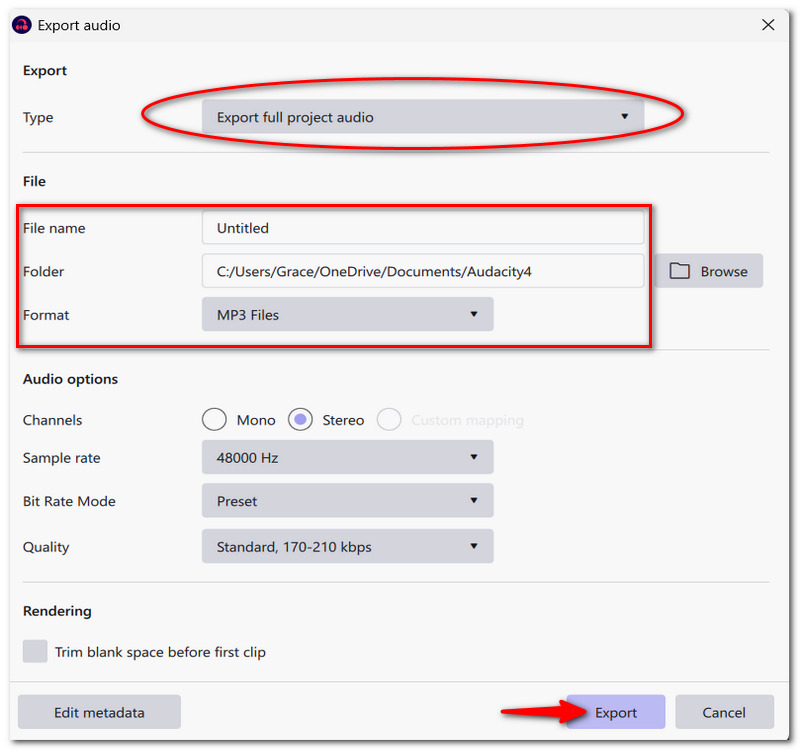
Step 6. Click Export and wait for Audacity to process. The audio you've merged should appear as a single file in this new audio. Lastly, open the file and play it to confirm that everything sounds good.
With this method, the original tracks stay on the Audacity project, and you can still edit them at any point if needed, whereas the file you exported is the final one that contains the combined audio.
Part 3. Tips for Better Audio Mixing in Audacity
Normalize Audio
Better even out audio volume via Normalizing so that softer or louder elements are closer in level.
Fade In / Fade Out
You can also fade audio in Audacity. Employ Fade In at the beginning and Fade Out at the end to produce transitions that are smooth and less jarring.
Balance Volume levels
When the loudness of one recording is a lot different from the other, reduce/raise the gain to a level where all voices in the piece sound balanced.
Prevent Clipping
Check the level meters as you play your music. If the audio line peaks and enters the red area, the track's volume should be reduced to prevent the sound from being distorted.
Part 4. Common Issues When Merging Tracks
Tracks Not Aligned
Mixing tracks is easier when they are all lined up properly on the timeline.
Audio Out of Sync
Check that the different tracks are timed so that playing of them is a seamless whole. Play the audio clips at the same time if the audio and video out of sync.
Volume Imbalance
Set each track's volume so that one sound doesn't drown out the others.
Part 5. Best Audacity Alternative for Easier Audio Merging
FVC Video Converter Ultimate (Alternative Tool)
FVC Video Converter Ultimate would be an excellent choice instead of Audacity, which is too focused on audio editing only, or just a slightly faster way to join files. Besides batch audio and video conversion, it merges several audio files into one, controls the output format and audio settings, and operates without an internet connection. That means you can use the program at any time, regardless of whether a computer is online or not.
Main Features
- • Merge several audio files into one.
- • Support various audio and video formats.
- • Support batch conversion.
- • Set your preferred audio options(encoder, sample rate, channel).
- • Editing functions: cropping the segment you need and balancing the volume.
Free DownloadFor Windows 7 or laterSecure Download
Free DownloadFor MacOS 10.7 or laterSecure Download
How to Merge Audio Files with FVC Video Converter Ultimate
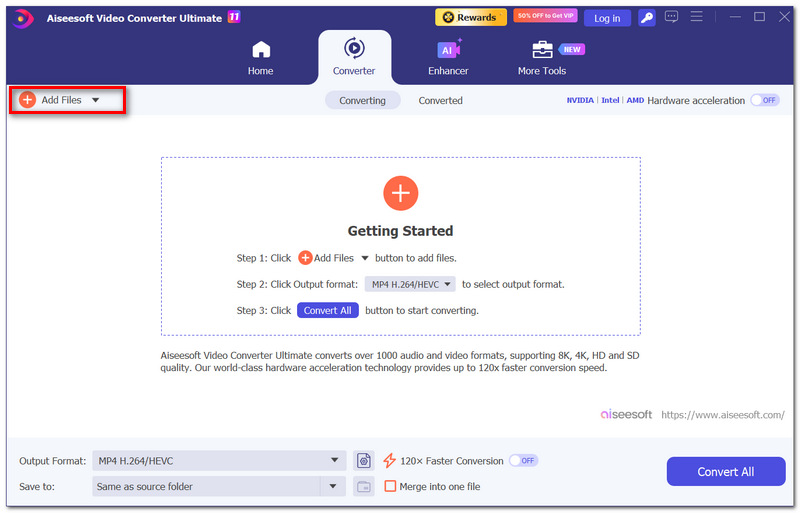
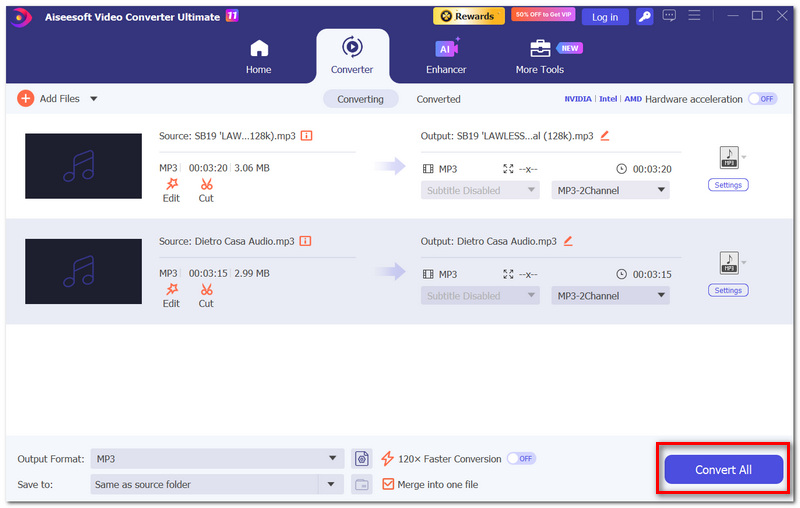
Step 1. Open FVC Video Converter Ultimate software and click on Add files to import the audio files you want to mix.
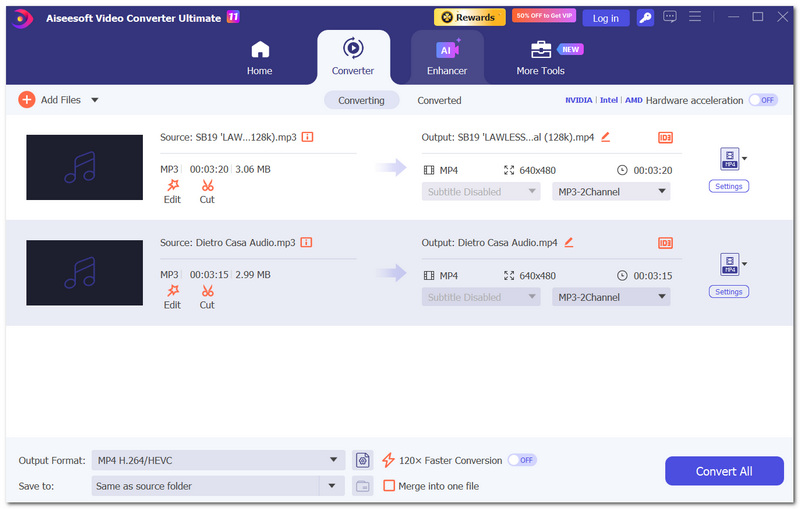
Step 2. Drop all files you plan to merge in the designated box, and drag and drop them to reorder them to their desired sequence.
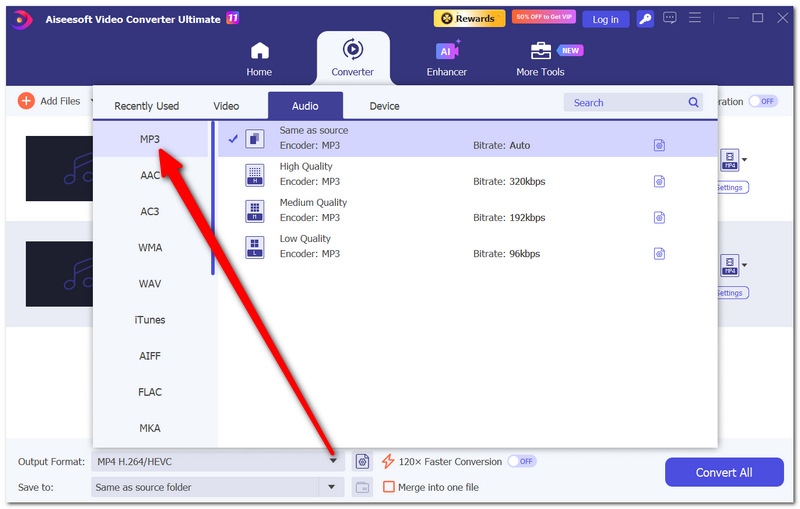
Step 3. Click Output format and choose the audio file format that suits you, such as MP3.
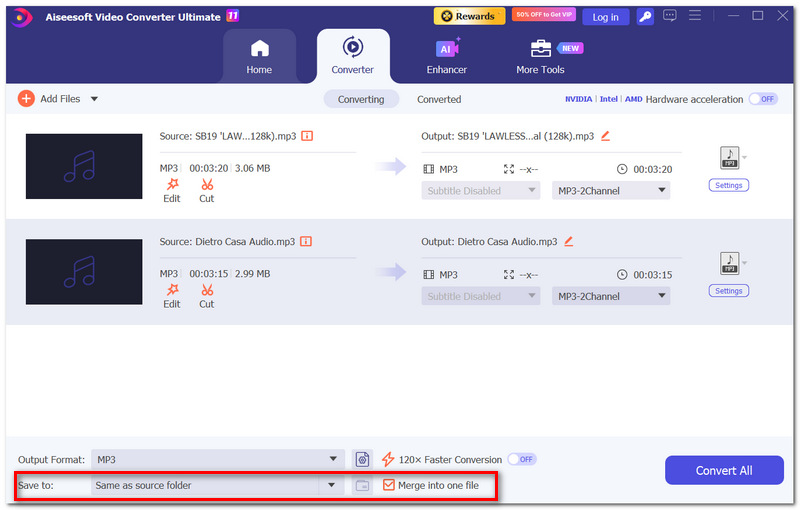
Step 4. Under Save to folder, choose a folder. Hit the checkbox Merge into one file.
Step 5. Hit Convert All. The new file will be created after the conversion process has completed. You are then expected to go to the output folder you have designated, look for the file you have merged, and listen to it to confirm that everything goes based on your plan.
Part 6. FAQs about Merging Tracks in Audacity
What happens when I move a clip after importing it?
When you move a clip, it affects the time when it plays in the final recording by changing its position on the timeline. Drag the clip by its header to move it and change its position.
Why is the merged file I have silent?
Musically, your tracks must have been muted or excluded from playback. That's probably the reason behind your merged file being silent. Since the export of Audacity follows what's going on with your playback, any track that's muted during playback will not feature in the final normally mixed export.
Is it possible to get separate tracks out of a merged audio file?
No, not exactly. One mixed track exports all the tracks as one audio track. It's not possible to separate the individual parts once it has become one audio file. So, it's important to retain your original Audacity project.
Conclusão
One of the reasons it's so simple to get help with the process of merging tracks in Audacity is that the only thing you're likely to have to remember is that you are able to keep your tracks in order, and you can make a few simple changes to them before you export them into one final audio file. Also, doing a final check of your volume, timing, and general mix before exporting should help you sidestep audio issues commonly encountered. On the other hand, if what you want is an easy and fast way to join several audio files together without the need for comprehensive audio editing software, a specialized audio converter is going to do the trick.
-
 Como criar facilmente toques para iPhone sem o iTunes
 Você está se perguntando como fazer ringtones para iPhones sem iTunes? Leia este artigo e descubra 4 maneiras de ajudar você a criar ringtones personalizados facilmente.
-
 Guia definitivo sobre como editar áudio no iMovie: 3 maneiras mais fáceis
 Quer saber como você pode melhorar seu projeto de áudio? Aprenda 2 maneiras de editar áudio no iMovie e descubra 1 alternativa que pode ajudar você a editar seu áudio de forma eficaz.
-
 5 Best Ringtone Makers for Android [Reviewed]
 Este artigo analisou detalhadamente 5 criadores de toques para Android para ajudar você a encontrar a ferramenta certa que facilitará a criação de toques personalizados.
