


 Video Converter Ultimate
 Gravador de ecrã
 Reparo de vídeo
 Secure Download
Combine arquivo M4A: etapas rápidas e fáceis para mesclar áudio
Using an M4A file is difficult enough, as all devices and audio software do not support this audio file format. Modifying it has imposed another challenge for users. Of course, there are tons of ways to join M4A files together into a single audio file, and using third-party tools such as software and online tools makes it possible. This guide will help struggling users find a reliable tool to combine their M4A files while also providing a walkthrough to help them get started navigating the software and online tools.

Parte 1. Método mais rápido para combinar arquivos M4A no Windows/Mac [para alta qualidade]
First on the list is the FVC-picked Video Converter Ultimate. This software tool can effectively create precise cuts, trims, compressed files, and, in this case, M4A file mergers. Merging M4A files allows users to upload multiple M4A files at the same time without any trouble converting them first. It is quite fast and easy, as the software itself is very organized and easy to navigate, which makes it an instant favorite for novice users.
Step 1. Download and launch FVC-picked Video Converter Ultimate to your desktop.
Free DownloadFor Windows 7 or laterSecure Download
Free DownloadFor MacOS 10.7 or laterSecure Download
Step 2. Once the software is installed, click on the Add Files button and select the M4A files you want to merge.
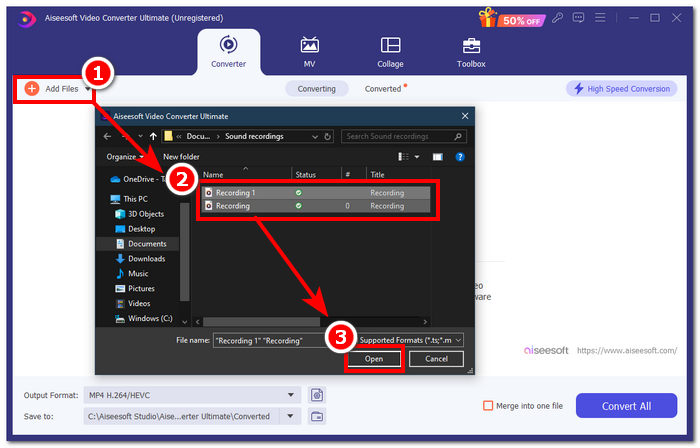
Step 3. Once your M4A files are uploaded to the tool’s interface, click the checkbox located in the lower-right part of the tool to enable the merging of your M4A file. Then, proceed to click the Convert All button right next to it to start the merging process.
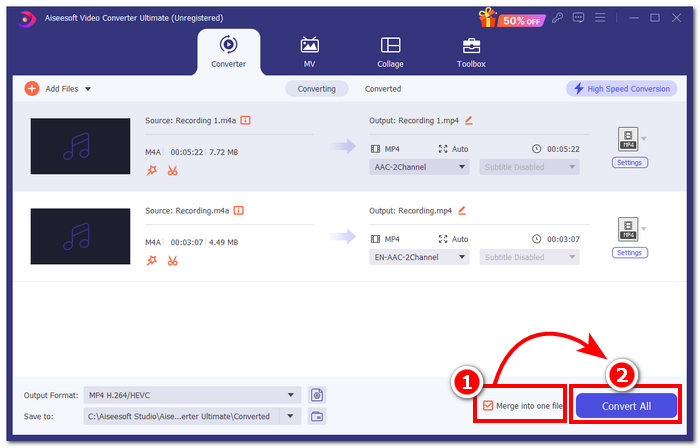
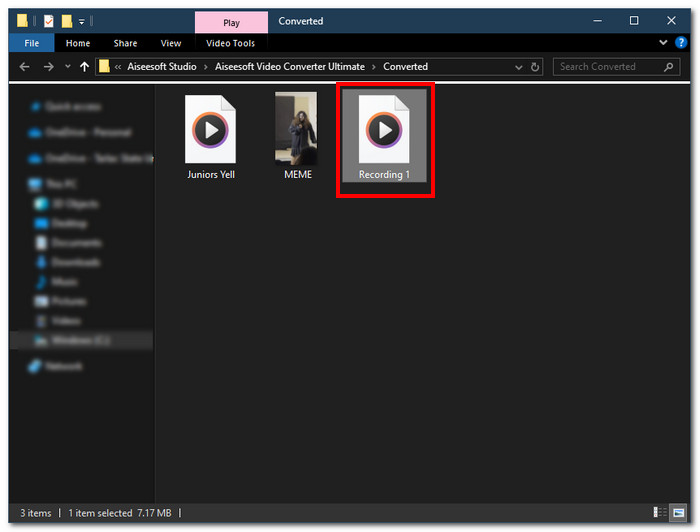
Step 4. Once the merging process is complete, a new window will open on your screen. Your merged M4A files will be located in that window. Congratulations, you have finally merged your M4A files.
O Video Converter Ultimate escolhido pelo FVC é o mais rápido entre os softwares listados, pois é integrado com tecnologia de processamento de alta velocidade para garantir um resultado de qualidade sem perdas, ao mesmo tempo em que oferece uma interface muito intuitiva que torna a mesclagem de seus arquivos M4A perfeita. Ao contrário de outros softwares que suportam apenas um número limitado de formatos de arquivo de áudio, este software suporta uma ampla gama de formatos de arquivo de áudio e vídeo, incluindo M4A, MP3, MP4, WAV, AAC, etc.
Parte 2. Combine arquivos M4A no Mac com GarageBand [para criadores de música]
Para entusiastas ou criadores de música profissionais no ecossistema da Apple, o GarageBand é a ferramenta de fusão de arquivos M4A ideal. Mesclar arquivos M4A usando seus dispositivos Mac é fácil, pois o GarageBand da Apple é um editor de áudio pré-instalado em seus dispositivos. Para mesclar dois arquivos M4A em um único arquivo de áudio, basta seguir nossos passos abaixo. O GarageBand está entre essas ferramentas de software que funcionam de forma direta e fácil.
Step 1. Download and launch GarageBand from your Mac devices.
Step 2. On the main interface, load your M4A files by clicking on File > Open, located in the upper left corner of the tool.
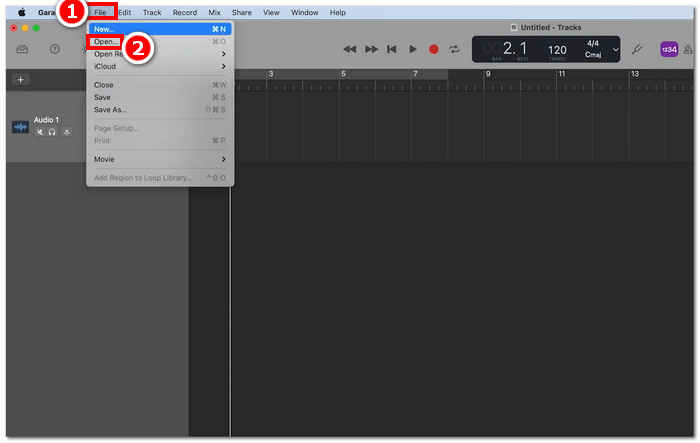
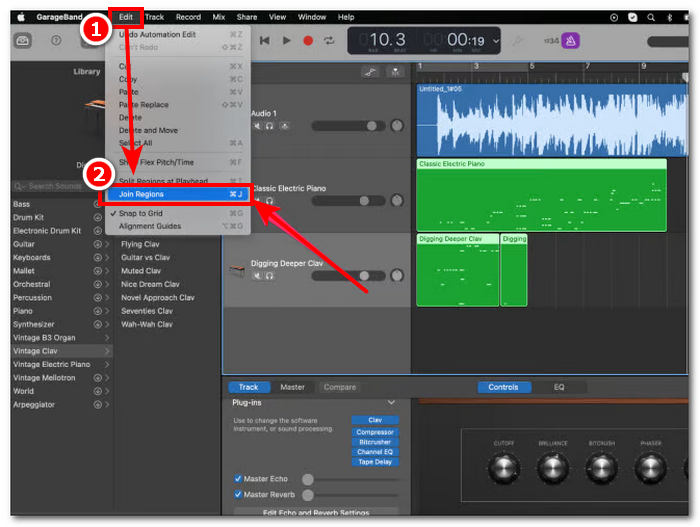
Step 3. Once your M4A files are loaded in the tool’s interface, click Edit > Join Regions to start merging your uploaded M4A files.
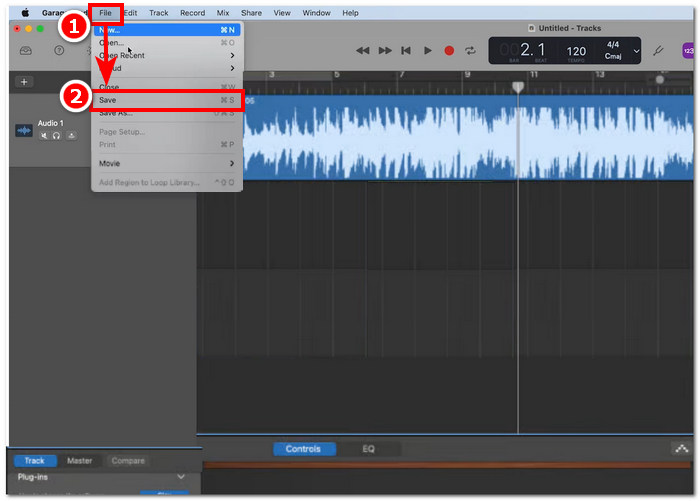
Step 4. Once your M4A files are merged into a single audio track, you can now save or download it by clicking on the File > Save button located in the upper-left corner of the tool.
Truly, GarageBand is one of the simplest yet professionally made software for merging and editing M4A files. Following the steps above is a great way of organizing two or more M4A files into a single audio file, which makes it easier to share a mix.
Parte 3. Combine arquivos M4A no Windows com VLC [para usuários básicos]
Surpreendentemente, o VLC Media Player pode combinar arquivos M4A em um. Ele permite um processo de mesclagem direto e sem interrupções, aproveitando suas configurações no visualizador de propriedades de mídia e arquivo. Este popular reprodutor de áudio e vídeo gratuito e útil, independentemente do formato de arquivo que você deseja combinar com o VLC, pode convertê-los e mesclá-los efetivamente.
Step 1. Download and launch VLC Media Player on your desktop.
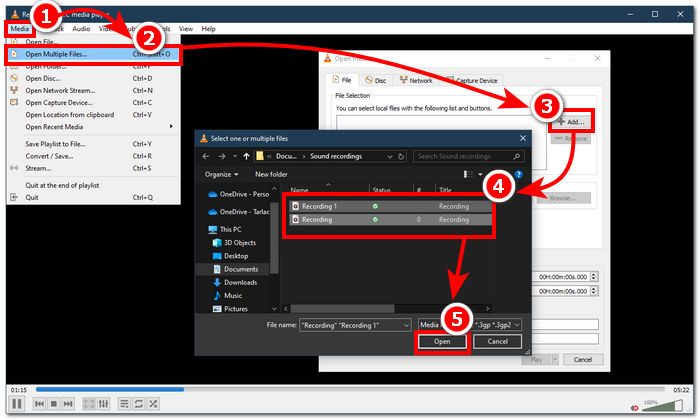
Step 2. On the main interface, click first on Media > Open Multiple Files in the upper-left corner of the player. Once you click on that, a new window will appear. To continue, click on the + Add button and select the M4A files you want to merge.
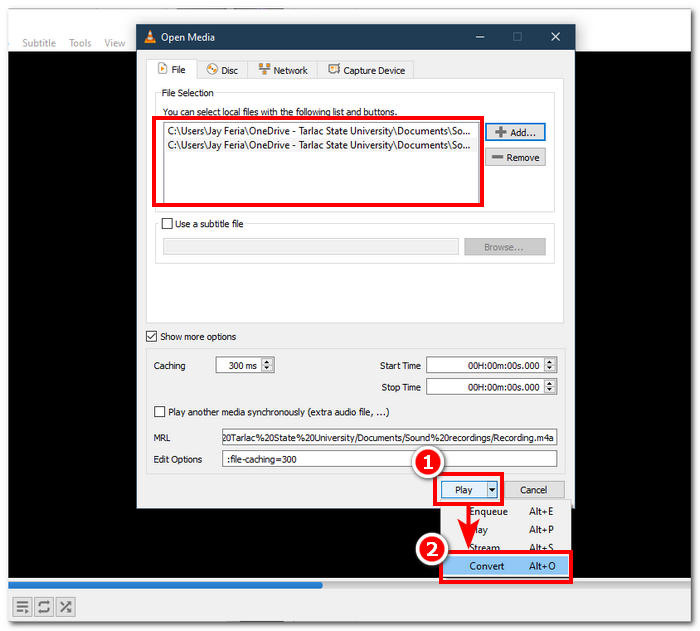
Step 3. Once your M4A files are in the file field, click on the arrow-down button next to the Play button in the lower part of the tool’s interface and select Convert.
Step 4. A new window will then appear. Click on the checkbox for Append ‘-converted’ to filename. Next, go to the profile settings and choose Audio. Once everything is set, click on the Start button, and your merged M4A file will be available in the file folder where your M4A files are located.
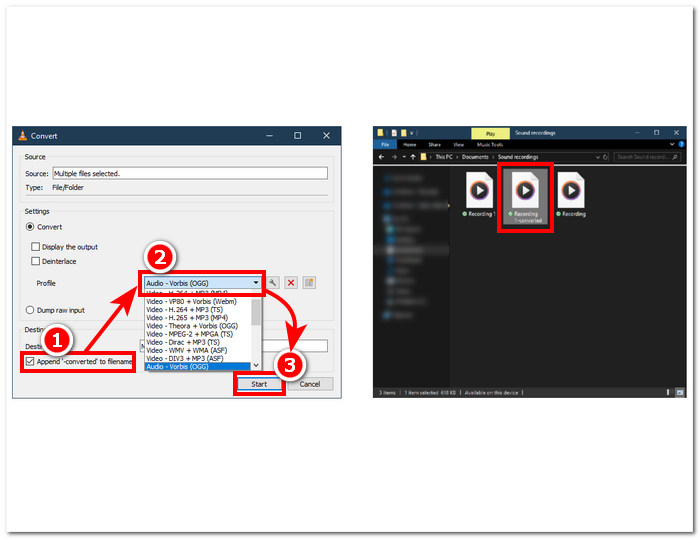
Do not forget to adjust the audio length when you combine them for syncing with a video file. If audio is delayed in VLC, this article will be helpful: How to fix VLC audio delay.
Seguir os passos fornecidos garante que você tenha uma mesclagem perfeita dos seus arquivos M4A. O VLC Media Player não é apenas um player típico para todos os tipos de mídia, mas também pode ser usado como um editor de metadados e pode combinar não apenas M4A, mas também vídeos.
Parte 4. Combine arquivos M4A on-line [para arquivos M4A pequenos]
Se você está procurando uma ferramenta de mesclagem M4A mais eficiente e que economize tempo, você pode querer recorrer a uma ferramenta online. Para mesclar arquivos M4A online, é preciso usar uma ferramenta confiável, pois há toneladas de ferramentas de mesclagem M4A enganosas online. Felizmente, o Audio Joiner está aqui para ajudar, pois é uma ferramenta baseada na web para mesclagem de arquivos M4A. Ele funciona basicamente carregando seus arquivos M4A no site e, com um único clique, ele mescla instantaneamente seus arquivos de áudio em um.
Step 1. Go to Audio Joiner's official website to access the service.
Step 2. Once you are in the website interface, click on the green + Add Tracks button and select the M4A files you want to combine.
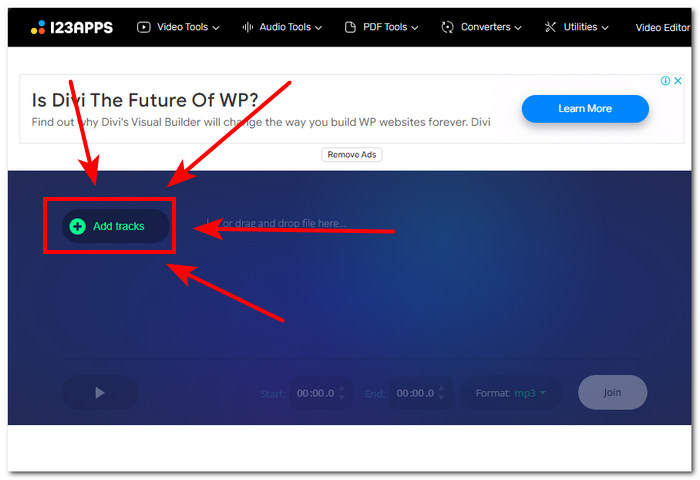
Step 3. Once your M4A is loaded in the tool proceed to click on the Join button located in the lower-right part of the website and just wait for it to finish the merging process.
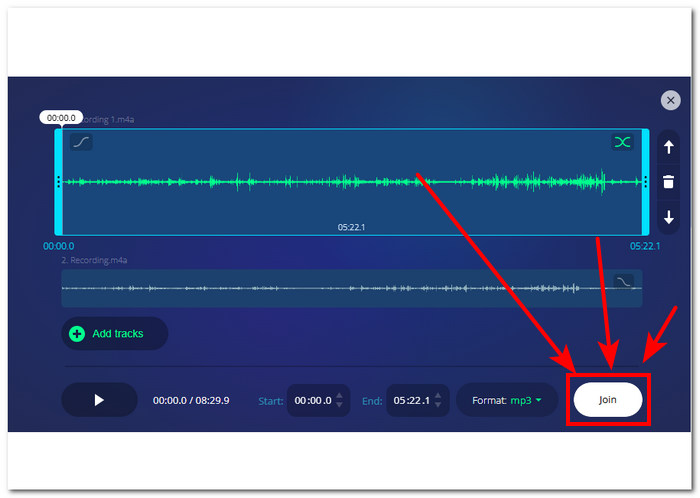
Step 4. Once the merging is done, you can press the Download button on your screen to download and save your merged M4A file to your desktop.
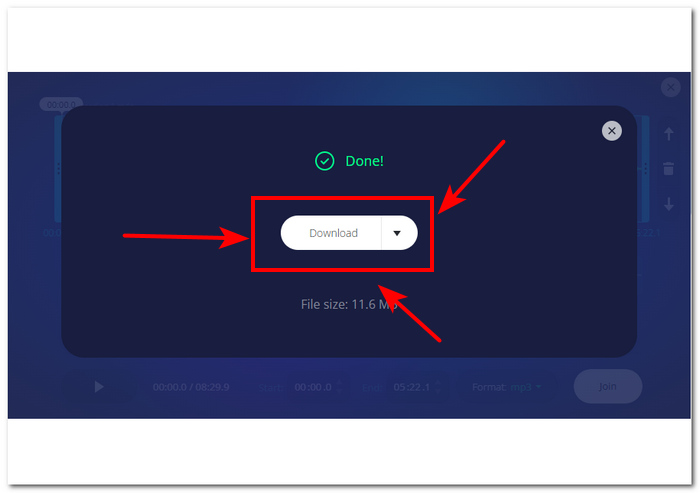
Apesar de ser conveniente para usuários que não querem perder tempo instalando uma ferramenta de software, esta ferramenta de mesclagem de arquivos M4A baseada na web exibe anúncios pop-up e, infelizmente, carrega seus arquivos de áudio mais lentamente.
Parte 5. Perguntas frequentes sobre como combinar arquivos M4A
Qual é a maneira mais fácil de combinar arquivos de áudio?
A maneira mais fácil de combinar arquivos M4A é confiar em ferramentas online, que oferecem mesclagem instantânea de arquivos de áudio em um único clique. No entanto, tenha cuidado ao usar tais ferramentas, pois há alguns riscos envolvidos.
Qual é o comando para mesclar faixas no GarageBand?
O atalho de teclado para mesclar uma faixa no GarageBand é pressionar Command + J simultaneamente.
É possível usar um Windows Media Player para mixar músicas?
Infelizmente, o Windows Media Player ainda não possui esses recursos ou funcionalidades integradas para ajudar você a mixar ou mesclar músicas.
Existe uma maneira de combinar arquivos M4A sem perder qualidade?
Sim, há muitas maneiras de combinar M4A sem perder qualidade. Algumas ferramentas têm um ajuste de configurações designado para isso, e algumas oferecem diretamente uma exportação de alta qualidade todas as vezes, como o Video Converter Ultimate escolhido pelo FVC.
Posso combinar arquivos M4A no meu smartphone?
Sim, as fusões de arquivos M4A estão disponíveis em desktops e navegadores da web, bem como em dispositivos móveis. O GarageBand oferece uma versão móvel de sua versão para desktop, mas ela só está disponível em dispositivos iOS, enquanto o WavePad mobile está disponível tanto em iOS quanto em Android.
Conclusão
Knowing how to merge M4A tracks is a fantastic skill to have when learning audio editing. It will assist you in trimming and organizing your projects so that none of them have an absurd number of tracks active at any given time. To merge M4A files effectively, users might need reliable software or online tools to get by such a task. Therefore, to get you started following through our steps can help you master this is a useful skill to have before switching to more advanced recording platforms.
-
 Como converter M4A para MP3 com 4 conversores de áudio grátis
 Não consegue reproduzir M4A e precisa convertê-lo para MP3? Existe alguma maneira gratuita de converter M4A para MP3 online? Esta postagem compartilha 4 maneiras gratuitas de ajudá-lo a converter M4A em MP3 com o iTunes, conversores de áudio online e profissionais.
-
 Download do MP3 Player - Os 10 melhores leitores de música MP3 gratuitos de 2021
 Qual é o melhor reprodutor de música MP3? Como coloco música em um MP3 player? Como fazer o download do reprodutor de música MP3? Esta postagem oferece uma análise detalhada dos 10 melhores MP3 players gratuitos para Windows PC e Mac.
-
 Obtenha seu melhor reprodutor MP4 para reproduzir arquivos MP4 com alta qualidade visual
 Leia e obtenha o seu melhor MP4 player com as recomendações dos 10 softwares mais recentes para MP4 video player. Você pode reproduzir arquivos de vídeo MP4 no Windows e Mac sem problemas, sem atrasos.
