


 Video Converter Ultimate
 Gravador de ecrã
 Reparo de vídeo
 Secure Download
Mescle arquivos WAV perfeitamente com ferramentas e dicas de software
Whether you are a novice in audio editing or a pro, to combine WAV files using the right tools and techniques is necessary to ensure that two different WAV files are combined and exported with lossless quality. Looking for the right tool, on the other hand, may take a user's time and effort. Still, with the help of this article, we’ll explore the various tools with steps to navigate the tool effectively and tips to get you started and make the process more straightforward and efficient.

Parte 1. Combine arquivos WAV sem perdas em segundos [com aceleração de GPU]
When you want to combine two WAV files into a single file export, the best and easiest way to do it is to use the FVC-picked Video Converter Ultimate. This software tool by Aiseesoft is accessible to all kinds of users as it is completely free to download on its official website. This tool houses features for video and audio editing with the capability to merge multiple WAV files into a single file. Additionally, the software is integrated with a high-speed processing technology that makes merging WAV files and exporting much more efficient on the user end. For easy navigating the merging WAV file task, please follow through the guide below.
Step 1. Download and install the WAV file merger on your desktop, then proceed to open it.
Free DownloadFor Windows 7 or laterSecure Download
Free DownloadFor MacOS 10.7 or laterSecure Download
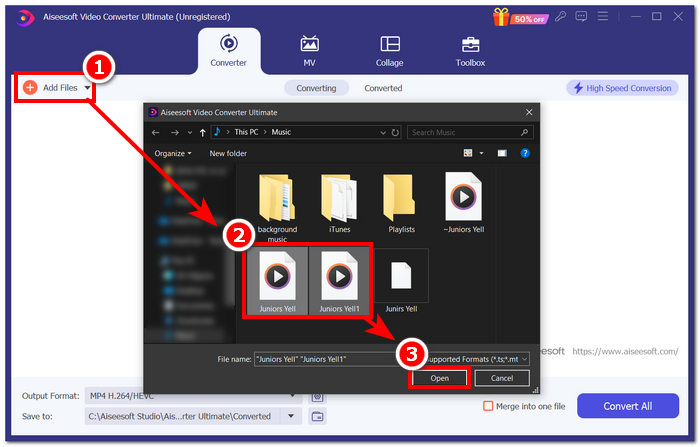
Step 2. Once you are in the software interface, click on the Add Files button at the top-left corner. Then open and choose the WAV files you want to merge as a single file and proceed to click on the Open button.
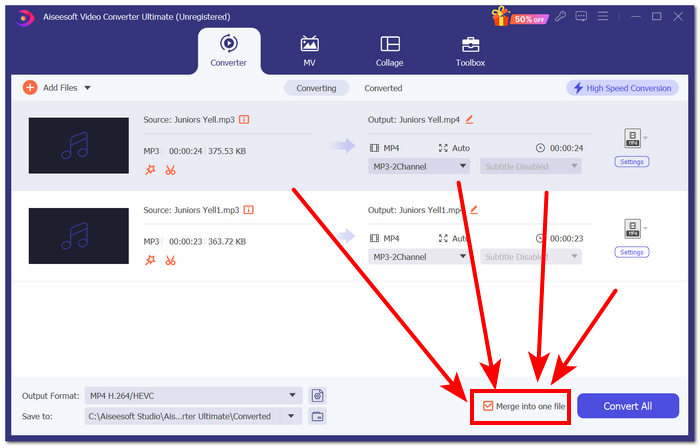
Step 3. Once you have uploaded the WAV files, you want to merge them into the software. To do so, put a checkmark on the Merge into one file menu, which is located beside the Convert All button in the lower-right part of the software interface.
Step 4. Click on the Convert All button to begin the merging process and automatically export them to your download folder.

Tips
• Você pode mesclar vários arquivos WAV na ferramenta de software simultaneamente.
• No canto inferior esquerdo da interface do software, você pode controlar o formato de saída para o formato de arquivo mais desejado antes de exportá-lo.
• Você também pode alterar o destino do arquivo WAV mesclado acessando e escolhendo a pasta designada localizada no canto inferior esquerdo da interface do software.
• Para maximizar a tecnologia de processamento de alta velocidade ao mesclar e exportar seu arquivo WAV, ative a configuração Conversão de alta velocidade localizada no canto superior direito da interface do software.
• Also, this tool supports various formats, and you can combine MP4, MKV, FLV, MP3, FLAC, and more formats together.
Parte 2. Combine arquivos WAV online
Quando você acha que mesclar seus arquivos WAV por meio de uma ferramenta baseada em software é bem difícil, uma solução online pode ser a que você precisa. Descript é uma ferramenta baseada na web que funciona como uma ferramenta de edição de áudio, vídeo e transcritor em um. Mesclar arquivos WAV é relativamente fácil, pois a ferramenta baseada na web usa IA para mesclar automaticamente seus arquivos WAV de entrada no momento em que você os carrega e permite que os usuários os visualizem antes de baixá-los.
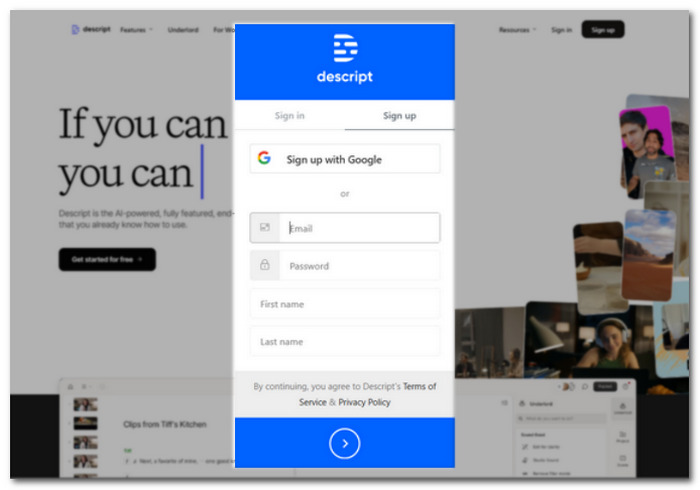
Step 1. Go to Descript’s official website and create an account so you can use the software tool to combine your WAV files.
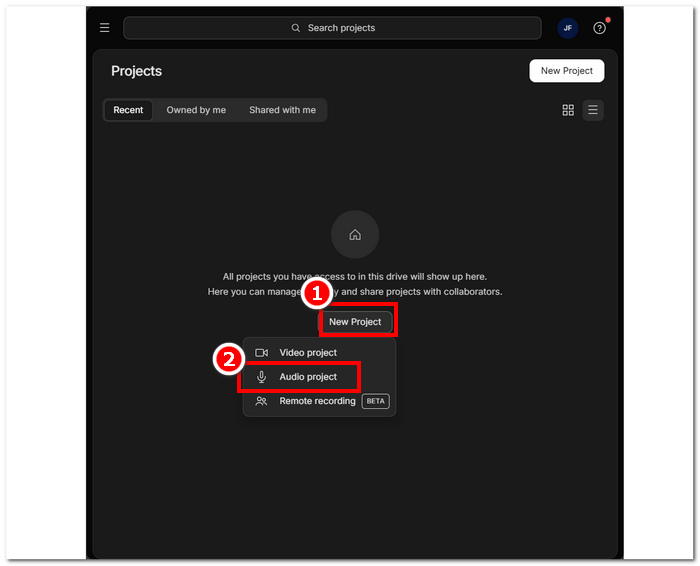
Step 2. Once you log in to the tool interface, click on New Project > Audio Project.
Step 3. Upload the WAV files you want to combine and merge into a single file in the field Upload a file field provided in the tool’s interface.
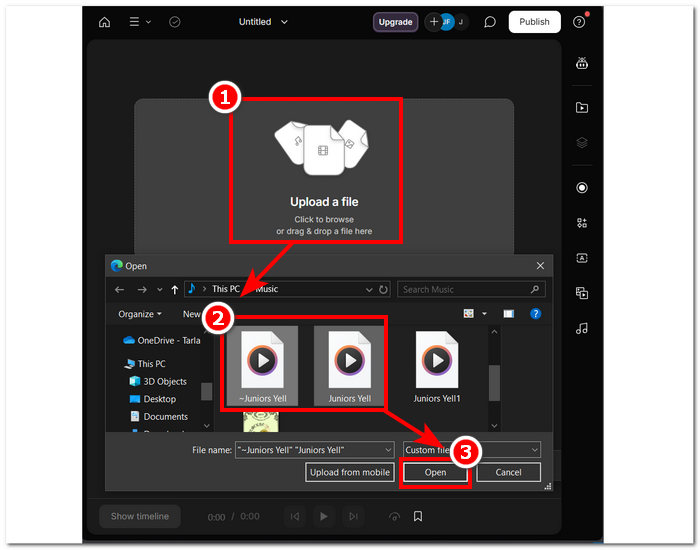
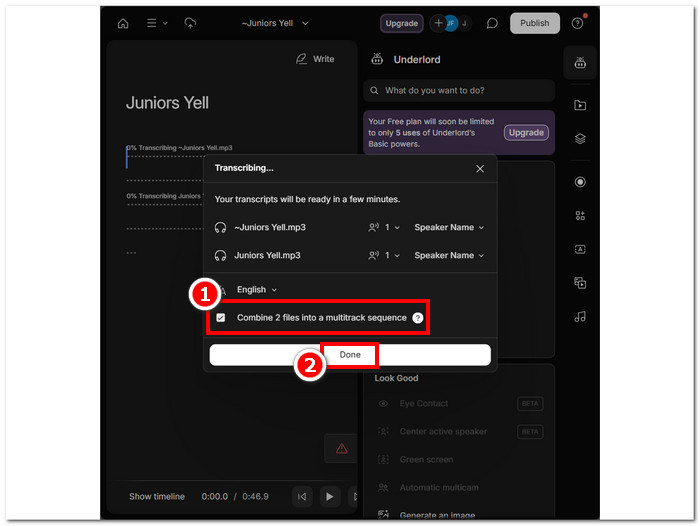
Step 4. While your WAV files are uploading in the tool’s interface, a window will appear. It will let you decide if you want them to combine automatically. Put a checkmark to allow the AI combining process, then click the Done button.
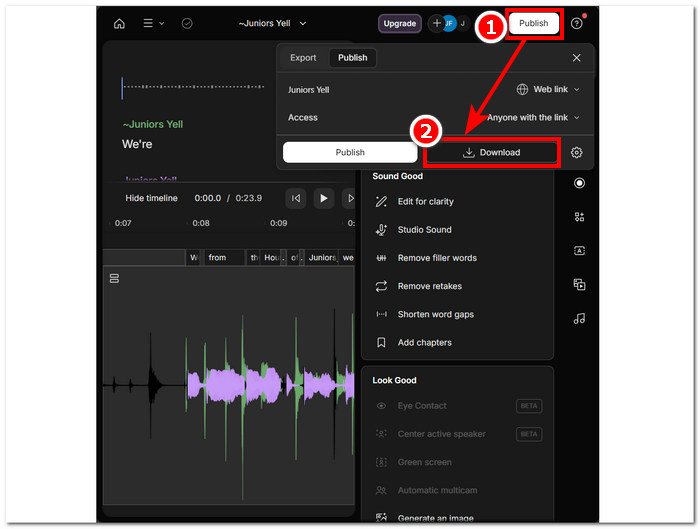
Step 5. Wait for the tool to finish merging your WAV files. Once done, you can play the finished output to review whether the AI did a very good job combing your WAV files and make adjustments if needed. Once you are satisfied, proceed to click on the Publish > Download button to have your merged WAV files downloaded to your desktop.
Tips
• Antes de baixar seus arquivos WAV combinados, certifique-se de verificar a trilha de áudio cuidadosamente para evitar cortes.
• Estar familiarizado com a ferramenta pode ajudar a acelerar efetivamente o processo de mesclagem de arquivos WAV.
Parte 3. Combine arquivos WAV com o Audacity
As an open-source audio editor, Audacity can also merge tracks like WAV files free of additional charges. This free-to-download software has been helping users with their audio editing tasks and has made merging a WAV file much easier. Audacity allows users to add multiple WAV files all at one go while also supporting the import of different audio formats. Moreover, it has a quick feature to arrange each track perfectly from the end of each track, making it a lot easier to merge without thinking about overriding. Thus, following the comprehensive guide below will help you navigate the software better.
Step 1. Download the Audacity software to your desktop. Once you have it, open it and load the WAV files you want to merge as one file.
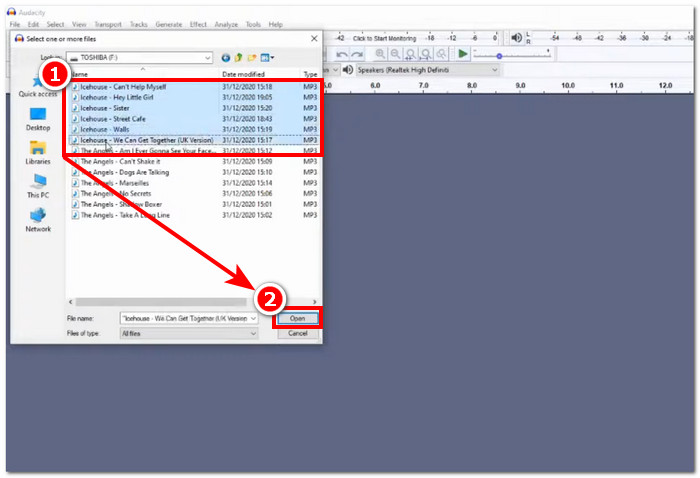
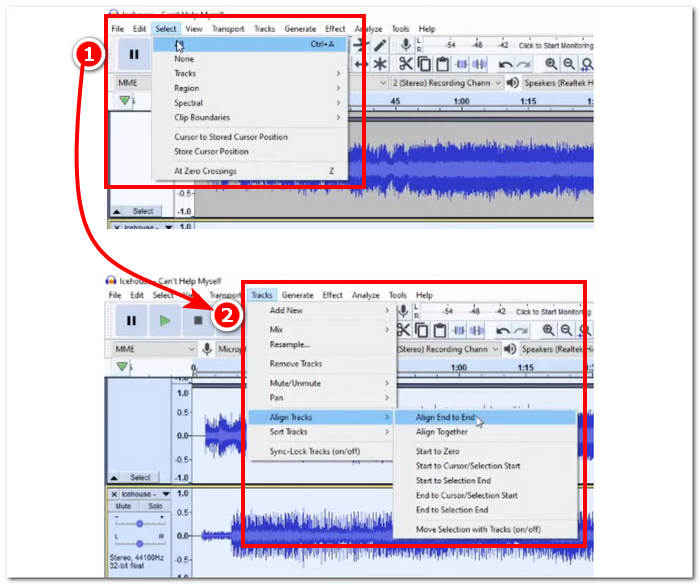
Step 2. Once your WAV files are loaded in the tool’s interface, begin by selecting all of your track files by clicking on the Select > All option located in the top-most menu setting of the tool. Next is to align the selected WAV file track, click on the Track section, and under the Align Tracks, click the Align End to End.
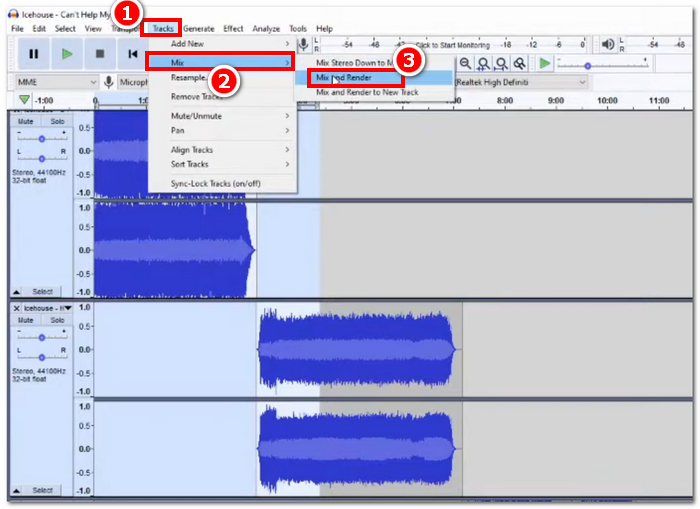
Step 3. Once your WAV files are aligned from the end of each track, click on the Track section, and under the Mix feature, click the Mix and Render feature to begin the merging process.
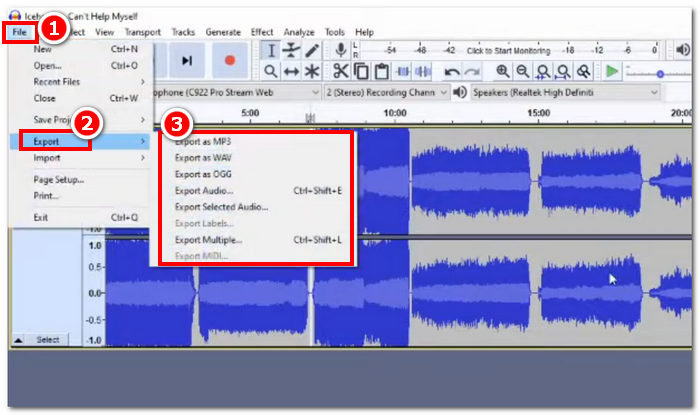
Step 4. Once the merging process is done, you can now export your WAV file by clicking on File > Export, and feel free to choose your desired output format available.
Tips
• Ao exportar seus arquivos WAV combinados, escolha exportar como WAV, pois isso mantém a qualidade do áudio original.
Parte 4. Combine arquivos WAV usando FFmpeg
Outra ferramenta de software de código aberto para manipulação de áudio e vídeo é o FFmpeg. Esta poderosa estrutura multimídia pode ser usada como um conversor e para edição multimídia, como vídeo, áudio e outros arquivos de mídia. Ao lidar com tarefas como mesclar arquivos WAV, o software insere um código específico no prompt de comando para iniciar o processo de mesclagem chamado concatenar arquivos WAV em um único arquivo de saída. Abaixo está um guia detalhado sobre como usar o FFmpeg como um mesclador de arquivos WAV.
Step 1. Go to the FFmpeg website and install the program depending on what devices you are using.
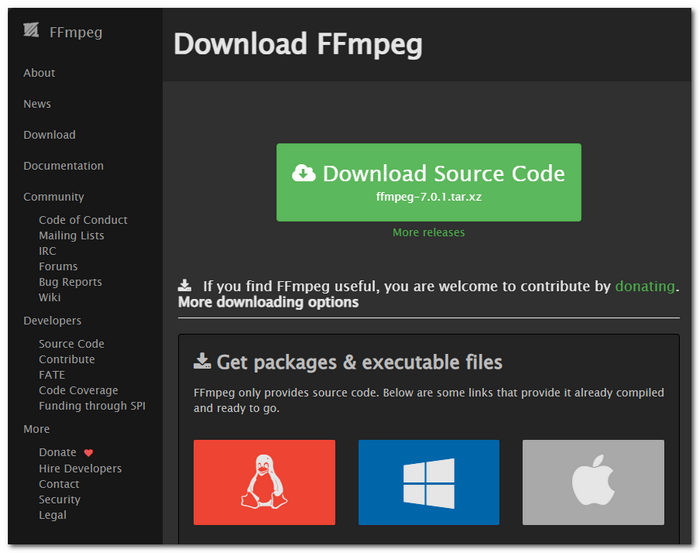
Baixe o arquivo zip do site e crie uma nova pasta no caminho do sistema para armazenar todos os executáveis do FFmpeg, incluindo mover o arquivo zip para a pasta.
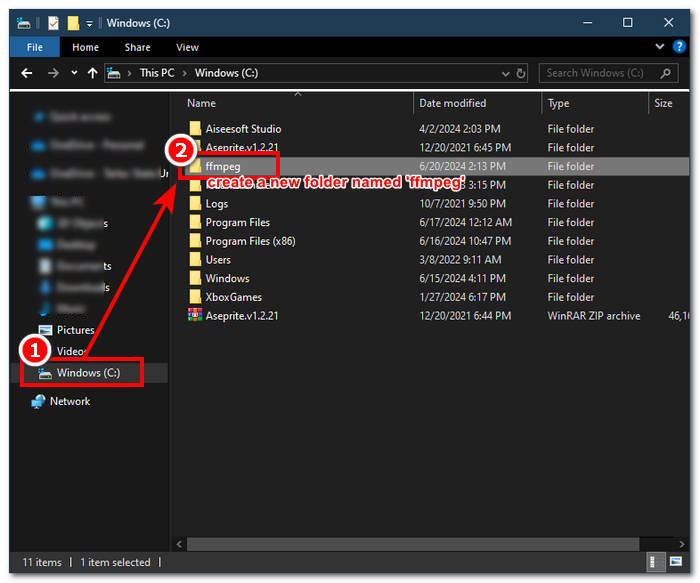
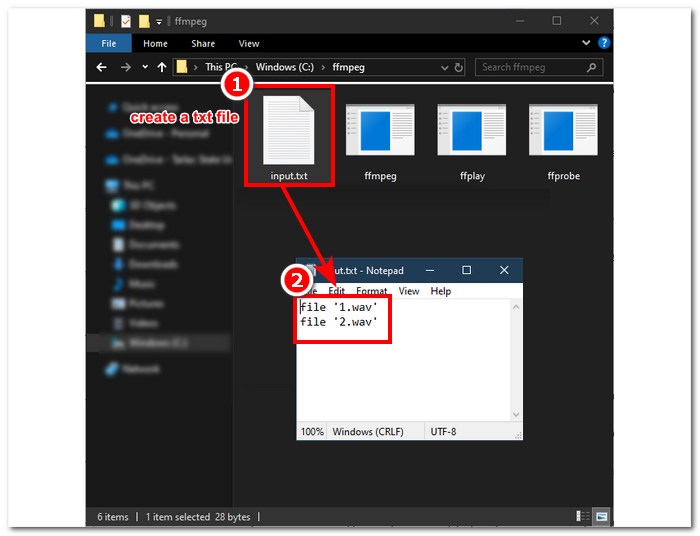
Step 2. Move your WAV file to the ffmpeg folder you just created and prepare your WAV files by renaming them into ‘input1.wav’ and ‘input2,wav’ in the directory.

Note: Then, in the same folder, create a file named ‘input.txt’ and input the following content;
file 'input1.wav'
file 'input2.wav'
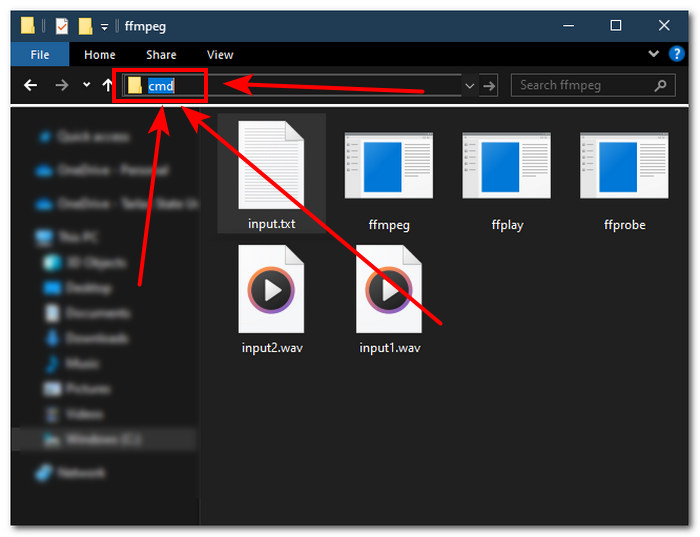
Step 3. Run the FFmpeg command prompt by typing ‘cmd’ in the file folder field located at the top part of the window and click enter.
Step 4. Once you are in the command prompt of FFmpeg, enter the following command and press enter;
ffmpeg -f concat -safe 0 -i input.txt -c copy output.wav
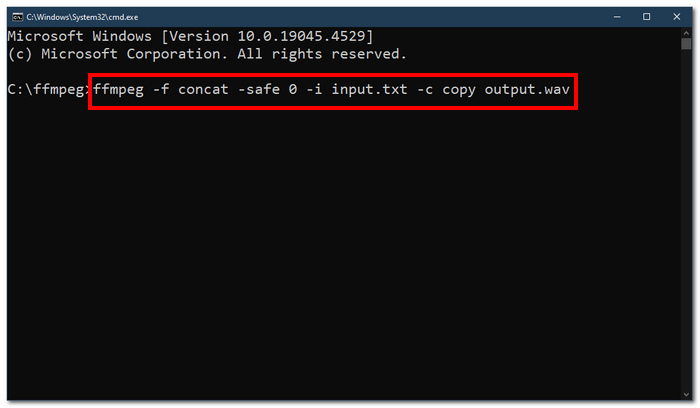
Step 5. A new WAV file appears in your folder, implying that you have successfully merged your WAV files into a single file.
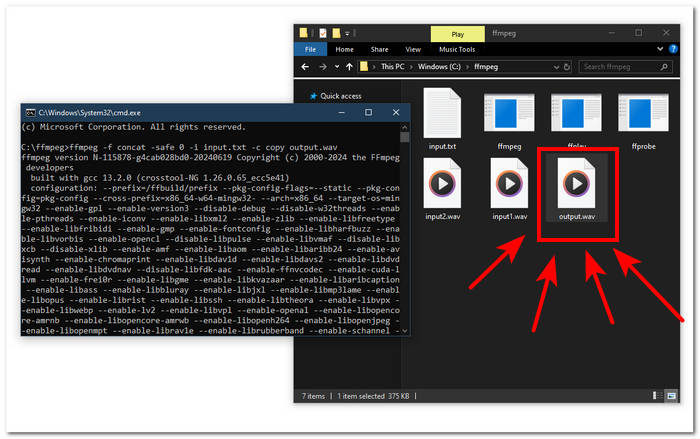
Tips
• Como a ferramenta é baseada em linha de comando, é importante estar familiarizado e conhecer a linha de comando básica para uma navegação eficaz na ferramenta.
• Mantenha todas as suas pastas e arquivos relacionados ao FFmpeg em uma única pasta para organização e fácil acesso.
• Assista a tutoriais e leia guias na internet quando quiser realizar outras tarefas além de mesclar arquivos WAV.
Parte 5. Perguntas frequentes sobre como combinar arquivos WAV
É possível mixar arquivos WAV?
Sim, você pode misturar arquivos WAV usando software de terceiros criado para mesclar arquivos WAV, como o Video Converter Ultimate e o Audacity, escolhidos pelo FVC.
O VLC pode mesclar arquivos de áudio?
O media player VLC não tem a capacidade de mesclar arquivos WAV, pois foi feito exclusivamente para streaming e conversão de mídia.
Como mesclar arquivos de vídeo no Windows Media Player?
O Windows Media Player não suporta a edição de arquivos WAV, muito menos a mesclagem de arquivos WAV. O Windows Media Player é um software criado para dispositivos Windows, projetado para reproduzir conteúdo de mídia.
Qual é a maneira mais fácil de combinar arquivos de áudio?
A maneira mais fácil de mesclar arquivos WAV é usar o Video Converter Ultimate escolhido pela FVC; este software foi projetado com tecnologia de processamento de alta velocidade para ser conveniente para usuários com menos experiência em tarefas de edição de áudio, como combinar arquivos WAV.
A combinação de arquivos WAV pode afetar a qualidade do áudio?
Sim, ferramentas de software podem afetar muito a qualidade de um arquivo WAV, dependendo da qualidade do software que você está usando. Ele pode ter a pior qualidade ao usar uma ferramenta duvidosa. Quando você está usando ferramentas de software confiáveis e confiáveis, como o Video Converter Ultimate escolhido pela FVC, Audacity e mais, isso pode ajudar a manter a qualidade original.
Conclusão
To wrap things up, merge WAV files using the provided software tools to effectively combine them and export with lossless quality. It is worth noting that finding the right tools and learning how to use them is a crucial part of the process. Hence, from using full-featured software tools like the FVC-picked Video Converter Ultimate to the advanced command-line tool FFmpeg, the article has made sure to list the steps and helpful tips so that all you have to do is follow them accordingly for a straightforward and hassle-free merging process.
-
 Como posso converter MP4 para WAV online gratuitamente
 Está tentando converter MP4 para WAV? Não sabe qual conversor pode ajudá-lo perfeitamente com isso sem pagar um centavo? Leia esta postagem e todas as suas perguntas serão respondidas.
-
 Análise dos 10 melhores leitores de música MP3 grátis
 Qual é o melhor reprodutor de música MP3? Como coloco música em um MP3 player? Como fazer o download do reprodutor de música MP3? Esta postagem oferece uma análise detalhada dos 10 melhores MP3 players gratuitos para Windows PC e Mac.
-
 8 melhores leitores MOV para PC e Mac para reproduzir arquivos de vídeo QuickTime MOV
 Saiba mais sobre os 8 melhores reprodutores MOV disponíveis para Windows e Mac. Você pode escolher o desejado e apropriado para reproduzir arquivos MOV com a qualidade original.
