


 Video Converter Ultimate
 Gravador de ecrã
 Reparo de vídeo
 Secure Download
Cortar arquivos WMA: guia definitivo para usuários de Windows e Mac
Editing audio files is fun, not until you need to deal with long WMA tracks that seem impossible to trim. Whether you’re a podcaster, musician, or just someone who loves tinkering with audio, cutting WMA files may somehow be a daunting task without the right tools and knowledge. This article aims to simplify the process for both Windows and Mac users, providing you with step-by-step instructions and the best tools available to make your audio editing journey smoother and more efficient. Read this article for more.

Parte 1: Melhor maneira de cortar arquivo WMA no Windows/Mac
The best and ultimate way to cut WMA files both on Windows and Mac is through the FVC-picked Video Converter Ultimate. This all-in video and audio converter tool works best in WMA formats, especially in cutting them. This tool has a special feature that trims down audio files easily. This is helpful, especially for those who need to cut WMA files that are not practically lengthy and those that contain unwanted parts or segments. Moreover, with this tool, you can manually select the part of the WMA file that you want to cut or else trim them automatically using its fast slip feature.
Step 1. First, on your Mac or Windows computer, download and install the Video Converter Ultimate.
Free DownloadFor Windows 7 or laterSecure Download
Free DownloadFor MacOS 10.7 or laterSecure Download
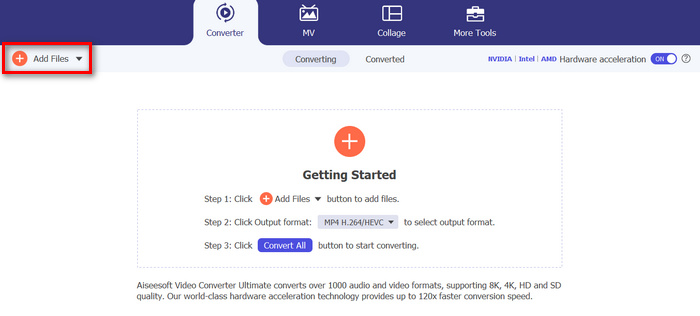
Step 2. To import the WMA files that you want to cut, click the Add Files button.
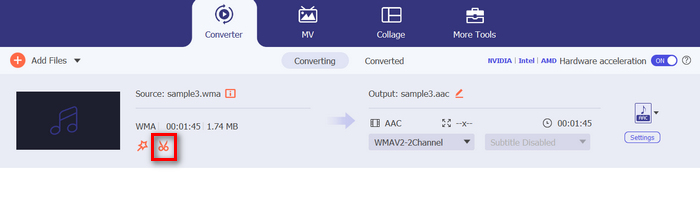
Step 3. After that, click the Cut button.
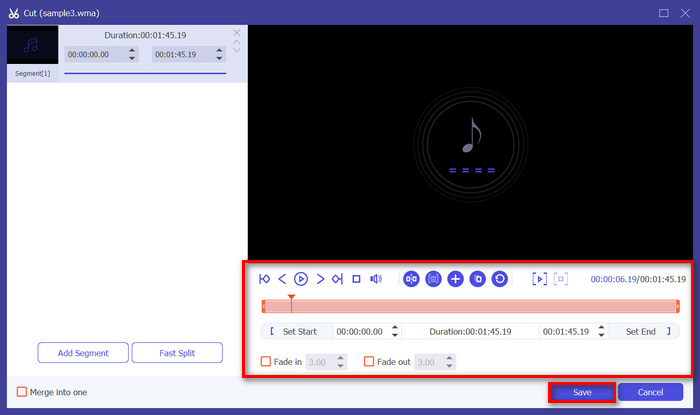
Step 4. To trim your WMA files, you can do it manually by easily adjusting or moving the start and end bar on the clip by dragging, moving it from left to right, or typing in the start and end times of the part of the WMA file that you want to trim.
Esse processo corta automaticamente a parte do áudio com base no momento em que você deseja iniciar e terminar o corte.
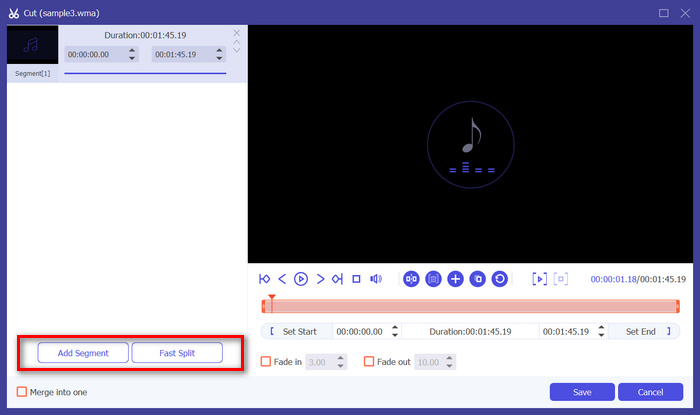
Step 5. Meanwhile, if you want to cut it using the Fast Slip trimmer feature, you just need to click on the Fast Slip button beside the Add Segment button. Next, select a mode in which you want to split the segment. If you choose to Split it by average, just indicate the number, but if you want to split it by time, indicate the time. After that, click the Save button.
Step 6. Lastly, to export the trimmed WMA file, click on the Convert All button.
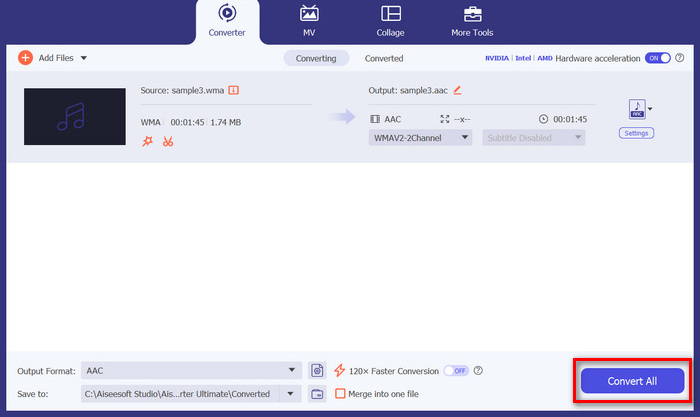
Quando se trata de cortar arquivos WMA, este Video Converter Ultimate escolhido pela FVC é realmente uma solução essencial. Sua interface simples e amigável garante que você possa cortar seus arquivos WMA sem esforço e com precisão, e suas várias opções de corte oferecem flexibilidade sobre como você deseja cortar seus arquivos de áudio facilmente.
Parte 2: Corte o arquivo WMA online gratuitamente
Audio Trimmer é uma ferramenta gratuita que permite aos usuários cortar arquivos de áudio na hora. Ela suporta uma ampla gama de formatos de áudio populares, incluindo WMA, o que torna esta ferramenta uma das melhores alternativas se você preferir cortar arquivos WMA online.
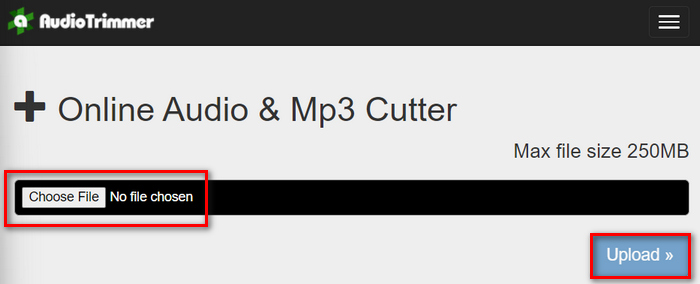
Step 1. To import the WMA files that you want to cut, click on the Choose File button and click the Upload button.
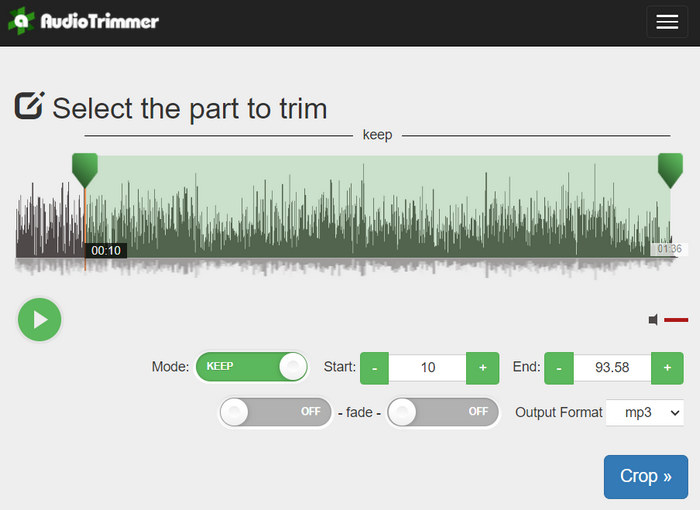
Step 2. Now, just slide down the bar and select the part of the audio track that you want to trim. Once done, click the Crop button.
Step 3. Lastly, to save your trimmed WMA file, just click the Download button.
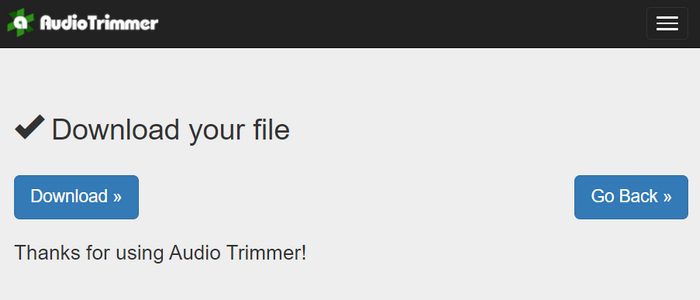
There you have it, and can watch your clips with the WMA player to see if you cut them down correctly. With its simple and very intuitive interface, cutting WMA files only took 3 steps. While it offers ease in trimming audio files, not all users can enjoy this free online tool, as it is limited to processing files under 250MB.
Parte 3: Corte WMA com VLC Media Player
O VLC Media Player é um reprodutor de mídia de código aberto amplamente utilizado devido à sua versatilidade. Esta ferramenta suporta uma ampla variedade de formatos de áudio e vídeo, incluindo arquivos WMA. Além de seus recursos para reproduzir, transmitir e gravar mídia, esta ferramenta também pode ser usada para cortar arquivos WMA. Com isso, os usuários podem facilmente cortar seções gravando em tempo real sem precisar alterar o tempo de reprodução manualmente.
Step 1. Open VLC Media Player. Simply drag and drop the WMA file that you want to trim.
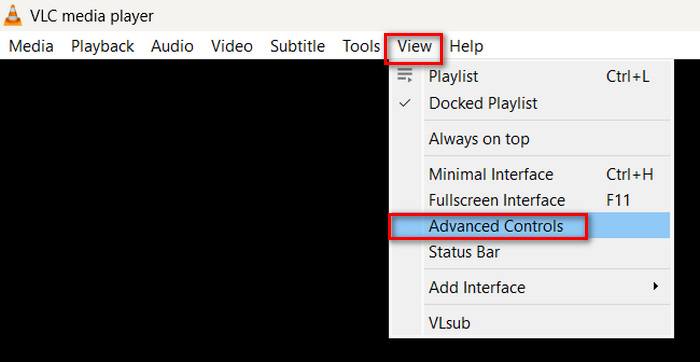
Step 2. The audio will start playing automatically. Pause it for a moment, then click on the View button and check the Advanced Controls option. You’ll now see four new buttons appear above the playback icon.
Step 3. Drag the progress bar to the point where you want to start your clip. Now, adjust the bar to where you want to start to trim your WMA file. Once done, play it and click the Record button.
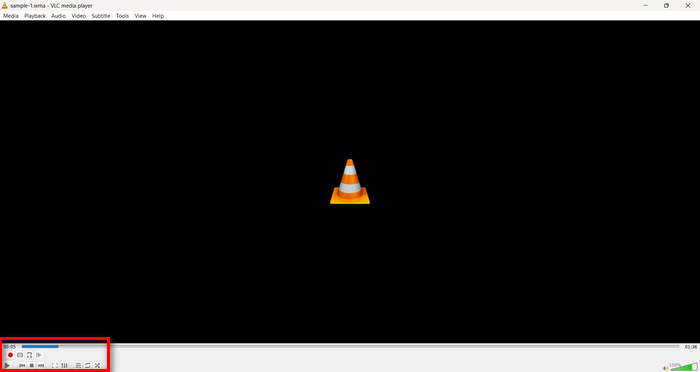
Step 4. When you get to the end of the section you want to save, click the Record button again to stop recording.
Avoid dragging the progress bar to change the playback time while recording, as VLC needs to record the segment in real time. If you like this tool, just do not miss the VLC alternatives here.
Parte 4: Perguntas frequentes sobre corte de WMA
Como faço para cortar uma parte de um arquivo de áudio?
Para cortar uma parte de um arquivo de áudio, você pode usar ferramentas como o Video Converter Ultimate. Para fazer isso, você só precisa importar seu arquivo WMA, clicar no botão Cut e ajustar os tempos de início e fim.
O WMA é melhor que o MP3?
WMA often has better sound quality at lower bit rates compared to MP3, resulting in smaller file sizes with good audio quality. However, MP3 is more widely supported across various devices and platforms. The choice between WMA and MP3 depends on your needs for quality and compatibility. Also, you can change WMA to MP3 with the WMA to MP3 converter tools to make it quickly.
Como cortar arquivos de áudio no Windows Media Player?
Para cortar arquivos de áudio no Windows Media Player, você precisará utilizar um plugin chamado SolveigMM WMP Trimmer Plugin Home Edition. Este plugin permite que os usuários cortem facilmente arquivos de áudio diretamente na interface do Windows Media Player, fornecendo uma solução conveniente para tarefas de edição de áudio.
Conclusão
Cutting WMA files doesn't have to be stressful. Whether you prefer using software like Video Converter Ultimate, an online tool like Audio Trimmer, or the versatile VLC Media Player, there are efficient methods available for both Windows and Mac users. Choose the method that best fits you and start editing your audio files with ease. Ready to make your audio editing easier? Give one of these methods a try today!
-
 2 métodos para converter áudio FLV para WMA [Free & Online]
 Quer extrair áudio WMA de vídeo FLV? Aqui estão 2 extratores de áudio WMA gratuitos para converter FLV (Flash Video) em WMA (Windows Media Audio) com alta velocidade de conversão no Mac OS X e Windows 10/8/7.
-
 Principais editores de metadados WMA que você não deve perder [2024]
 Por que não consigo editar tags WMA? Este problema é comum em usuários' consultas. Mas hoje daremos a você os metaeditores WMA que você poderá usar em 2024.
-
 8 maneiras de converter MP4 em áudio MP3 (conversão em lote e tamanho grande)
 Se você deseja extrair áudio MP3 de vídeo MP4, você pode verificar este artigo e obter 8 soluções. Existem maneiras online e offline de converter MP4 para MP3 no seu telefone ou computador com facilidade.
