


 Video Converter Ultimate
 Gravador de ecrã
 Reparo de vídeo
 Secure Download
Como editar arquivos WAV para uma edição rápida de áudio de alta qualidade
WAV files are the most popular audio file format and are considered the ideal way to contain music or recordings with different bitrates. Better file formats equate to better quality, and editing WAV files can contribute to making it much better. But how can you ensure you’re not ruining your WAV file quality unknowingly? Worry not, as this guide will provide you with answers about what software or tools are best used to edit your WAV files. We have come up with four methods straight out of our experience using them. Moreover, in this guide, whether you are just a novice or an experienced individual, you’ll get to learn step-by-step how to edit WAV files effectively without ruining them.

Parte 1. Melhor maneira de editar WAV com o editor WAV completo
FVC has browsed the internet to find the perfect way to edit WAV worthy to be featured in this article so that you won’t have to. To our surprise, we came across this FVC-picked Video Converter Ultimate that is easy to use and has a simple interface that offers full-featured tools such as the ability to cut, split, merge, volume booster, etc. Editing WAV files through this exceptional software for both Windows and Mac, with over five million downloads garnering trust not just for WAV editing but also works as a converter and video editing tool.
Key Features:
• Editor WAV versátil e fácil de usar.
• Ferramentas em destaque, como cortador de áudio, mesclador, compressor, removedor de ruído, amplificador de volume, etc.
• Suporta mais de 1000 formatos de áudio/vídeo, como MP3, AAC, WMA, WAV e muito mais.
• Não há limitações de tamanho de arquivo ao enviar seu WAV.
Step 1. Download and install the FVC-picked Video Converter Ultimate here.
Free DownloadFor Windows 7 or laterSecure Download
Free DownloadFor MacOS 10.7 or laterSecure Download
Step 2. On the tool interface, click on the Add Files button to add your WAV file to the software.
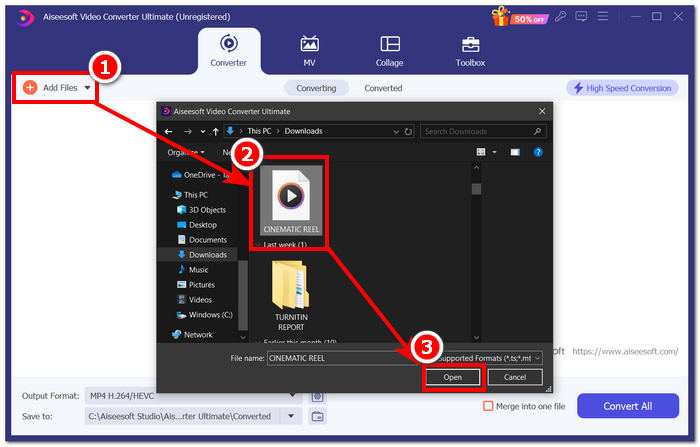
Step 3. Once your WAV file is in the tool, you can edit it by clicking on the Edit and Cut tool located right beside your uploaded WAV file.
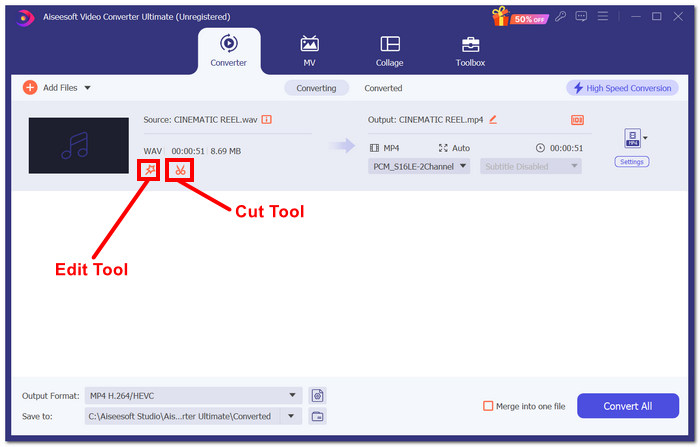
Note:
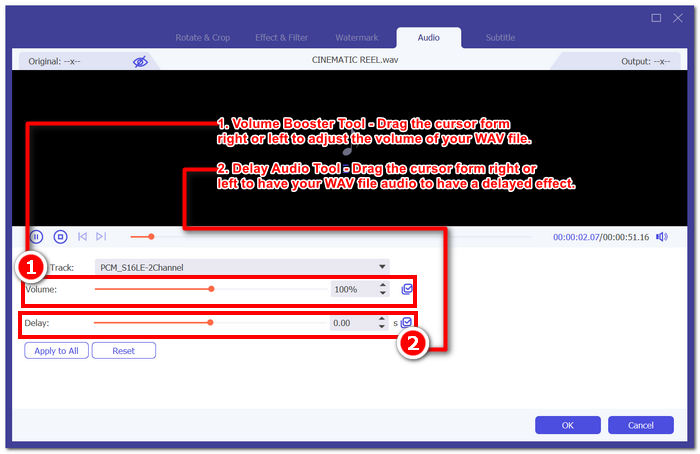
A ferramenta de edição é o ícone que lembra uma varinha mágica e abriga os recursos de aumento de volume e atraso de áudio.
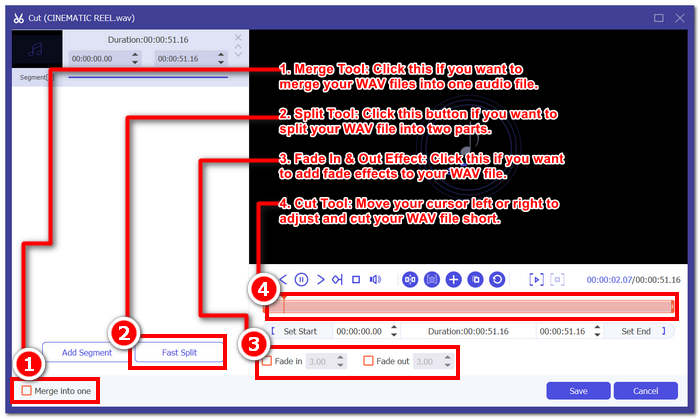
A ferramenta Cortar é o ícone de tesoura e contém os efeitos Cortar, Dividir, Mesclar e Adicionar Esmaecimento.
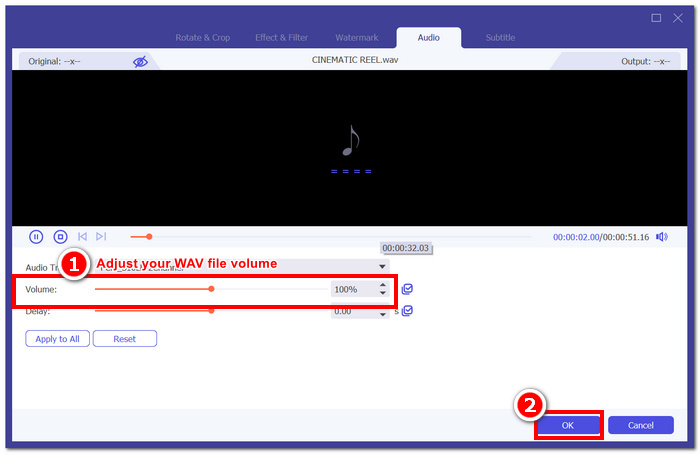
Step 4. To edit your WAV file, click on the magic-looking icon for the volume booster features and drag the volume cursor left or right to adjust the volume, or directly enter the volume you want. If you want to fix the audio delay, drag the delay cursor to adjust the audio delay. Once you've done this, click on the OK button.
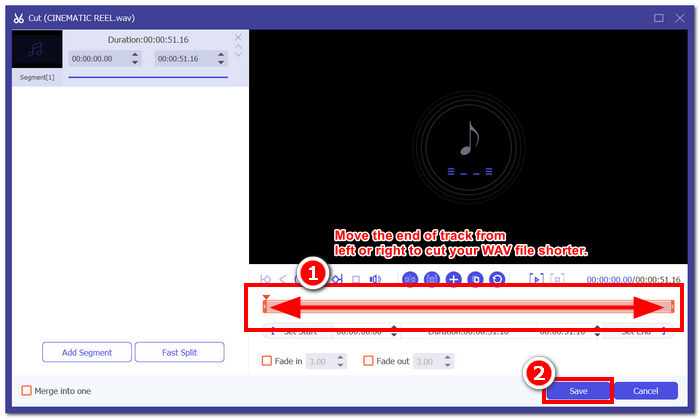
Por outro lado, para cortar seu arquivo WAV, clique no botão de tesoura e simplesmente arraste seu cursor para a trilha da esquerda para a direita para encurtar seu arquivo WAV. Quando terminar de cortar seu arquivo WAV, prossiga clicando no botão Salvar.
Step 5. Once you have successfully Edit and Cut your WAV file to your liking, click on the Convert All button to have it downloaded to your desktop download designated folder.

Nossa experiência em editar um arquivo WAV usando o software escolhido pela FVC nos economiza tempo e faz jus à sua reputação, pois seguir os passos acima nos ajuda a executar a tarefa sem problemas. Além disso, ao usar o software, notamos que ele é repleto de outros recursos para edição de vídeo e áudio. No geral, isso nos dá muitas opções para escolher o que mais podemos fazer para editar nossos arquivos WAV.
Parte 2. Edite um arquivo WAV no Windows 7/8/10/11 com a ferramenta integrada
Método 1. Editar arquivos WAV no Windows Media Player com um plugin
O Windows Media Player, um media player integrado em dispositivos Windows, também pode ser usado como um editor de arquivo WAV usando um plug-in. Para isso, o SolveigMM WMP Trimmer Plugin está disponível para download na sua Microsoft Store gratuitamente para poder cortar e editar seu arquivo WAV.
Step 1. Go to your Windows Microsoft Store and download the SolveigMM WMP Trimmer Plugin from there.
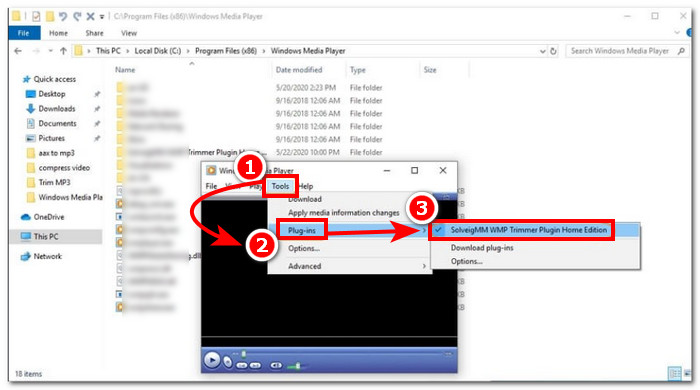
Step 2. Once the plug-in is installed, open your Windows Media Player click on the Tools section located on the top-most part of the player, and then click on the Plug-ins to enable the SolveigMM WMP Trimmer Plugin.
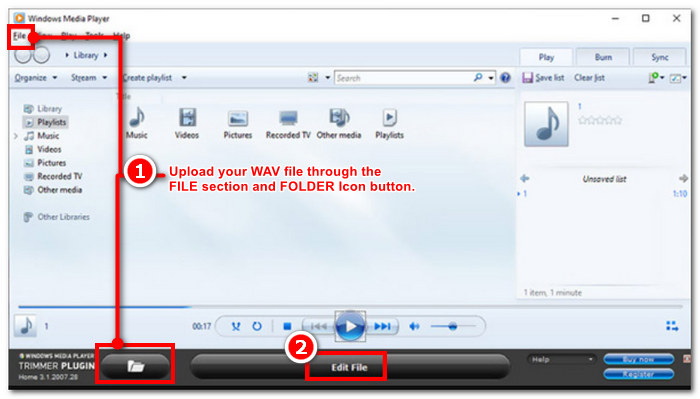
Step 3. Once the plug-in is enabled, proceed to upload your WAV file by clicking on the File folder located in the top-most left corner of the player or the Folder icon located in the lower-left part of the player to upload your WAV file. Once the WAV file is uploaded to the player, click the Edit File button to proceed to actual WAV editing.
Step 4. You can now perform editing tasks, such as trimming your WAV file by adjusting the trimming bars from left to right. Once you are satisfied with the length of your WAV file, click on the Trim button to have it saved by default in the same file as your WAV.
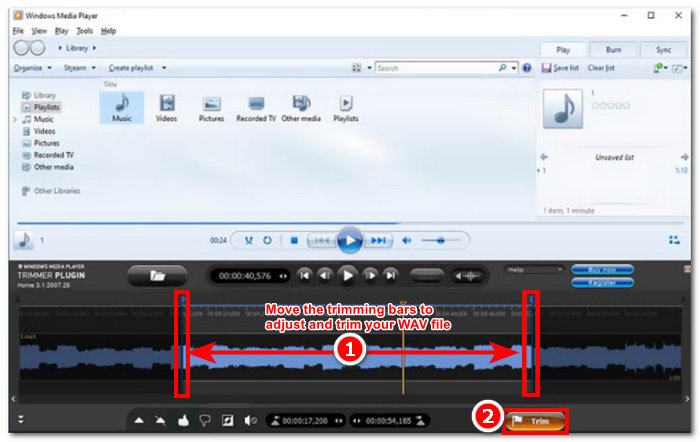
Agora que você editou seu arquivo WAV, neste caso, faça o corte através do Windows Media Player com a ajuda de plug-ins. Agora você pode editar seu arquivo WAV através do player integrado. Os plug-ins podem ser úteis para a conveniência do usuário, mas eles não são totalmente gratuitos, pois eles só vêm com recursos de edição limitados em comparação com sua versão paga.
Método 2. Editar propriedades de arquivos WAV com o File Explorer
If you find software tools difficult to navigate in general, we also have something for you to edit WAV files using the built-in tool in your Windows 7/8/10/11. Believe it or not, Windows doesn’t have pre-built-in software or features that can freely edit your WAV file, but it is still possible to edit your WAV file information properties by using the default method. To cut the story short, using the default method is a way of editing your WAV file information by tweaking the properties when you view the file. Hence, we are going to list the methods for editing your WAV file information properties below.
Step 1. Open your File Explorer and locate the WAV file you want to edit.
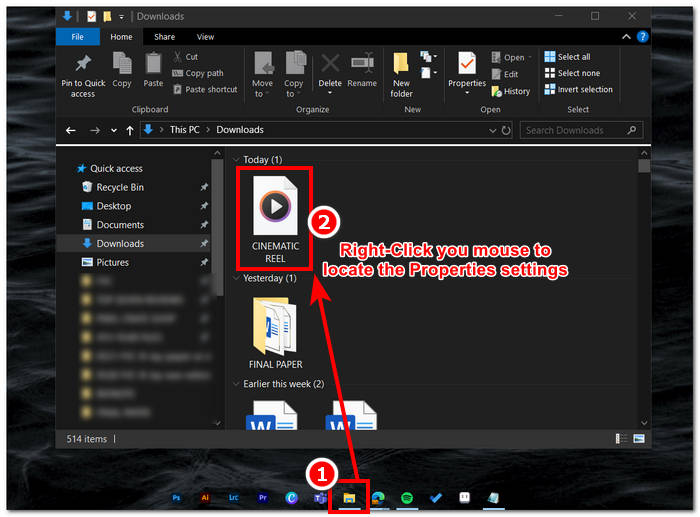
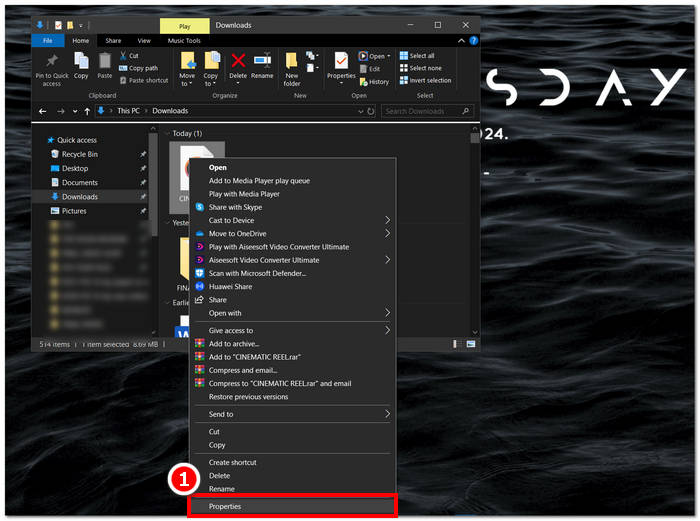
Step 2. Once you locate the Properties, click on it, and a window will appear with the information about your WAV file.
Step 3. In the newly opened window, click on Details and proceed to click on Remove Properties and Personal Information in the lower part of the window.
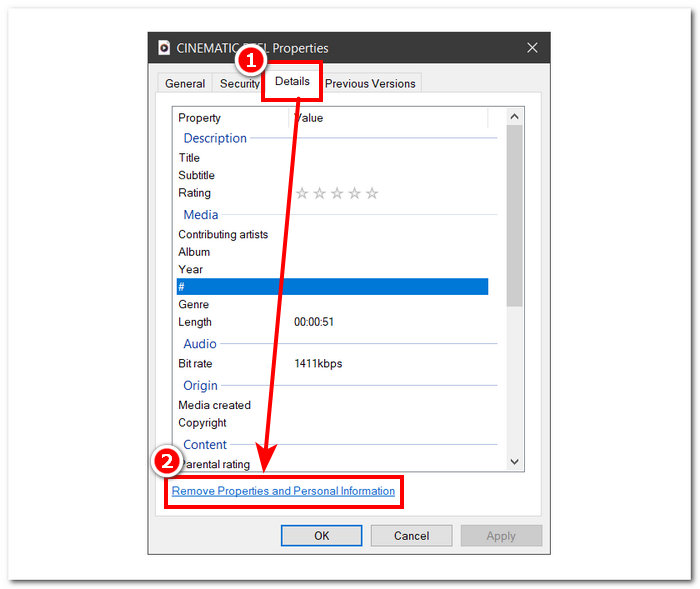
Step 4. Select the second option - Remove the following properties from this file, then click the Select All button. Lastly, click the OK button to reset your WAV file information details to its default setting.
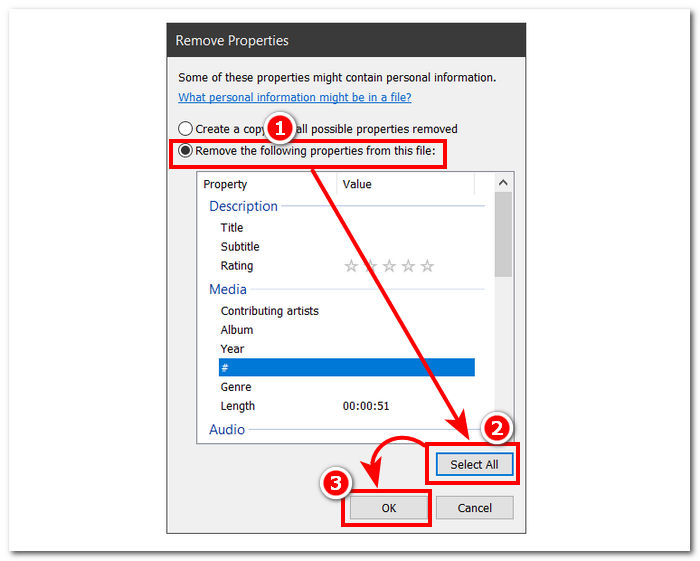
Lembre-se de que esse método é exclusivo para usuários do Windows e não permite que os usuários ajustem o arquivo de áudio, mas sim as propriedades das informações. No geral, usar o método padrão para redefinir as informações do seu arquivo WAV é conveniente. Ainda assim, quando você quiser preencher os detalhes das informações do seu arquivo WAV, não há outra maneira além de usar um software para isso, neste caso, o software escolhido pelo FVC.
Parte 3. Edite arquivos WAV no Mac com GarageBand
Nós tropeçamos em um software que também tem uma versão de aplicativo móvel. GarageBand é uma ferramenta popular para dispositivos macOS e iOS que oferece um editor de áudio completo. A ferramenta oferece predefinições pré-fabricadas e integra-se com controles inteligentes. Além disso, listamos um método simples abaixo para usar o GarageBand; neste caso, usaremos a versão macOS.
Step 1. Download GarageBand to your macOS device, and once you have completely installed the software, open it.
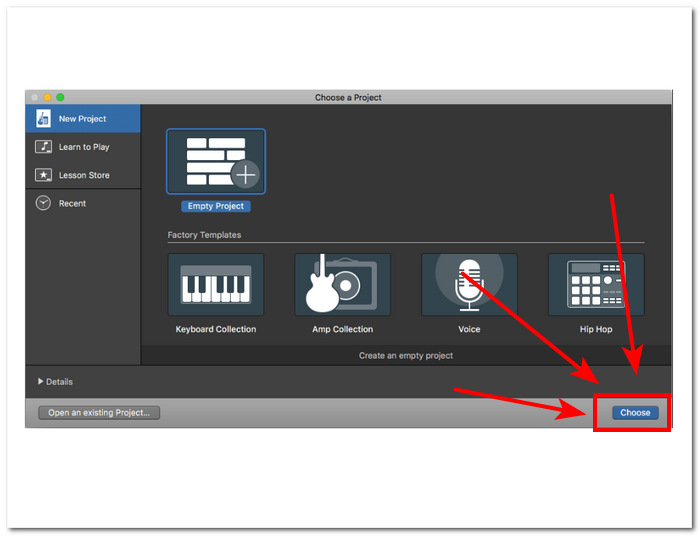
Step 2. Load your WAV file into the software by clicking on the Choose button. Once your WAV file is loaded in the tool, proceed to double-click on the track for the Audio Editor window to appear at the bottom of the interface.
Step 3. Edit your WAV file by exploring the Track and Region section located at the lower part of the software.
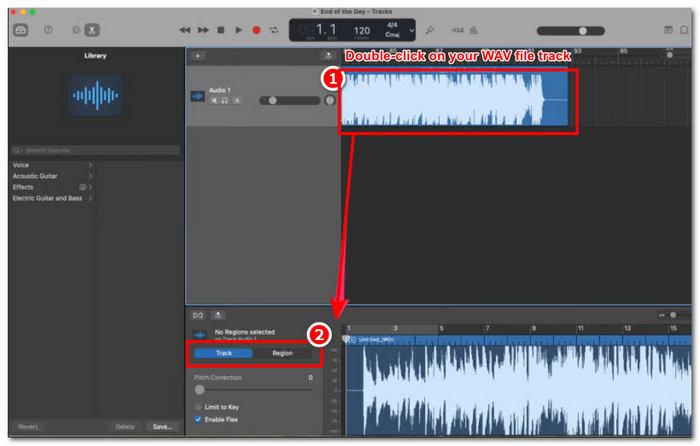
A seção Track é responsável por editar o tom do seu arquivo WAV e serve como um corretor.
A seção Região abriga os ajustes de transposição, o que pode ajudar o usuário a reverter a reprodução do arquivo WAV.
Step 4. Once you are satisfied with the changes you made in your WAV file, export your file by clicking on Share > Export Songs to Disk, and choose where you want your edited WAV file to be saved.
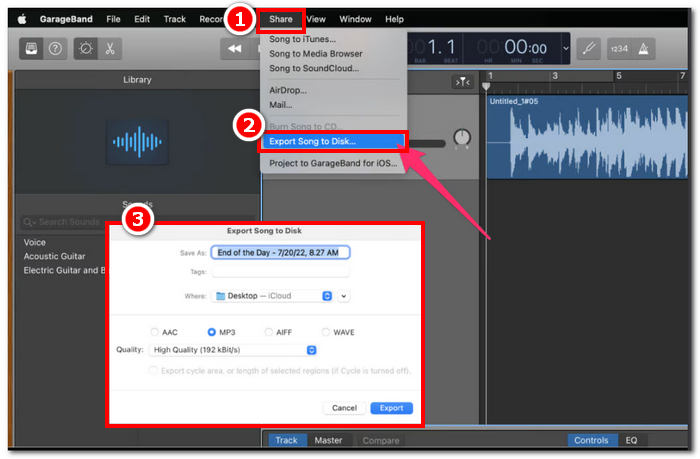
O GarageBand é um software confiável para editar seu arquivo WAV no macOS e iOS. Portanto, se você estiver procurando por recursos mais avançados, recomendamos usar a versão GarageBand para macOS. No geral, ambas as versões se destacam na edição de áudio básica a intermediária, mas observe que você precisa ter um certo conhecimento da interface da ferramenta para evitar confusão.
Parte 4. Edite arquivos WAV com um editor online
Outro método de edição do seu arquivo WAV é usar uma ferramenta online que possa lidar com edições básicas. O TwistedWave surgiu como um editor de áudio baseado na web que não só funciona como um editor online, mas também permite que os usuários editem áudio WAV. Além disso, apesar de sua interface desatualizada, é uma ferramenta WAV confiável e tem um dos designs mais simples entre as ferramentas de edição WAV baseadas na web que encontramos.
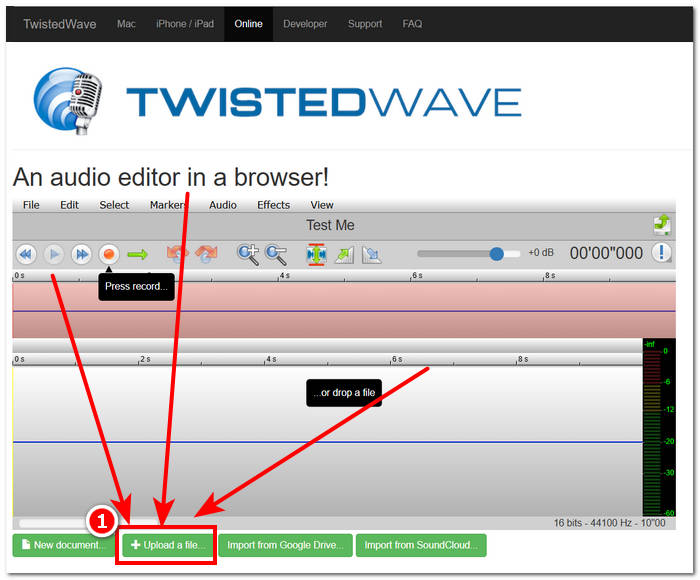
Step 1. Go to TwistedWave official website and click on the Upload a file button to select your WAV file on your desktop to edit in the tool.
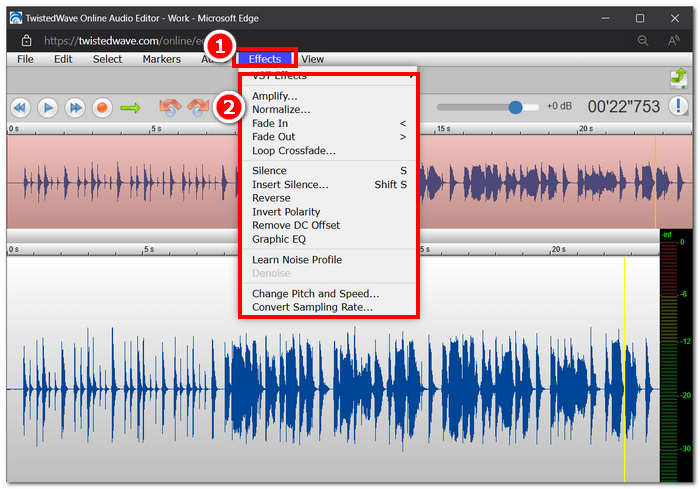
Step 2. Once your WAV file is in the tool, click on the Effect section located at the top of the tool interface. Choose your desired actions on the available effects that you want to apply to your WAV file.
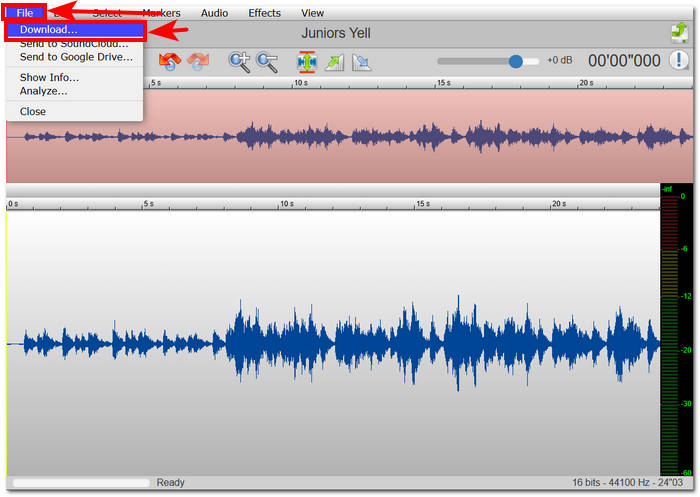
Step 3. Once you have selected the effects you want in your file, proceed to download your edited WAV. To do this, click on the File section in the top-left corner of the tool and click Download to export the WAV file to your download folder.
Para editar arquivos WAV online, o TwistedWave é a maneira mais fácil de processar um arquivo WAV no servidor, então a necessidade de baixar software seria desnecessária. Apesar de seu uso conveniente, ele só permite que o usuário edite um arquivo na conta gratuita por no máximo cinco minutos.
Parte 5. Perguntas frequentes sobre edição de arquivos WAV
A Microsoft tem um software de edição de áudio?
A Microsoft não tem um software de edição de áudio dedicado no momento da criação deste guia, o mesmo que com um editor de arquivo WAV. Para tarefas como alterar o áudio e aplicar efeitos, é recomendado usar o software escolhido pela FVC e o Audacity.
É possível cortar um arquivo WAV no Windows Media Player?
No, the Windows Media Player doesn’t have the capabilities to do such a task. Trimming your WAV file on your desktop is through third-party software such as GarageBand for macOS and the FVC-picked software for Windows.
Qual é o aplicativo de edição de áudio mais fácil para um Mac?
O GarageBand é definitivamente o mais fácil, com um design de interface simples. É amplamente conhecido entre seus usuários do macOS, sem falar entre entusiastas de música e produtores novatos. Esta ferramenta oferece recursos avançados robustos e já vem pré-instalada no macOS para acesso instantâneo ao serviço.
Para que os arquivos WAV são comumente usados?
Arquivos WAV são comumente associados ao uso profissional em processos de áudio, gravação e edição. Conhecido por sua qualidade sem perdas e natureza não compactada, WAV é um formato ideal para exportar WAV e outros projetos de áudio.
Um arquivo WAV é digital ou analógico?
Um arquivo WAV é um formato digital para armazenar dados sonoros que podem ser compartilhados por meio de computadores e outros dispositivos. Portanto, ele contém ondas sonoras analógicas, mas em formato digital.
Conclusão
Editing WAV files using the right software and tools ensures higher-quality audio. Thus, follow the various steps to edit WAV files, including the recommended full-featured software, built-in methods for Windows, GarageBand for macOS and iOS users, and finally, web-based tool users.
-
 WAV Player - 5 principais aplicativos de player WAV para Android, iPhone, PC e Mac
 Como reproduzir arquivos WAV no telefone Android? Qual jogador pode jogar WAV? Esta postagem compartilha os 5 melhores reprodutores WAV gratuitos para Android, iPhone, Mac e PC.
-
 Os 6 principais gravadores WAV gratuitos disponíveis para Windows e Mac
 O melhor software de gravação WAV que compartilhamos neste artigo tem uma variedade de recursos úteis, que o ajudam a capturar áudio e voz como profissionais.
-
 Os 5 melhores gravadores de mouse e teclado para Windows e Mac
 Aqui estão os cinco melhores programas de gravador de mouse e teclado que podem salvar os movimentos do mouse e cliques do teclado e repetir os eventos.
