


 Video Converter Ultimate
 Gravador de ecrã
 Reparo de vídeo
 Secure Download
Fazendo toques no iPhone usando GarageBand e alternativo
Tired of waking up to the same bland ringtones on your iPhone? As the iPhone restricts access to those trendy ringtones, that doesn’t stop you from trying. As ringtones have become part of our lives for simple notification or alarm purposes, the ability to use them or change them somewhat reflects our personality and taste. Thus, who doesn’t want to be notified or wake up at the tone of our choice, right? As difficult as it seems, we have finally found a way how to make a ringtone with GarageBand. Discover how to create, and turn an existing tone and set it up on your iPhone using GarageBand and an alternative today and start showing your personality and taste through your catchy ringtones.

Parte 1. Como fazer um toque no GarageBand
Antes de mostrarmos como criar um toque no GarageBand, é importante saber o que é o GarageBand primeiro. O GarageBand é uma estação de trabalho de áudio digital desenvolvida pela Apple exclusivamente para iOS, macOS e iPadOS. Portanto, é muito fácil de usar e pode ser usado gratuitamente no sistema operacional acima mencionado.
Step 1. Open GarageBand on your Mac or have it downloaded first on your iPhone or any Apple device of your choice.
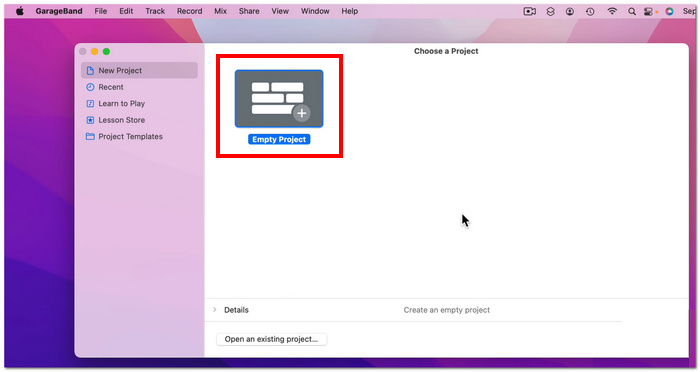
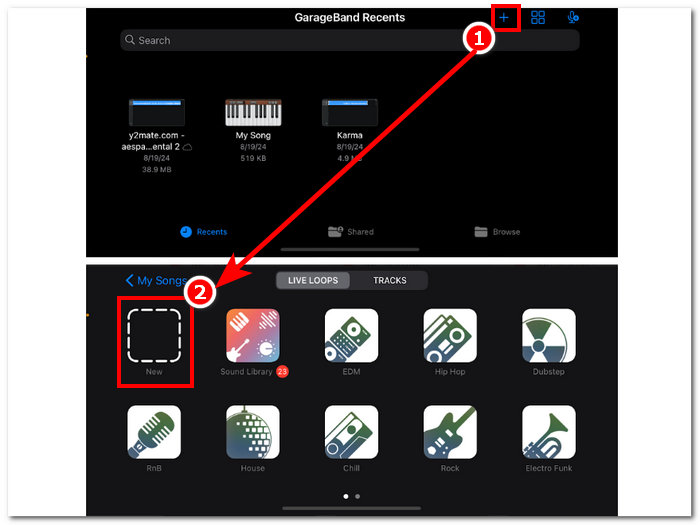
Step 2. On the application interface, tap on the + and proceed to choose the New project option.
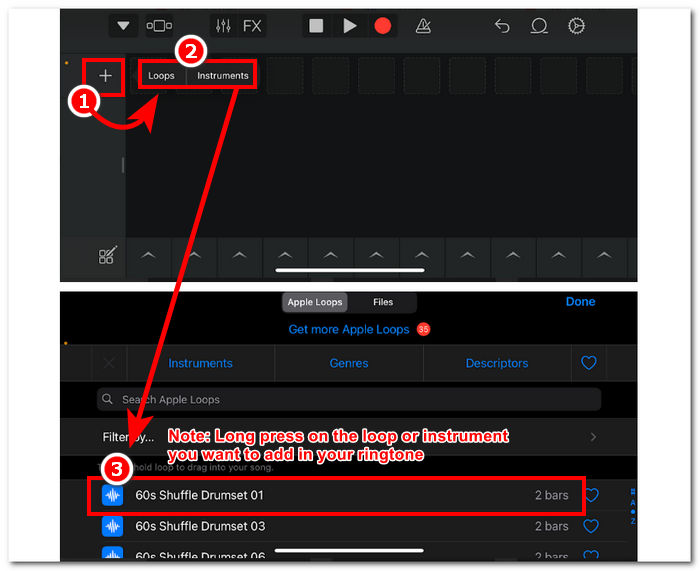
Step 3. You will be then forwarded to the GarageBand timeline in there to add the Instrument or Loop you want to add to your ringtone; just simply tap tha + button, then long press the specific loop or instrument you want to add to your timeline.
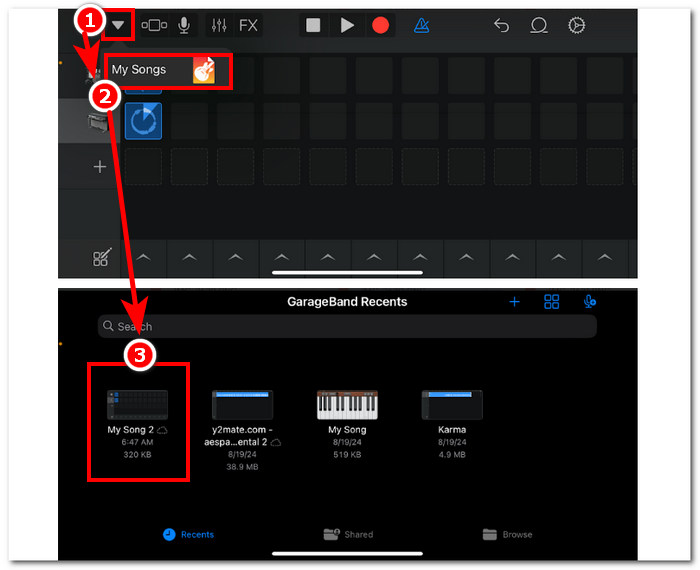
Step 4. Finally, to save your newly created ringtone, tap on the arrow-down button in the upper-left corner of your screen and tap on My Songs. Your files will be automatically saved in your file storage.
Parte 2. Como fazer uma música existente virar um toque no GarageBand
Para tornar seu toque de celular mais emocionante, optamos por músicas do Apple Music, pois certas limitações proíbem o uso de músicas em um iPhone, como a chamada proteção DRM.
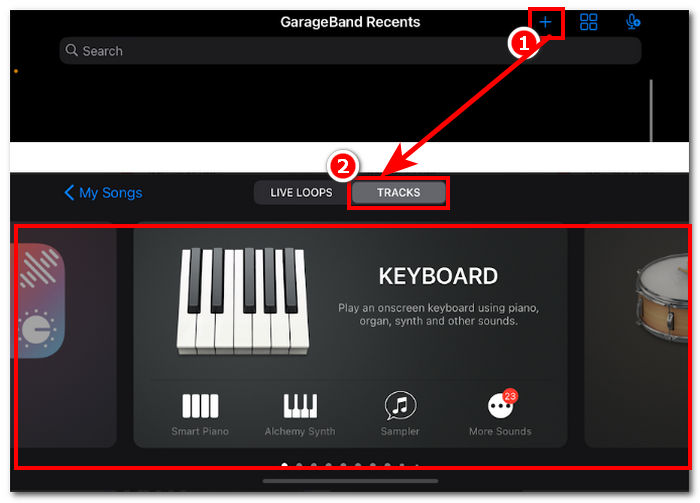
Step 1. Open the GarageBand app on your iPhone, hit the + button, and select any instrument of your choice.
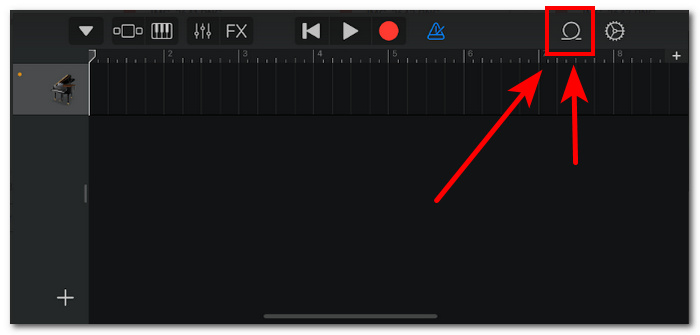
Step 2. Once you are in the app's multitrack view, tap on the Loop icon in the upper-right corner of your screen.
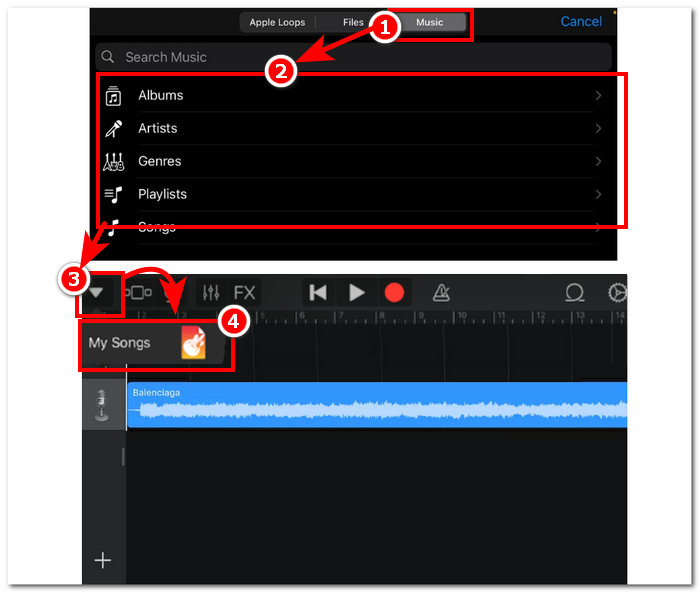
Step 3. In the loop section, tap on the Music section, and there, choose the song you want to make a ringtone. Kindly add it to your timeline by simply tapping or long pressing on it. Once in the timeline, please tap on the arrow down button and go to My Songs.
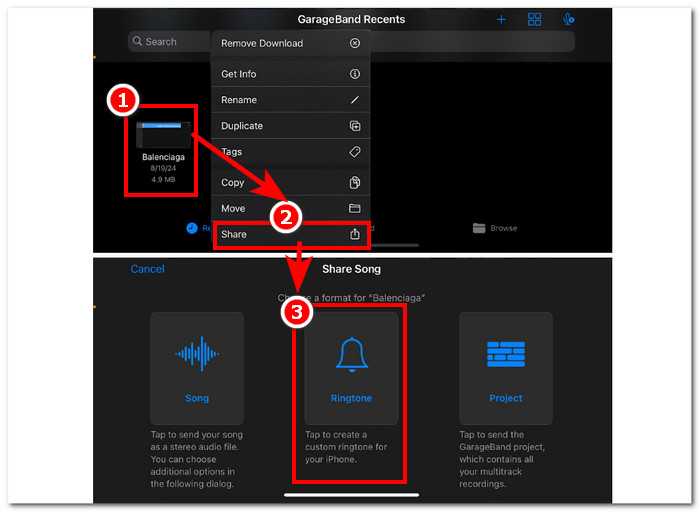
Step 4. Long press the ringtone you just created, tap on Share, and select Ringtone to make it your custom ringtone on your iPhone.
Parte 3. Alternativa ao GarageBand para fazer um toque
A software-based tool is the best option if you want to create a ringtone and personalize it for a unique touch. With up to 1000 supported file types, FVC-picked Video Converter Ultimate is an all-in-one program that is not solely for making ringtones but can also convert, edit, enhance, and compress video and audio. It is perfect for customizing a ringtone, unlike GarageBand, which is a bit lacking in customization features. In addition, high-speed processing technology is well incorporated with the system of FVC-picked Video Converter Ultimate to guarantee lossless audio quality and quick conversion rates.
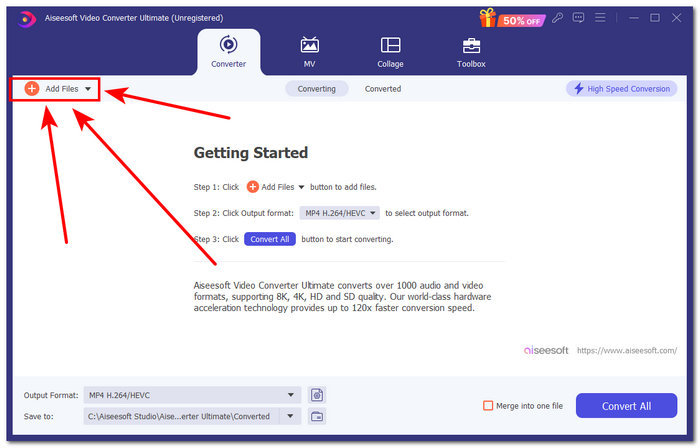
Step 1. Using your Mac, download and install the FVC-picked Video Converter Ultimate. Open the program on your device, load the audio/song you want to create, and customize it as a ringtone by clicking on the Add Files link in the upper-left part of the interface.
Free DownloadFor Windows 7 or laterSecure Download
Free DownloadFor MacOS 10.7 or laterSecure Download
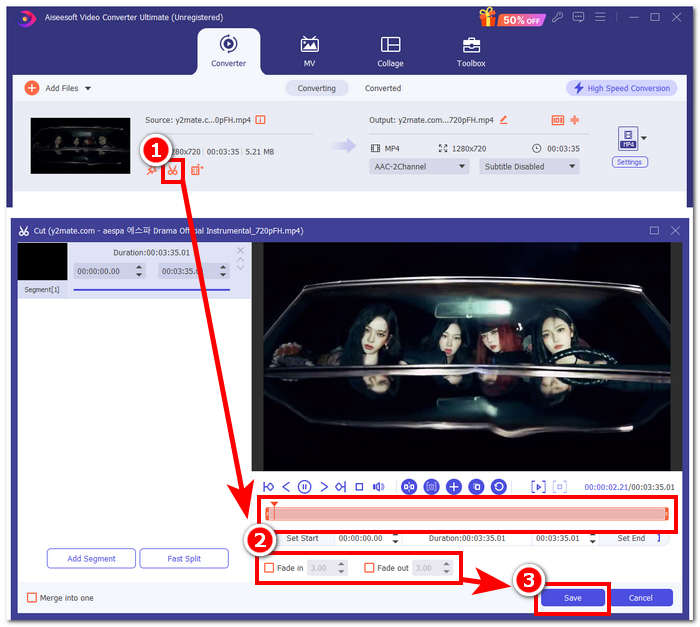
Step 2. Click on the scissor icon near the thumbnail of your audio file. A new window will appear on your screen, allowing you to add fade effects and make cuts to your audio file. When you are satisfied with your customization, simply click the Save button to complete the process.
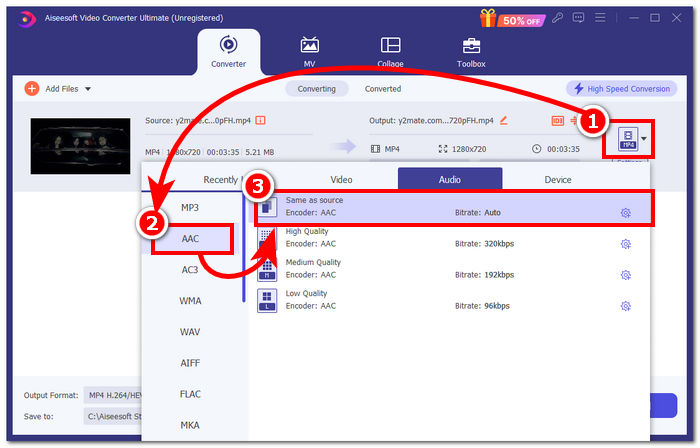
Step 3. Once you've made changes to your audio, change its file format from MP4 or MP3 to AAC, which iPhones use for their ringtones.
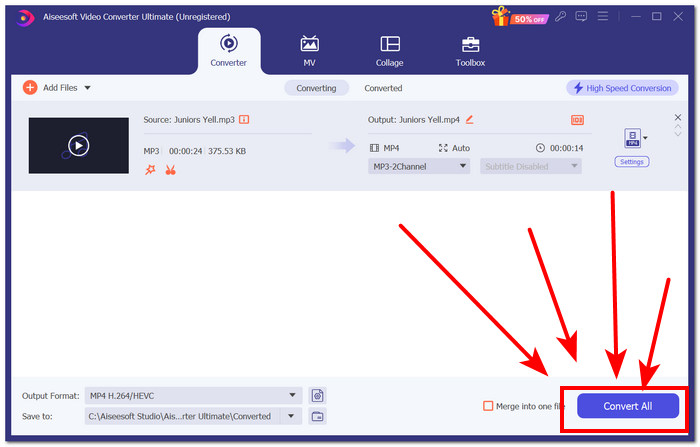
Step 4. Click the Convert All button, and your ringtone will be automatically saved to your device. Upon completion of the conversion, you can find your ringtone in the download folder.
Parte 4. Como definir toque no iPhone a partir de arquivos com GarageBand
Definir uma música como toque usando o GarageBand a partir dos seus Arquivos pode ser um processo e tanto. Isso significa que você tem que baixar a música primeiro e depois fazê-la passar pelo aplicativo RingtoneMaker, que você tem que instalar no seu dispositivo.
Step 1. Download the song of your choice to your device.
Você pode procurar uma música no YouTube e baixá-la usando um downloader online do YouTube para MP3.
Step 2. To create a song into a ringtone, launch the RingtoneMaker app and simply import the downloaded song into the app. After loading, tap the Make Ringtone button and proceed by selecting the GarageBand app.
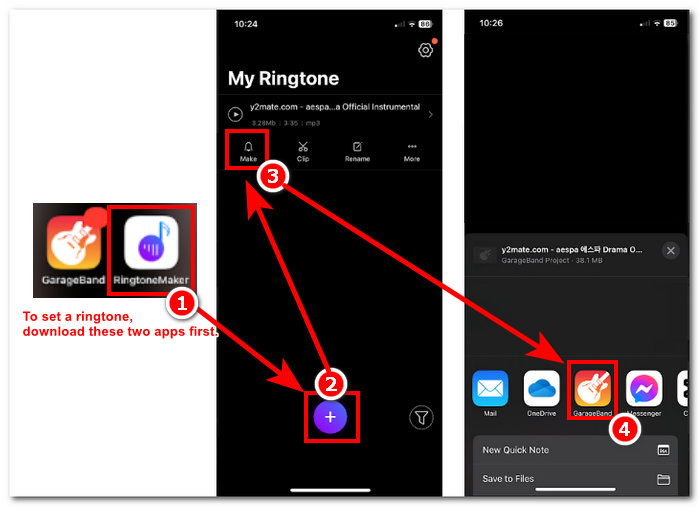
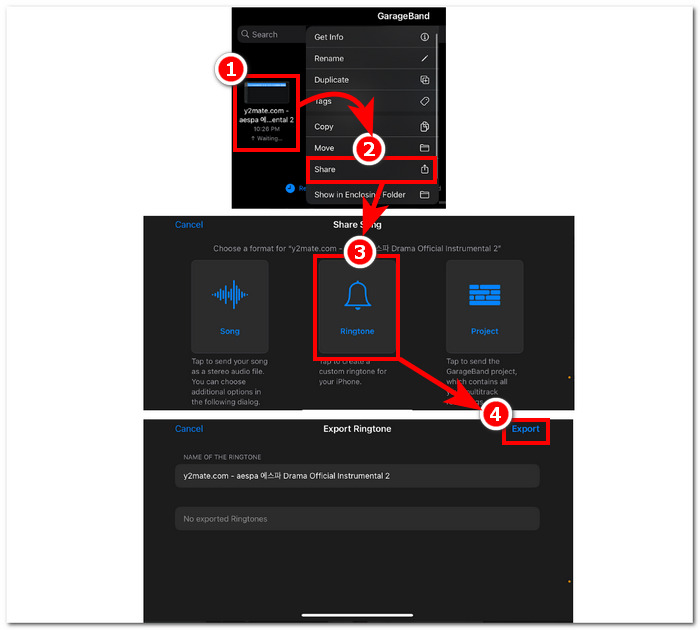
Step 3. After you've been redirected to the GarageBand app, locate the song you imported and tap on it. Then, follow this navigation path: Share > Ringtone > Export. Just like that, you have successfully created an existing song into a ringtone.
Parte 5. Perguntas frequentes sobre como fazer um toque no GarageBand
O GarageBand é bom o suficiente para iniciantes?
Sim, o GarageBand é um bom, se não melhor, criador de ringtones para o ecossistema da Apple. Sua interface simples é perfeita para todos os tipos de usuários, de novatos a profissionais. Ferramentas integradas feitas exclusivamente para criar tons cativantes e modernos e uma ampla variedade de tutoriais disponíveis online o tornam uma ferramenta amigável para iniciantes.
O toque do Garage é gratuito?
Sim, o GarageBand é gratuito para usar e baixar em todos os dispositivos Apple. Ele permite que os usuários usem seus recursos para criar, compor e exportar sem nenhuma taxa ou assinatura adicional.
Existe algum aplicativo de toque gratuito?
Sim, há muitos aplicativos de toque para você experimentar. Algumas opções são RingtoneMaker, Sedge, Audiko, e a lista continua. Portanto, usar todos os tipos de aplicativos e softwares fica a critério dos usuários. Recomendamos que os usuários pesquisem sobre que tipo de aplicativo de toque eles querem.
Conclusão
A Apple estabeleceu uma certa limitação sobre como os usuários podem criar e definir seus toques usando seu próprio aplicativo GarageBand. De alguma forma, ele faz seu trabalho efetivamente, especialmente ao configurar uma música que já foi baixada no seu iPhone. No entanto, pode faltar alguns recursos de personalização como o que o Video Converter Ultimate escolhido pelo FVC pode fazer para torná-lo mais pessoal. No entanto, ele ainda é eficaz e a única maneira de um usuário iOS criar um toque em seu dispositivo.
-
 Melhor passo a passo como converter WAV para toque em nenhum momento
 Quer converter WAV em um toque sem esforço? Nossas ferramentas fáceis de usar fazem o trabalho! Desfrute de conversão de áudio de alta qualidade em um piscar de olhos - sem dores de cabeça tecnológicas. Experimente-os hoje!
-
 Como fazer um memorando de voz ser um toque no iPhone e Android
 Se você quiser transformar um memorando de voz em um toque, leia este artigo. Seja você um usuário de iPhone ou Android, você pode encontrar soluções em nosso conteúdo.
-
 5 cortadores de MP3 para cortar qualquer áudio facilmente [atualizado em 2024]
 Você precisa de um cortador de MP3 para cortar o áudio? Nesse caso, leia este artigo porque fornecemos as ferramentas necessárias para facilitar o corte de áudio.
