


 Video Converter Ultimate
 Gravador de ecrã
 Reparo de vídeo
 Secure Download
Um guia completo sobre como fazer um toque a partir de um memorando de voz
However, many developers have created ringtone-maker software. This means that you are free to take snippets of your favorite songs or record your voice as a ringtone. In this article, we will explain how to make a voice memo a ringtone. We hope you will get the answer you are looking for.

Parte 1. A melhor maneira de fazer um memorando de voz um toque
If you are also looking for a full-featured ringtone maker, choose FVC-picked Video Converter Ultimate, the leader even in the highly competitive market of multimedia editing software. Different models of smartphones may support different ringtone formats, but this is not a problem with Video Converter Ultimate. As you can tell from its name, its core function is to convert the format of the files. So, no matter what format you record or download voice memos in, you can convert them to match your phone's format. You can even use it to extract audio directly from videos, which opens up a wide range of ringtone possibilities. You can also change the volume, track, length, etc., of the target audio. With Video Converter Ultimate, making a voice memo a ringtone at will will no longer be a dream.
Free DownloadFor Windows 7 or laterSecure Download
Free DownloadFor MacOS 10.7 or laterSecure Download
Aqui, mostraremos como editar seus memorandos de voz gravados ou baixados para que você possa usá-los como toque de chamada.
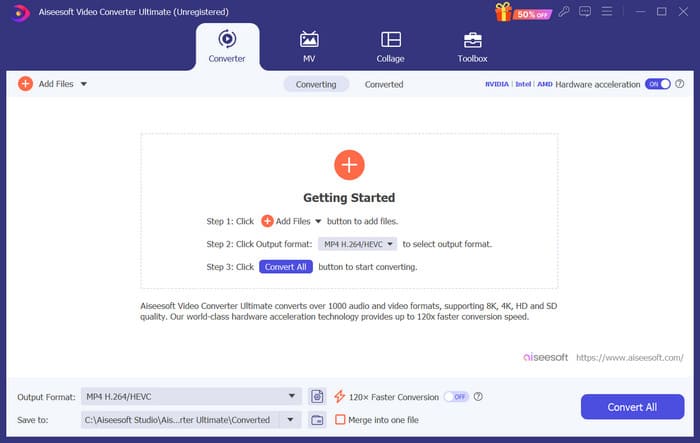
Step 1. Download and install Video Converter Ultimate on your computer. After that, launch it on your desktop.
Step 2. lick Add Files to upload the audio you want to edit.
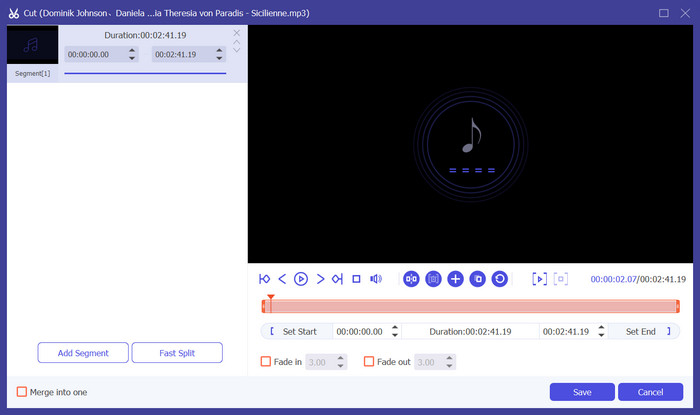
Step 3. To trim the audio, click Cut. You can adjust the file's length. Once you've finished trimming, click Save.
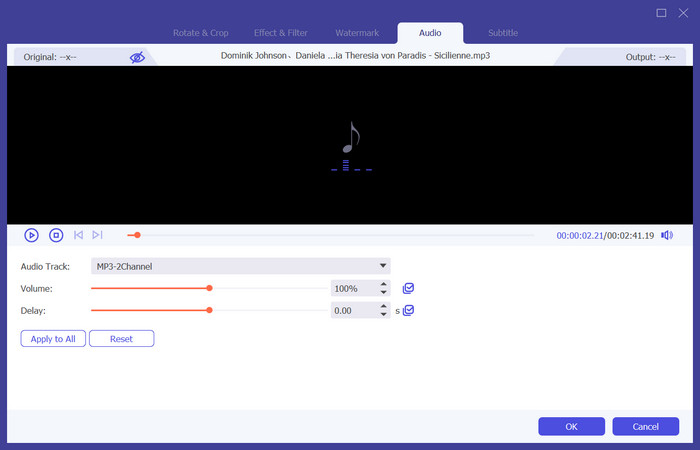
Step 4. To edit the volume and audio track of your voice memos, click Edit. In the pop-out window, you can make the adjustments you wish. When you finish editing, click OK.
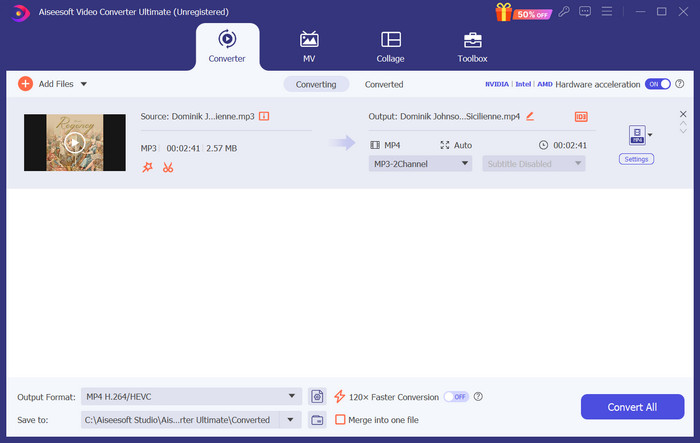
Step 5. If you need to change the format of your file, drop down the menu next to Output Format. Here, you can choose the output format for your audio.
Step 6. When you want to export the edited ringtone, click Convert All.
Parte 2. Como fazer um memorando de voz ser um toque no iPhone
Recomendamos o GarageBand se você quiser fazer um toque de memorando de voz no seu iPhone. Este é um aplicativo desenvolvido pela Apple. Os usuários podem usá-lo para criar música em seus dispositivos iOS. Ele tem muitas ferramentas para produção musical, gravação, edição e mixagem. O GarageBand também pode ser integrado a outros softwares da Apple. Isso significa que podemos transferir facilmente projetos entre o GarageBand e outros softwares para edição posterior. Este aplicativo é popular entre usuários profissionais e iniciantes devido à sua interface amigável, recursos abrangentes e acessibilidade. Todas as configurações podem ser feitas no telefone sem a ajuda de nenhum outro dispositivo.
Veja o que você precisa fazer para transformar um memorando de voz em um toque.
Step 1. Before setting your ringtones, you need to go to the Voice Memo app on your iPhone to select a voice memo.
Step 2. After choosing your target voice memo, press the three dots icon. Choose Save to Files, and tap Save again to confirm your operation.
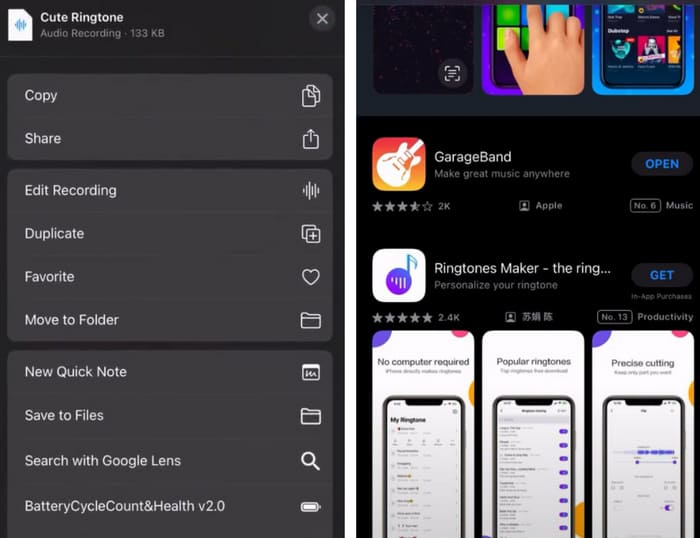
Step 3. Open GarageBand on your iPhone, and tap on Project.
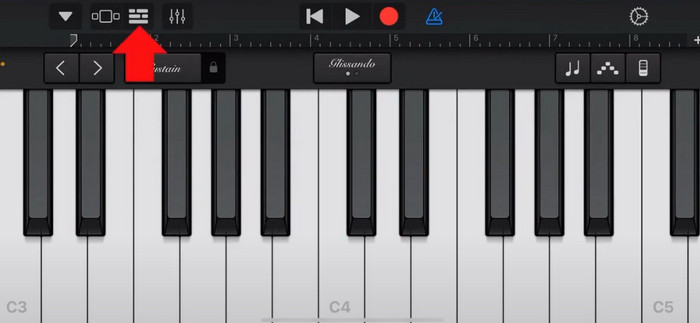
Step 4. Choose Loop > Files. After that, tap Browse items from the Files app to select your target voice memo.
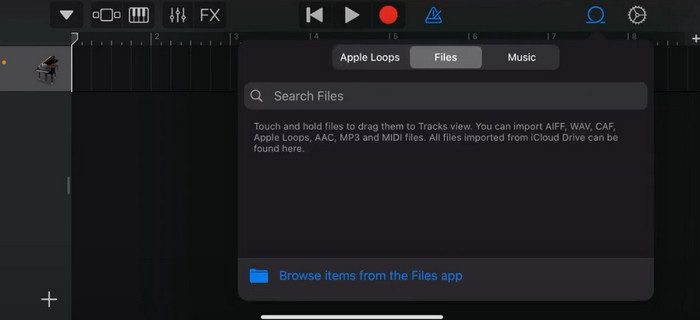
Step 5. Drag and drop the file on the timeline.
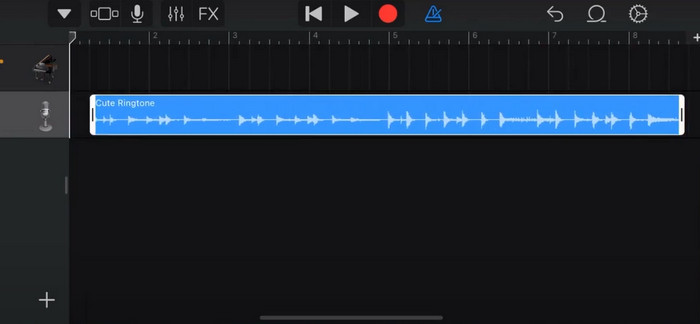
Step 6. Disable Metronome, and tap the arrow down icon > My Songs.
Step 7. Tap and hold the clip, then choose Share.
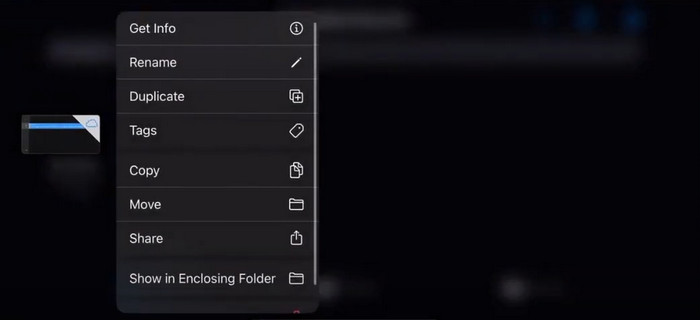
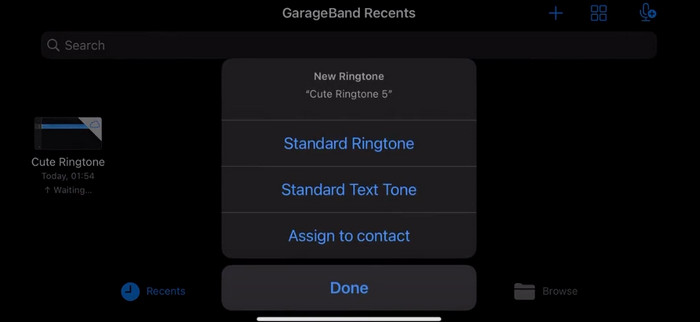
Step 8. Choose Ringtone from all the options, and press Export. Finally, tap Use sound as > Standard Ringtone. Thus, you have successfully made a ringtone from a voice memo.
Parte 3. Como fazer uma gravação de voz em um toque no Android
Se você estiver usando um telefone Android e quiser transformar a música gravada em um toque, você pode fazer isso diretamente no aplicativo Configurações do seu telefone. O procedimento é muito simples, e não há necessidade de baixar nenhum software para esse processo. No entanto, se você quiser modificar seu áudio gravado, você pode escolher um software profissional de edição de áudio e vídeo como o Video Converter Ultimate escolhido pela FVC.
Next, we will teach you how to make a voice recording ringtone on Android. In this part, we will use a Samsung smartphone as an example. Before you start, you should make sure you have saved the recording file in the voice recorder app.
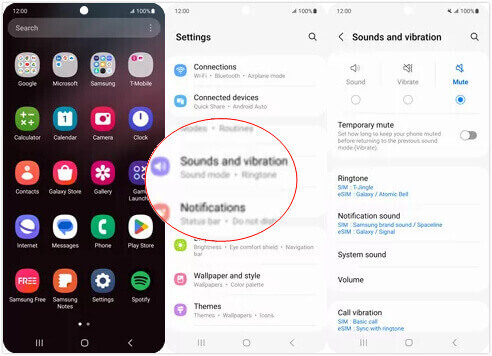
Step 1. Open Settings on your phone, and choose Sounds and vibration.
Step 2. Make sure that the Sound is selected under the Sound mode. Then, choose the Notification sound.
Step 3. Select the music file you have recorded. Finally, return to the Home screen to apply the settings.
Parte 4. Perguntas frequentes sobre como fazer um memorando de voz em um toque
Qual é o formato dos toques para Android?
Toques para dispositivos Android podem vir em vários formatos de arquivo de áudio, mas os formatos mais comumente suportados são MP3, AAC, M4A, OGG e WAV.
Como faço para salvar um memorando de voz como uma música no meu iPhone?
Abra o aplicativo Voice Memos no seu iPhone e localize o memorando de voz que você deseja salvar como uma música. Toque no memorando de voz para abri-lo e pressione o ícone de compartilhamento para ver as opções de compartilhamento disponíveis. Você pode escolher salvar o memorando de voz no aplicativo Arquivos. Depois disso, você pode abrir um aplicativo de música no seu iPhone que suporte a importação de arquivos de áudio. Aplicativos como GarageBand ou Music Memos são adequados.
Como gravar áudio no Android Samsung?
To record audio on an Android Samsung device, use the built-in Voice Recorder. Open it and tap Record to start recording. Once you've finished recording, you can save the audio file and give it a name for easy access.
Conclusão
In this article, we answer the question of how to make a voice memo into a ringtone. We offer you one of the best ringtone editing tools, FVC Video Converter Ultimate. Methods for turning a voice memo into a ringtone on iPhone and Android phones are listed. We also have complete step-by-step instructions for each section in case you run into any problems.
-
 As 3 principais soluções para compactar arquivos WAV em um tamanho menor
 Se você também está procurando maneiras de comprimir o tamanho de arquivos de áudio WAV, leia nosso conteúdo. Apresentaremos a você diferentes ferramentas de três aspectos.
-
 Tutorial detalhado de compressão de áudio em 2024 (passo a passo)
 Você precisa compactar áudio, mas precisa de ajuda para descobrir por onde começar? Neste post apresentaremos as melhores opções para reduzir o tamanho do arquivo de suas trilhas.
-
 Compressores de áudio eficazes para usuários offline e online
 Teve algum problema com arquivos de áudio grandes? Existem muitos compressores de arquivos de áudio disponíveis para usuários offline e online. Confira aqui.
