


 Video Converter Ultimate
 Gravador de ecrã
 Reparo de vídeo
 Secure Download
Guia detalhado sobre como reverter áudio no Audacity [2024]
Inverter faixas de áudio pode adicionar uma dimensão e cor únicas às suas produções musicais, gerando efeitos sonoros cativantes para narrativas criativas. Esse estilo é amplamente usado e está se tornando popular quando se trata de enriquecer projetos de áudio com profundidade e originalidade. Então, se você está editando áudio no Audacity e quer dar um toque especial ao invertê-lo, você está no lugar certo!
Neste artigo, nós o guiaremos por etapas detalhadas sobre como reverter áudio no Audacity e compartilharemos dicas valiosas para ajudar você a aproveitar ao máximo esse recurso. Ao final deste guia, você estará pronto para reverter suas faixas de áudio e explorar novos horizontes criativos facilmente. Então, prepare-se para transformar seus projetos de áudio e descobrir o potencial emocionante do áudio reverso!

Parte 1. Como inverter o áudio no Audacity
O Audacity é um programa projetado para capacitar os usuários a editar arquivos de áudio sem a necessidade de ferramentas premium caras, garantindo saída de alta qualidade sem custo. Como uma ferramenta de código aberto, é livremente acessível a todos e oferece uma longa lista de recursos normalmente encontrados em softwares pagos. Entre sua gama de recursos, o Audacity se destaca com sua capacidade de reverter faixas de áudio. Esse recurso permite que os usuários sejam criativos com a forma como desejam que seu áudio soe. Normalmente, os editores revertem seu áudio porque isso adiciona um efeito único aos seus projetos.
Here’s how you can reverse audio in Audacity.
Step 1. Download and install Audacity on your computer.
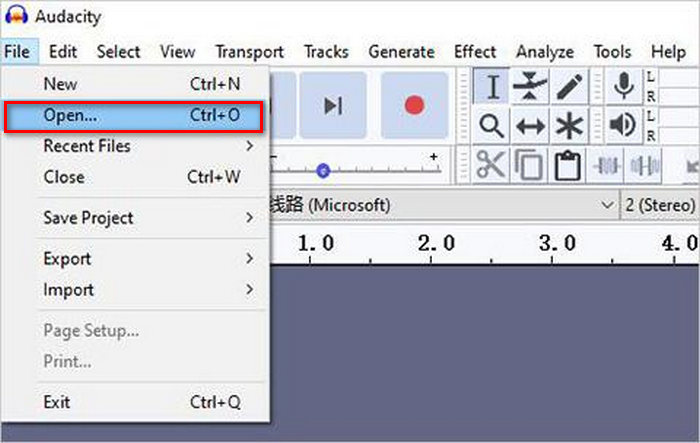
Step 2. Launch the tool, go to the File menu in the top-left corner, and select Open. From there, browse your computer to locate and select the audio file or drag and drop the audio file that you want to reverse into the program.
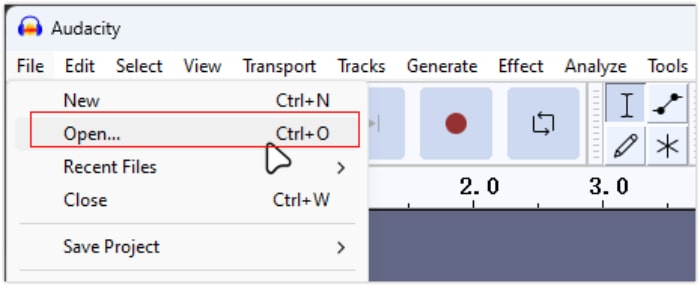
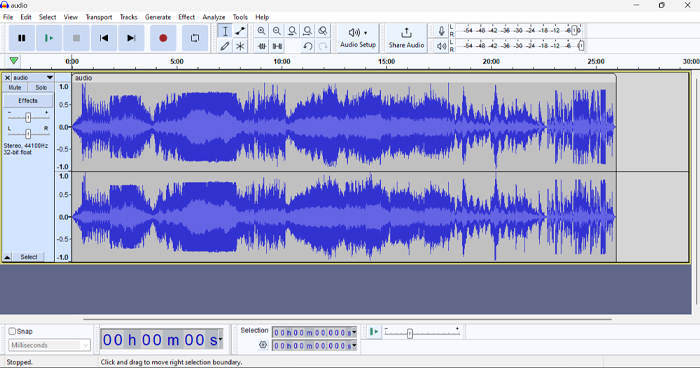
Step 3. Now, click on the audio track, go to the Select tab, and choose All to select the entire audio file.
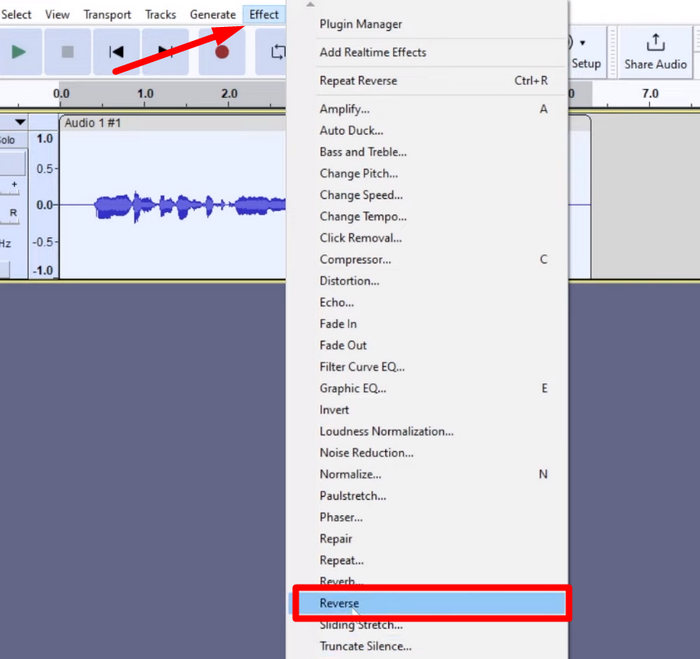
Step 4. To reverse the Audio, go to the Effect tab and select Reverse from the drop-down menu. Audacity will process and reverse the selected audio clip.
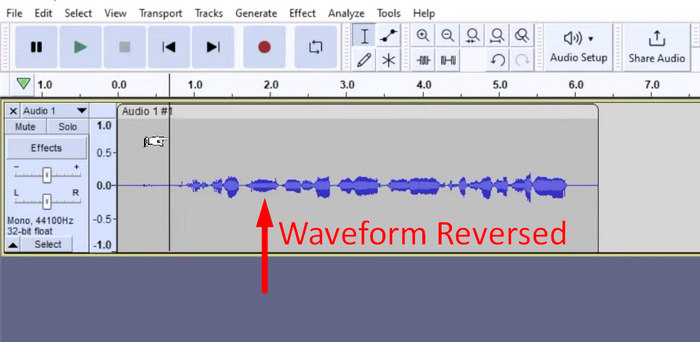
Step 5. You can preview the reversed audio by pressing the Spacebar on your keyboard. Alternatively, use the playback controls at the top left of the Audacity window and click the Play button.
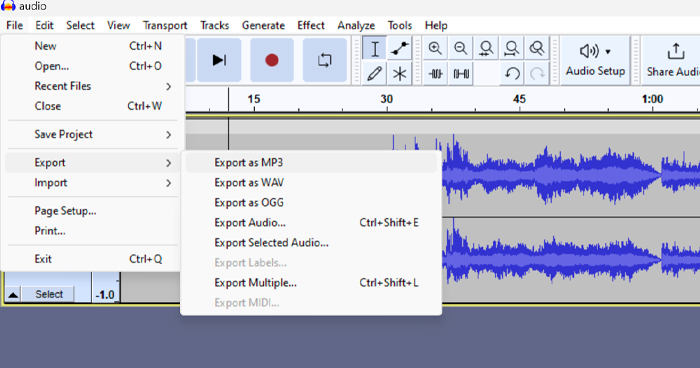
Step 6. Lastly, to export the reversed audio file, go back to the File menu, under it choose Export. That way, your audio will be saved as a new file. Meanwhile, don’t forget to choose your preferred audio file format before exporting them.
Devido a alguns problemas relacionados à perda inesperada de trabalho, salve regularmente seu projeto durante a edição para evitar qualquer perda de progresso. Você pode salvar seu trabalho rapidamente usando Ctrl + S no Windows ou Cmd + S no Mac. Além disso, considere usar nomes de arquivo descritivos e organizar seus arquivos em uma pasta dedicada para manter seus projetos bem organizados e facilmente acessíveis.
Parte 2. Como reverter parte do áudio no Audacity
Há casos em que os usuários queriam apenas reverter uma parte do áudio no Audacity, talvez porque há apenas seções específicas que eles querem enfatizar ou criar um efeito distinto. Os passos abaixo são quase os mesmos de como reverter uma trilha inteira. No entanto, selecionar uma parte de um áudio é um pouco complicado e precisa de ênfase nos passos para evitar confusão, especialmente para iniciantes.
Here’s how to reverse a part of audio in Audacity.
Step 1. When you’re on the main interface of the tool, go to the File menu in the top-left corner and select Open. From there, browse your computer to locate and select the audio file or drag and drop the audio file that you want to reverse into the program.
Step 2. Now, to select a part of audio that you want to reverse, utilize the Zoom feature to zoom in on the wave track and drag your mouse to select the section or part of the audio that you only want to reverse.
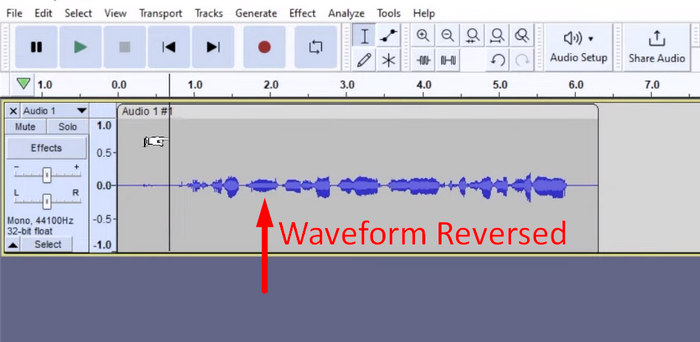
Step 3. To reverse the Audio, go to the Effect tab and select Reverse from the drop-down menu. Audacity will process and reverse the selected audio clip.
Step 4. You can preview the reversed audio by pressing the Spacebar on your keyboard. Alternatively, use the playback controls at the top left of the Audacity window and click the Play button.
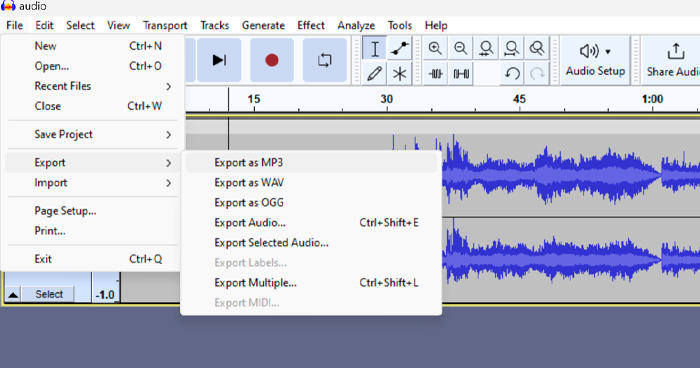
Step 5. Lastly, to export the reversed audio file, select Export under the File menu. Choose Export as and select your preferred audio file format before finally exporting them.
When selecting a specific part of the audio to reverse in Audacity, ensure that you accurately zoom in on the waveform to see where the section begins and ends clearly. This helps in making precise selections and avoids including unintended parts of the audio. Additionally, before reversing, use the Clip Split tool if needed to divide the audio into chunk segments, for example, cutting an MP3 audio, making it easier to manipulate and edit specific sections independently. This approach enhances control over your edits and ensures that the reversed audio achieves the desired effect seamlessly.
Parte 3. Reverter áudio/vídeo com a alternativa Audacity
Meanwhile, if you prefer a simpler and easier way to reverse audio or video, you can use this Audacity alternative, which is the FVC-picked Video Converter Ultimate. This total package video and audio tool may be known for its powerful conversion capabilities, but beyond that, this tool is also great for users who need a convenient way of reversing audio or video.
Step 1. On your computer, download and install the FVC-picked Video Converter Ultimate.
Free DownloadFor Windows 7 or laterSecure Download
Free DownloadFor MacOS 10.7 or laterSecure Download
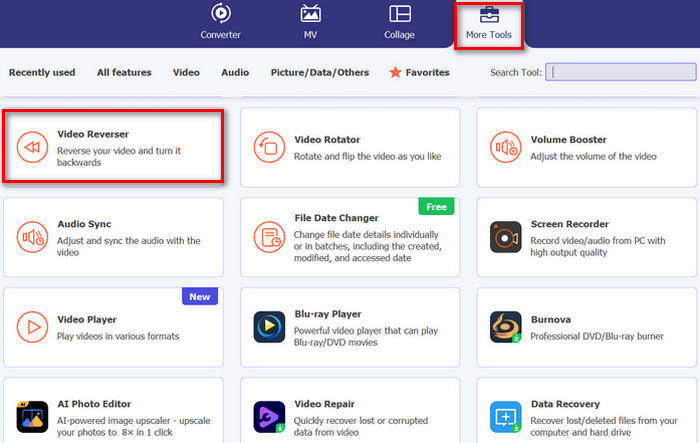
Step 2. Launch the tool and go to the Moretools tab. From there, select Video Reverser.
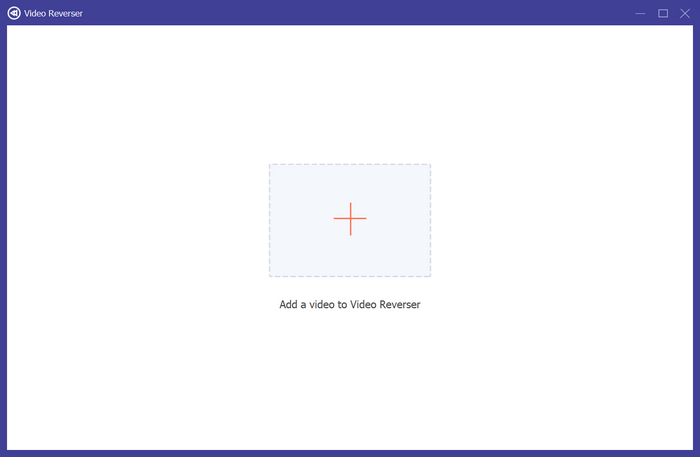
Step 3. Now, import the audio or video that you want to reverse by clicking the Add a Video to Video Reverser button.
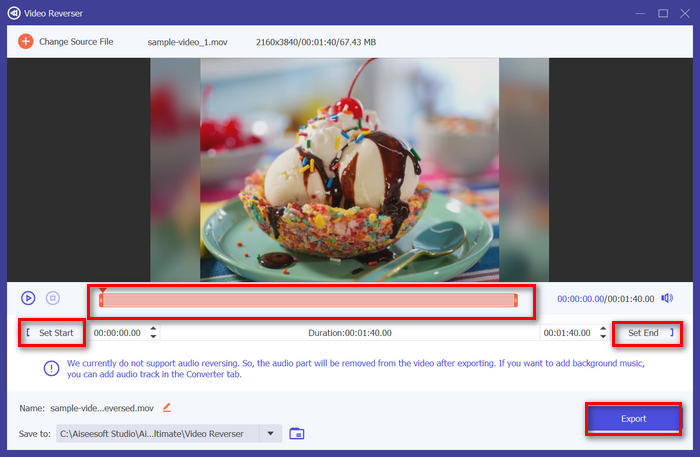
Step 4. Once you’re in the Video Reverser interface, if you wish to reverse the entire track, you can simply head over to the Export button to automatically reverse your file. But if you wish to reverse only a part, you can slide the bar and carefully choose the part of the audio or video that you want to reverse. Alternatively, you can simply encode the start time and time of the file part that you want to reverse. Once done, just click the Export button.
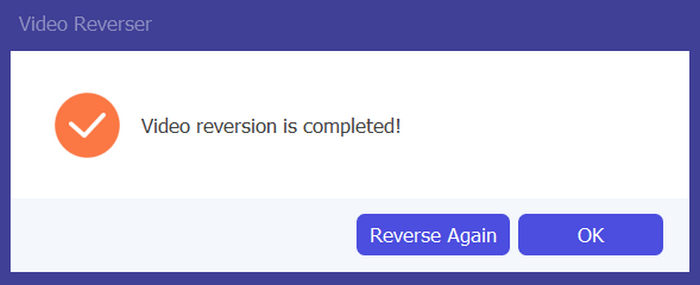
Step 5. When the exploring is complete, you’ll get this message, and you can access your reversed video in the folder on your computer.
Aí está! Fácil, não é? Você não precisa se confundir com uma interface complexa. Com o Video Converter Ultimate escolhido pela FVC, tudo o que você precisa está na ponta dos seus dedos.
Parte 4. Perguntas frequentes sobre a reversão de áudio no Audacity
Como desfazer o efeito de áudio reverso no Audacity?
Se você reverteu um no Audacity e deseja desfazê-lo, você pode facilmente reverter para o áudio original. Basta ir ao menu Editar no canto superior esquerdo da interface do Audacity e selecionar Desfazer Reversão. Além disso, você pode usar o atalho de teclado Ctrl + Z para Windows ou Cmd + Z para Mac para desfazer a última ação. Isso reverterá o áudio para seu estado original antes que o efeito reverso seja aplicado.
Quais formatos de áudio o Audacity suporta para reverter áudio?
O Audacity suporta vários formatos de áudio populares, como WAV, MP3, FLAC, AIFF e OGG.
É possível distorcer áudio no Audacity?
Sim. Você pode distorcer áudio no Audacity. O Audacity oferece vários efeitos e ferramentas que permitem que você aplique distorção às suas trilhas de áudio. Para adicionar isso, vá para Efeito, clique em Distorção e Modulação e escolha Distorção.
É possível converter áudio no Audacity?
Yes, you can. Audacity supports plenty of audio formats. If you find any of your audio file is not compatible with your device, for example, you can use Audacity to convert AIFF to MP3 easily.
Conclusão
In conclusion, learning how to reverse audio in Audacity is simple and adds unique effects to your audio or video projects. Follow the detailed steps to start reversing your audio tracks today. For an easier alternative, try the FVC-picked Video Converter Ultimate. Ready to get creative? Try any of these methods now!
-
 Junte-se ao MOV gratuitamente - Como mesclar dois arquivos MOV em um
 Pode ser difícil para iniciantes juntar vários videoclipes MOV. Então, existe uma maneira simples e rápida de combinar arquivos MOV? Se houver, como usá-lo? Esta postagem ajudará você a obter essas respostas.
-
 4 maneiras de mesclar vídeos gratuitamente no Windows / Mac / Online
 Aqui estão 4 maneiras rápidas de mesclar vídeos em um novo vídeo. Nenhum tamanho de arquivo de vídeo ou limite de formato. Você pode juntar 2, 3, 4 e até mais videoclipes em diferentes formatos e resoluções com sucesso.
-
 Guia concreto para juntar arquivos M4V no Windows e Mac gratuitamente
 Se você está procurando uma solução para combinar arquivos de vídeo M4V em um, nunca perca esta passagem. Aqui, falaremos sobre os dois melhores métodos para combinar arquivos de vídeo M4V.
