


 Video Converter Ultimate
 Gravador de ecrã
 Reparo de vídeo
 Secure Download
Como converter seus arquivos TS para o formato FLV sem perda de qualidade
This guide focuses on how to convert TS to FLV. Generally speaking, there are two kinds of video formats, commonly used and others. FLV is one of the commonly used video formats developed for internet, while TS belongs the latter kind. TS, standing for Video Transport Stream, is used to store MPEG-2 video data. They are often seen on DVDs. Anyway, let's start the journey now.

Parte 1: 3 principais maneiras fáceis de converter TS em FLV no desktop
Modo 1: converter TS em FLV com o conversor FLV gratuito
As its name indicated, FVC Free FLV Converter is just the FLV converter you need to turn TS to FLV, so that you can watch your files or share them on social media. It is total free to use with no watermark or other limit. It even provides some features you can only find in paid software.
Principais recursos do melhor conversor de FLV
- 1. Converta facilmente entre FLV e outros formatos de vídeo.
- 2. Proteja a qualidade de vídeo e áudio durante a conversão.
- 3. Lidar com vários arquivos de vídeo TS ao mesmo tempo.
Free DownloadFor Windows 7 or laterSecure Download
Free DownloadFor MacOS 10.7 or laterSecure Download
Como converter arquivos TS para FLV gratuitamente
Step 1: Import TS files
Inicie o melhor conversor de FLV depois de instalá-lo em seu computador. Em seguida, clique no botão Adicionar arquivo (s) para importar todos os arquivos TS de seu DVD ou computador. Em seguida, os vídeos aparecerão na área da biblioteca.

Step 2: Set output format
If you need to edit the videos, click the Edit button to open the video editor window. If not, go to the bottom, click and expand the Output format option. Then search for FLV in the General Video tab and select it.

Step 3: Convert TS to FLV
Next, set a specific folder to save the FLV output files by hitting the Browse button. Finally, click on the Convert button at bottom right corner to begin converting TS to FLV.

Maneira 2: como converter TS para FLV por VLC
VLC é outra maneira de converter TS em FLV gratuitamente, pois é um projeto de código aberto. Ele está disponível para PC, Mac e Linux. Os custos são óbvios. A qualidade da saída não é muito boa e o procedimento é complexo. Se você não se importar, execute as etapas abaixo.
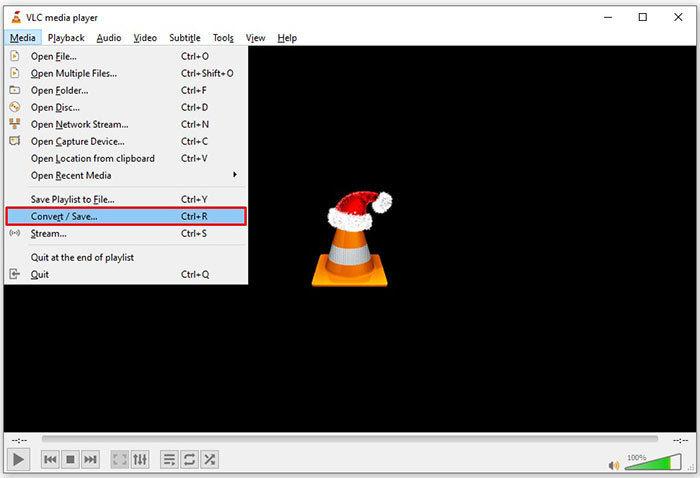
Step 1: Open VLC, click Media menu and choose Convert/Save. The open-media dialog will pop up.
Step 2: Click the Add button and add a TS file into VLC. Hit Convert/Save button to move on.
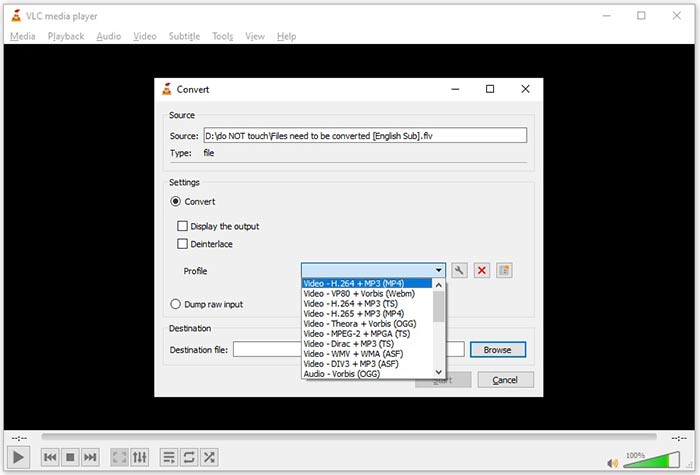
Step 3: Open the Profile option and choose the output format. If you cannot find FLV in Profile, click the Profile Edit button, enter FLV in Profile Name box, select FLV and click Create. Then select FLV from Profile.
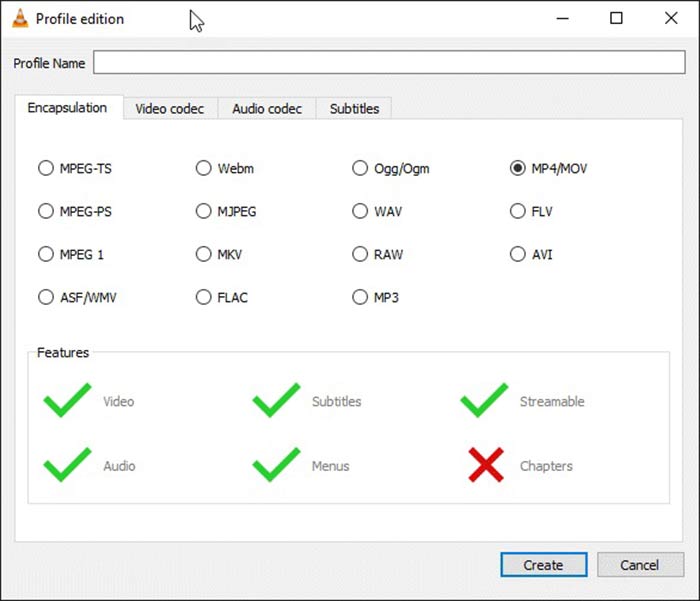
Step 4: Hit the Browse button to set the destination folder and click the Start button.
Maneira 3: como converter TS para FLV via FormatFactory
FormatFactory é um programa gratuito de conversão de arquivos para PCs. Ele permite que você converta arquivos TS em FLV sem pagar um centavo. No entanto, ele oferece suporte apenas à conversão com perdas. Isso significa que a qualidade do seu vídeo será reduzida. Além disso, não está disponível para Mac ou Linux.
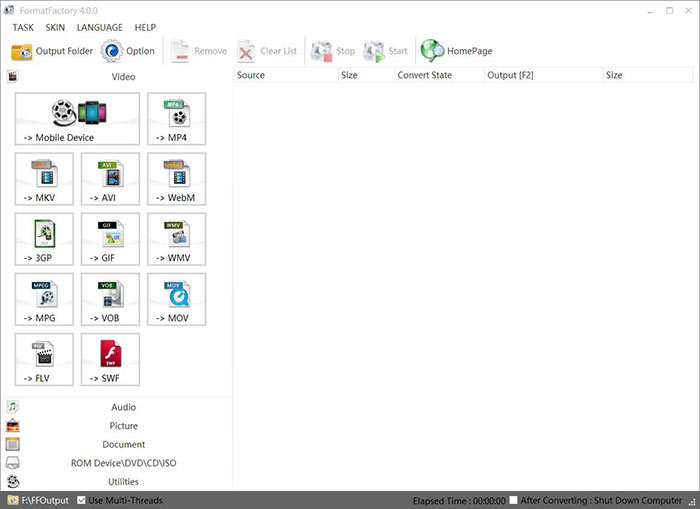
Step 1: Run the free TS to FLV converter, go to the Video section and select FLV.
Step 2: Click the Add File button and import the TS video files from your computer. Hit OK to confirm it.
Step 3: Next, click on the Start button to initiate converting TS to FLV on PC. It takes a while since the freeware is very slow. When it is done, you can go to the directory under Output section to find the FLV files.
Parte 2: Como converter TS para FLV online
VLC and other video converting software all need you to install on your hard disk. It takes space of your internal memory. You may wonder whether you can convert TS to FLV without installing software. The answer is FVC Free Online Video Converter. It works online and is free of charge. Although does not provide bonus features, it is enough to meet you basic need on video converting.
Step 1: Open https://www.free-videoconverter.net/free-online-video-converter/ in a web browser and click the Add Files to Convert button to download the launcher.

Step 2: Once downloading is done, the launcher will pop up. Click the Add File button to upload the TS files. This web app supports batch conversion. Go to the bottom and select FLV at the bottom.
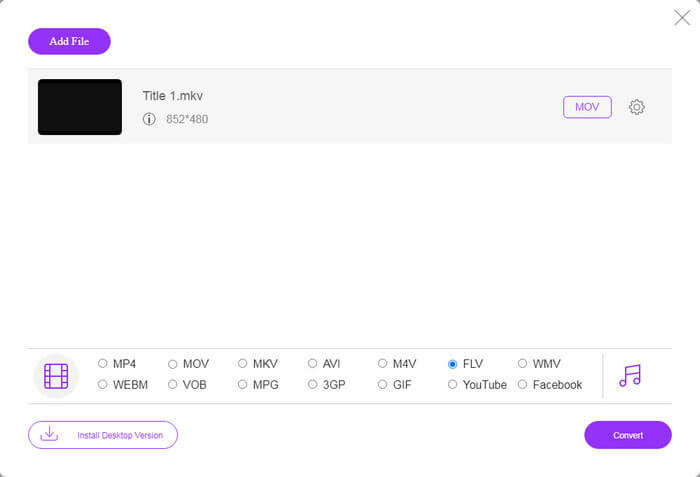
Step 3: If you are ready, click on the Convert button to trigger the TS to FLV conversion. The app works fast, but the real time is determined by your internet connection. Wait for the converting to finish and download the FLV output.
Don't Miss:
- • Guia abrangente sobre como converter TS para MP4
- • Como converter arquivo TS para MP3, AIFF, ALAC, FLAC e mais formatos de áudio no Windows / Mac
Parte 3: Perguntas frequentes sobre a conversão de TS em FLV
Por que não consigo converter TS para outros formatos?
TS é o formato de arquivo de vídeo para DVD. A maioria dos DVDs comerciais são criptografados e protegidos por direitos autorais. Isso também impede a conversão de arquivos TS se você não tiver o software de conversão de vídeo adequado.
Posso abrir o TS no Windows Media Player?
O Windows Media Player não pode abrir arquivos de DVD ou TS, portanto, você não pode reproduzir TS em WMP. Como alternativa, você pode usar um reprodutor de vídeo de terceiros, como o VLC. Ou você precisa instalar o pacote de codec extra para WMP.
Como assistir a arquivos TS?
Apenas alguns reprodutores de mídia oferecem suporte a arquivos TS, como VLC. Os reprodutores de mídia integrados no PC e Mac, Windows Media Player e QuickTime Player, não são compatíveis com TS. Outra forma de assistir a arquivos TS é gravá-los em DVD.
Conclusão
Agora, você deve aprender pelo menos quatro maneiras de converter arquivos TS em vídeos FLV para compartilhamento online ou reprodução em dispositivos digitais. Como formato de vídeo para filmes em DVD, o TS não é amplamente usado em computadores ou dispositivos móveis. Faz sentido que a maioria dos reprodutores de mídia não consiga abri-lo. FVC Free FLV Converter; no entanto, ajuda a alterar facilmente TS para FLV. Mais perguntas? Por favor, escreva-os abaixo deste post e nós responderemos sobre ele.
-
 3 etapas fáceis para gravar arquivos / pastas de vídeo _TS em DVD no Mac / Windows
 Como faço para converter e gravar arquivos TS em um disco DVD? Este guia passo a passo mostrará como copiar arquivos e pastas TS para DVD no Windows / Mac para que você possa assistir arquivos TS no DVD player ou TV.
-
 6 maneiras fáceis de converter TS para AVI / MKV / MOV / WMV no Windows / Mac
 Quer converter arquivos TS para AVI / MKV / MOV / WMV rapidamente? Este artigo mostra conversores de vídeo online e offline com guia completo. Talvez você possa obter o melhor conversor TS grátis aqui.
-
 Compactar arquivos de vídeo TS - Como compactar arquivos TS em tamanhos menores
 Quando você deseja salvar os arquivos de vídeo TS de alta definição em seus dispositivos, você deve aprender mais sobre como compactar arquivos de vídeo TS em tamanhos menores com este artigo.
