Guia de usuario

Soluções de conversão de FLAC para MP3

Iniciar

FVC Free FLAC to MP3 Converter é usado para ajudá-lo a converter um arquivo FLAC para MP3 de maneira fácil e rápida. Você pode converter arquivos FLAC para MP3 e converter WMV, MKV, AVI, 3GP, FLV, SWF, F4V para o formato de áudio necessário. Enquanto isso, ele pode ser editado antes da conversão.

Baixe e instale

Click the Free Download button, and then install it on your computer. It only takes seconds to install FVC Free FLAC to MP3 Converter successfully.

Faça preferências

Click the menu closed to the Upgrade button and choose preferences. The output folder or other conversion settings can be easily changed from the Preferences window
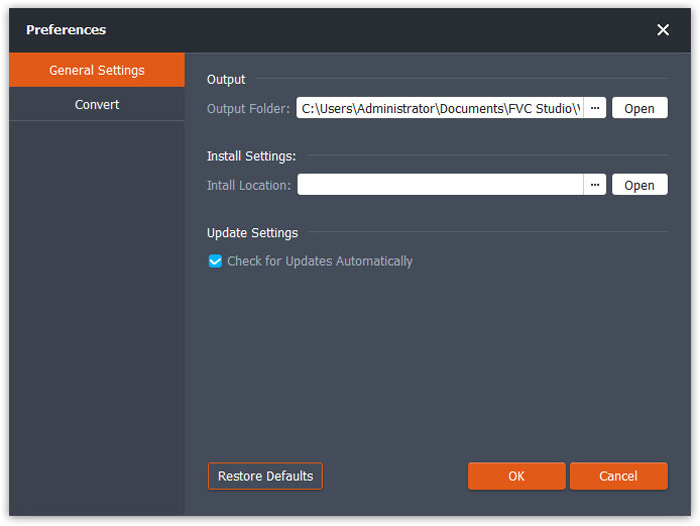
Configuração geral e configurações de conversão

Converter FLAC para MP3

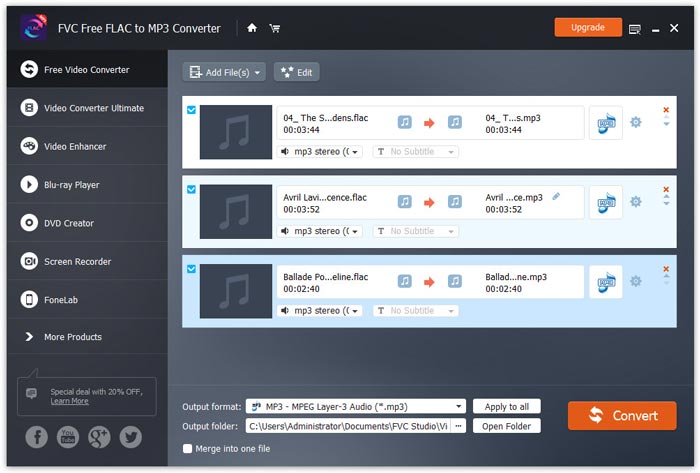
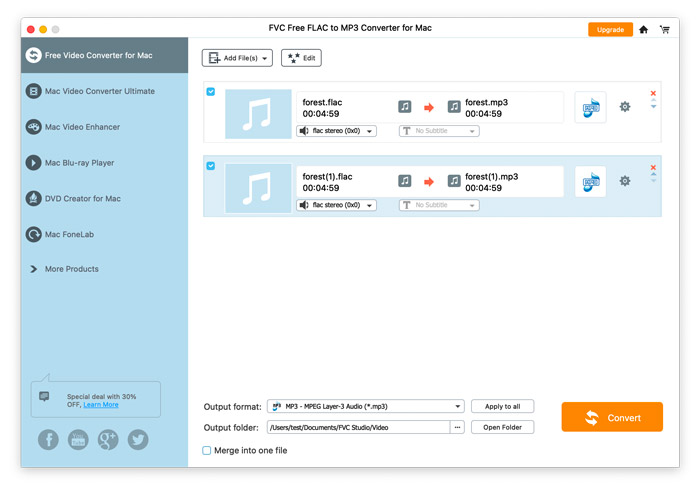
Step 1. Initially, open FVC Free FLAC to MP3 Converter on your computer. Click the Add File(s) button located in the top-left corner of the main interface and choose the FLAC files you want to convert.

Você pode arrastar manualmente um ou mais arquivos FLAC na janela do programa.

Adicionar arquivos

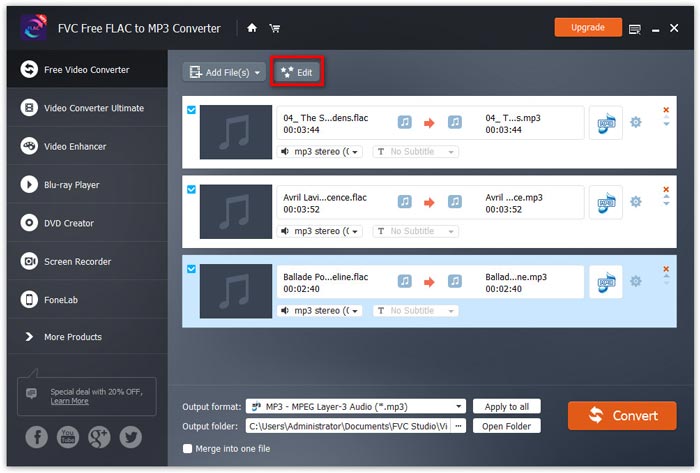
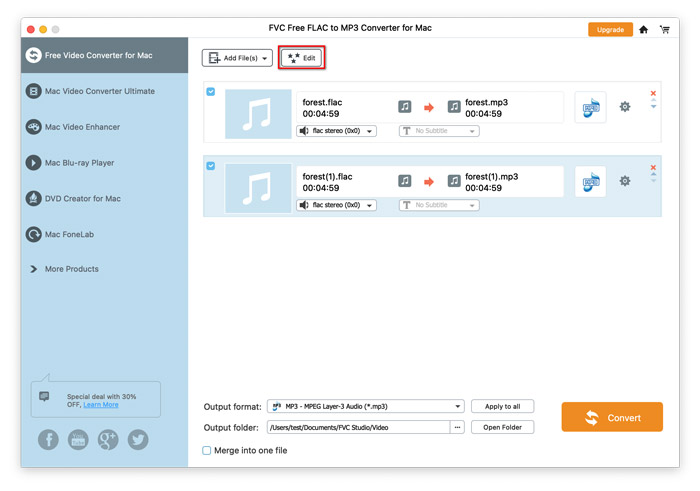
Step 2. Before your conversion, you can click the Edit button next to the Add Files button.

Editar antes da conversão

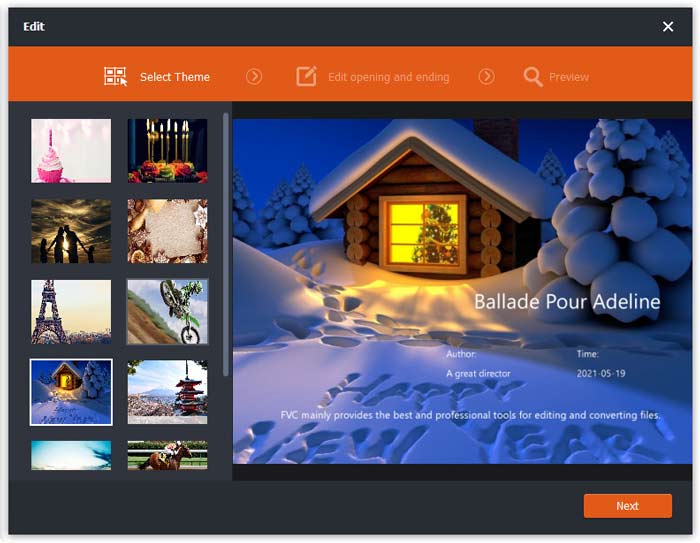
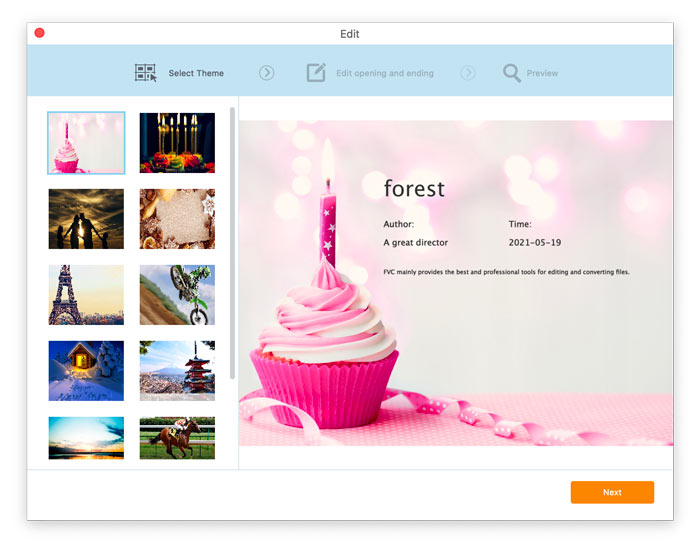
Na interface de edição do vídeo, você pode escolher seus temas preferidos para o seu vídeo

Selecione Temas

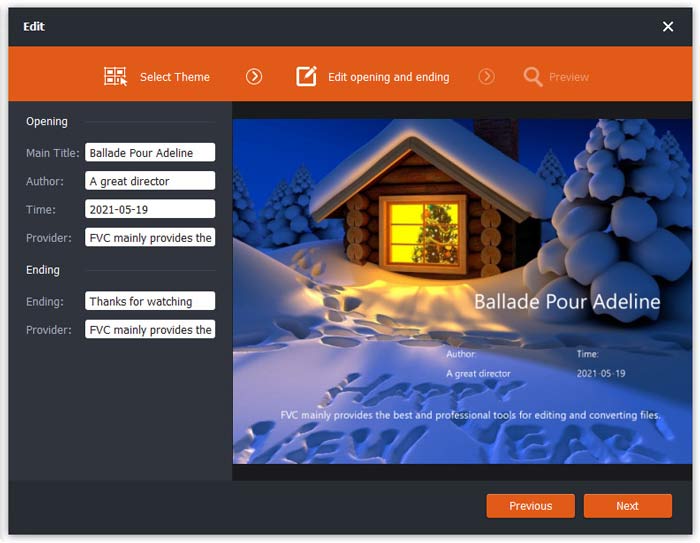
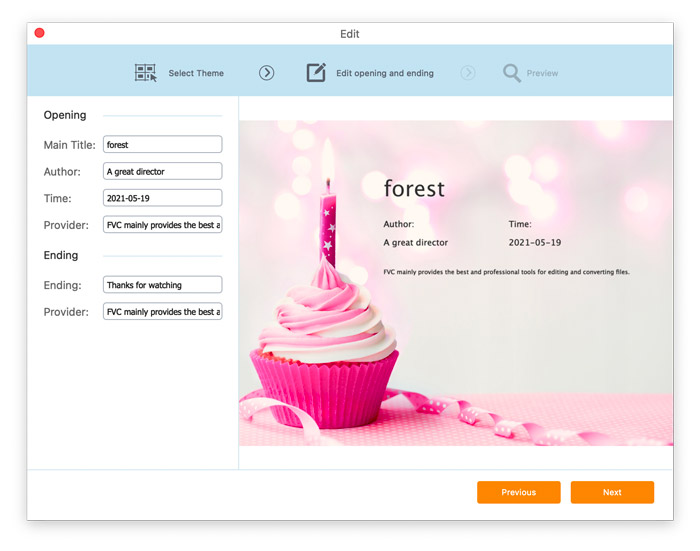
Além disso, você pode editar os temas de abertura e encerramento, como título principal, autor e hora.

Editar abertura e término

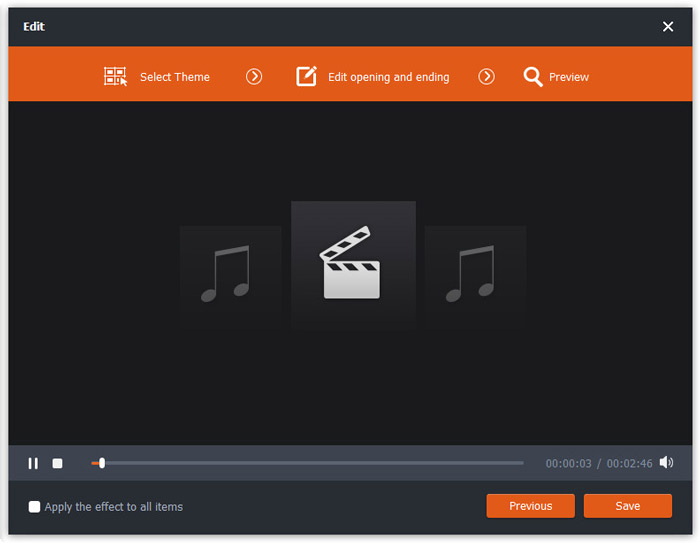
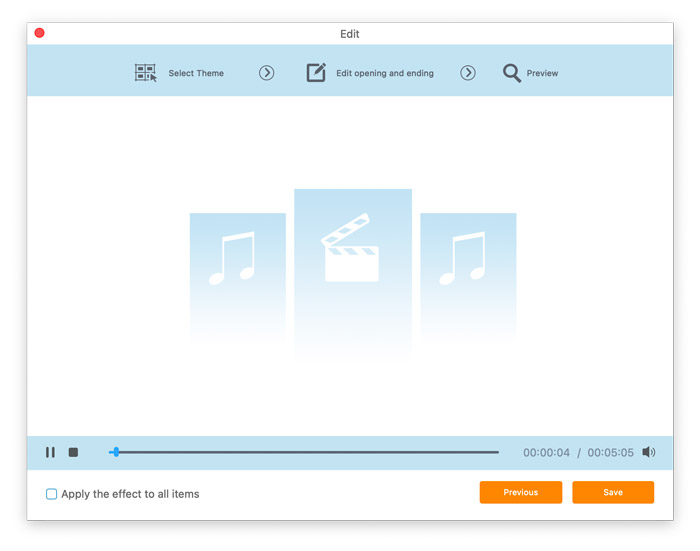
Lastly, click the Next button and have a preview. You can also choose to apply the effect to all items. Click the Save button after you are satisfied with your results. If not, click the Previous to re-edit the video.

Pré-visualize a música MP3

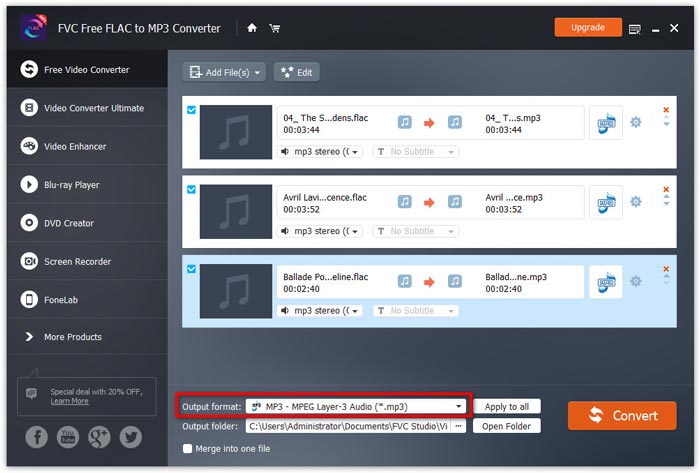
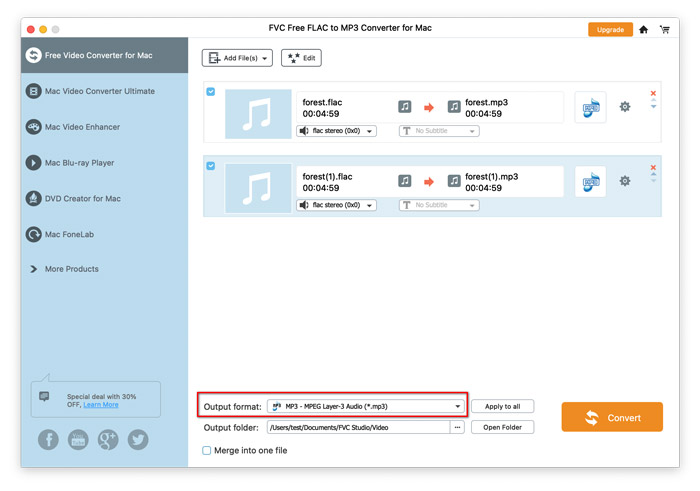
Step 3. Go to the Output format field, choose General Audio and then MPEG Layer-3 Audio format from the drop-down list.

Next, choose a folder in the Output folder field at the bottom of the interface.

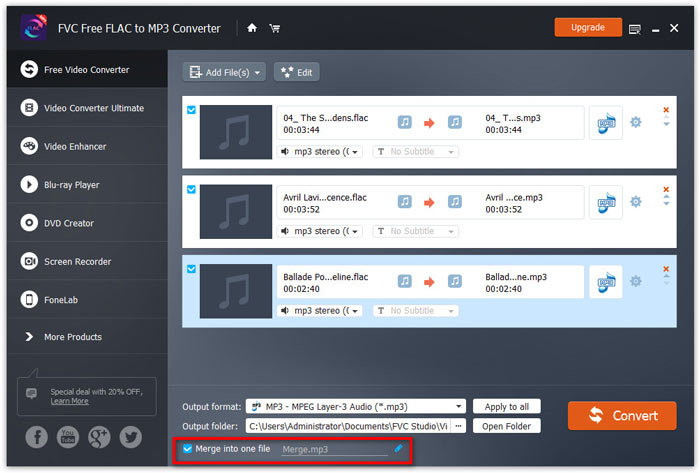
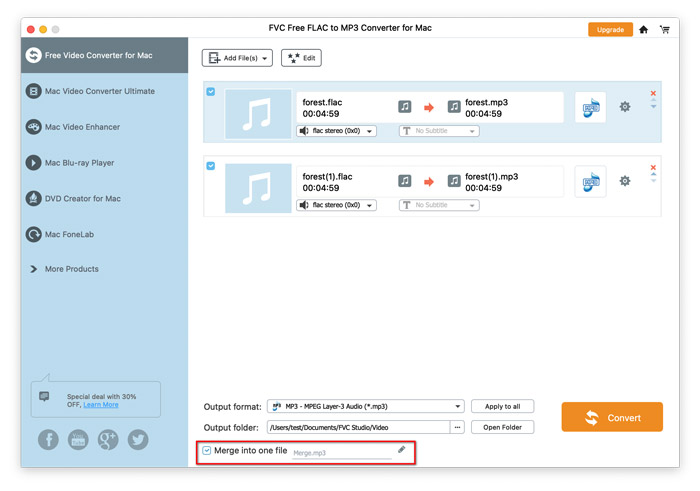
Besides, if you choose several files, make order for them by clicking the arrow-down or arrow-up icon, and then click the Merge into one file in the bottom left corner of the interface, meaning all the converted videos will be put into one file.

Defina o pedido

Finally, click Convert to start the conversion process.

Escolha o formato

Quanto maior for o tamanho dos seus arquivos, mais tempo de conversão levará. Assim que a conversão for concluída, você irá automaticamente para a janela onde o arquivo convertido está colocado, então você pode reproduzi-lo.

Guia de usuario

Soluções de conversão de FLAC para MP3

Iniciar

FVC Free FLAC to MP3 Converter é usado para ajudá-lo a converter um arquivo FLAC para MP3 de maneira fácil e rápida. Você pode converter arquivos FLAC para MP3 e converter WMV, MKV, AVI, 3GP, FLV, SWF, F4V para o formato de áudio necessário. Enquanto isso, ele pode ser editado antes da conversão.

Baixe e instale

Click the Free Download button, and then install it on your computer. It only takes seconds to install FVC Free FLAC to MP3 Converter successfully.

Faça preferências

Click the menu closed to the Upgrade button and choose preferences. The output folder or other conversion settings can be easily changed from the Preferences window
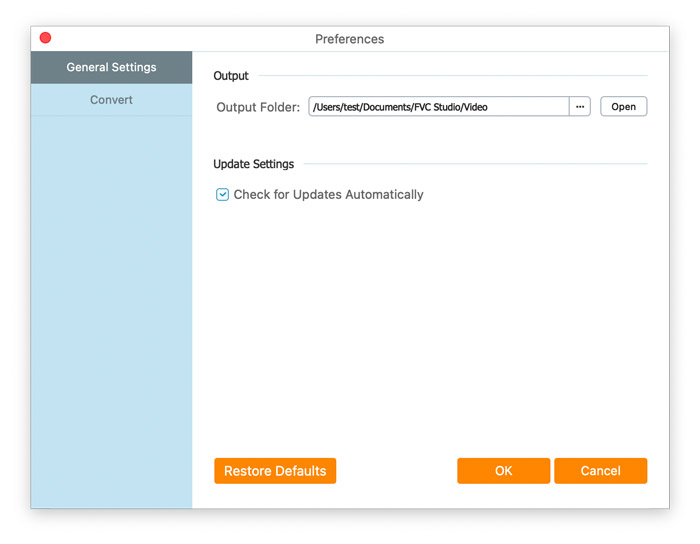
Configuração geral e configurações de conversão

Converter FLAC para MP3

Step 1. Initially, open FVC Free FLAC to MP3 Converter on your computer. Click the Add File(s) button located in the top-left corner of the main interface and choose the FLAC files you want to convert.

Você pode arrastar manualmente um ou mais arquivos FLAC na janela do programa.

Adicionar arquivos

Step 2. Before your conversion, you can click the Edit button next to the Add Files button.

Editar antes da conversão

Na interface de edição do vídeo, você pode escolher seus temas preferidos para o seu vídeo

Selecione Temas

Além disso, você pode editar os temas de abertura e encerramento, como título principal, autor e hora.

Editar abertura e término

Lastly, click the Next button and have a preview. You can also choose to apply the effect to all items. Click the Save button after you are satisfied with your results. If not, click the Previous to re-edit the video.

Pré-visualize a música MP3

Step 3. Go to the Output format field, choose General Audio and then MPEG Layer-3 Audio format from the drop-down list.

Next, choose a folder in the Output folder field at the bottom of the interface.

Besides, if you choose several files, make order for them by clicking the arrow-down or arrow-up icon, and then click the Merge into one file in the bottom left corner of the interface, meaning all the converted videos will be put into one file.

Defina o pedido

Finally, click Convert to start the conversion process.

Escolha o formato

Quanto maior for o tamanho dos seus arquivos, mais tempo de conversão levará. Assim que a conversão for concluída, você irá automaticamente para a janela onde o arquivo convertido está colocado, então você pode reproduzi-lo.