


 Video Converter Ultimate
 Gravador de ecrã
 Reparo de vídeo
 Secure Download
3 maneiras principais de converter FLV em MOV
For some unsupported format or other reasons, you need to convert FLV to MOV, especially when you are using a Mac.
You should know that, FLV files can't be natively supported by QuickTime Player and iMovie. So, you are not allowed to directly open or edit FLV on Mac. Whatever the reason, this post will show you how to convert FLV to MOV.

Luckily, lots of video converters, including many free online ones that can help you change your FLV files to MOV with ease. This post will introduce you with 3 great FLV to MOV converters. When you downloaded some FLV videos from video sharing sites, you can rely on them to make the video conversion from FLV to MOV.
Parte 1. Converter FLV em MOV Online Grátis
As we mentioned above, there are a large number of free online FLV to MOV converters offered on the market. In case you don't know which one you should use, here we sincerely recommend the popular FVC Free Online Video Converter for you to convert FLV to QuickTime MOV.
Step 1: Open your browser and go to this online FLV to MOV converter site. You can use it on any web browser including Chrome, IE, Safari and Firefox.
Download the Desktop Version to convert files in batch.
Step 2: Click the Add Files to Convert button to quickly install a launcher for the FLV converting. After that, there will be a pop-up window for you to browse and upload your FLV file.

Step 3: When you enter the main converter window, you can see some popular video formats like MP4, MOV, AVI, FLV, M4V, MKV, VOB, MPG, WMV, and more are listed there. Here you should select MOV as the output format.
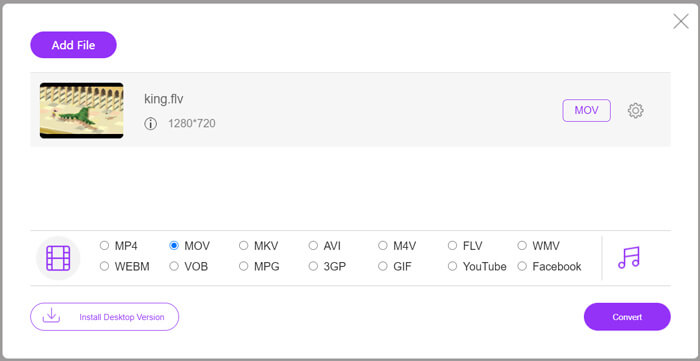
Step 4: Before the final FLV to MOV conversion, you can click Settings icon to custom more video and audio settings like video resolution, encoder, bitrate, frame rate, audio volume, audio channel, and more. After that, you can click on the Convert button to start converting FLV to MOV online.
Parte 2. Alterar FLV para MOV com VLC
VLC is an open-source media player which also carries some basic converting features. If you have VLC Media Player installed on your Mac or Windows PC, you can rely on it to convert your FLV files.
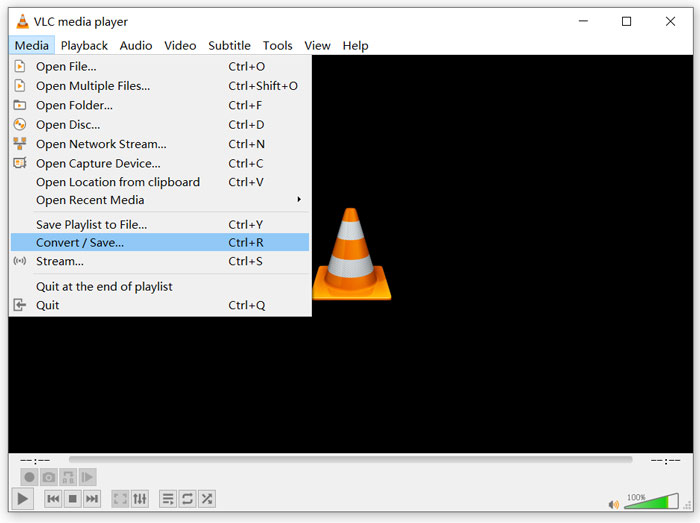
Step 1: Open VLC Media Player on your computer and click on the Media menu. From the drop-down list, select the Convert/Save option. If you are using VLC on Mac, here you should click on File menu and then select the Convert/Stream option.
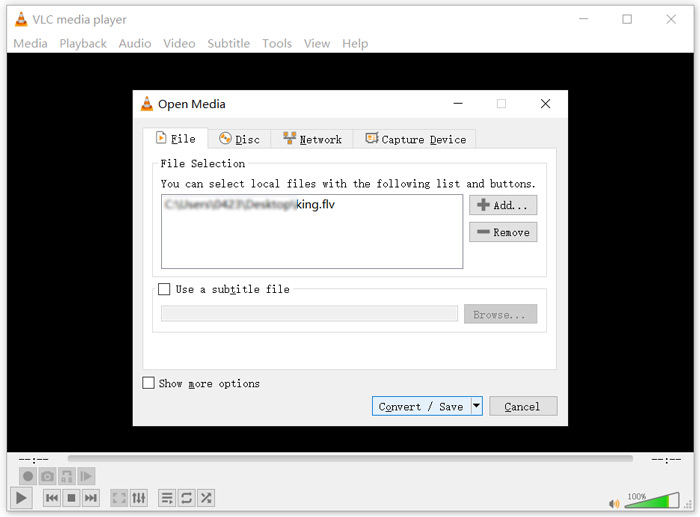
Step 2: Now you are in the Open Media window. Here you can click Add button to import your FLV file you want to convert. Then click Convert/Save button to move on.
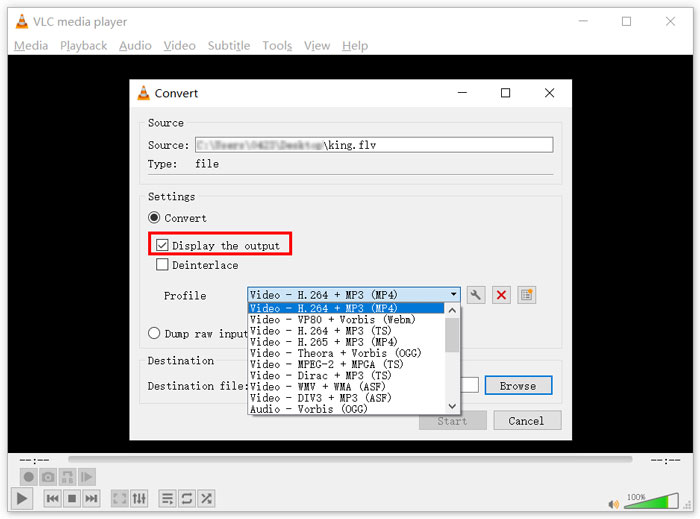
Step 3: From the drop-down list of Profile, choose a suitable output format. Here you can convert FLV to MP4, TS, OGG, WebM, YouTube HD, MP3, FLAC, and more. Tick the box ahead of the Display the output option. Click Browse button to select a suitable destination folder for the converted FLV. During this step, you can give the output video the .mov file extension.
Step 4: After all these operations, you can click on Start button to make the FLV conversion.
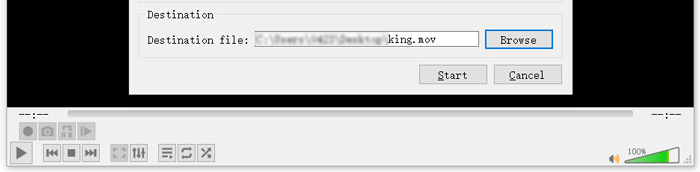
VLC Media Player will automatically start playing the output video. You can see a Converting file prompt on the top part of the VLC. Don't close VLC completely until the converting is finished.
Parte 3. Melhor maneira de converter FLV em MOV sem perda de qualidade
When you want to convert FLV to MOV, you can also turn to the professional solution. Here we strongly recommend the all-featured FLV to MOV converting software, Video Converter Ultimate for you. Compared with free online FLV to MOV converter and VLC, it carries more features and supports more formats. More importantly, it can convert FLV to MOV while maintaining the original quality.
- 1. Converta qualquer vídeo como MKV, AVI, MP4, WMV, FLV para MOV sem perder qualidade.
- 2. Converta vídeos 8K / 5K / 4K, 1080p / 720p HD e SD para mais de 500 formatos como MOV, MP4, AVI, MP3 e muito mais.
- 3. Edite o vídeo como cortar, girar, cortar, mesclar, etc. e adicionar filtros e efeitos e melhorar a qualidade.
- 4. O Toolbox pode compactar FLV, editar informações de metadados FLV, criar GIFs de FLV e muito mais.
Free DownloadFor Windows 7 or laterSecure Download
Free DownloadFor MacOS 10.7 or laterSecure Download
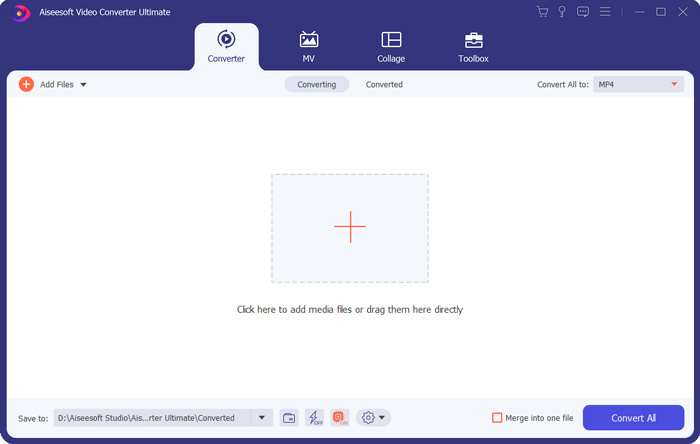
Step 1: Free install and launch this FLV to MOV converter on your Mac or Windows PC. Make sure you are using the Converter feature. Then click the big plus icon to add your FLV file(s).
Step 2: Click on the format icon on the right side of the imported FLV file. Set MOV as the output format from the drop-down list.
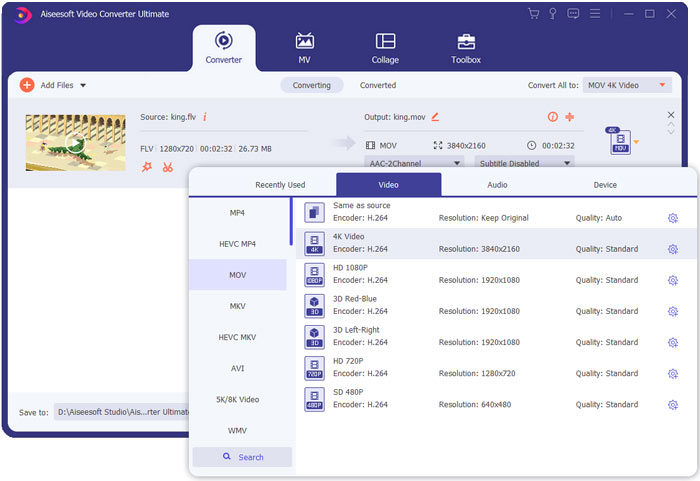
Step 3: As you can see from above, this FLV converter is equipped with many editing features. So, before the FLV to MOV conversion, you can edit it, add filters, effects or custom other settings based on your need. After that, you can click on Convert All button to start the converting process.
FLV vs. MOV
O Adobe Flash Player usou o FLV para fornecer conteúdo de vídeo, como filmes e programas de TV. Atualmente, a Adobe não desenvolve mais o player e recomenda que os usuários o desinstalem por motivos de segurança. No entanto, você ainda pode usar o formato FLV em muitos programas que não são da Adobe/Macromedia.
O formato MOV pode ser usado para armazenar um filme, programa de TV, videoclipe curto ou filme caseiro. Na verdade, ele é salvo no formato de arquivo QuickTime (QTFF), que foi introduzido pela Apple em 1991. Os arquivos MOV são frequentemente usados quando as pessoas desejam salvar um vídeo com alta qualidade.
Parte 4. Perguntas frequentes sobre a conversão de FLV em MOV
FLV vs MOV, qual é a diferença entre FLV e MOV?
FLV, Flash Video File, is a flash compatible video file that developed by Adobe Systems. It contains a short header, interleaved video, audio, and metadata packets. FLV is originally designed to embed video streams in Adobe applications. A FLV file carries a video stream of 640x360 and an audio stream with 44,1 KHz, 2 channels, AAC.
MOV is the default video format for Apple devices and related software like QuickTime Player and iMovie. It is the basis of MPEG-4 file format by Internal Organization for Standardization. An MOV files can store videos, audios, texts, subtitles, images, and other files.
FLV format can't be supported by Apple devices including Mac, iPhone, iPad and iPod touch. Moreover, compared with MOV, FLV offers lower quality video.
O iMovie pode editar FLV?
Não. Como você pode aprender acima, FLV não pode ser compatível com dispositivos e softwares da Apple. Como editor de vídeo padrão de dispositivos Mac e iOS, o iMovie também não é compatível com arquivos FLV.
O Windows Media Player pode abrir arquivos MOV?
A maioria das versões do Windows Media Player não oferece suporte ao formato MOV. Mas o Windows Media Player 12.0 mais recente pode abrir arquivos MOV.
Conclusão
This post shares 3 easy ways to convert FLV to MOV. When your FLV files can't be played or edited, you can rely on the recommended converters to convert them to MOV or MP4.
-
 Como converter seus vídeos FLV em arquivos de áudio MP3 na área de trabalho e online
 Como converter um FLV para um arquivo MP3? Tudo que você precisa fazer é ler este artigo com atenção, encontrar seu método favorito e seguir nosso guia passo a passo para obter o que deseja.
-
 Os 10 melhores reprodutores de vídeo FLV para Windows 10/8/7, Mac, iOS e Android que você deve experimentar (2021 mais recente)
 O FLV player ajuda você a acessar facilmente seus arquivos FLV em seu dispositivo Windows, Mac, Android ou iOS. Confira os melhores reprodutores de arquivos FLV que você pode baixar agora.
-
 Como converter gratuitamente MP4 para FLV Online / Mac / Windows
 Esta postagem é o guia detalhado para a conversão de MP4 para FLV. Você pode usar os 3 principais conversores gratuitos para mudar de MP4 para FLV online, no computador Windows ou Mac com facilidade.

