Baixe e instale
First, you need to go to the official website of FVC Free DVD Player. Click on the Play Now button and download the launcher on your computer. After downloading, please follow on-screen instructions to install the latest launcher.

Usually, once the installation is done, the DVD player will be initiated automatically. If it doesn’t, just click on the Play Now button one more time.
Assistir filmes em DVD
Abrir disco / arquivo de DVD
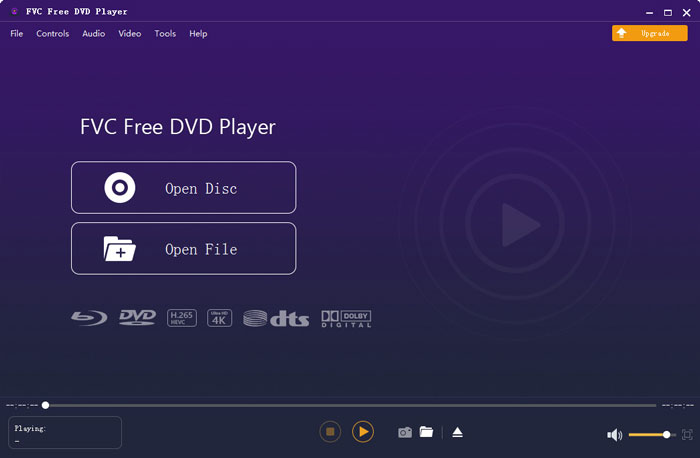
When you enter the main interface of FVC Free DVD Player, there will be 2 modes for you to select – Open Disc and Open File. So, you can choose to play DVD discs, DVD folders, and DVD ISO image files according to your needs. Click the Open Disc/File button and select the movie you want to play. Then you can enjoy watching the movie.
Controle do processo de reprodução
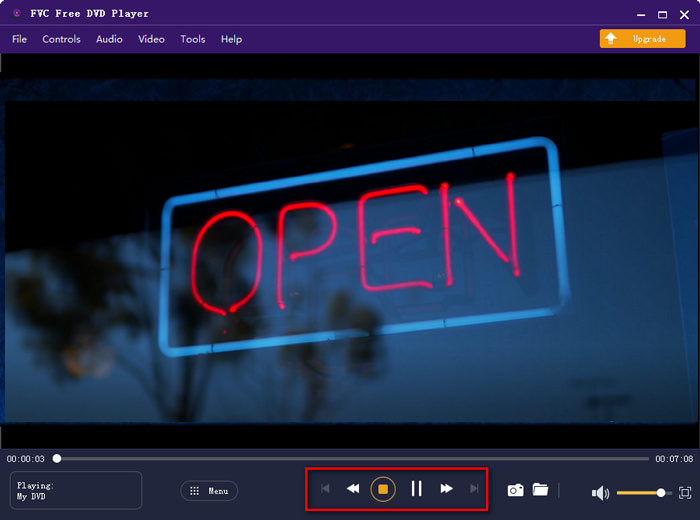
While playing DVDs, you can backward, forward, pause, and stop the movie as you like. You can also adjust the volume and play the movie in the Full Screen mode as you like.
Alterar faixa de áudio / legenda
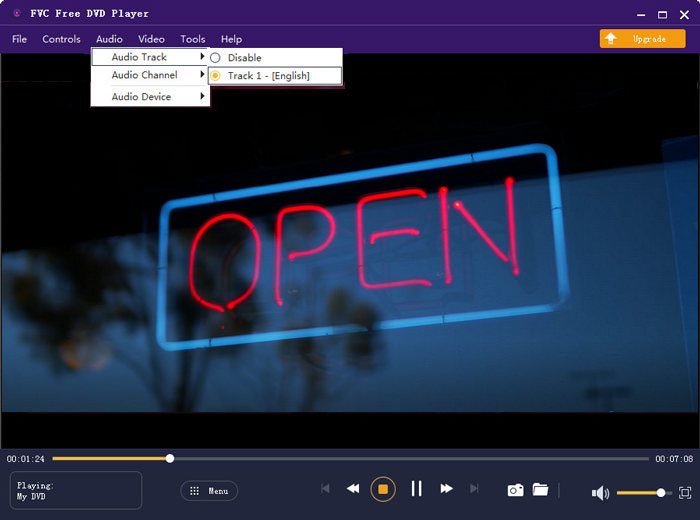
If you want to change the audio track, video track, or subtitle track, please select the Audio/Video tab in the menu bar. Then change it to the track you want.
Tirar fotos
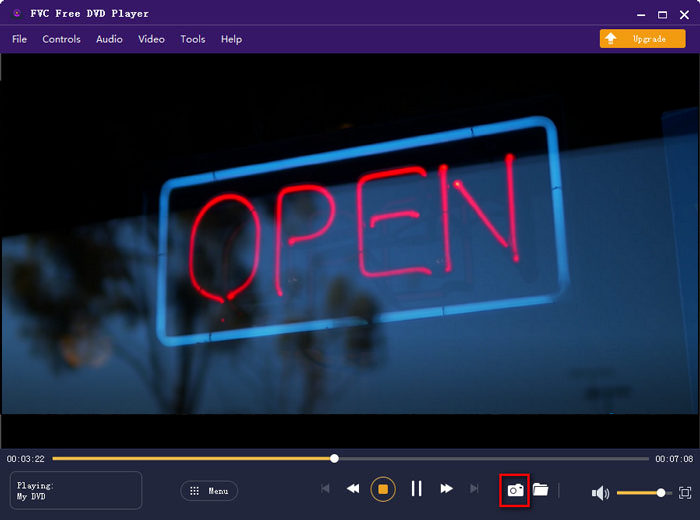
You are even able to take screenshots of your favorite scenes when you watch the movie. Click on the Camera icon at the bottom.
Ajuste as configurações de reprodução
Ajustar efeitos
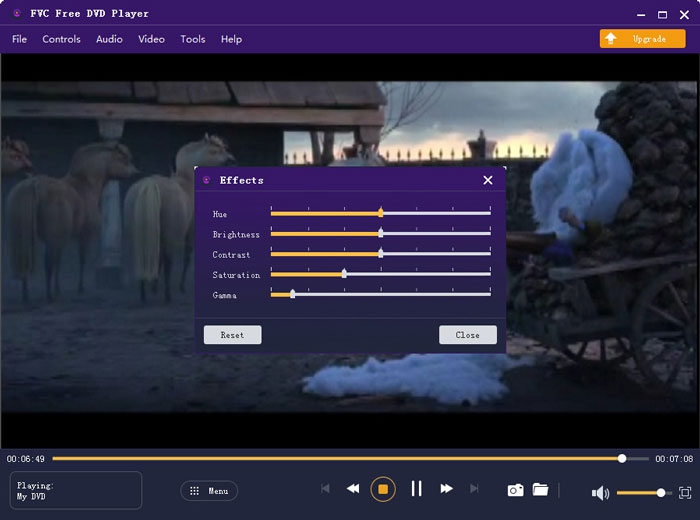
Go to the Tools tab, find Effects, and click the option. Then you can adjust video effects like Hue, Brightness, Contrast, Saturation, and Gama based on your need.
Ajustar preferências
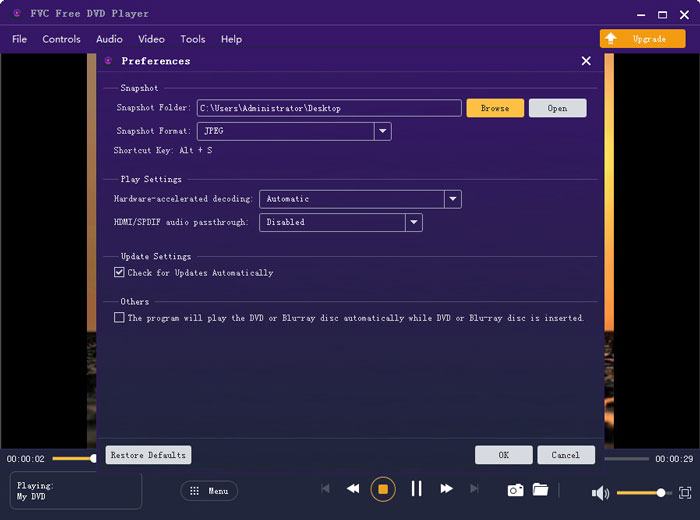
In the Preferences under the Tools tab, you can change the output format and folder for saving snapshots. To make the whole playback smooth, you can adjust Hardware-accelerated decoding.


 Video Converter Ultimate
 Gravador de ecrã
 Reparo de vídeo

