Guia de usuario

Soluções de conversão de vídeo / áudio

Iniciar

FVC Free FLV to Audio Converter é o melhor conversor gratuito de vídeo para áudio. Ele pode extrair faixas de áudio do arquivo de vídeo FLV. Além do mais, ele suporta a conversão de arquivos de áudio entre diferentes formatos de áudio.
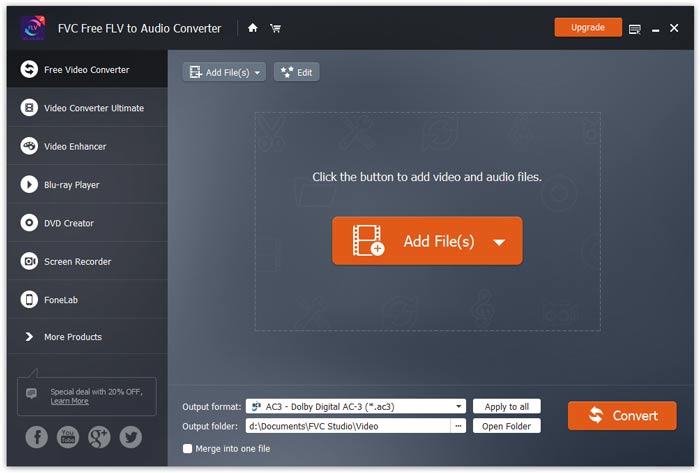
Interface Principal

Baixe e instale

Baixe o pacote de instalação com base no sistema operacional do seu computador. Em seguida, clique duas vezes no arquivo de instalação e siga as instruções na tela para instalar o programa.

Preferências

Before you start the conversion, it’s recommended to tweak the default settings. You can click the Menu icon and click on Preferences… to configure the specific settings. For example, you are free to choose the output folder to store your converted files.
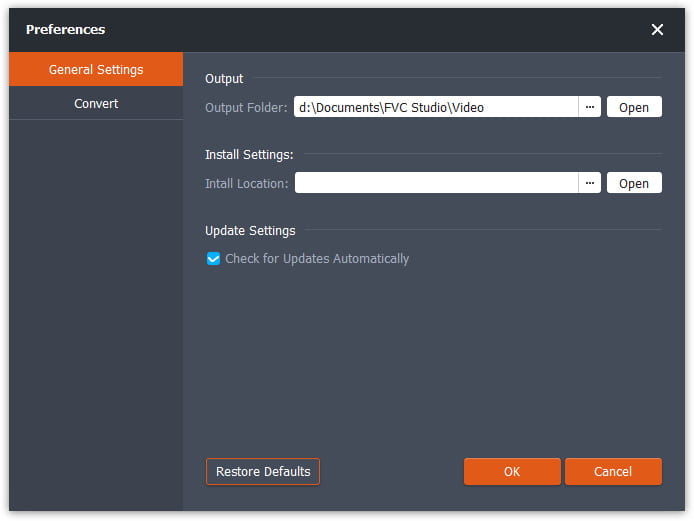
Preferências

Converter FLV para áudio

Agora você pode seguir estas etapas para converter arquivos FLV em formatos de áudio.

Step 1. Launch FVC Free FLV to Audio Converter

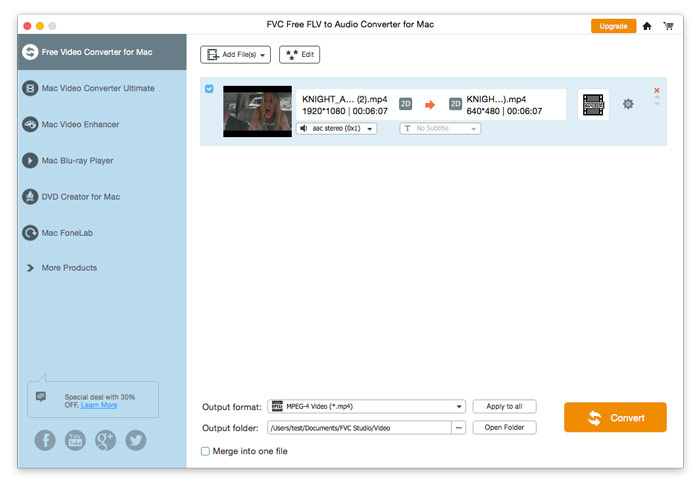
Inicie o FVC Free FLV to Audio Converter e você verá sua interface limpa.

Interface Principal

Step 2. Add an FLV file into the program

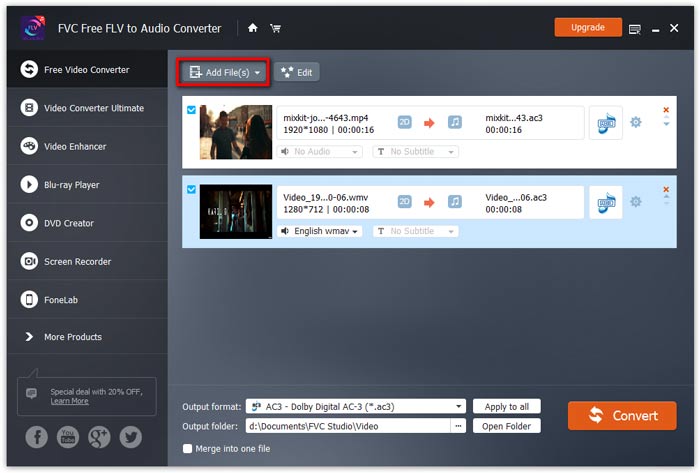
Click the Add File(s) button and choose FLV files you want to process in the dialogue opening subsequently. After the files are added to the program, they will be displayed on the file list.

Adicionar arquivos FLV

Step 3. Select the output format

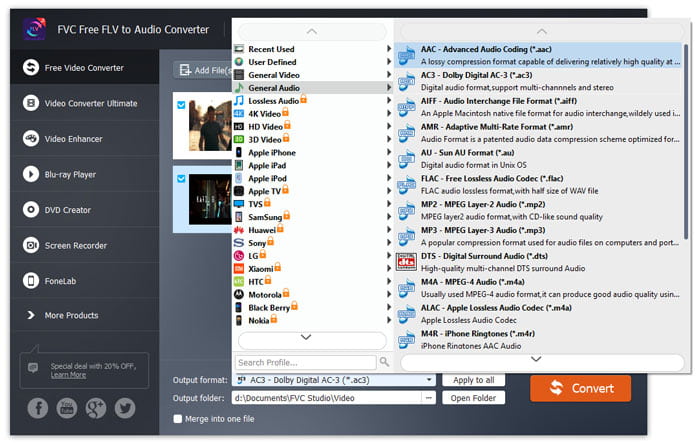
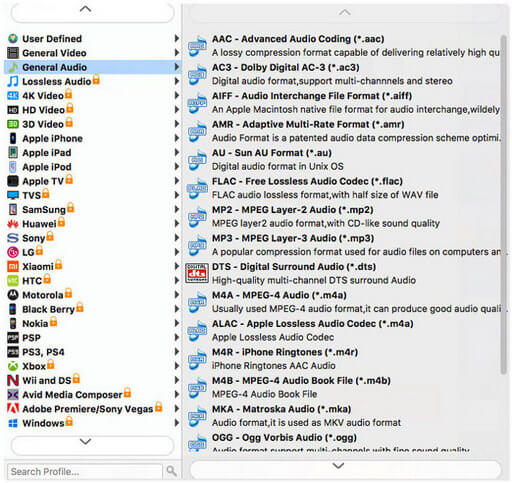
Click to open Output format drop-down list, then choose the audio format from the General Audio profile list. It can convert your FLV files to MP3, WMA, AAC, M4A, and so on.

Selecione o formato de áudio

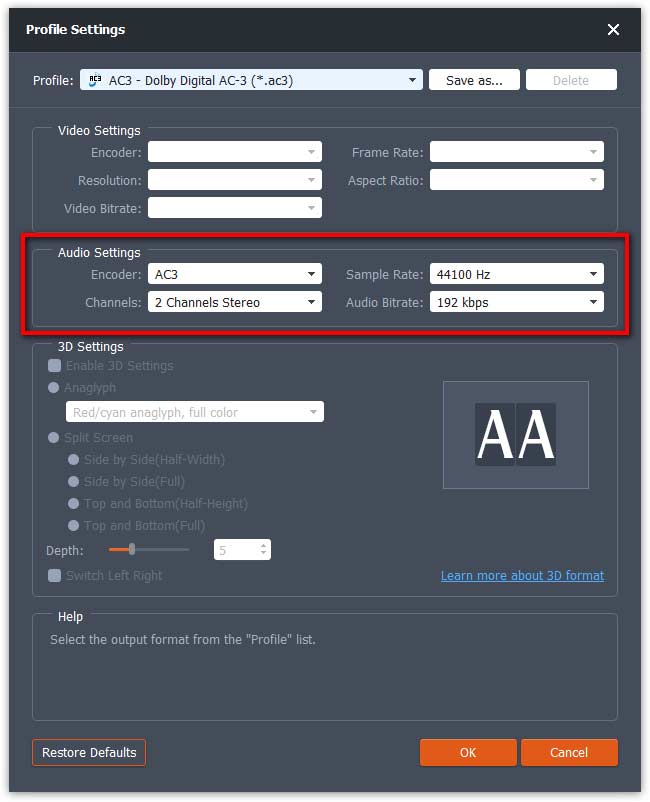
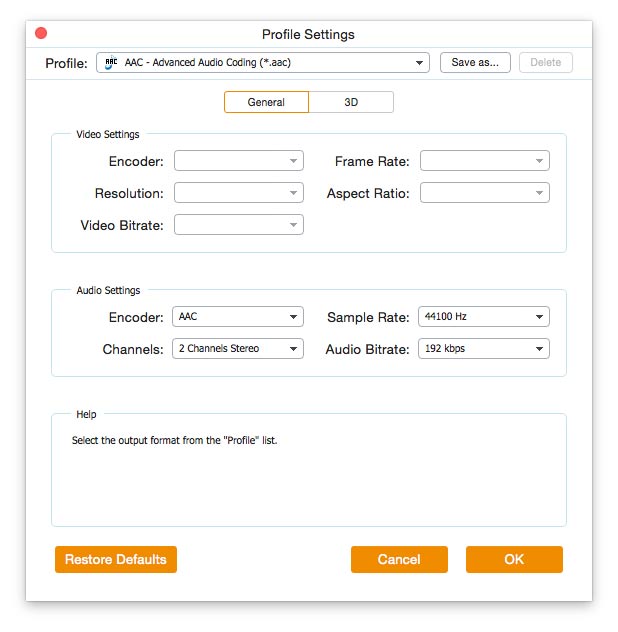
If you’re not satisfied with the original profile parameter settings, you can click the Cogwheel icon and adjust the encoder, channel, sample rate, and audio bitrate in the Profile settings window.

Configurações de perfil

Step 4. Start converting FLV to Audio

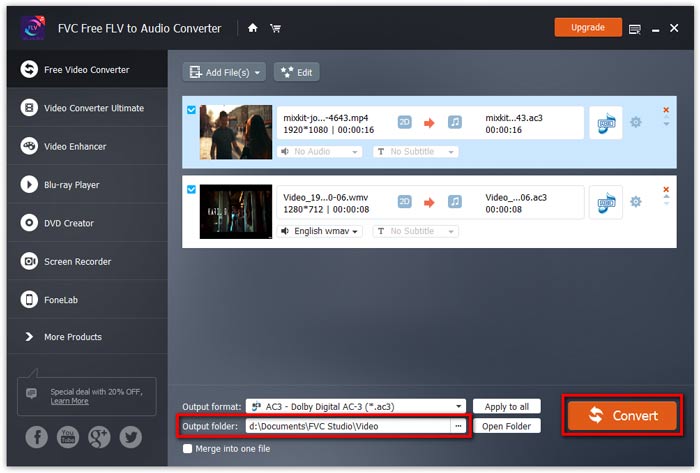
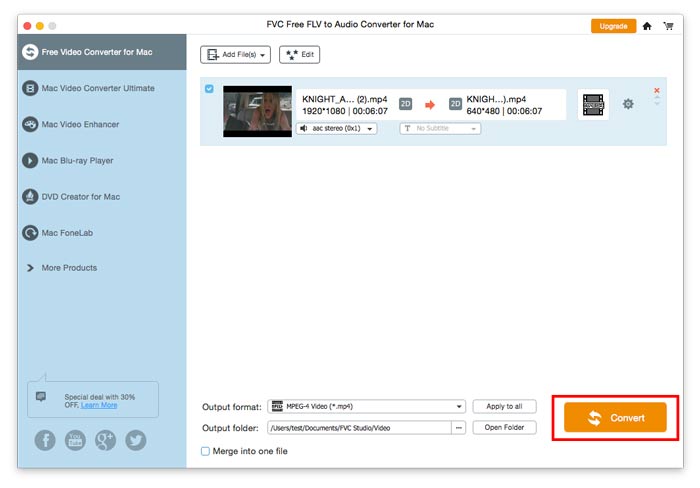
Go to Output folder to choose the destination folder for saving output files, and then click OK button to return to the main window. Finally, click the Convert button to start the conversion.

Iniciar conversão

Guia de usuario

Soluções de conversão de vídeo / áudio

Iniciar

FVC Free FLV to Audio Converter é o melhor conversor gratuito de vídeo para áudio. Ele pode extrair faixas de áudio do arquivo de vídeo FLV. Além do mais, ele suporta a conversão de arquivos de áudio entre diferentes formatos de áudio.
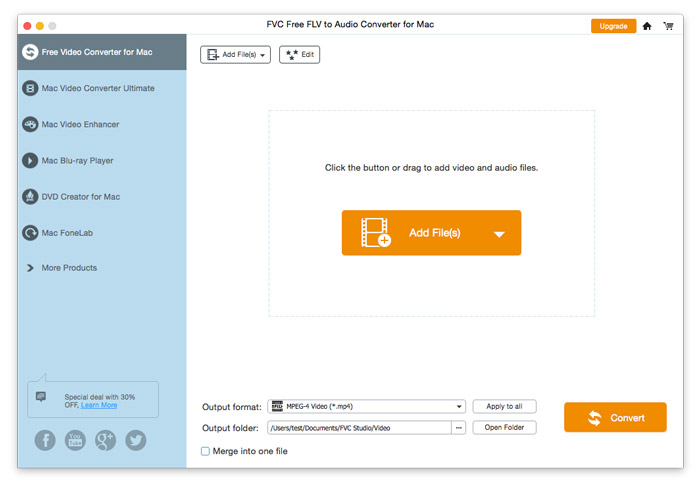
Interface Principal

Baixe e instale

Baixe o pacote de instalação com base no sistema operacional do seu computador. Em seguida, clique duas vezes no arquivo de instalação e siga as instruções na tela para instalar o programa.

Preferências

Before you start the conversion, it’s recommended to tweak the default settings. You can click the Menu icon and click on Preferences… to configure the specific settings. For example, you are free to choose the output folder to store your converted files.
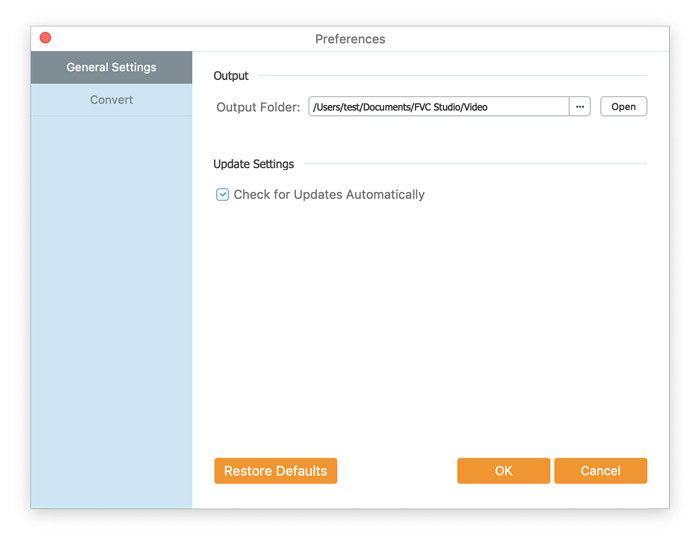
Preferências

Converter FLV para áudio

Agora você pode seguir estas etapas para converter arquivos FLV em formatos de áudio.

Step 1. Launch FVC Free FLV to Audio Converter

Inicie o FVC Free FLV to Audio Converter e você verá sua interface limpa.

Interface Principal

Step 2. Add an FLV file into the program

Click the Add File(s) button and choose FLV files you want to process in the dialogue opening subsequently. After the files are added to the program, they will be displayed on the file list.

Adicionar arquivos FLV

Step 3. Select the output format

Click to open Output format drop-down list, then choose the audio format from the General Audio profile list. It can convert your FLV files to MP3, WMA, AAC, M4A, and so on.

Escolha a saída de áudio

If you’re not satisfied with the original profile parameter settings, you can click the Cogwheel icon and adjust the encoder, channel, sample rate, and audio bitrate in the Profile settings window.

Configurações de perfil

Step 4. Start converting FLV to Audio

Go to Output folder to choose the destination folder for saving output files, and then click OK button to return to the main window. Finally, click the Convert button to start the conversion.

Iniciar conversão