Guia de usuario

Soluções de conversão de vídeo

Iniciar

Baixe o pacote de instalação. Abra-o e instale-o imediatamente seguindo as instruções na tela do seu computador.

Baixe e instale

Free FLV to MOV Converter é o freeware para converter FLV para QuickTime MOV de forma eficiente. Além de obter o arquivo MOV preferido, este software também pode editar o arquivo MOV antes da conversão.

Preferências

Click the Menu option at the top-right corner and choose Preferences… Then you can switch the tabs to make your preferences settings for General Settings and Convert.

General Settings: it lets you make the output folder, installation settings, and update settings.
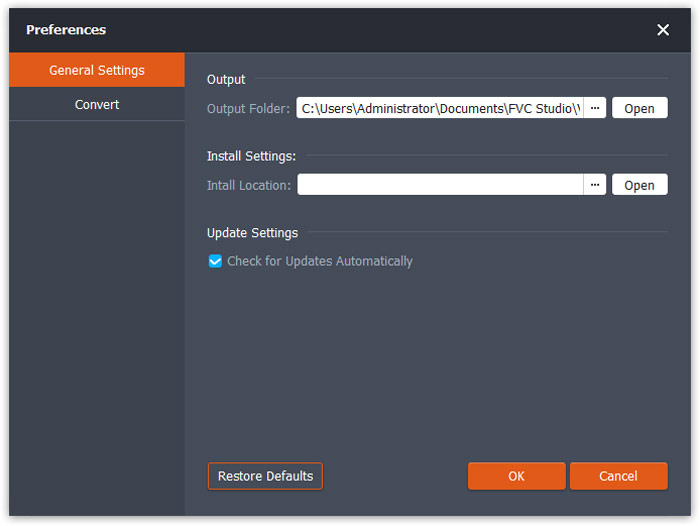
Configurações Gerais

Convert: When switching to the Convert tab, its CPU acceleration lets you speed up the conversion. Besides, you can set the maximum number for the simultaneous tasks.
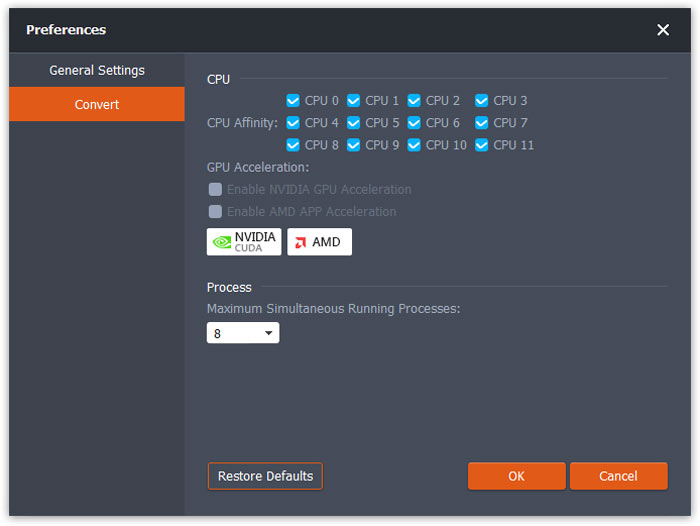
Converter configurações

Converter FLV em MOV

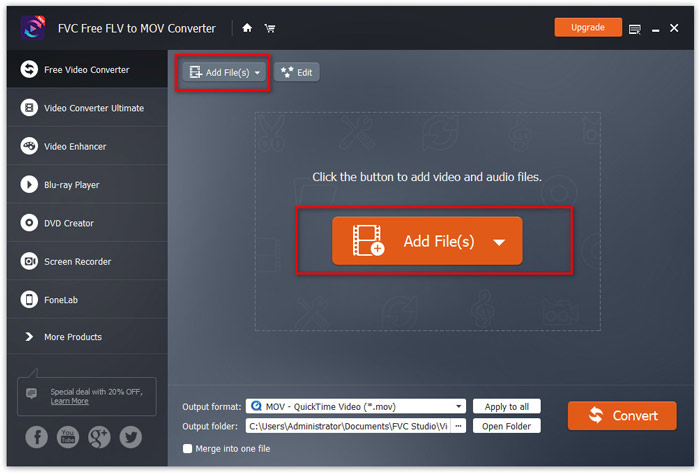
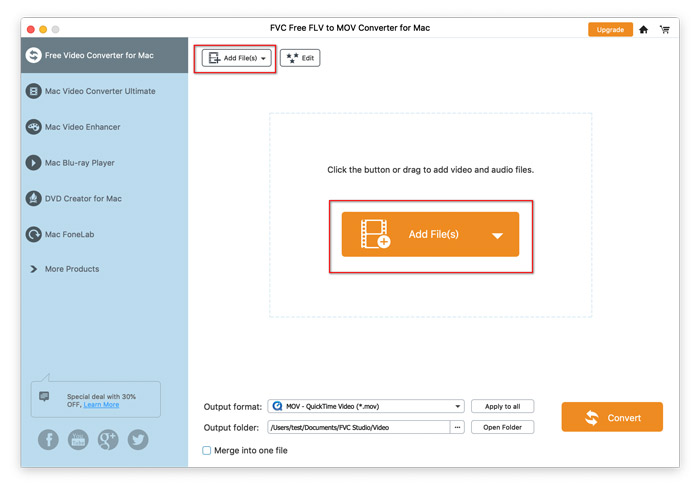
Step 1. Run this freeware on your computer, and there are 3 ways for you to add files into this software.

  • 1. Basta arrastar e soltar os arquivos de vídeo que deseja converter na interface principal.
  • 2. Clique no Adicionar arquivos) botão no meio para adicionar um ou mais vídeos FLV a este programa.
  • 3. Clique no Adicionar arquivos) botão no lado superior esquerdo para escolher Adicionar arquivos) ou Adicionar pasta (s) opção suspensa.
Adicionar arquivos FLV

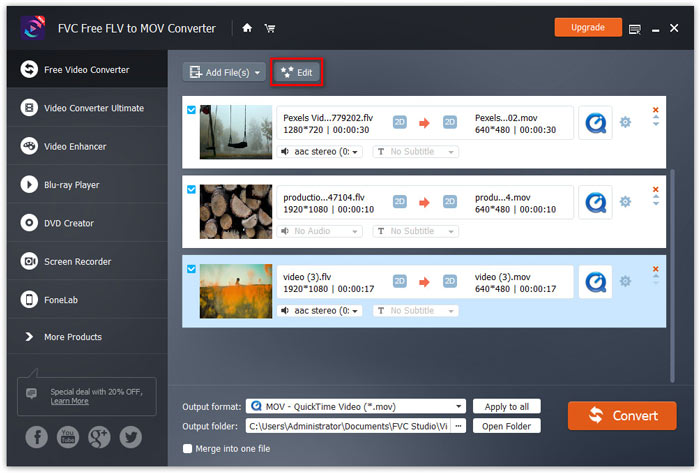
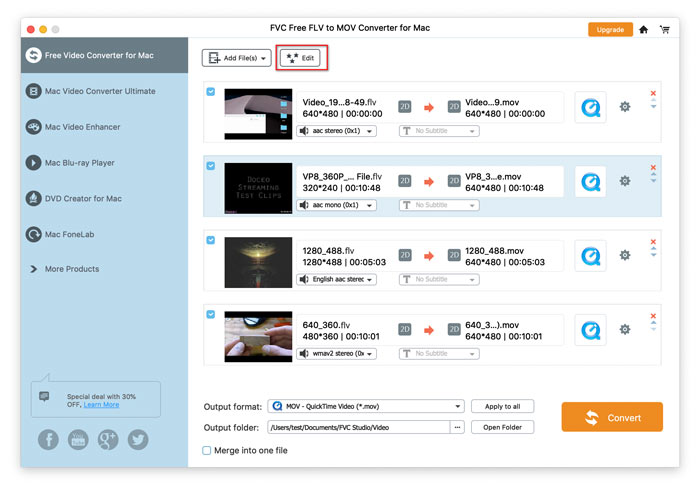
Step 2. Here, the Edit button at the top lets you edit the video optionally.

Botão Editar Vídeo

Ele permite adicionar um tema inicial e final ao arquivo de vídeo convertido.

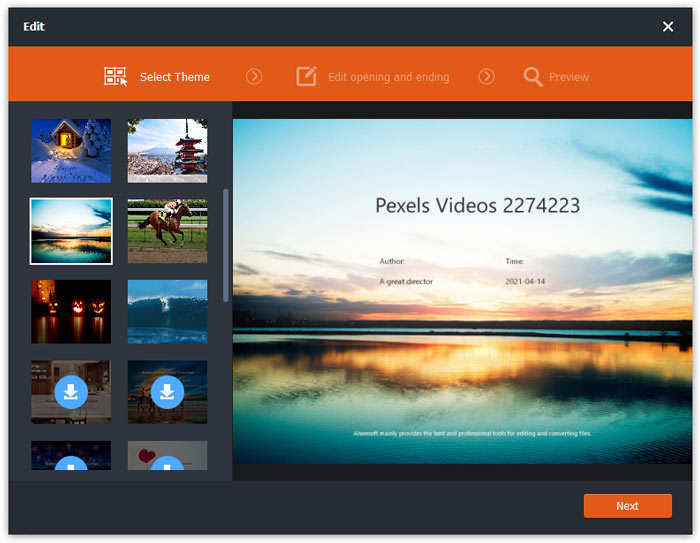
Firstly, you should select a theme in the Select Theme tab by default from the left pane. It offers offline and online themes for your option.

Selecione um tema

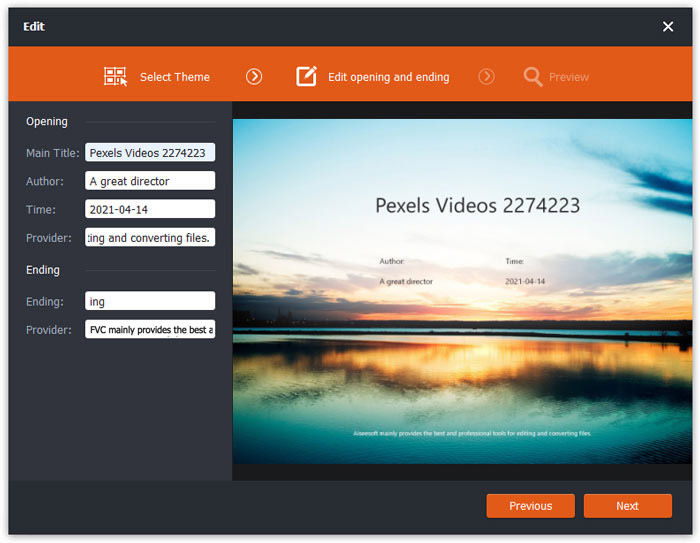
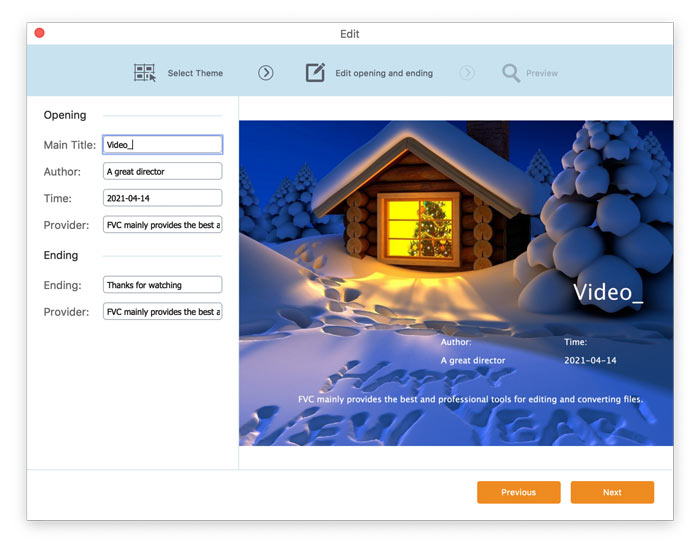
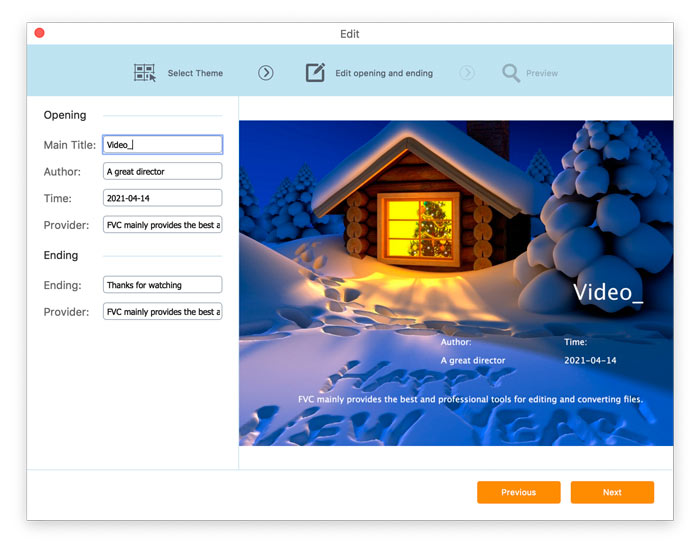
Then, click the Next button, and you can edit the main title, author, time, and ending title.

For changing the settings you made in the last step, just click the Previous button at the top.

Editar título do tema do vídeo

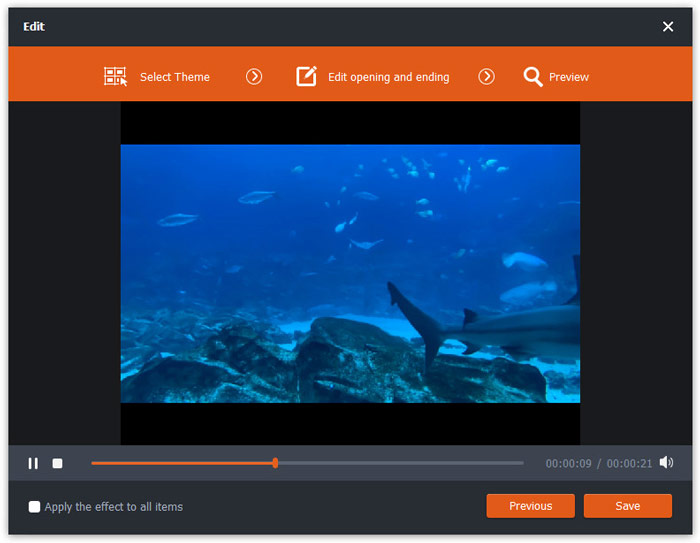
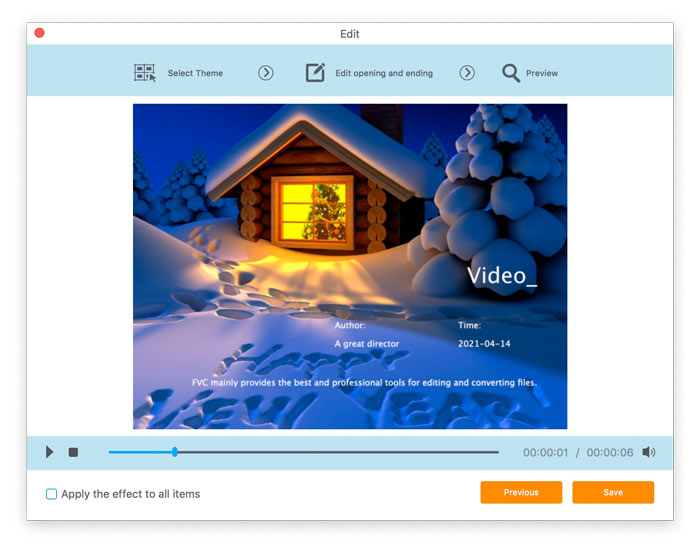
Click Next, and you will go to the Preview window.

Finally, click Save to return to the main interface.

Efeito de tema de vídeo de visualização

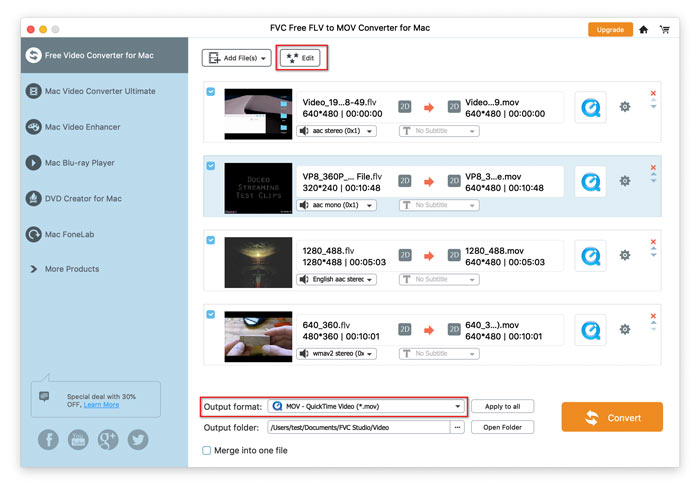
Step 3. Choose the preferred format for your output file in 2 ways.

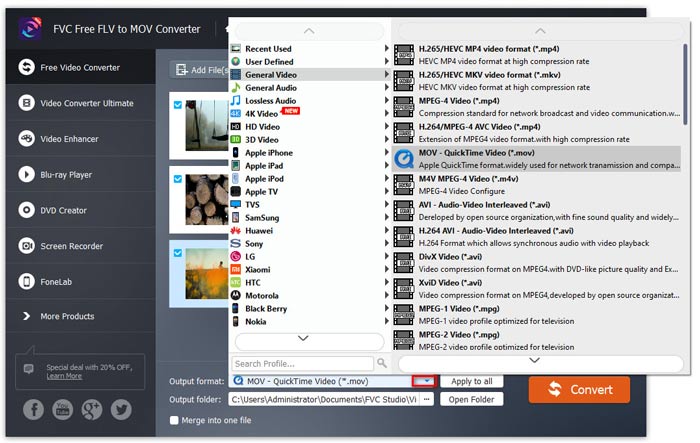
1. Click the drop-down option of Output format, and choose MOV as the output format.

Escolha o formato MOV

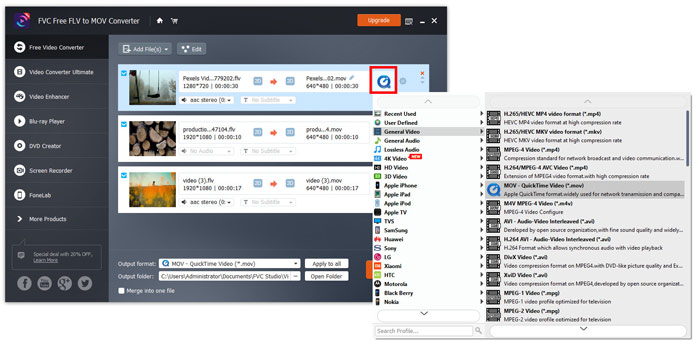
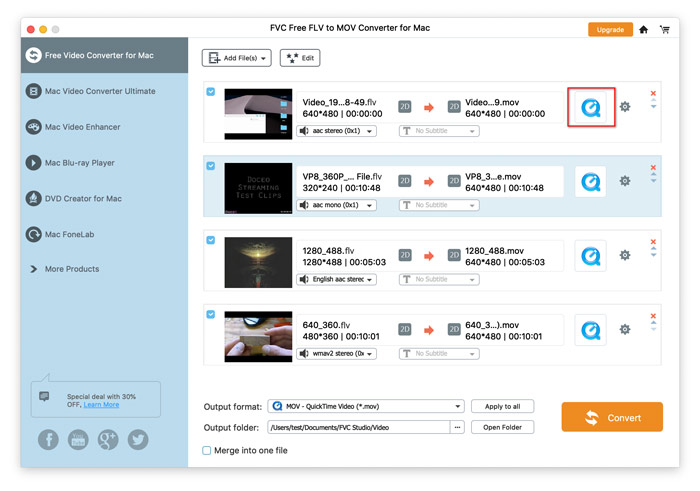
2. Clique no formato de saída no lado direito do arquivo FLV importado para expandir o perfil de saída e escolha o formato MOV de saída.

Selecione o formato MOV

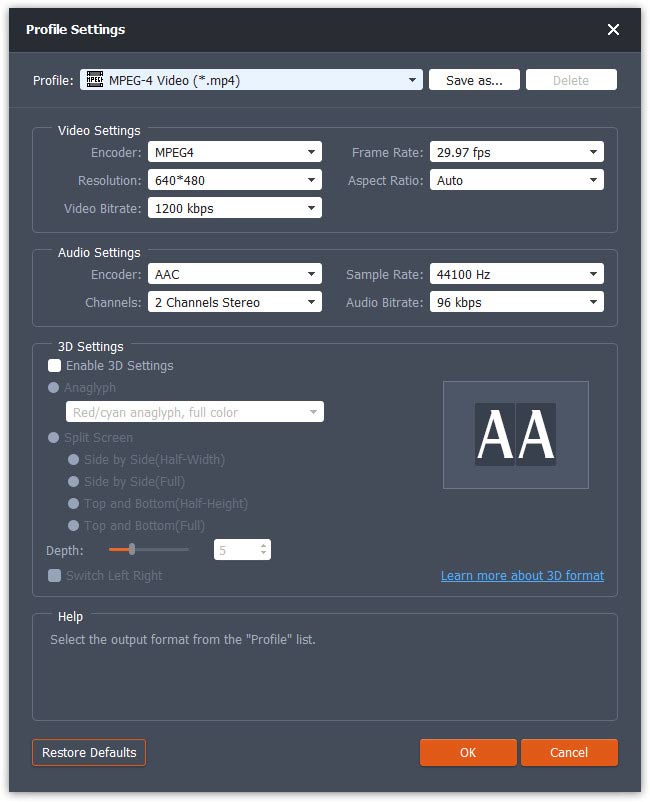
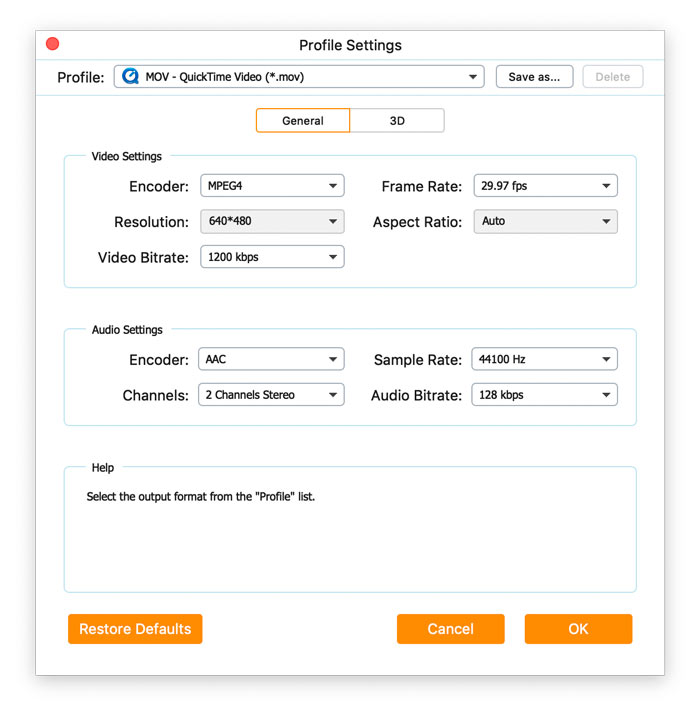
O ícone de engrenagem próximo ao formato de saída permite ajustar os parâmetros de áudio e vídeo de saída, como codificador, taxa de quadros, proporção da imagem, resolução, taxa de bits de vídeo, canais e muito mais.

Ajuste os parâmetros do perfil de saída

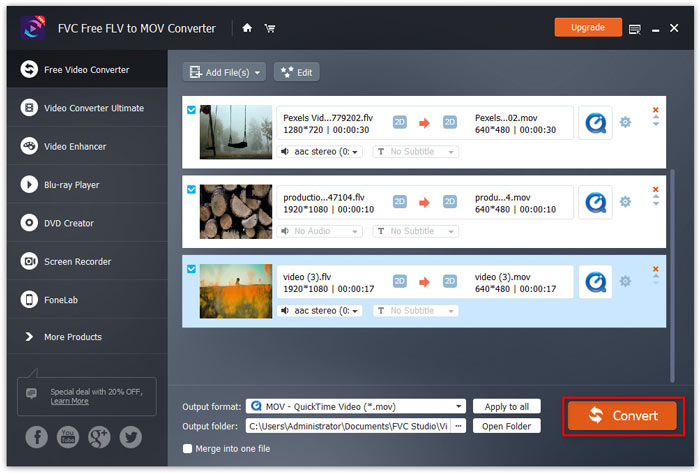
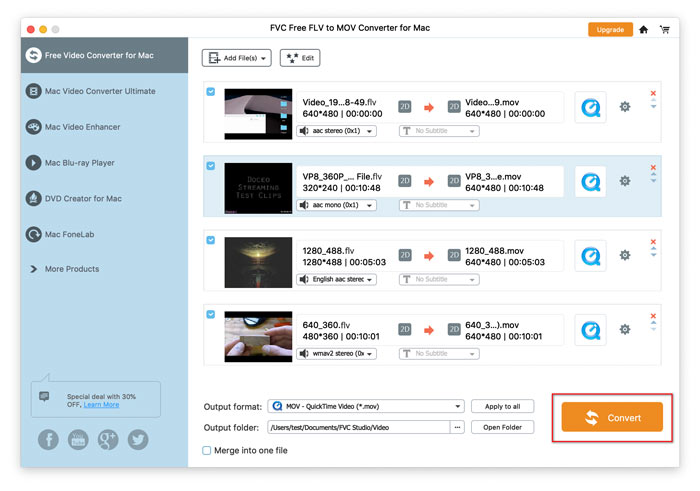
Depois que todas as configurações estiverem bem feitas, basta clicar no botão Converter para iniciar a conversão.

Converta FLV para MOV agora

Guia de usuario

Soluções de conversão de vídeo

Iniciar

Baixe o pacote de instalação. Abra-o e instale-o imediatamente seguindo as instruções na tela do seu computador.

Baixe e instale

Free FLV to MOV Converter é o freeware para converter FLV para QuickTime MOV de forma eficiente. Além de obter o arquivo MOV preferido, este software também pode editar o arquivo MOV antes da conversão.

Preferências

Click the product name at the top-left corner and choose Preferences… Then you can switch the tabs to make your preferences settings for General Settings and Convert.

General Settings: it lets you make the output folder, installation settings, and update settings.
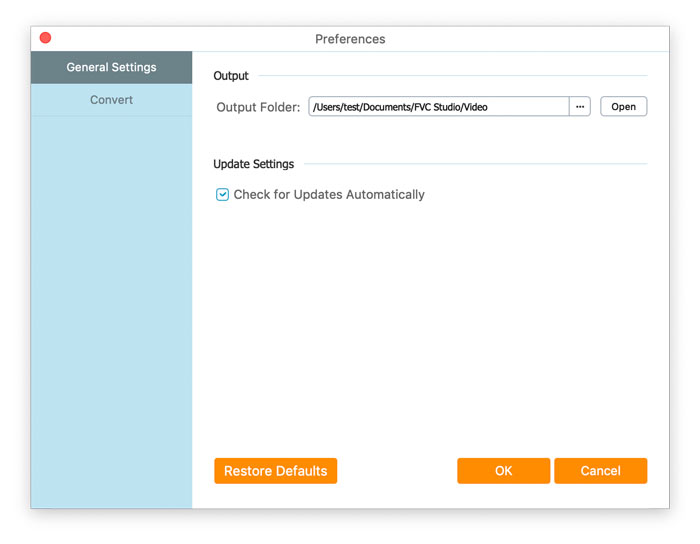
Configurações Gerais

Convert: When switching to the Convert tab, its CPU acceleration lets you speed up the conversion. Besides, you can set the maximum number for the simultaneous tasks.
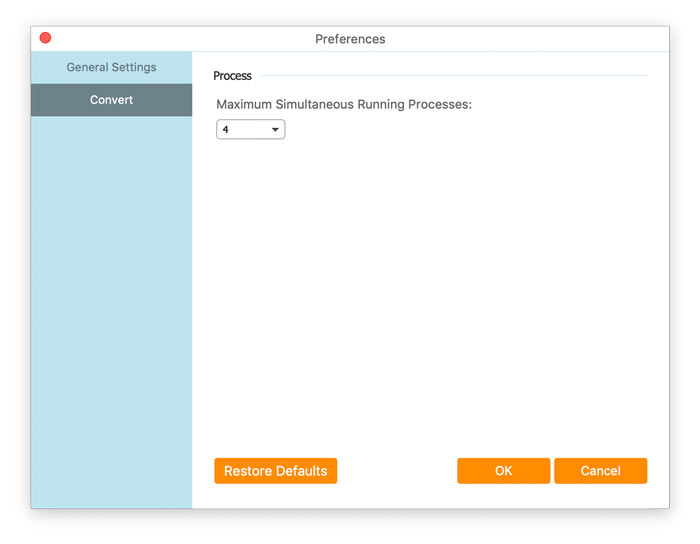
Converter configurações

Converter FLV em MOV

Step 1. Run this freeware on your computer, and there are 3 ways for you to add files into this software.

  • 1. Basta arrastar e soltar os arquivos de vídeo que deseja converter na interface principal.
  • 2. Clique no Adicionar arquivos) botão no meio para adicionar um ou mais vídeos FLV a este programa.
  • 3. Clique no Adicionar arquivos) botão no lado superior esquerdo para escolher Adicionar arquivos) ou Adicionar pasta (s) opção suspensa.
Adicionar arquivos FLV

Step 2. Here, the Edit button at the top lets you edit the video optionally.

Botão Editar Vídeo

Ele permite adicionar um tema inicial e final ao arquivo de vídeo convertido.

Firstly, you should select a theme in the Select Theme tab by default from the left pane. It offers offline and online themes for your option.

Selecione um tema

Then, click the Next button, and you can edit the main title, author, time, and ending title.

For changing the settings you made in the last step, just click the Previous button at the top.

Editar título do tema do vídeo

Click Next, and you will go to the Preview window.

Finally, click Save to return to the main interface.

Efeito de tema de vídeo de visualização

Step 3. Choose the preferred format for your output file in 2 ways.

1. Click the drop-down option of Output format, and choose MOV as the output format.

Escolha o formato MOV

2. Clique no formato de saída no lado direito do arquivo FLV importado para expandir o perfil de saída e escolha o formato MOV de saída.

Selecione o formato MOV

O ícone de engrenagem próximo ao formato de saída permite ajustar os parâmetros de áudio e vídeo de saída, como codificador, taxa de quadros, proporção da imagem, resolução, taxa de bits de vídeo, canais e muito mais.

Ajuste os parâmetros do perfil de saída

Depois que todas as configurações estiverem bem feitas, basta clicar no botão Converter para iniciar a conversão.

Converta FLV para MOV agora