Guia de usuario

Soluções de conversão de MP3

Iniciar

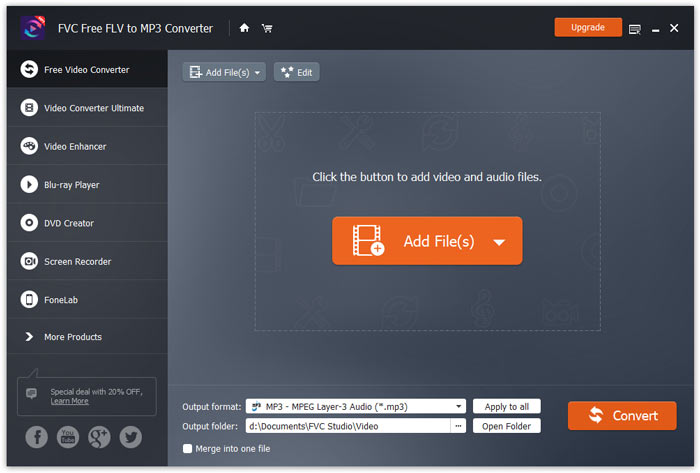
FVC Free FLV Converter é conhecido por seu excelente software de mídia gratuita que funciona exatamente como o nome indica. Você pode converter vídeos FLV para MP4, AVI, MOV, MP3 ou qualquer outro formato popular de vídeo e áudio. Enquanto isso, você pode editar seu vídeo antes da conversão, como adicionar um tema, mesclar arquivos, etc.
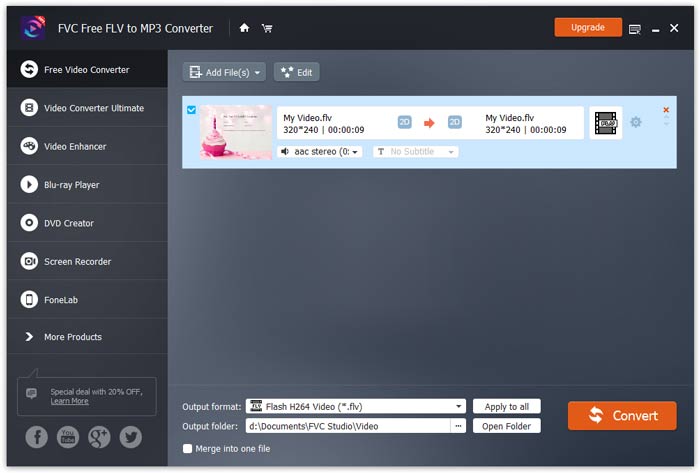
Interface Principal

Baixe e instale

Baixe o conversor gratuito de FLV para MP3 do site da FVC e instale-o em seu computador. Este prático freeware pode mudar seu arquivo de vídeo de FLV para MP3 muito rápido. Você também pode extrair o áudio do arquivo FLV e salvá-lo como MP3, AAC, OGG ou outros formatos de áudio populares.

Preferências

In Preferences window, you can define the output folder, choose the CPU affinity, tweak update settings, and more.
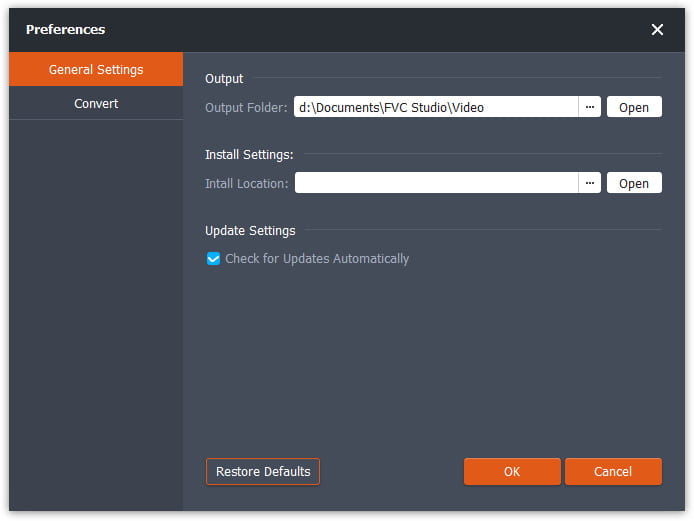
Preferências

Converter FLV para MP3

Step 1. Install FVC Free FLV to MP3 Converter

Primeiro baixe e execute o arquivo de instalação. Siga as instruções simples na tela sobre como instalar o FVC Free FLV to MP3 Converter.

Step 2. Add a FLV file you want to process

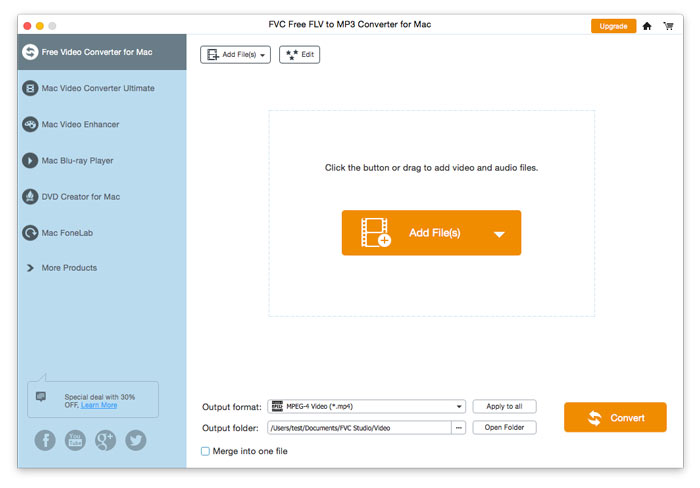
Launch the converter, click the Add File(s) button in the upper left corner, and select one or more FLV files to convert to MP3.

Adicionar arquivos FLV

Step 3. Select MP3 as the output format

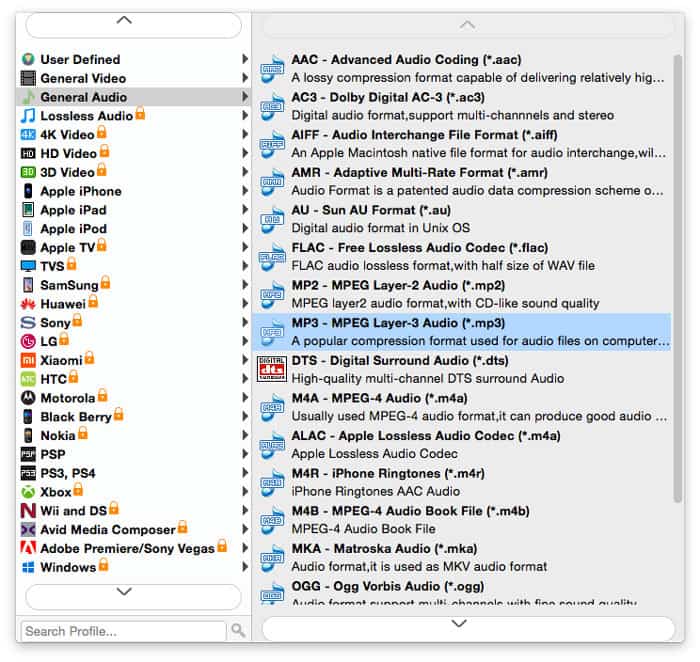
After editing your video file, head to Output format, open the General Audio category, and select MP3.

Selecione Mp3

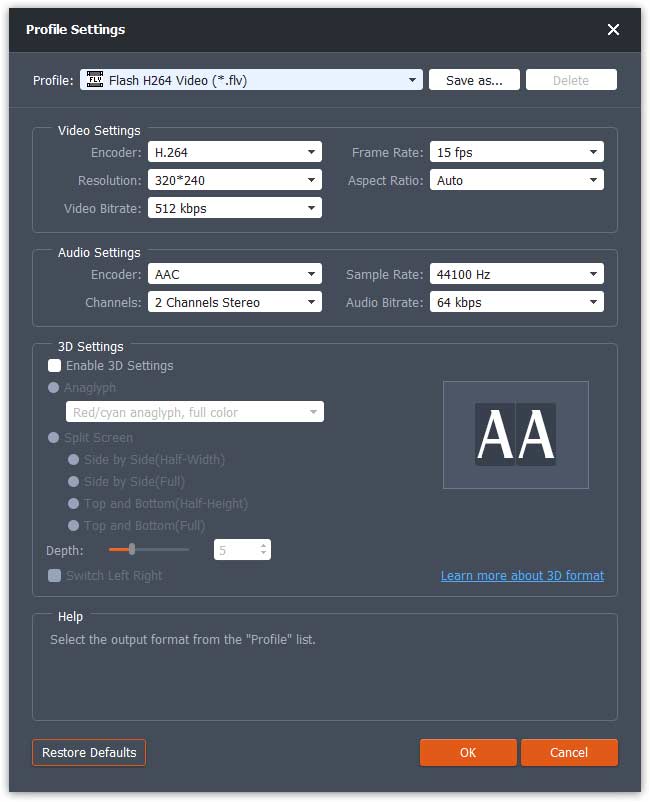
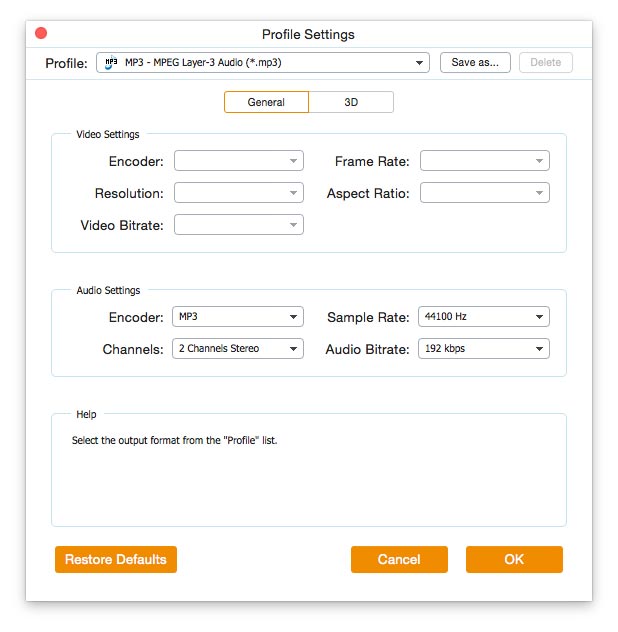
Para personalizar ainda mais a predefinição, ajustando valores como codificador, canal, taxa de amostragem e taxa de bits de áudio - basta clicar no ícone da roda dentada para defini-los.

Configurações de perfil

Step 4. Start converting FLV to MP3

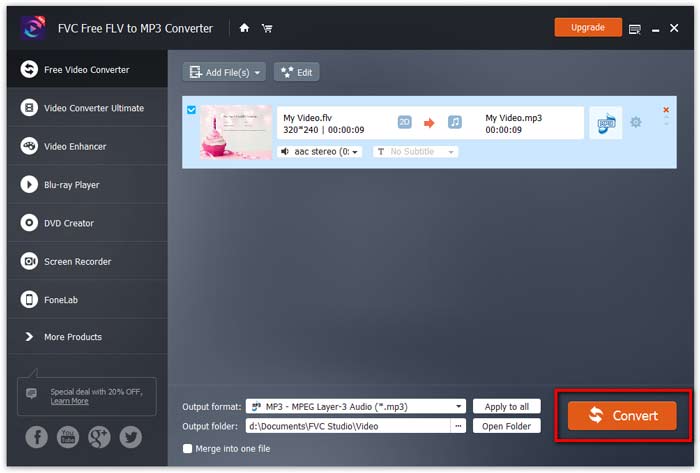
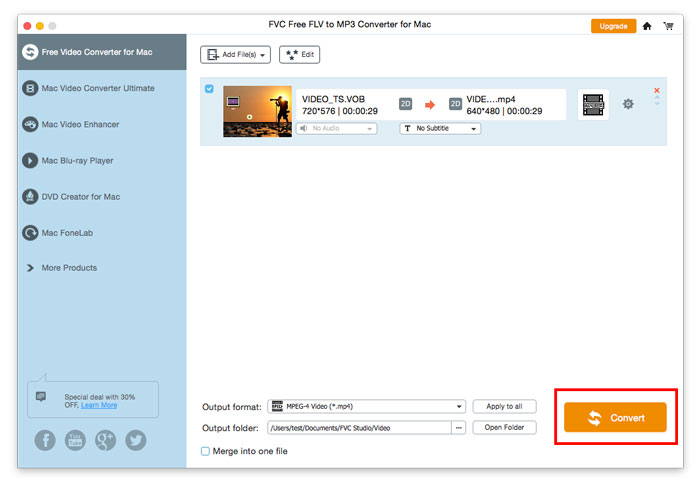
Before conversion, make sure where your converted files will be stored. If you need to change the destination folder, specify a different path by hitting on the three-dot icon next to Open Folder. To start the conversion, click the Convert button.

Iniciar conversão

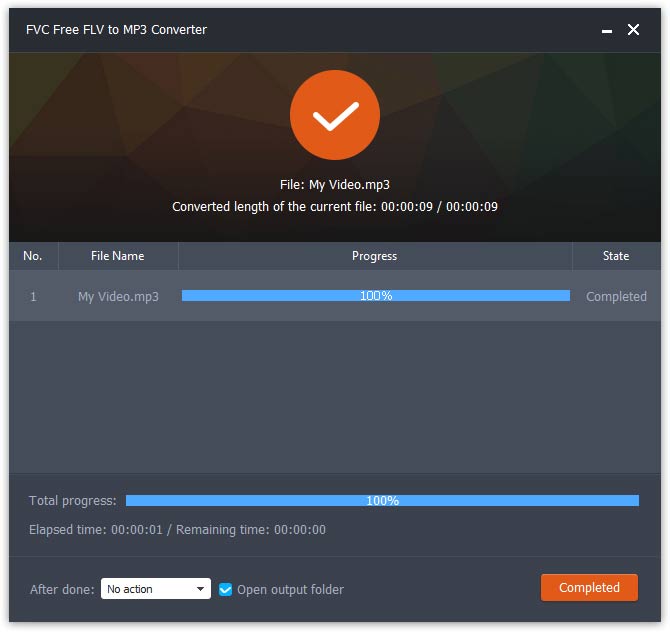
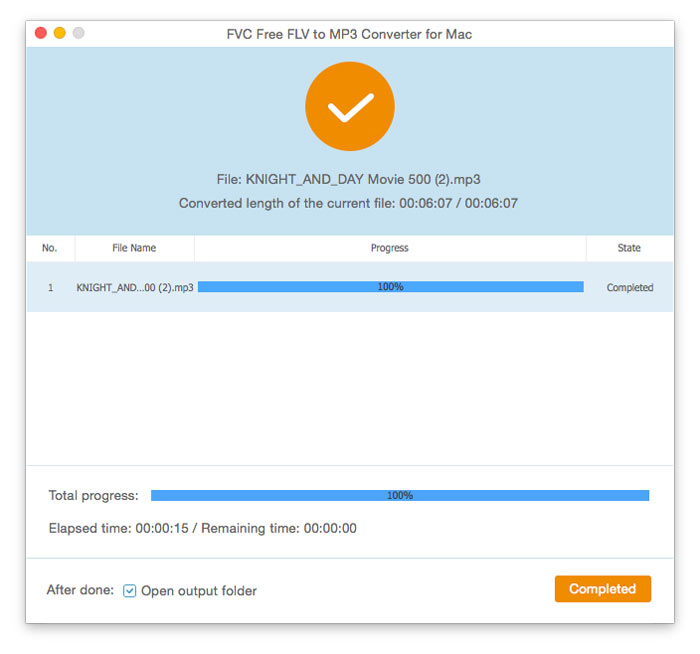
A pasta com seus novos arquivos convertidos será aberta automaticamente assim que o processo de conversão terminar.

Conversão Concluída

Guia de usuario

Soluções de conversão de MP3

Iniciar

FVC Free FLV Converter é conhecido por seu excelente software de mídia gratuita que funciona exatamente como o nome indica. Você pode converter vídeos FLV para MP4, AVI, MOV, MP3 ou qualquer outro formato popular de vídeo e áudio. Enquanto isso, você pode editar seu vídeo antes da conversão, como adicionar um tema, mesclar arquivos, etc.
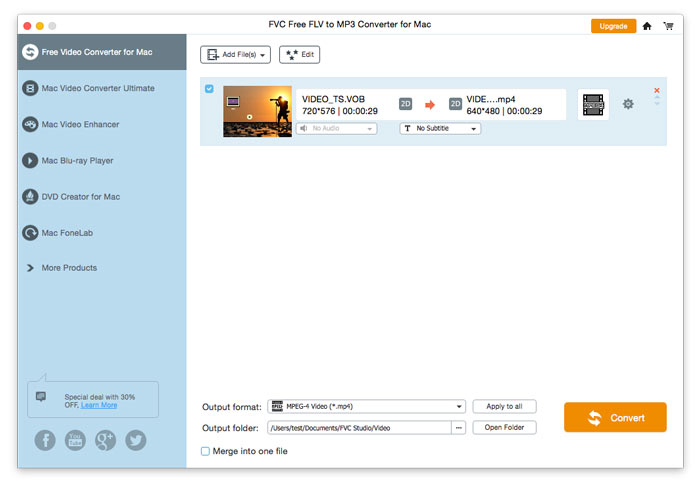
Interface Principal

Baixe e instale

Baixe o conversor gratuito de FLV para MP3 do site da FVC e instale-o em seu computador. Este prático freeware pode mudar seu arquivo de vídeo de FLV para MP3 muito rápido. Você também pode extrair o áudio do arquivo FLV e salvá-lo como MP3, AAC, OGG ou outros formatos de áudio populares.

Preferências

In Preferences window, you can define the output folder, choose the CPU affinity, tweal update settings, and more.
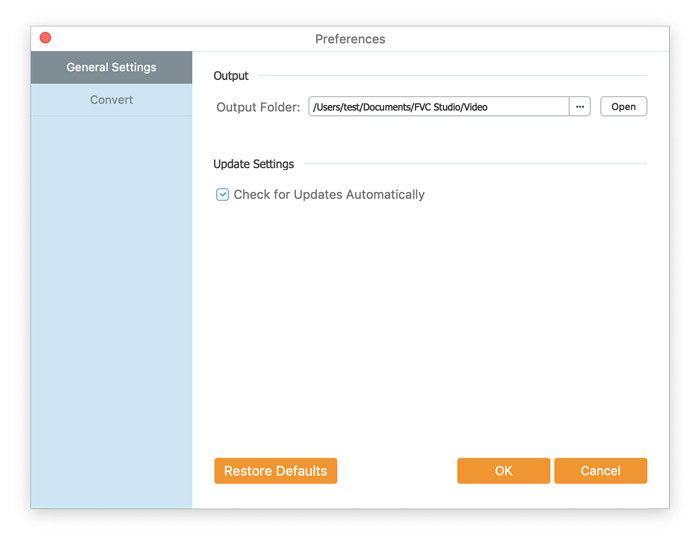
Preferências

Converter FLV para MP3

Step 1. Install FVC Free FLV to MP3 Converter

Primeiro baixe e execute o arquivo de instalação. Siga as instruções simples na tela sobre como instalar o FVC Free FLV to MP3 Converter.

Step 2. Add a FLV file you want to process

Launch the converter, click the Add File(s) button in the upper left corner, and select one or more FLV files to convert to MP3.

Adicionar arquivos FLV

Step 3. Select MP3 as the output format

After editing your video file, head to Output format, open the General Audio category, and select MP3.

Selecione Mp3

Para personalizar ainda mais a predefinição, ajustando valores como codificador, canal, taxa de amostragem e taxa de bits de áudio - basta clicar no ícone da roda dentada para defini-los.

Configurações de perfil

Step 4. Start converting FLV to MP3

Before conversion, make sure where your converted files will be stored. If you need to change the destination folder, specify a different path by hitting on the three-dot icon nest to Open Folder. To start the conversion, click the Convert button.

Iniciar conversão

A pasta com seus novos arquivos convertidos será aberta automaticamente assim que o processo de conversão terminar.

Conversão Concluída