Guia de usuario

Soluções de conversão de vídeo

Iniciar

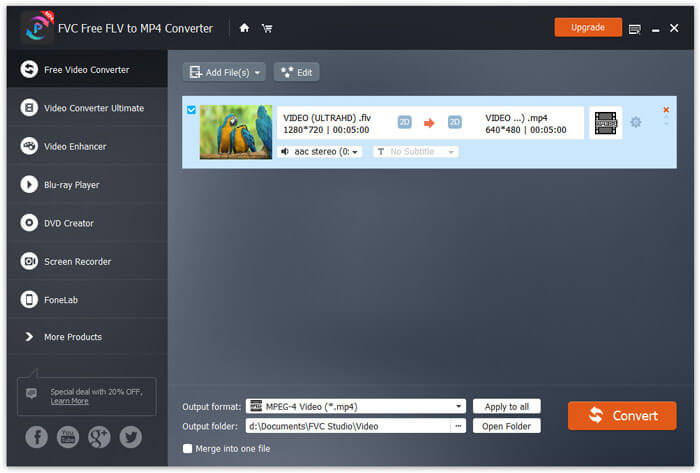
FVC Free FLV to MP4 Converter foi projetado para converter um arquivo FLV para MP4 sem complicações. Você pode converter vídeos FLV para MP4 e outros formatos populares de vídeo / áudio como MKV, MPG, TS, VOB, MOV, AVI, WebM, etc. Enquanto isso, você pode editar seus arquivos FLV antes da conversão.
Adicionar arquivos FLV

Baixe e instale

Baixe o pacote de instalação e instale-o em seu computador. A instalação do FVC Free FLV to MP4 Converter com êxito levará alguns segundos.

Preferências

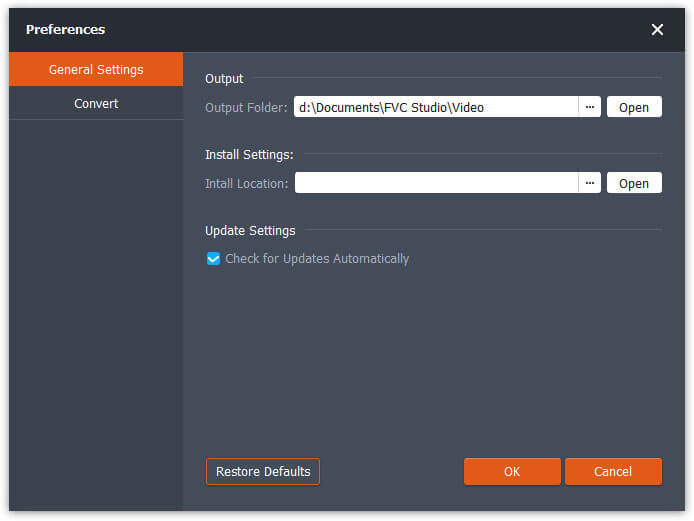
Click the Menu option and choose Preferences… to enter into the Preferences window. Here you choose the output folder, select CPU affinity, configure update settings, and more.
Preferências

Converter FLV para MP4

Step 1. Launch FVC Free FLV to MP4 Converter on your computer. Click the Add File(s) button in the top-left corner of the main interface. Then, choose the FLV files you want to convert and then click Open to import them to the conversion queue. You can also drag the FLV files into the video converter.

Adicionar arquivos FLV

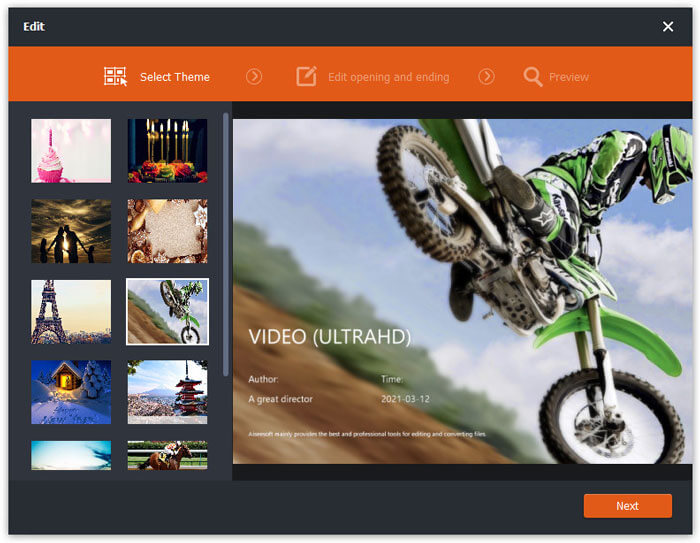
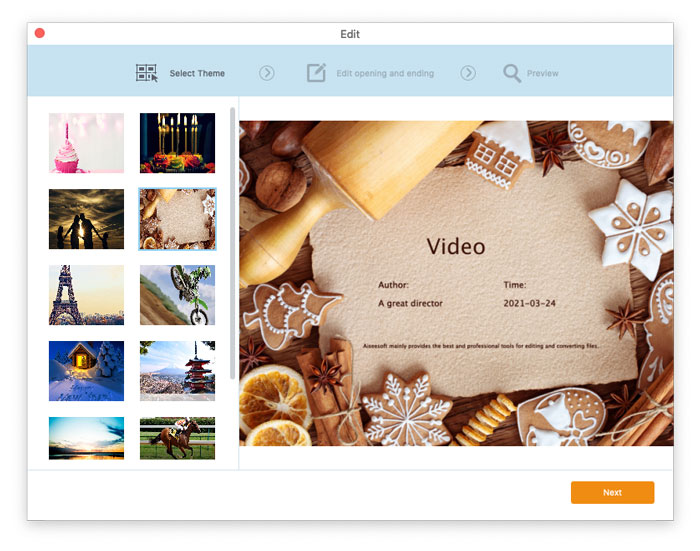
Step 2. Before conversion, you can add a theme for your video. Click the Edit button from the top menu bar to enter into the window where you should select a theme to customize your FLV file firstly.

Selecione o tema

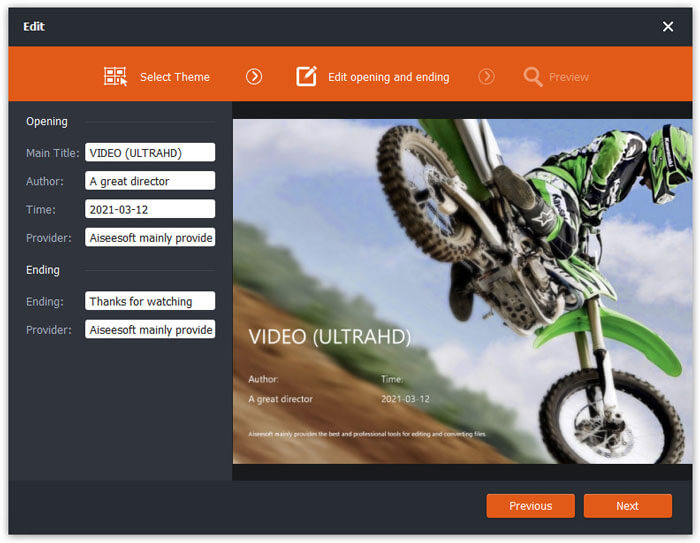
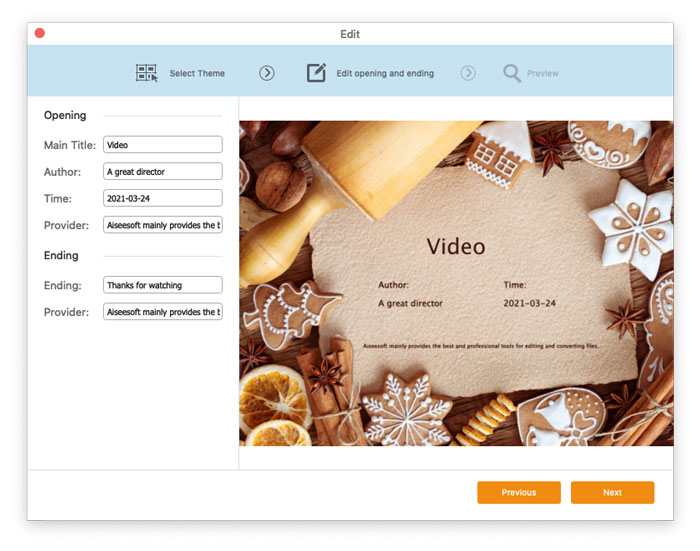
Click Next to to set other settings like the video’s opening and ending, like main title, author, time, provider, etc.

Alterar configurações de tema

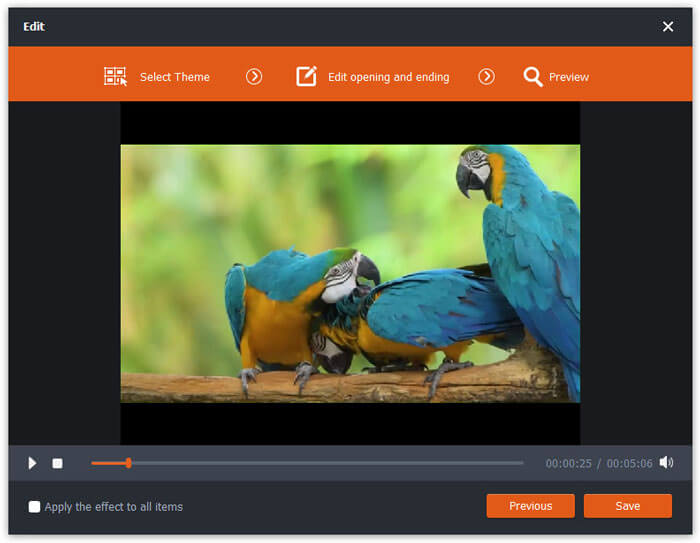
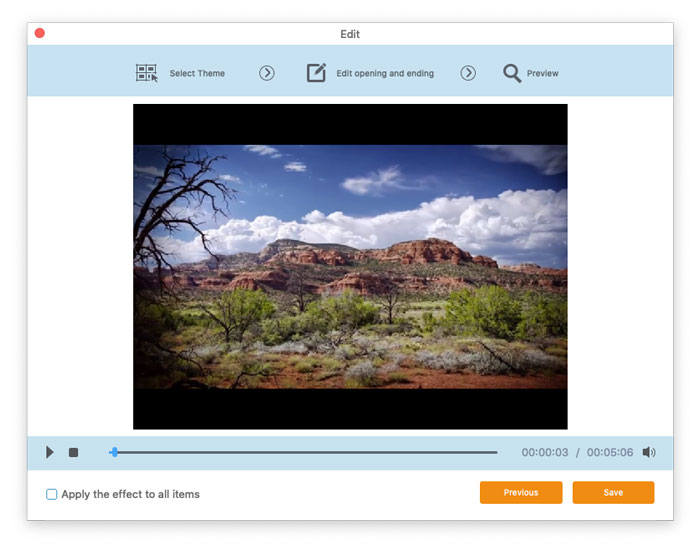
After that, click Next button and then you will be taken to the Preview window. If you’re satisfied with the result, click the Save button to save the settings. If not, click Previous to re-edit the FLV video.

Antevisão

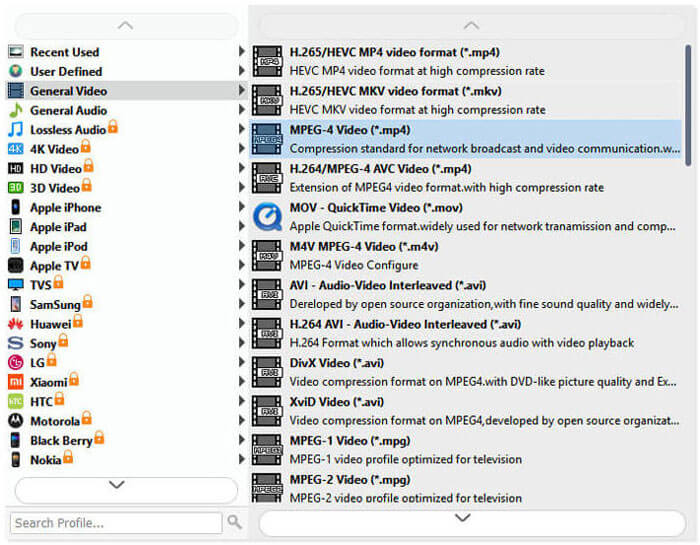
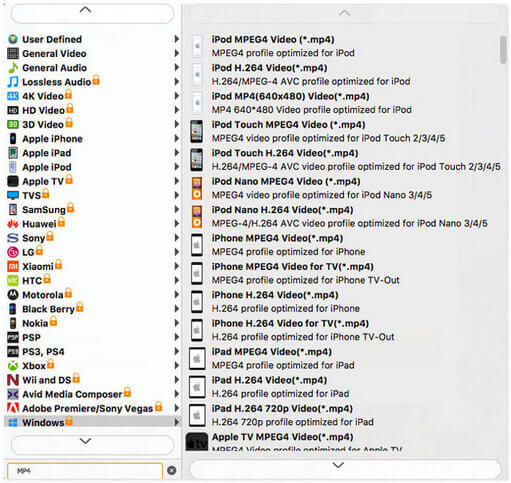
Step 3. Go to the Output format field and then choose General Video and then MPEG-4 Video format from the drop-down list, choose a destination folder in the Output folder field at the bottom, and click Convert to start the conversion.

Selecione saída MP4

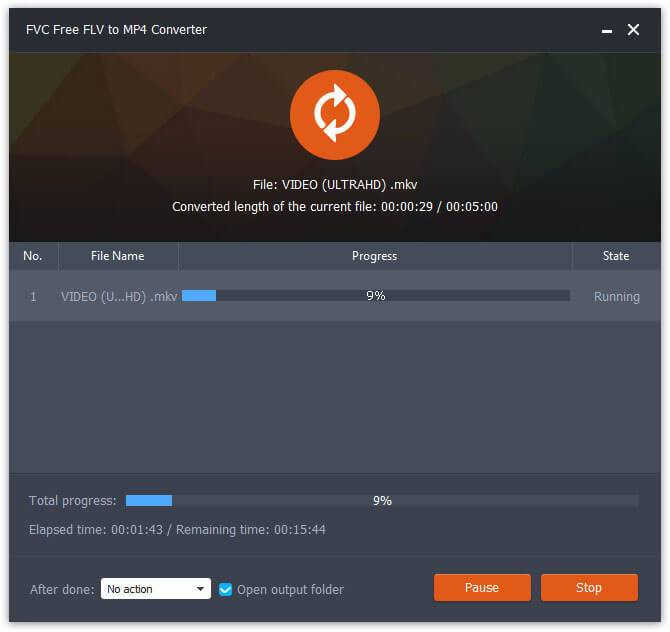
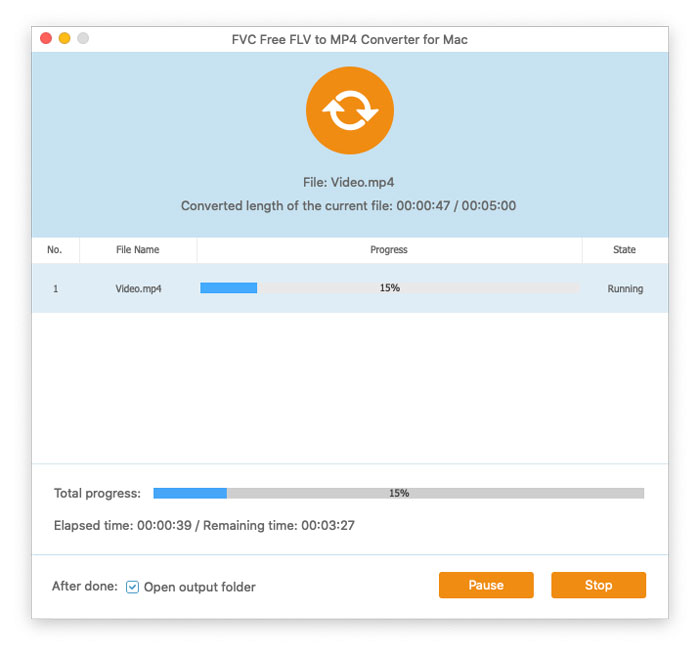
O tempo de conversão varia de acordo com o tamanho do seu arquivo. Assim que a conversão terminar, você será levado automaticamente para a janela onde o arquivo convertido está armazenado, então você pode reproduzir ou compartilhar com seus amigos.

Conversão Concluída

Guia de usuario

Soluções de conversão de vídeo

Iniciar

FVC Free FLV to MP4 Converter foi projetado para converter um arquivo FLV para MP4 sem complicações. Você pode converter vídeos FLV para MP4 e outros formatos populares de vídeo / áudio como MKV, MPG, TS, VOB, MOV, AVI, WebM, etc. Enquanto isso, você pode editar seus arquivos FLV antes da conversão.
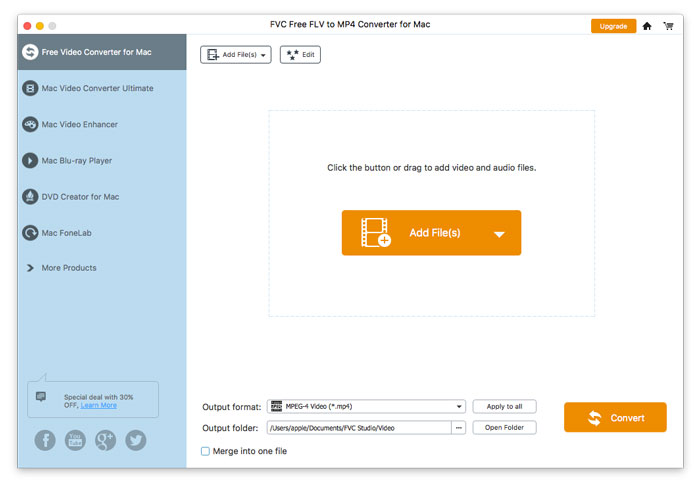
Interface Principal

Baixe e instale

Baixe o pacote de instalação e instale-o em seu computador. A instalação do FVC Free FLV to MP4 Converter com êxito levará alguns segundos.

Preferências

Click the Menu option and choose Preferences… to enter into the Preferences window. Here you choose the output folder, select CPU affinity, configure update settings, and more.
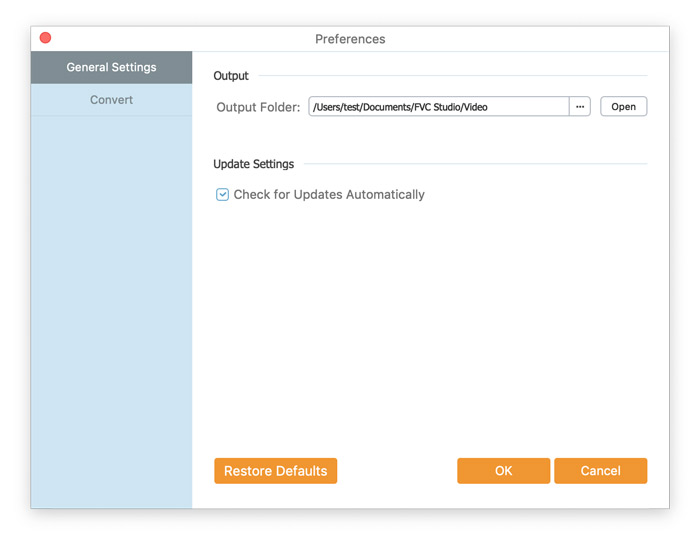
Preferências

Converter FLV para MP4

Step 1. Launch FVC Free FLV to MP4 Converter on your computer. Click the Add File(s) button in the top-left corner of the main interface. Then, choose the FLV files you want to convert and then click Open to import them to the conversion queue. You can also drag the FLV files into the video converter.

Adicionar arquivos FLV

Step 2. Before conversion, you can add a theme for your video. Click the Edit button from the top menu bar to enter into the window where you should select a theme to customize your FLV file firstly.

Selecione o tema

Click Next to to set other settings like the video’s opening and ending, like main title, author, time, provider, etc.

Alterar configurações de tema

After that, click Next button and then you will be taken to the Preview window. If you’re satisfied with the result, click the Save button to save the settings. If not, click Previous to re-edit the FLV video.

Antevisão

Step 3. Go to the Output format field and then choose General Video and then MPEG-4 Video format from the drop-down list, choose a destination folder in the Output folder field at the bottom, and click Convert to start the conversion.

definir perfil MP4

O tempo de conversão varia de acordo com o tamanho do seu arquivo. Assim que a conversão terminar, você será levado automaticamente para a janela onde o arquivo convertido está armazenado, então você pode reproduzir ou compartilhar com seus amigos.

Conversão Concluída