Guia de usuario

Soluções de conversão de vídeo

Iniciar

FVC Free FLV to WMV Converter é projetado para converter arquivos FLV para WMV sem complicações. Os usuários podem exportar vídeo WMV de FLV e outros formatos de vídeo populares como MP4, MKV, TS, VOB, MOV, AVI, etc. Neste tutorial, vamos ajudá-lo a compreender os detalhes do programa e começar a converter arquivos FLV em WMV.
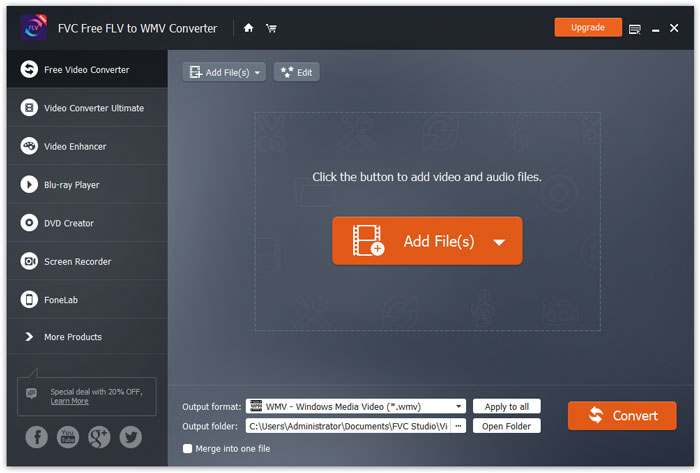
Interface

Baixe e instale

Step 1. Open the Home Page on your computer and click Free Download button.

Step 2. Double-click the installation package to start installing. Follow the instructions to install FVC Free FLV to WMV Converter on your computer.

Preferências

You can adjust preferences on Free FLV to WMV Converter and enjoy using it at your convenience. To edit the preferences, you can launch the software, go to Menu and select Preferences... It provides 2 sections where you can choose your preferences.
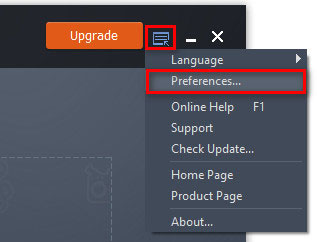
Preferências do menu

General Settings: You can adjust the output folder, installation settings, and update settings.
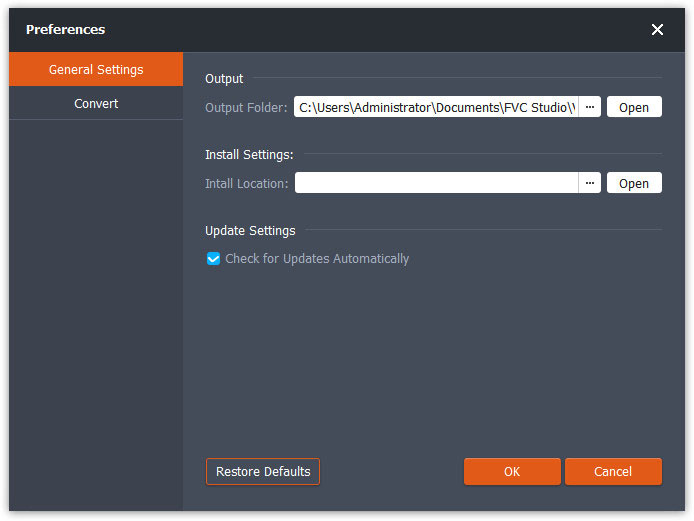
Configurações Gerais

Convert: The GPU acceleration can speed up the conversion. You can select CPU affinity, and set the maximum number for the simultaneous running processes.
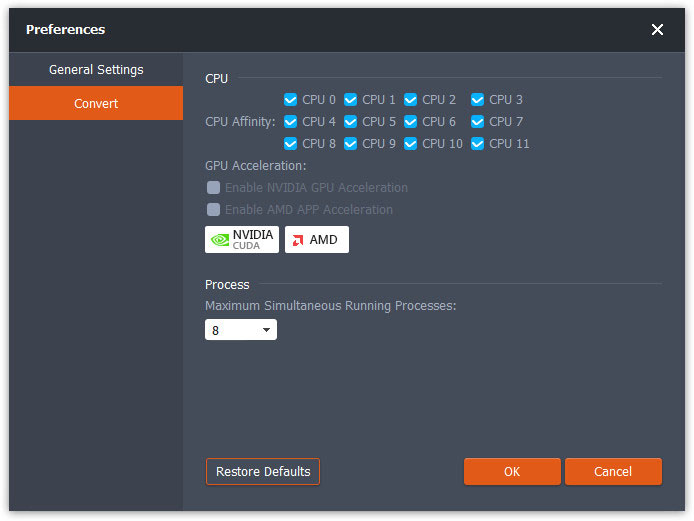
Conversão de preferências

Converter FLV em WMV

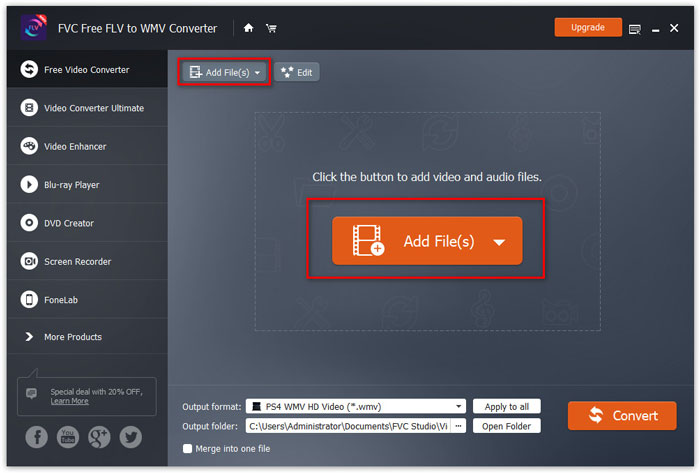
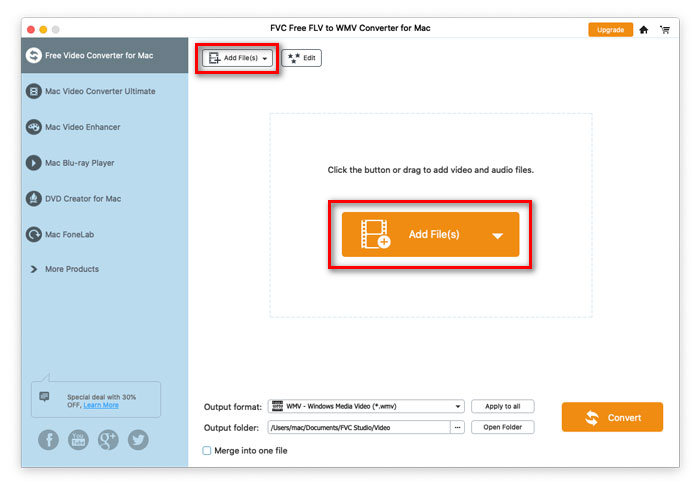
Step 1. Launch Free FLV to WMV Converter on your computer. You can add the FLV files into the program through the 3 ways.

1. Click the Add File(s) button at the top-left side to choose Add File(s) or Add Folder option.

2. Click the Add File(s) button in the middle of the interface to import one or more FLV files.

3. Arraste e solte os arquivos de vídeo na área do retângulo no meio da interface.

Adicionar arquivos FLV

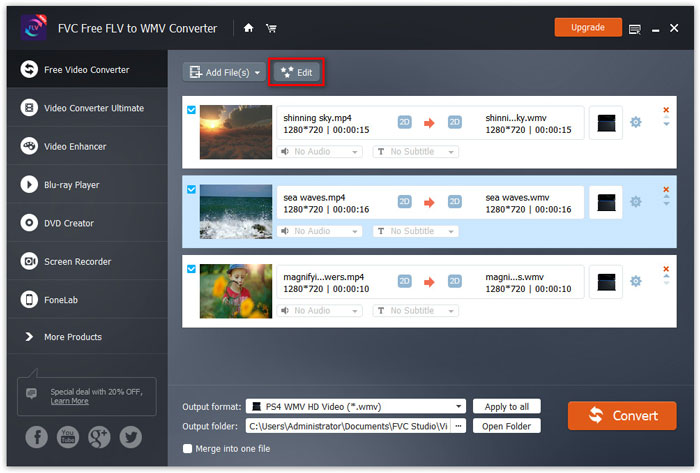
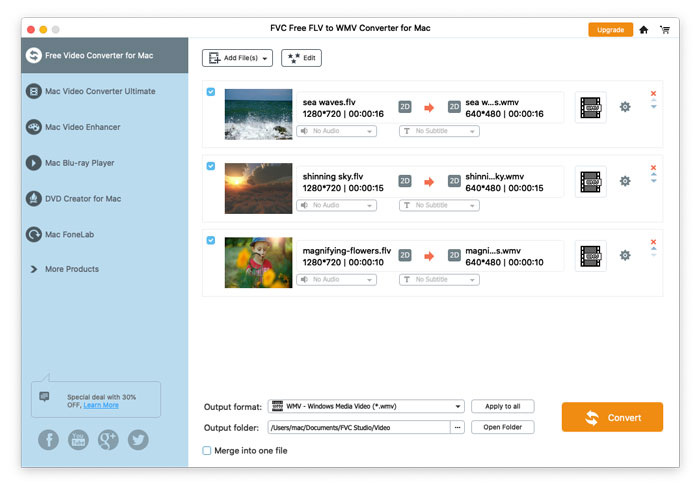
Step 2. Click the Edit button at the top to enter the editing interface.

Editar arquivos FLV

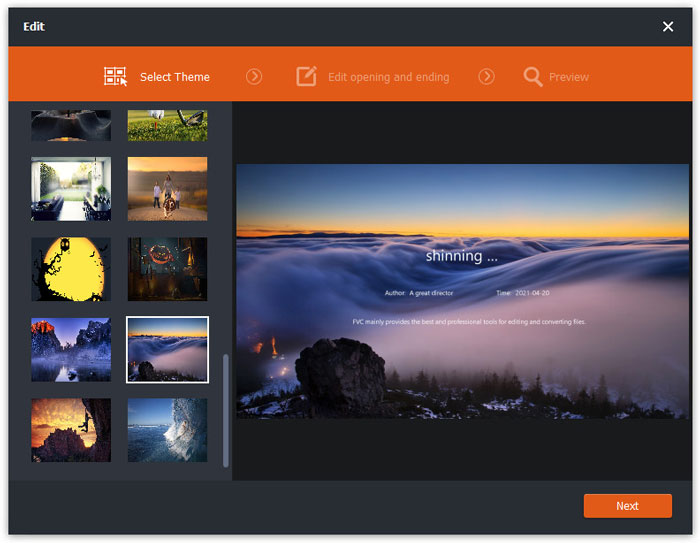
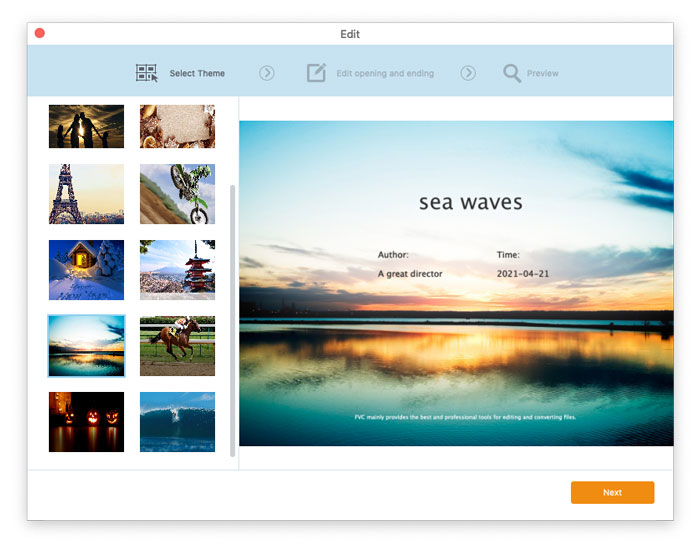
In the edit interface, you can select a theme in the Select Theme tab to customize your FLV files firstly. Click Next button to move on.

Selecione o tema

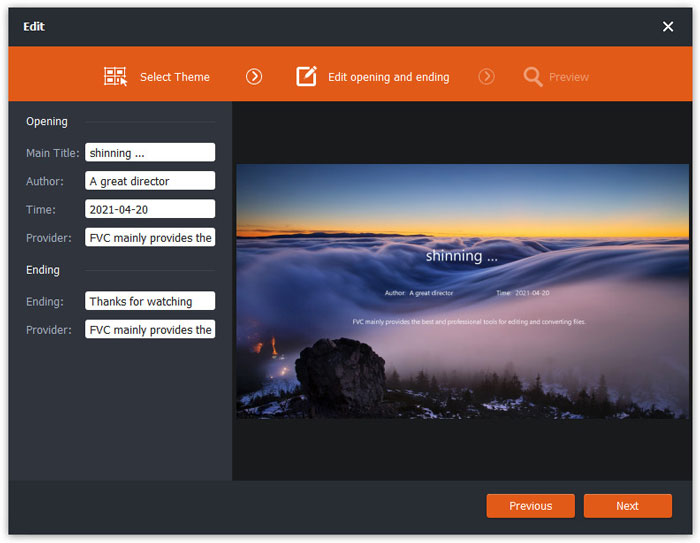
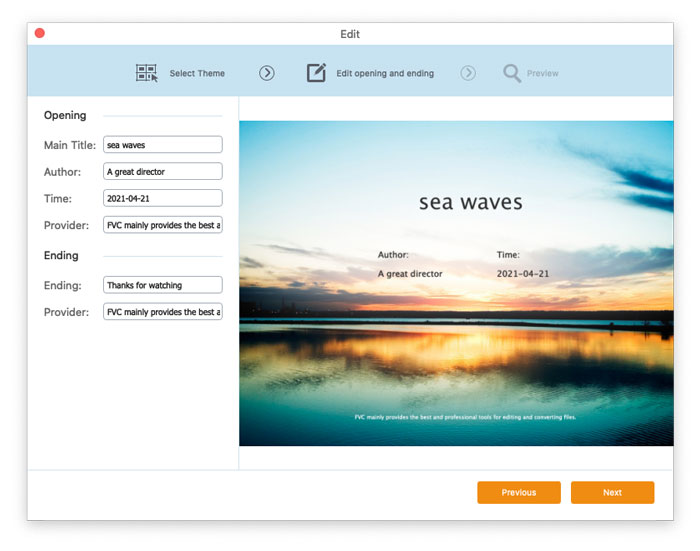
In the Edit opening and ending tab, you can adjust the info at the opening and ending, like main title, author, time, provider, etc. Click Next button to move the next step.

Editar final pendente

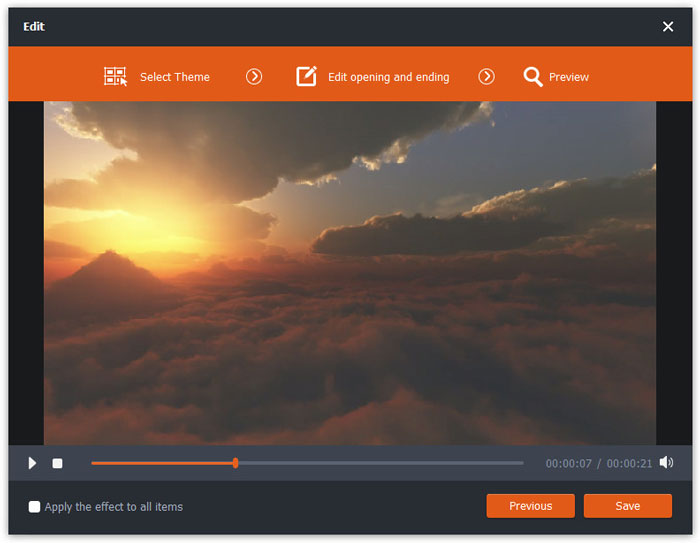
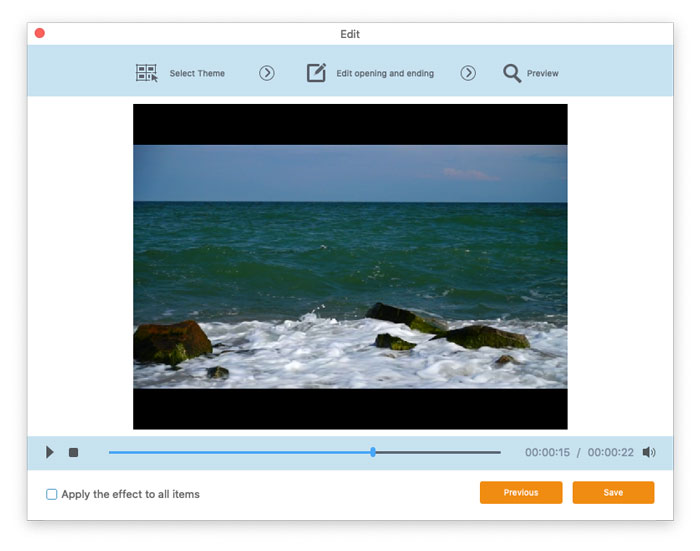
Then you will be taken to the Preview window. Here you can preview the video effects in advance. If you are not satisfied with it, click Previous to readjust the settings.

Finally, click Save button to save the video effects adjustment. If you want to apply the same effect to all the video clips, just tick Apply the effect to all items option.

Pré-visualizar efeitos de vídeo

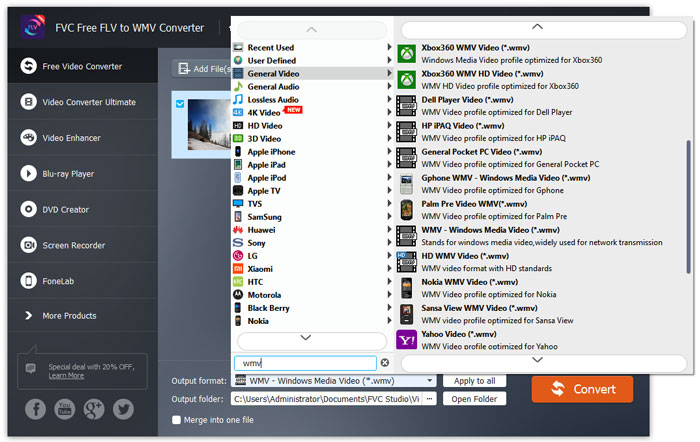
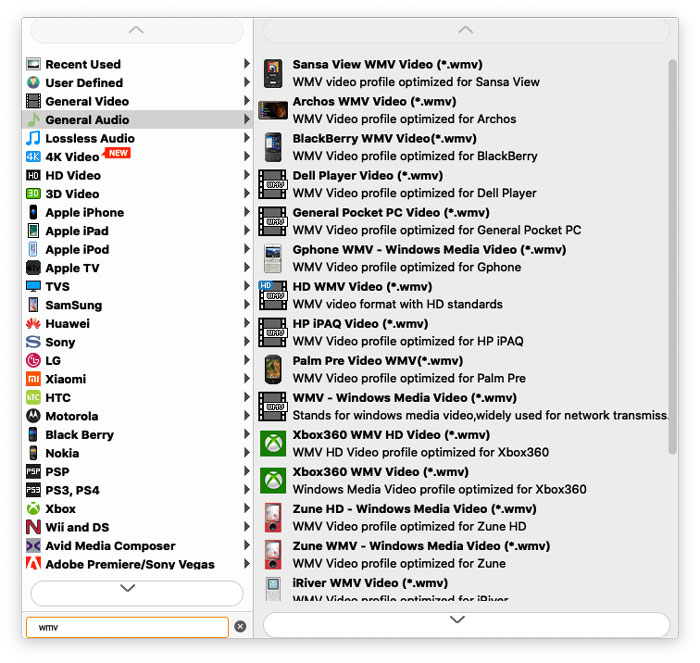
Step 3. Go to the Output format field and choose General Video category, and then WMV.

Selecione WMV

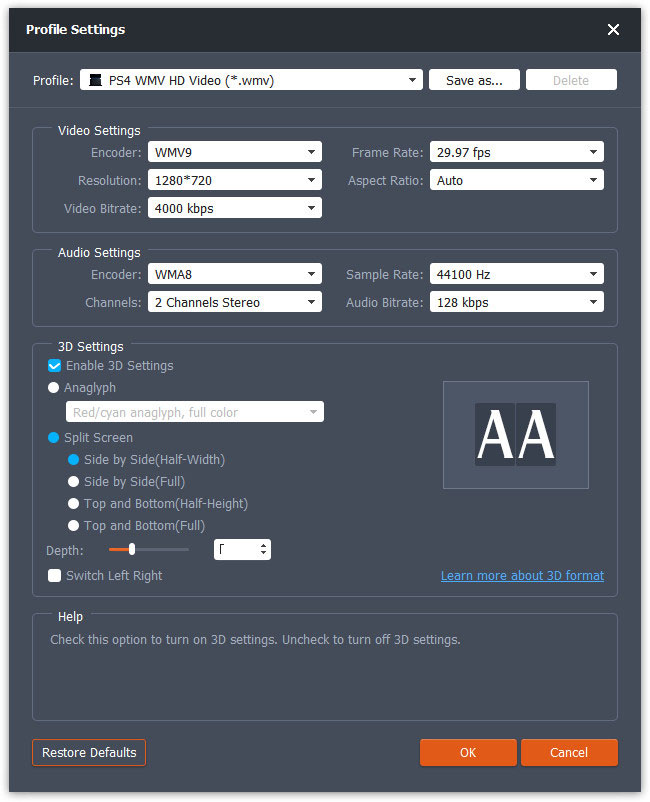
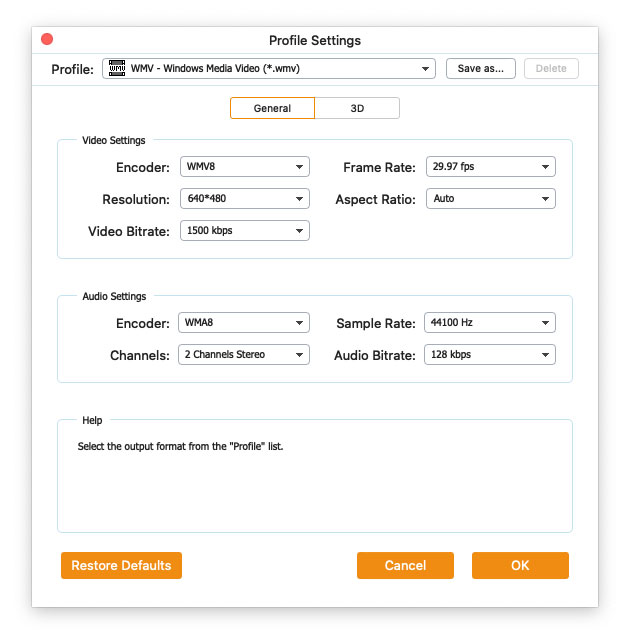
To further customize the preset, you can click the gear icon at the right side of the video. You can adjust settings like encoder, sample rate, resolution, aspect ratio, bitrate. If you want to add 3D effect to your WMV file, you can check Enable 3D Settings option, and select Anaglyph 3D, Side by Side 3D or Top and Bottom 3D.

Configurações de perfil

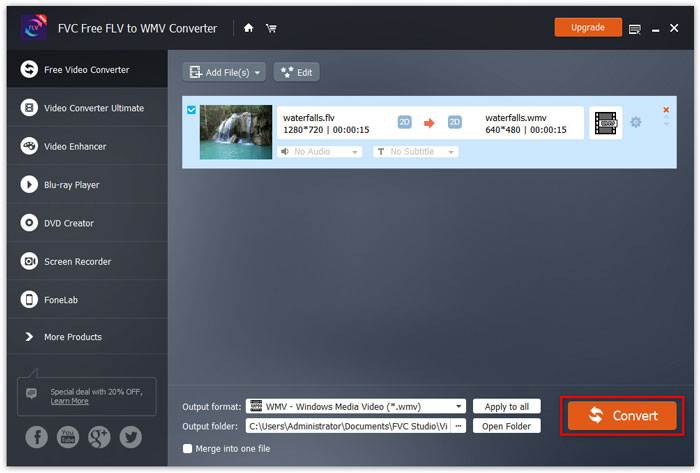
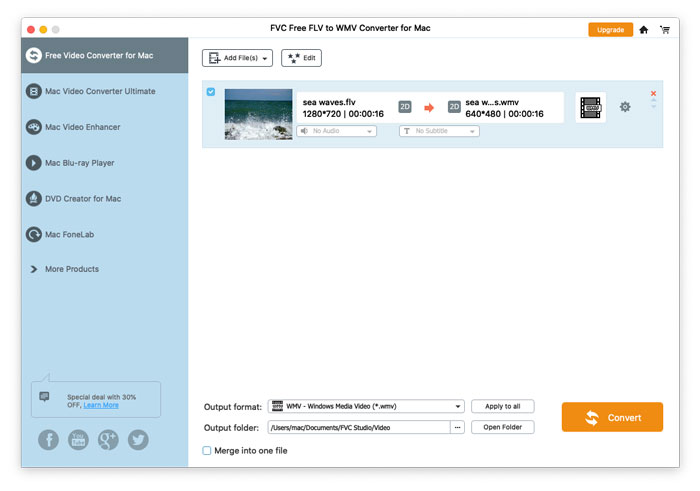
Step 4. Go to the Output folder field and choose the output destination where the WMV file will be saved. Then click Convert button to start converting FLV video to WMV.

Converter arquivo FLV em WMV

Guia de usuario

Soluções de conversão de vídeo

Iniciar

FVC Free FLV to WMV Converter é projetado para converter arquivos FLV para WMV sem complicações. Os usuários podem exportar vídeo WMV de FLV e outros formatos de vídeo populares como MP4, MKV, TS, VOB, MOV, AVI, etc. Neste tutorial, vamos ajudá-lo a compreender os detalhes do programa e começar a converter arquivos FLV em WMV.
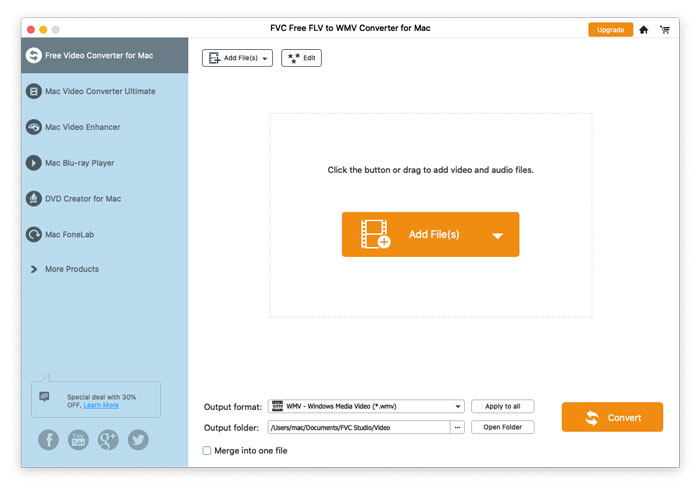
Interface

Baixe e instale

Step 1. Open the Home Page on your computer and click Free Download button.

Step 2. Double-click the installation package to start installing. Follow the instructions to install FVC Free FLV to WMV Converter on your computer.

Preferências

You can adjust preferences on Free FLV to WMV Converter and enjoy using it at your convenience. To edit the preferences, you can launch the software, go to Menu and select Preferences... It provides 2 sections where you can choose your preferences.
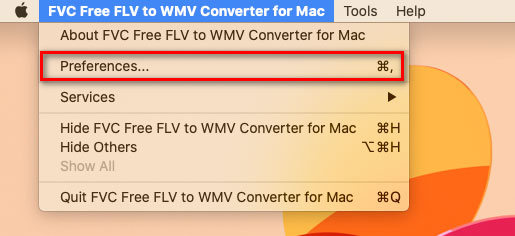
Preferências do menu

General Settings: You can adjust the output folder, installation settings, and update settings.
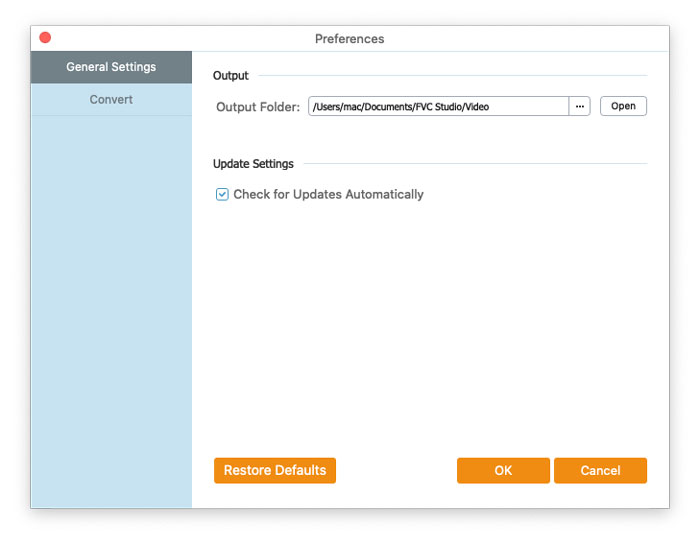
Configurações Gerais

Convert: The GPU acceleration can speed up the conversion. You can select CPU affinity, and set the maximum number for the simultaneous running processes.
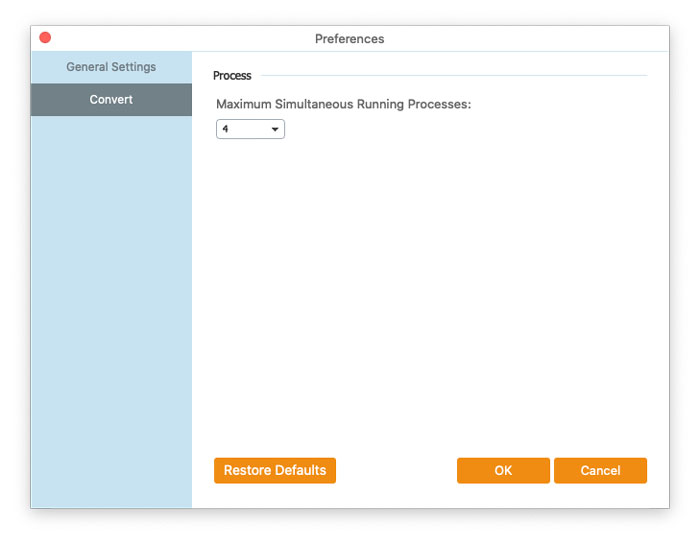
Conversão de preferências

Converter FLV em WMV

Step 1. Launch Free FLV to WMV Converter on your computer. You can add the FLV files into the program through the 3 ways.

1. Click the Add File(s) button at the top-left side to choose Add File(s) or Add Folder option.

2. Click the Add File(s) button in the middle of the interface to import one or more FLV files.

3. Arraste e solte os arquivos de vídeo na área do retângulo no meio da interface.

Adicionar arquivos FLV

Step 2. Click the Edit button at the top to enter the editing interface.

Editar arquivos FLV

In the edit interface, you can select a theme in the Select Theme tab to customize your FLV files firstly. Click Next button to move on.

Selecione o tema

In the Edit opening and ending tab, you can adjust the info at the opening and ending, like main title, author, time, provider, etc. Click Next button to move the next step.

Editar final pendente

Then you will be taken to the Preview window. Here you can preview the video effects in advance. If you are not satisfied with it, click Previous to readjust the settings.

Finally, click Save button to save the video effects adjustment. If you want to apply the same effect to all the video clips, just tick Apply the effect to all items option.

Pré-visualizar efeitos de vídeo

Step 3. Go to the Output format field and choose General Video category, and then WMV.

Selecione WMV

To further customize the preset, you can click the gear icon at the right side of the video. You can adjust settings like encoder, sample rate, resolution, aspect ratio, bitrate. If you want to add 3D effect to your WMV file, you can check Enable 3D Settings option, and select Anaglyph 3D, Side by Side 3D or Top and Bottom 3D.

Configurações de perfil

Step 4. Go to the Output folder field and choose the output destination where the WMV file will be saved. Then click Convert button to start converting FLV video to WMV.

Converter arquivo FLV em WMV