Guia de usuario

Soluções de conversão M2TS

Iniciar

FVC Free M2TS Converter é projetado para converter vídeos M2TS em formatos populares de vídeo / áudio como MOV, AVI, TS, VOB, MKV, FLV, SWF, ASF, WMV, DV, MP3, M4A, OGG, WAV, WMA, AIFF, FLAC , etc. Ele também pode converter arquivos M2TS para dispositivos como iPhone, iPad, Huawei, Sony, etc. diretamente. Você pode baixar FVC Free M2TS Converter para o seu computador gratuitamente. Ele também oferece várias opções para editar seu vídeo M2TS antes da conversão. Você pode selecionar um tema e adicionar abertura e finalização ao seu vídeo. Além do mais, se você adicionar vários arquivos ao conversor, poderá convertê-los em outros formatos em lotes.
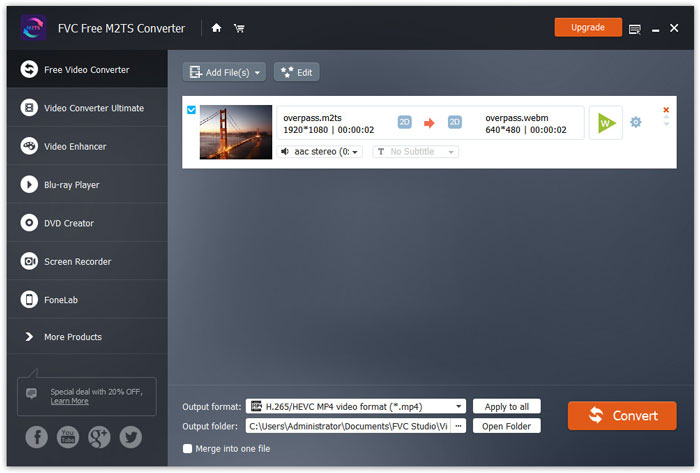
Interface

Baixe e instale

Baixe FVC Free M2TS Converter e instale-o em seu computador. A instalação levará alguns segundos para terminar.

Preferências

Click Menu and then find Preferences…. Click it and you’ll see the Preferences window. In this interface, you can switch the output folder, change install location, and adjust update settings by clicking General Settings. You can choose CPU affinity and select maximum simultaneous running processes by clicking Convert. After setting all the options you need, click OK to save the settings.
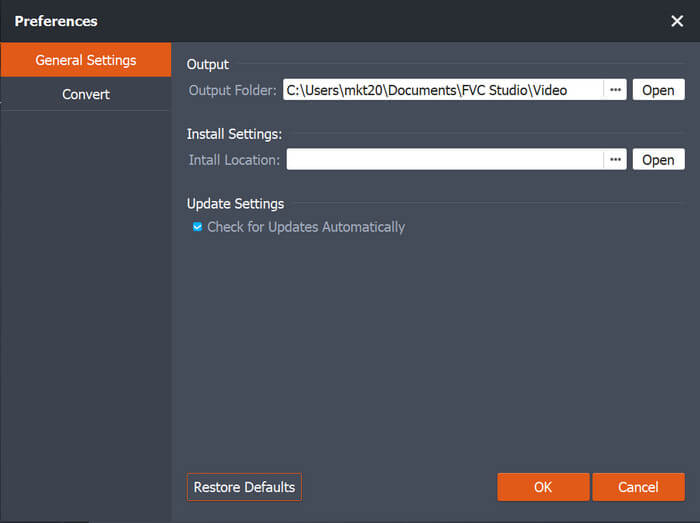
Preferências

Converter M2TS para outros formatos

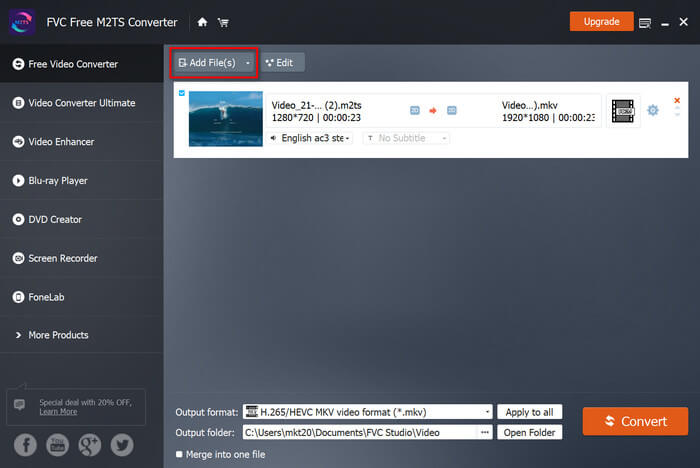
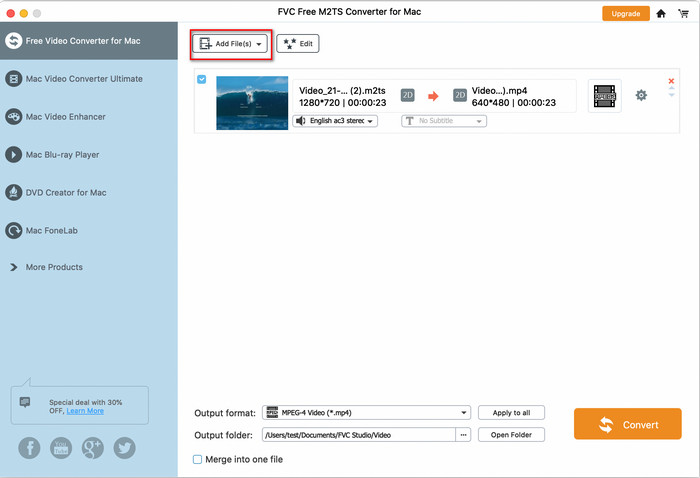
Step 1. Launch FVC Free M2TS Converter on your computer. Click Add Files(s) at the top-left of the interface. Select one file or multiple files and click Open. You can see them in the conversion list. You can also drag your M2TS files into the converter.

Adicionar arquivos M2TS

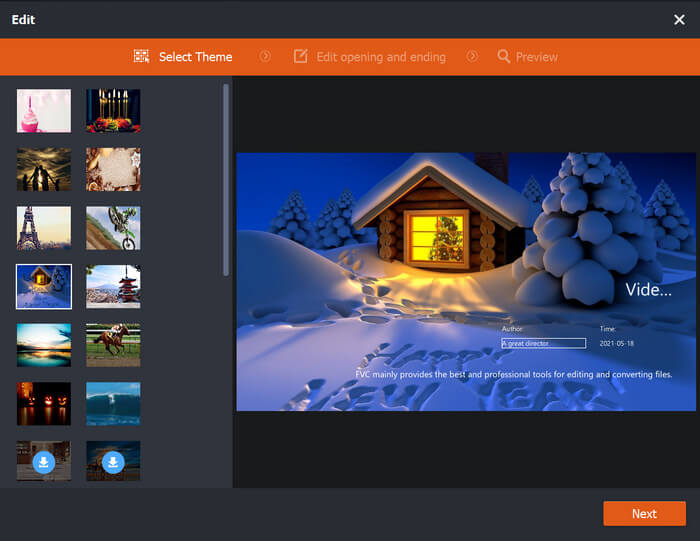
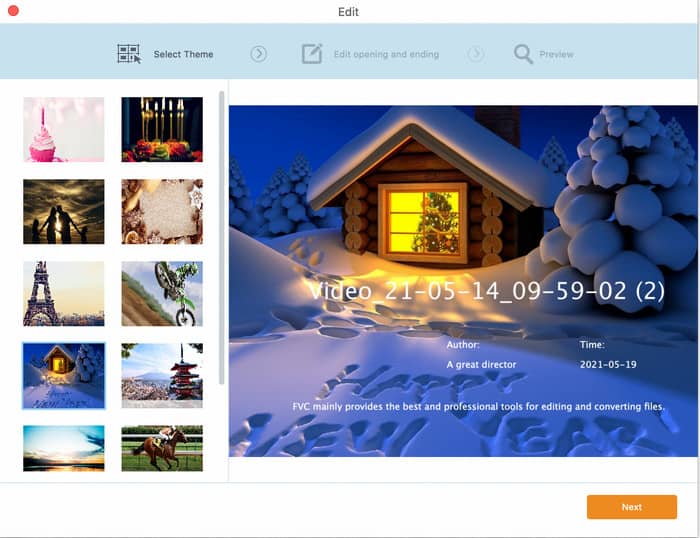
Step 2. A theme is available for your video before conversion. You can see the Edit button next to Add File(s). Click Edit and you’ll enter the Edit window. You can choose an appropriate theme in the left of the interface to make your M2TS file more attractive.

Editar vídeo M2TS

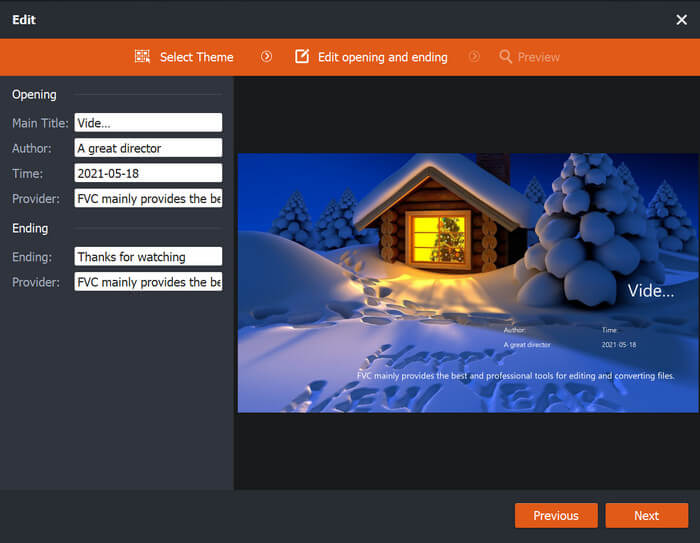
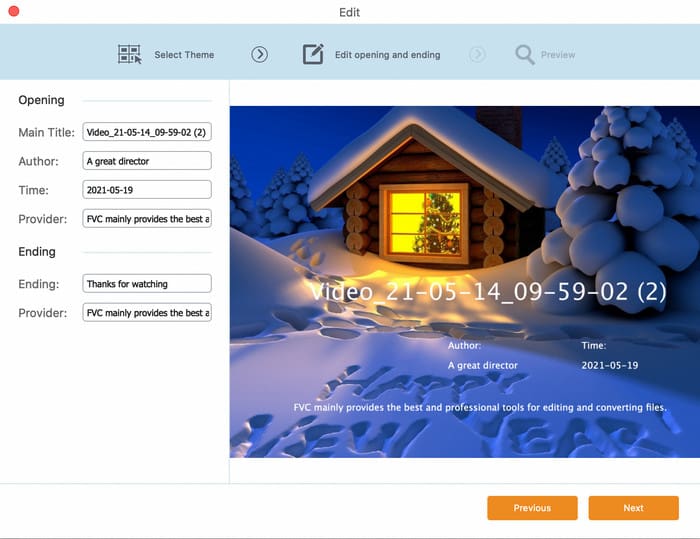
Step 3. Click Next and you’ll see the options of opening and ending. You can change the main title, author, time, provider, and ending according to your need.

Abrindo e terminando

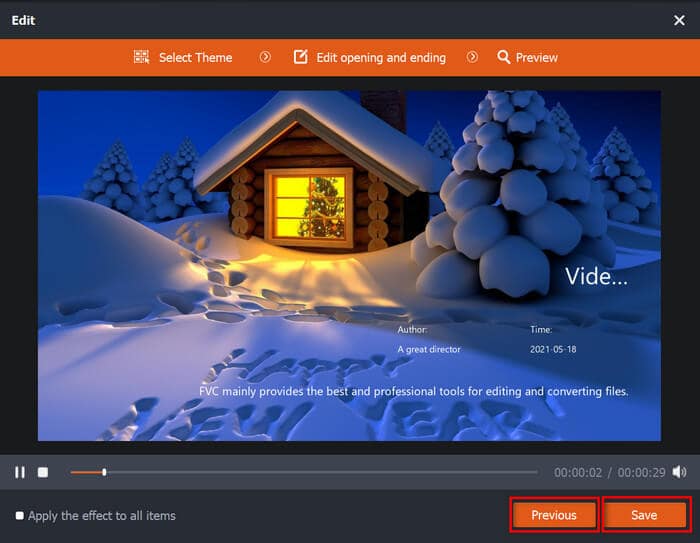
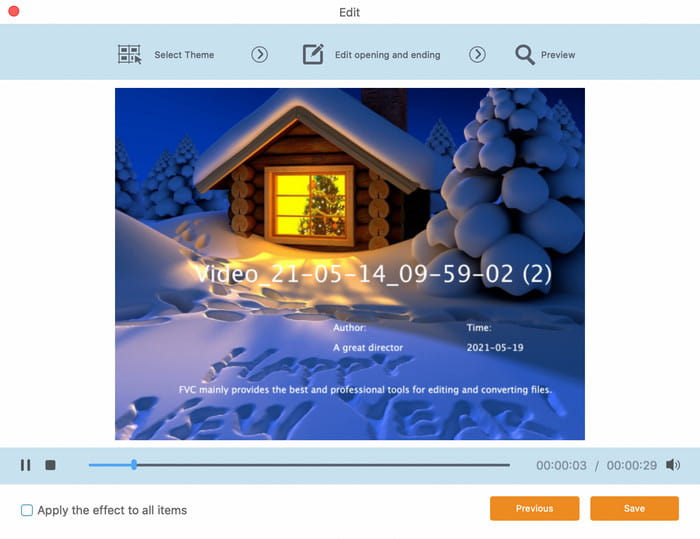
Step 4. Click the Next button, and you’ll see the Preview window. Click Save if the edited video meets your need. Or click Previous to re-edit your video if you’re not satisfied with the outcome.

Visualize o vídeo

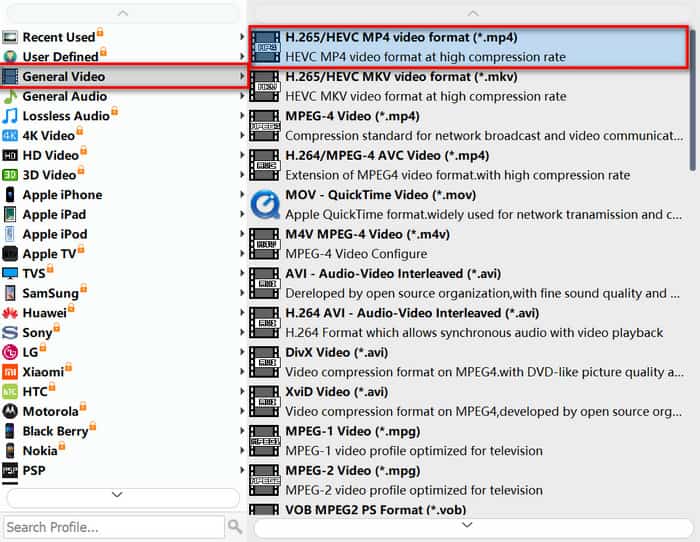
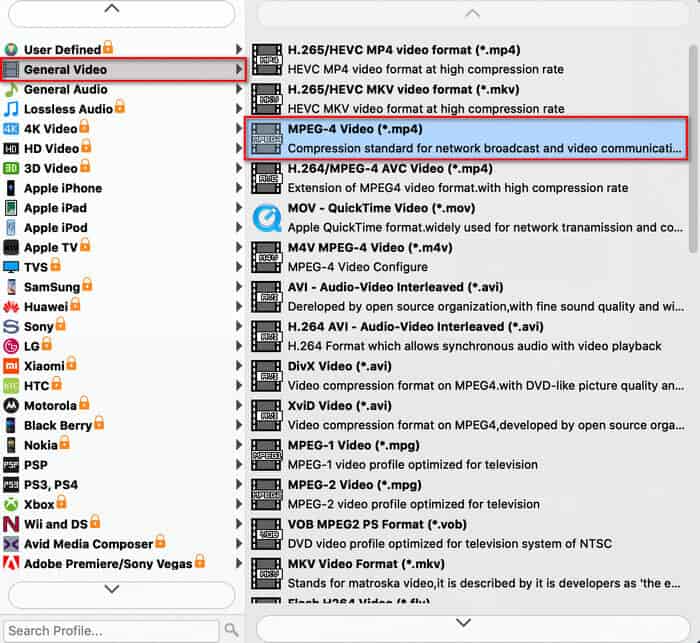
Step 5. Click the Output Format button on the bottom of the main interface. Choose General Video and then H.265/HEVC MP4 video format from the list popping up. You can choose the folder where you want to put the converted video by clicking Output folder under Output Format.

Selecione outro formato

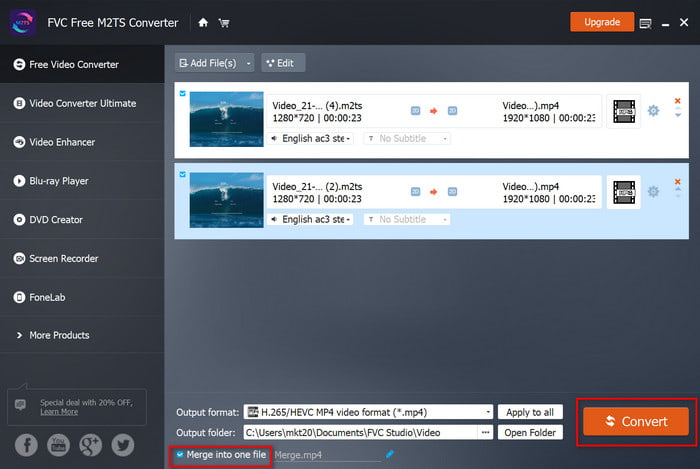
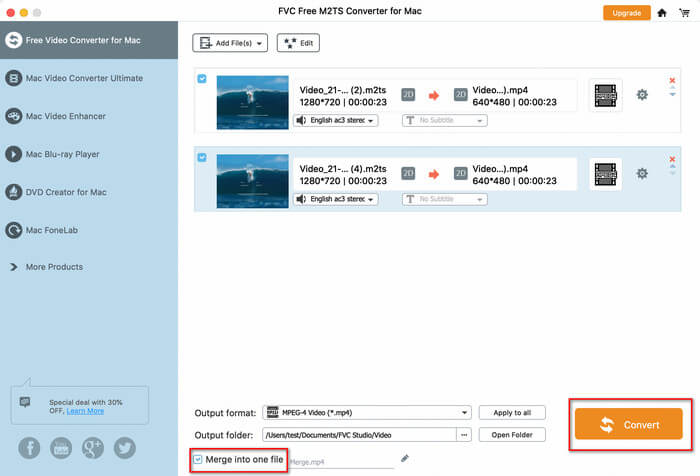
Step 6. Click Convert to start the final conversion. In addition, you can select Merge into one file if you add two or more M2TS files in Step 1. Your files will be merged into one file.

Iniciar conversão

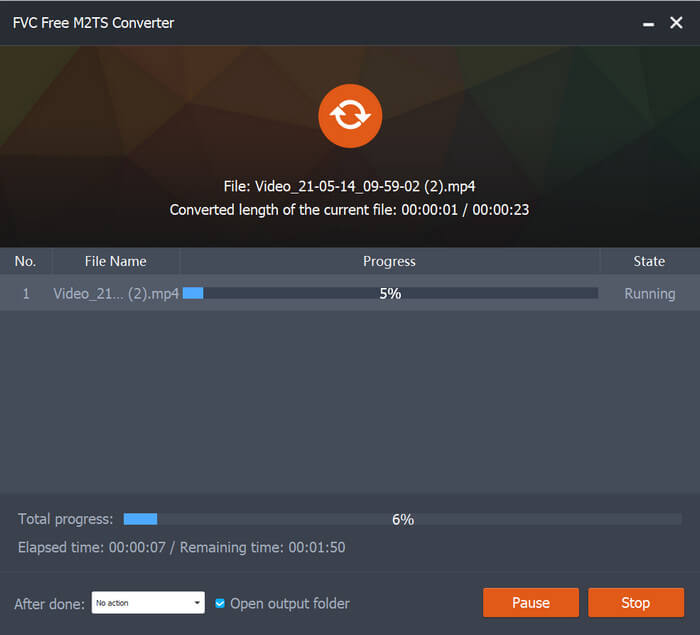
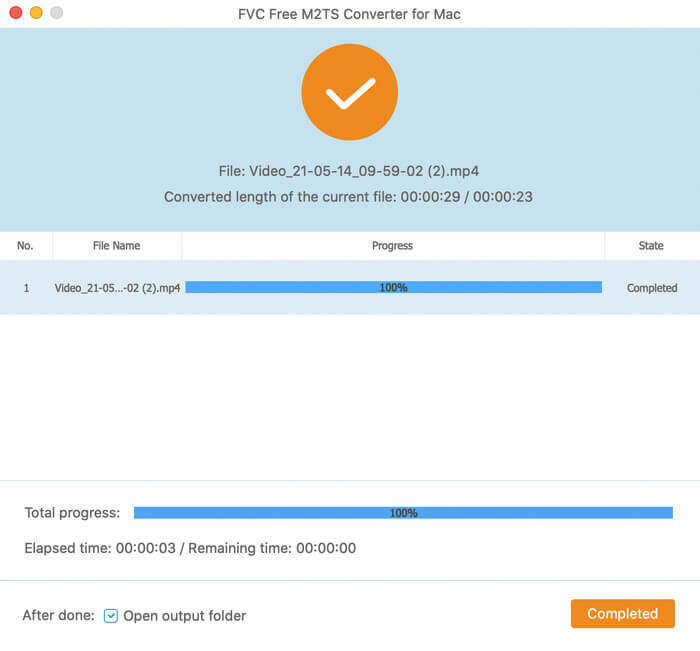
O tempo de processamento será diferente de acordo com o tamanho do seu vídeo. Quando a conversão for concluída, a pasta onde o vídeo convertido está armazenado aparecerá. Depois, você pode reproduzi-lo ou compartilhá-lo nas redes sociais.

Conversão concluída

Guia de usuario

Soluções de conversão M2TS

Iniciar

FVC Free M2TS Converter é projetado para converter vídeos M2TS em formatos populares de vídeo / áudio como MOV, AVI, TS, VOB, MKV, FLV, SWF, ASF, WMV, DV, MP3, M4A, OGG, WAV, WMA, AIFF, FLAC , etc. Ele também pode converter arquivos M2TS para dispositivos como iPhone, iPad, Huawei, Sony, etc. diretamente. Você pode baixar FVC Free M2TS Converter para o seu computador gratuitamente. Ele também oferece várias opções para editar seu vídeo M2TS antes da conversão. Você pode selecionar um tema e adicionar abertura e finalização ao seu vídeo. Além do mais, se você adicionar vários arquivos ao conversor, poderá convertê-los em outros formatos em lotes.
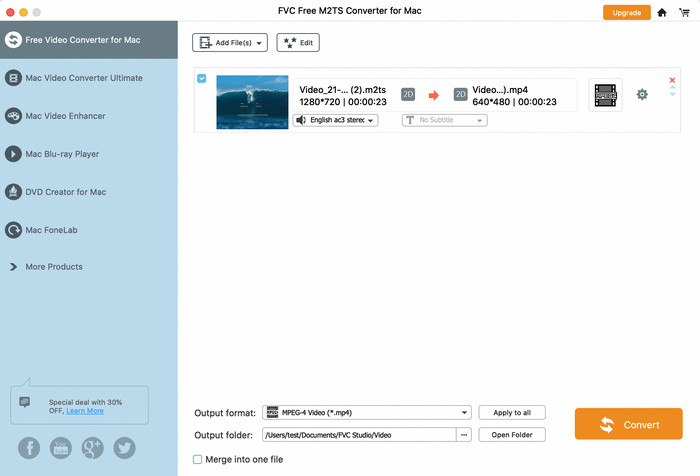
Interface

Baixe e instale

Baixe FVC Free M2TS Converter e instale-o em seu computador. A instalação levará alguns segundos para terminar.

Preferências

Click Menu and then find Preferences…. Click it and you’ll see the Preferences window. In this interface, you can switch the output folder, change install location, and adjust update settings by clicking General Settings. You can choose CPU affinity and select maximum simultaneous running processes by clicking Convert. After setting all the options you need, click OK to save the settings.
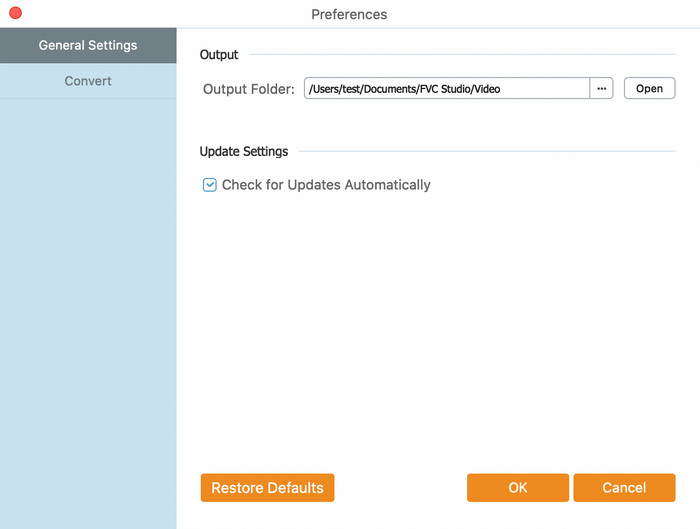
Preferências

Converter M2TS para outros formatos

Step 1. Launch FVC Free M2TS Converter on your computer. Click Add Files(s) at the top-left of the interface. Select one file or multiple files and click Open. You can see them in the conversion list. You can also drag your M2TS files into the converter.

Adicionar arquivos M2TS

Step 2. A theme is available for your video before conversion. You can see the Edit button next to Add File(s). Click Edit and you’ll enter the Edit window. You can choose an appropriate theme in the left of the interface to make your M2TS file more attractive.

Editar vídeo M2TS

Step 3. Click Next and you’ll see the options of opening and ending. You can change the main title, author, time, provider, and ending according to your need.

Abrindo e terminando

Step 4. Click the Next button, and you’ll see the Preview window. Click Save if the edited video meets your need. Or click Previous to re-edit your video if you’re not satisfied with the outcome.

Visualize o vídeo

Step 5. Click the Output Format button on the bottom of the main interface. Choose General Video and then H.265/HEVC MP4 video format from the list popping up. You can choose the folder where you want to put the converted video by clicking Output folder under Output Format.

Selecione outro formato

Step 6. Click Convert to start the final conversion. In addition, you can select Merge into one file if you add two or more M2TS files in Step 1. Your files will be merged into one file.

Iniciar conversão

O tempo de processamento será diferente de acordo com o tamanho do seu vídeo. Quando a conversão for concluída, a pasta onde o vídeo convertido está armazenado aparecerá. Depois, você pode reproduzi-lo ou compartilhá-lo nas redes sociais.

Conversão concluída