Guia de usuario

Soluções de conversão de TS

Iniciar

FVC Free TS Converter é um conversor de vídeo gratuito que pode converter seus arquivos TS para o formato MP4, bem como para MOV, FLV, MKV, 3GP, AVCHD, vídeo compatível com DVD ou qualquer outro formato de mídia. O aplicativo também pode ajudá-lo a converter seus vídeos TS para WAV, FLAC, MP3 e outros formatos de áudio populares.
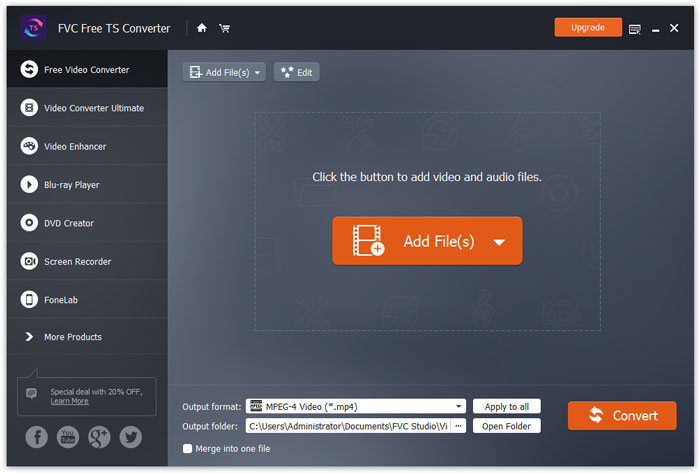
Interface

Baixe e instale

Baixe a versão adequada do conversor de vídeo em seu computador Windows. Em seguida, execute o arquivo de instalação e siga as instruções que aparecem na tela do computador para instalar o programa.

Preferências

FVC Free TS Converter oferece várias preferências personalizáveis para você. Você pode escolher a pasta de saída, a afinidade da CPU e muito mais.
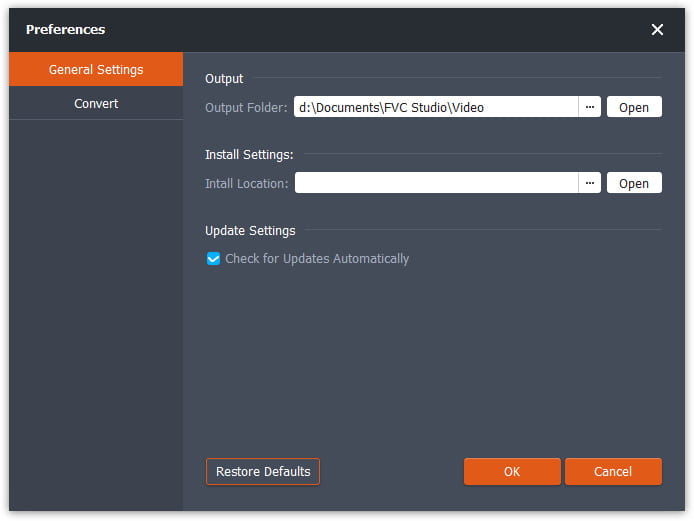
Preferências

Converter arquivos TS

Step 1. Open the TS videos you wish to convert

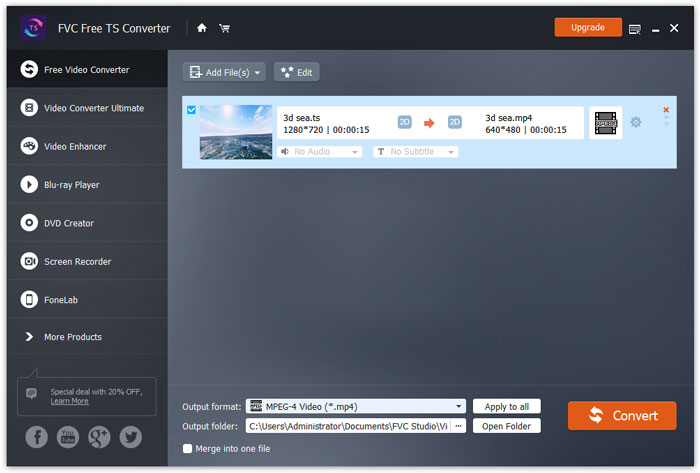
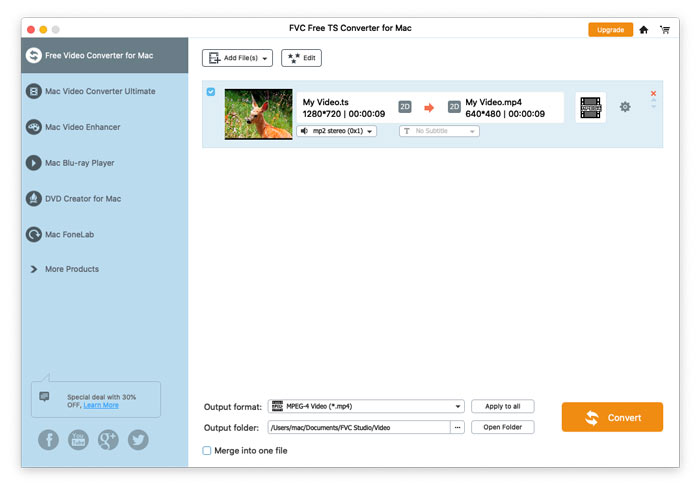
Launch FVC Free TS Converter, click the Add File(s) button and then select the TS videos you want to convert.

Converter vídeo TS

Step 2. Edit the video (optional)

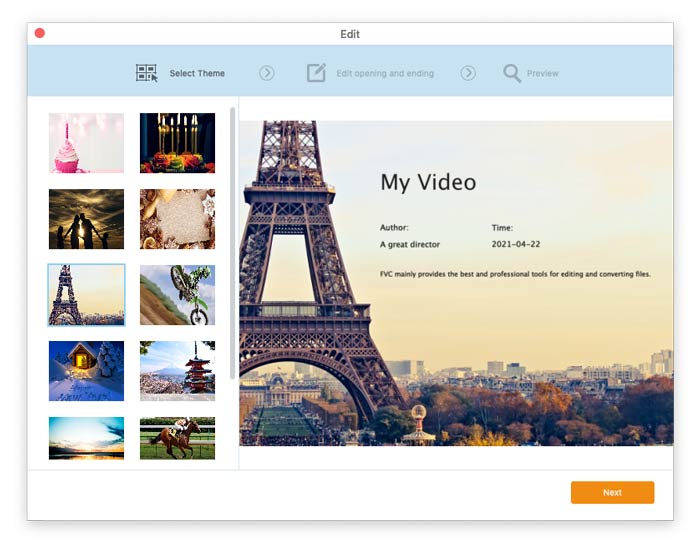
To edit your TS file, click the Edit button at the top of the application. You can choose a theme to customize your video.

Selecione o tema

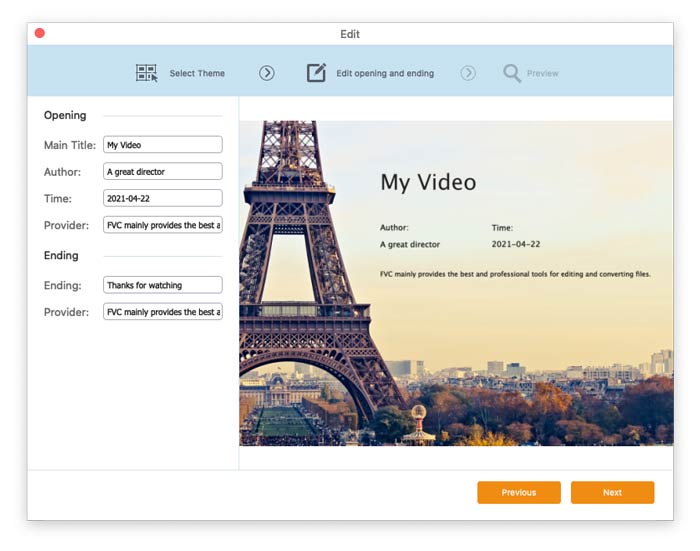
Click Next and you can decide the main title, author, time, and provider in the opening and ending of the video.

Alterar configurações de tema

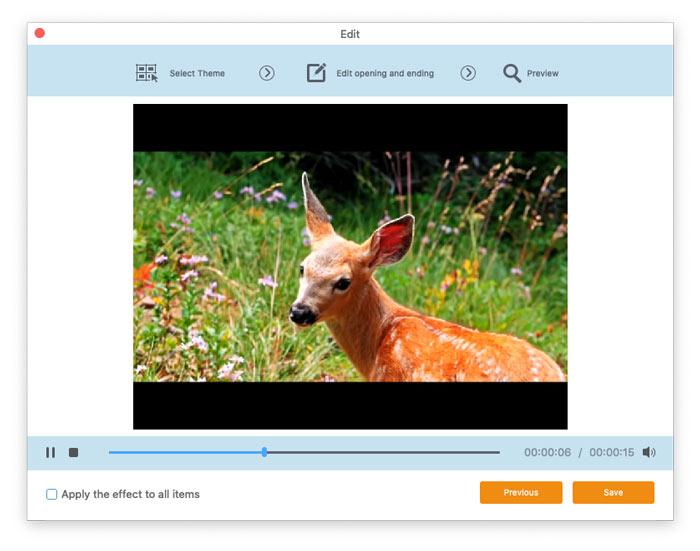
Then, click Next again. Now you can preview the video and save the final result by clicking the Save button.

Salvar configurações de tema

Step 3. Choose the output format for your videos

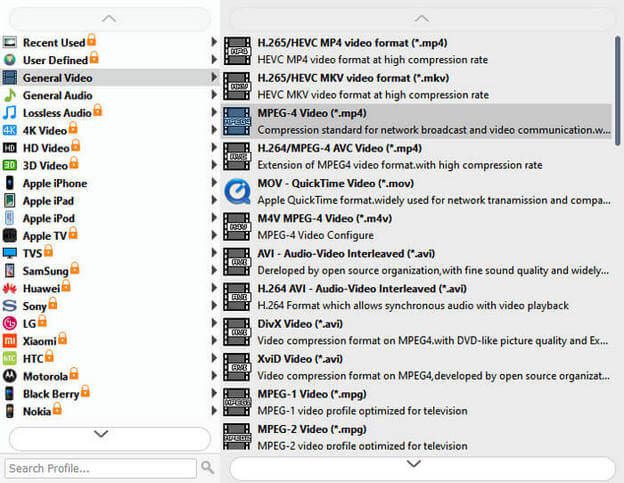
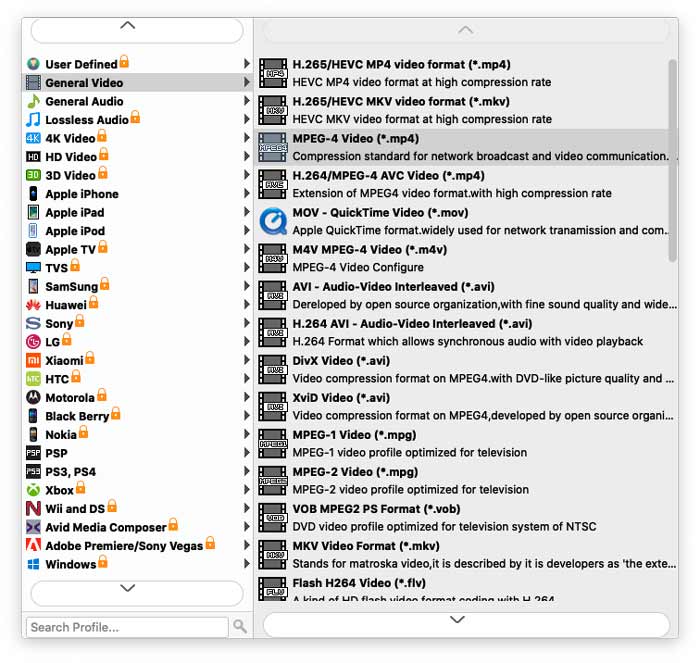
Open the Output format tab at the bottom of the application window and find your desired video or audio format.

Selecione o formato de saída

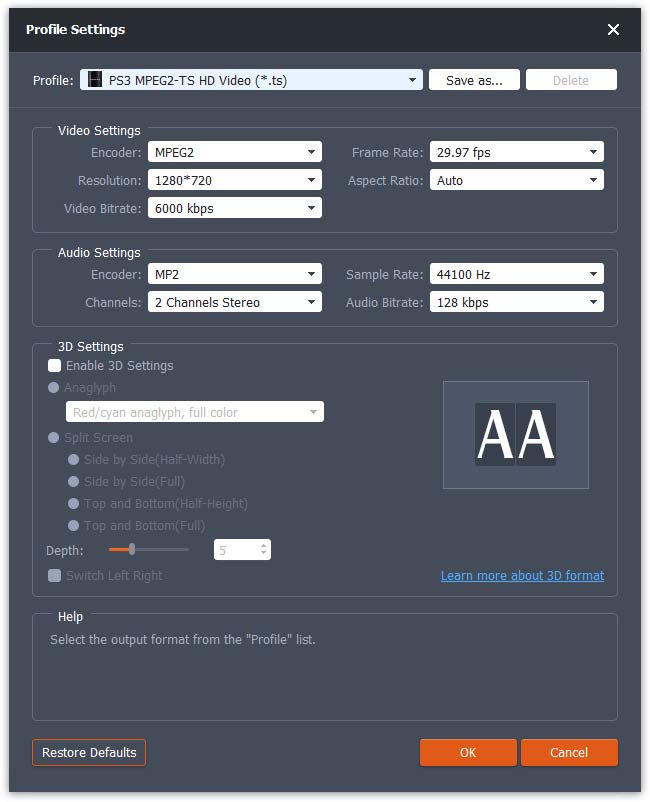
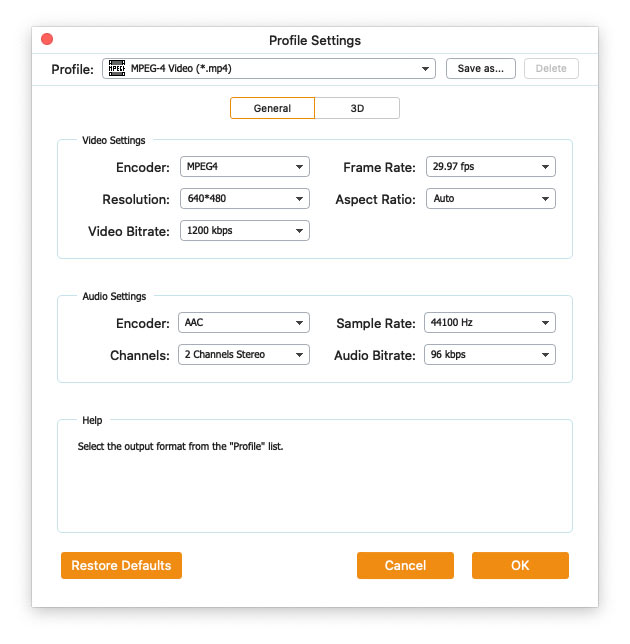
If you need to adjust the video or audio parameters, just hit the Cogwheel icon and make adjustments based on your needs. Click OK to save all the changes.

Configurações de perfil

Step 4. Convert TS files

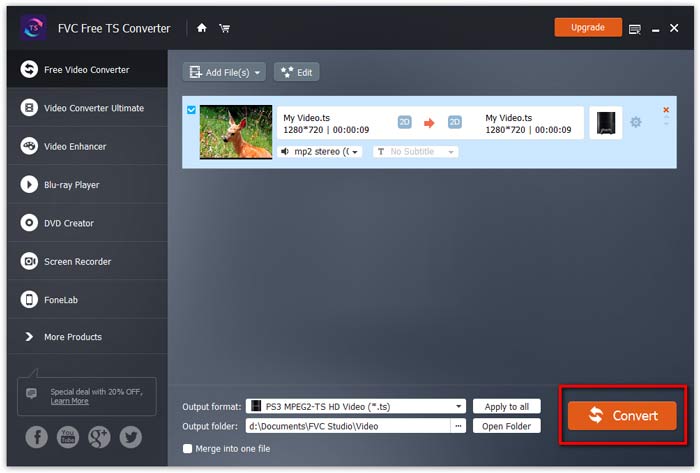
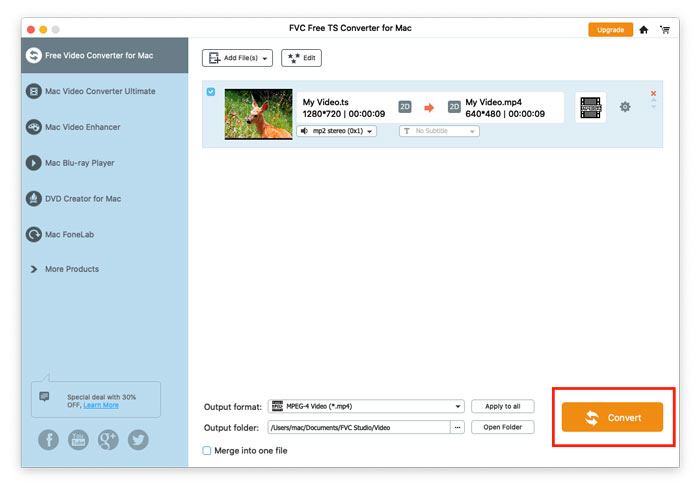
To choose the folder where you want to place the converted files, navigate to the Output folder field. Now, click the Convert button to process the TS videos. Converting files can take anything from one to several minutes, depending on the file size and the number of files you’re converting.

Iniciar conversão

Quando o processo é concluído, uma pasta com os arquivos criados é aberta automaticamente.

Guia de usuario

Soluções de conversão de TS

Iniciar

FVC Free TS Converter é um conversor de vídeo gratuito que pode converter seus arquivos TS para o formato MP4, bem como para MOV, FLV, MKV, 3GP, AVCHD, vídeo compatível com DVD ou qualquer outro formato de mídia. O aplicativo também pode ajudá-lo a converter seus vídeos TS para WAV, FLAC, MP3 e outros formatos de áudio populares.
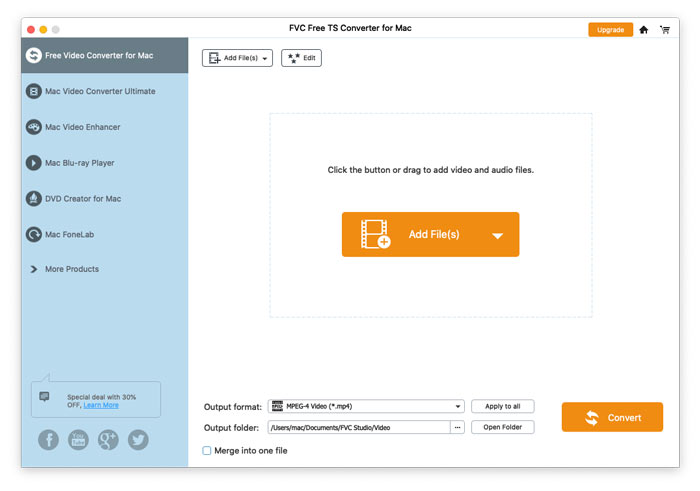
Interface

Baixe e instale

Baixe a versão adequada do conversor de vídeo em seu computador Mac. Em seguida, execute o arquivo de instalação e siga as instruções que aparecem na tela do computador para instalar o programa.

Preferências

FVC Free TS Converter oferece várias preferências personalizáveis para você. Você pode escolher a pasta de saída, a afinidade da CPU e muito mais.
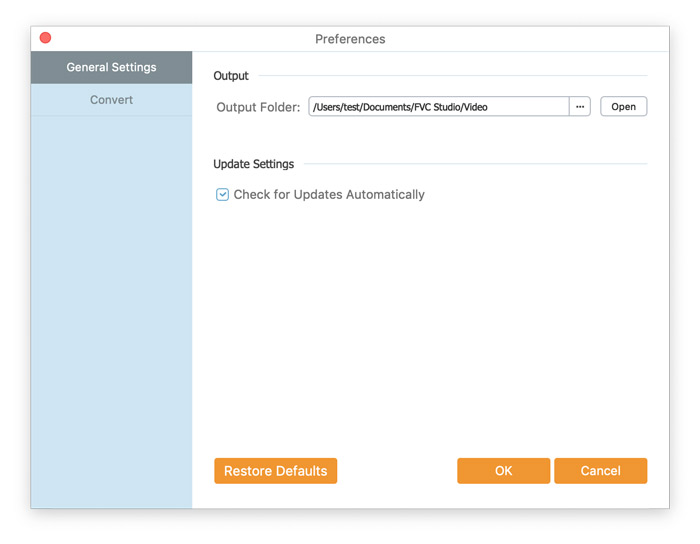
Preferências

Converter arquivos TS

Step 1. Open the TS videos you wish to convert

Launch FVC Free TS Converter, click the Add File(s) button and then select the TS videos you want to convert.

Converter vídeo TS

Step 2. Edit the video (optional)

To edit your TS file, click the Edit button at the top of the application. You can choose a theme to customize your video.

Selecione o tema

Click Next and you can decide the main title, author, time, and provider in the opening and ending of the video.

Alterar configurações de tema

Then, click Next again. Now you can preview the video and save the final result by clicking the Save button.

Salvar configurações de tema

Step 3. Choose the output format for your videos

Open the Output format tab at the bottom of the application window and find your desired video or audio format.

Selecione o formato de saída

If you need to adjust the video or audio parameters, just hit the Cogwheel icon and make adjustments based on your needs. Click OK to save all the changes.

Configurações de perfil

Step 4. Convert TS files

To choose the folder where you want to place the converted files, navigate to the Output folder field. Now, click the Convert button to process the TS videos. Converting files can take anything from one to several minutes, depending on the file size and the number of files you’re converting.

Iniciar conversão

Quando o processo é concluído, uma pasta com os arquivos criados é aberta automaticamente.