


 Video Converter Ultimate
 Gravador de ecrã
 Reparo de vídeo
 Secure Download
5 soluções incríveis para colocar texto em um GIF em 2023
A picture is worth a thousand words, but wait until GIF exists. These moving pictures have taken the world of social media to a different level by allowing people to express themselves like they were talking in real time, face-to-face. However, if you want to add a little more kick to creating funny and catchy GIFs, adding text will be a great help. This guide will help you how to add GIF text online, offline, and using mobile applications.

Parte 1: Adicionar texto ao GIF offline
1. Video Converter Ultimate
Whatever your purposes are for making GIFs, adding text to it is pretty much simple and doable with Video Converter Ultimate. This program goes beyond transcoding one format to another, for it can also help you with photo manipulation. Using the toolbox in the program, you can access a wide selection of features like Video Merger, Audio Enhancer, Compressor, and, of course, the GIF maker. If you want to pull off how to add text over GIF, here is what you need to do.
Step 1. Install the Best GIF Maker
First, choose the Free Download button, which is appropriate for your device. Once done, click the file and follow the installation wizard to launch the program on your screen.
Free DownloadFor Windows 7 or laterSecure Download
Free DownloadFor MacOS 10.7 or laterSecure Download
Step 2. Add GIF file
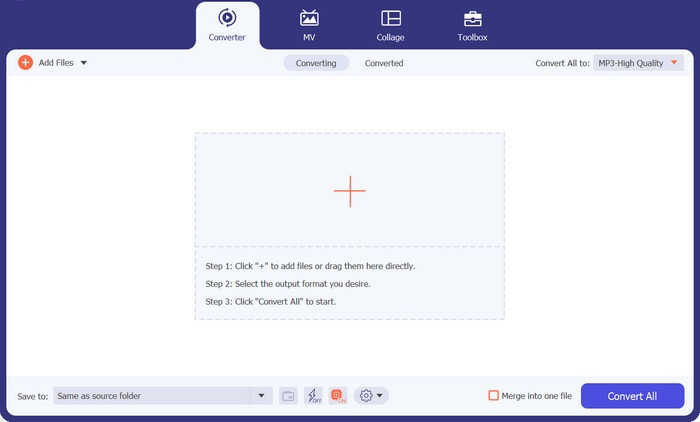
From the main interface of the program, hit the Plus sign button to add your GIF file.
Step 3. Add Text to GIF
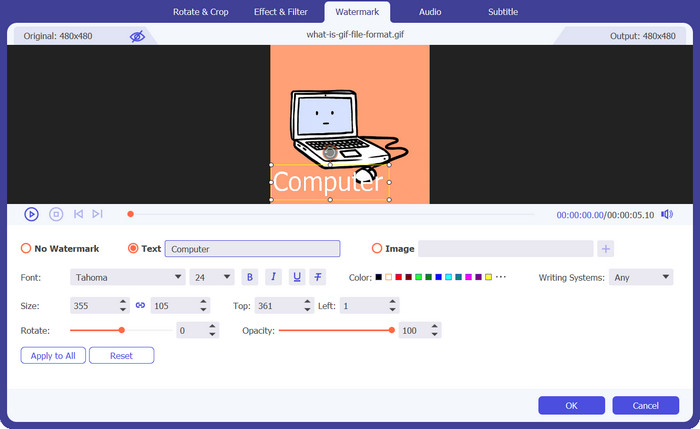
To add text on your GIF, click the Magic Wand button and you will be directed to the editor. Tick the Watermark tab and type the words you want to lay in, and you can also change your text's font, color, and design.
Step 4. Save Output
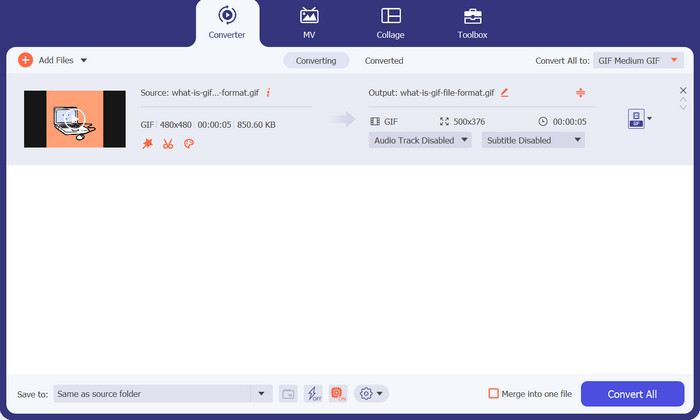
Once you are satisfied with your work, it’s time to save your GIF file on your computer. To do this, hit OK to confirm the changes. On the conversion tab, look for GIF format under the Video tab and hit the Convert All button.
2. Animador GIF fácil
Easy GIF Animator é outra solução offline que vale a pena experimentar. Esta ferramenta transforma seus GIFs como nenhuma outra. Ele pode criar banners, botões, imagens animadas e até GIFs de vídeos. Além disso, esta ferramenta funciona melhor para adicionar texto aos seus GIFs antes de compartilhá-los com seus amigos online. Além disso, você pode ter controle total sobre o tamanho do quadro, criar efeitos de texto em movimento em seu arquivo e adicionar efeitos visuais ou de animação.
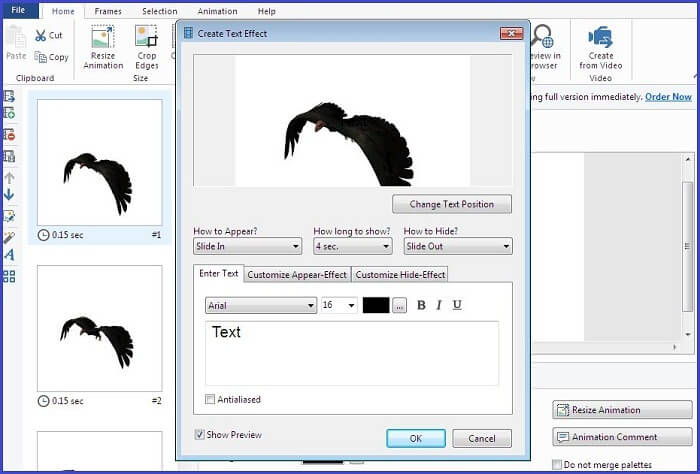
Step 1. First, import your GIF on the program by pressing the F3 on your keyboard to access your computer directory.
Step 2. Once your GIF appears on the editing panel, tap the Text button and wait for the Text Box to show. From there, put the text you wish to overlay.
Step 3. To save your edited GIF, go to the File tab and hit Save.
Parte 2: Adicionar texto a um GIF online
1. Criador de GIF grátis CapCut
Usando um programa online, existe outra maneira de fazer GIFs animados com texto. O primeiro da lista é Capcut. Essa ferramenta funciona além da manipulação de vídeo, pois pode ajudá-lo a ativar GIFs. Ele permite que os usuários aproveitem os recursos FastMO e SlowMo se desejarem adicionar um toque de comédia aos seus GIFs. Além do texto, você também pode anexar adesivos e outros efeitos aos seus preciosos arquivos digitais.
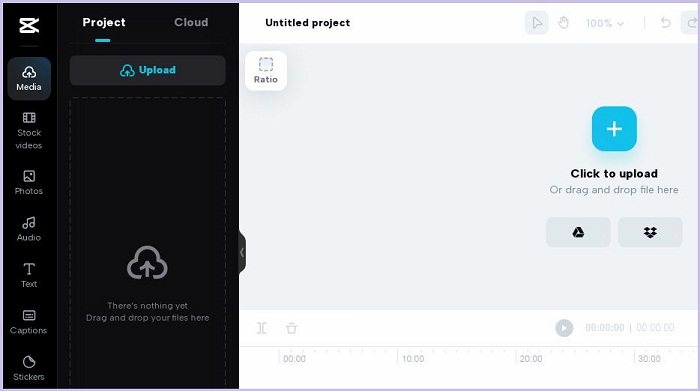
Step 1. First, land on the main webpage of CapCut. Afterward, upload your GIF file by clicking the Upload GIF button.
Step 2. After you add text to GIF online with Cap Cut, click the Text button to start adding your caption.
Step 3. Finally, hit the Save button to download your file once you are finished.
Prós
- Este programa tem uma avaliação gratuita e não requer um processo de inscrição.
Contras
- O criador de GIF gratuito CapCut não pode ser acessado em dispositivos móveis e tablets.
2. EZGIF
Você terá todas as suas necessidades quando cobrir todas as manipulações de GIF que precisam ser feitas com EZGIF. Este programa online é melhor para converter vídeos em GIFs e redimensionar um GIF em uma proporção de quadros diferente. Por outro lado, EZGIF possui um otimizador no qual você pode dividir, adicionar texto, girar, cortar e reparar GIFs.
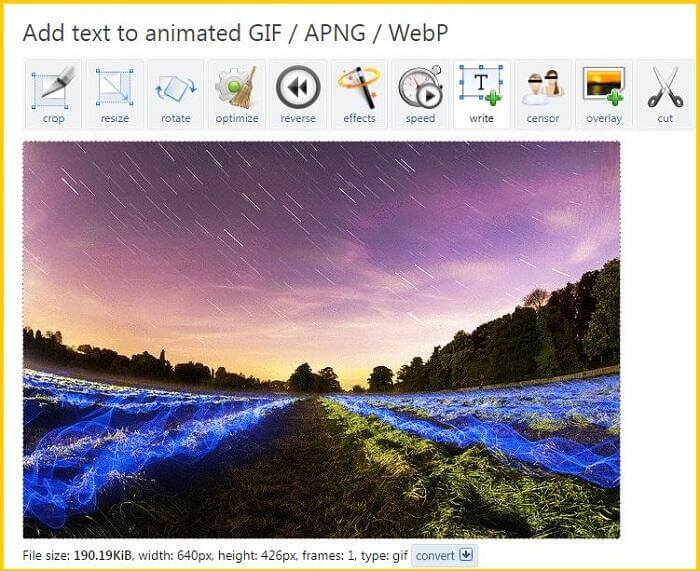
Step 1. After entering the main page of EZGIF, you will see a panel where the tools and functions of the program are shown. From there, choose Add GIF.
Step 2. Choose the Choose File button and upload your target GIF. In the same way, you can copy and paste the URL of your file that is uploaded online.
Step 3. Finally, type the words you wish to add to the Text box. Once you are satisfied, hit the Download button.
Prós
- Iniciantes podem usar o programa facilmente.
- Nenhuma taxa de registro é necessária.
Contras
- A página principal do programa contém muitos anúncios pop-up.
3. GIFs
Talvez GIFGIFs seja um dos melhores programas para baixar um arquivo GIF para todos os tipos de ocasiões. Este programa contém centenas de categorias GIF, incluindo animais, feriados, criaturas, esportes e muito mais. Além disso, esta solução online oferece diversos recursos de edição de GIF, como reversor de GIF, otimizador, GIF dividido e muito mais, incluindo o recurso Adicionar texto ao GIF. Para aprender como adicionar texto GIF com esta ferramenta, siga o guia que criamos abaixo.
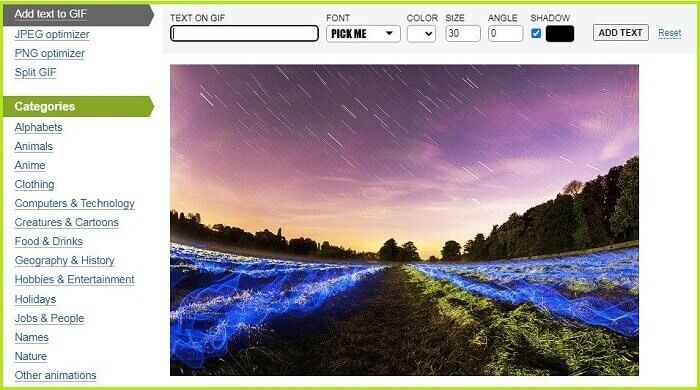
Step 1. First, click the Add Text button on the top corner of the tool’s interface and import your GIF.
Step 2. Next, you can tap anywhere from the screen, and the tool will automatically show the Text box. You can also move GIF text when you press the Text Box.
Step 3. Finally, click Download to save your edited GIF file.
Prós
- Esta ferramenta é a melhor opção para salvar arquivos GIF gratuitamente.
Contras
- Ele só pode ser acessado online.
Parte 3: Adicione texto a um GIF no iPhone e Android
1. Criador e Editor de GIF - GifBuz
Esteja você criando um GIF do zero, fotos ou vídeos, o GIF Maker & Editor da GifBuz será um aplicativo completo. Oferece recursos intuitivos que permitem ajustar o ritmo de seus GIFs. Enquanto isso, adicionar texto ao GIF é possível com apenas alguns cliques. Além disso, você pode editar seu texto em um GIF em diferentes fontes e cores de sua preferência. Para saber como adicionar texto a um GIF no iPhone e Android, siga este guia.
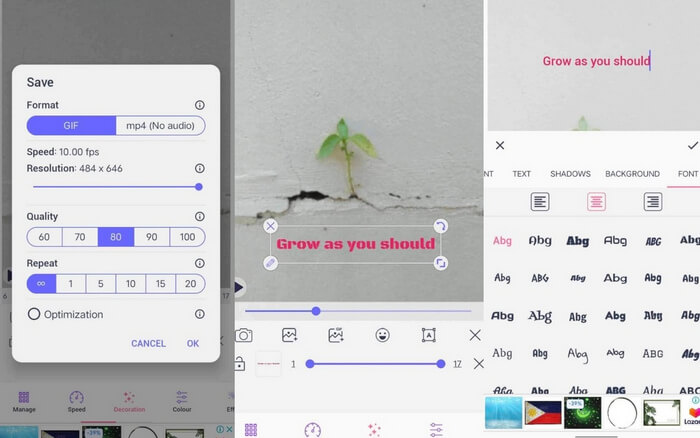
Step 1. Upon launching the app on your device, tap the Edit GIF and choose your file.
Step 2. To add text, tap the Manage button and choose the Add Text button. After entering your text, you can adjust the text's shadow, background, color, and font.
Step 3. To save your file, tap the Check icon on the upper corner of the screen, set your output Format and resolution, and hit OK.
Further Reading:
3 Easiest Ways to Add Watermark to a GIF Online & Offline
How to Split GIFs and Customize Favorite Animated GIF Files
Parte 4: As 3 principais fontes de texto GIF populares
Na melhor das hipóteses, se você precisar de guias sobre qual fonte colocar em seu GIF, aqui estão as três fontes mais recomendadas atualmente.
| Fontes GIF | Melhor para |
| Fonte Myriad Pro | Uma excelente opção para adicionar GIFs de texto que podem ser facilmente lidos. |
| Calibri | Os criadores de GIF usam amplamente essa fonte no Tumblr. |
| Montserrate | A fonte popular usada pelo Google é adequada para adicionar um toque clássico aos seus GIFs. |
Parte 5: Perguntas frequentes sobre texto sobre GIF
Posso adicionar texto a um GIF no Instagram
Absolutamente sim. Você pode adicionar texto e adesivos ao seu GIf no Instagram, que você pode enviar diretamente para suas histórias e postar.
Posso adicionar texto em movimento a um GIF?
Adicionar um texto em movimento no GIF é possível com a ajuda de uma ferramenta offline e online. Alguns aplicativos oferecem um recurso de texto em movimento para dar vida ao seu arquivo GIF.
O GIMP edita GIFs?
Embora o GIMP seja feito para rasterizar imagens, você também pode utilizá-lo para editar seus GIFs. Além disso, você ainda pode usar o GIMP para criá-los.
Você pode colocar GIFs uns sobre os outros?
Definitivamente sim! É possível sobrepor mais de um GIF. Certifique-se de que seu arquivo GIF seja transparente para que apareça depois de editado.
Conclusão
And all has been given on how to put text on a GIF. All the mentioned tools in this post were tried and tested. From offline to online tools, you can now lay in text, either static or moving, anytime without a sweat.
-
 Combine GIFs usando os melhores combinadores de GIF offline e online
 Procurando adicionar um pouco de tempero às suas postagens de mídia social ou campanhas de marketing? Não procure mais do que os melhores combinadores de GIF online e offline!
-
 Revisão abrangente de recursos e alternativas do Ezgif
 Se você usa o Ezgif e ainda não sabe o que está na manga. Esta análise do Ezgif irá ajudá-lo com essa preocupação. Continue lendo para saber mais.
-
 Revelando as principais ferramentas para delícias de desktop, online e dispositivos móveis
 Descubra o que os editores de GIF têm a oferecer e aprenda sobre as melhores ferramentas que você pode usar para criar GIFs impressionantes e criativos, prontos para upload online.
