


 Video Converter Ultimate
 Gravador de ecrã
 Reparo de vídeo
 Secure Download
Principais combinadores de GIF offline e online | Como mesclar GIFs perfeitamente
Have you ever wanted to make an amusing and memorable image by splicing together several GIFs? Good news! Merging GIFs has never been simpler or more convenient than using the top-rated online and offline GIF combiner tools. With these potent apps, you can easily combine your preferred GIFs to make something totally new and unique that is sure to attract people's attention. In this tutorial guide, we'll demonstrate both online and offline methods for combining GIFs and offer advice on how to maximize the effectiveness of each method. Now is the time to begin exploring the fascinating field of GIF mashups.

Parte 1. Melhor GIF Combiner Offline
Using an offline program for combining GIFs offers several advantages for users, such as not requiring an internet connection, providing better control over the process, ensuring more privacy and security, and allowing for faster processing. With an offline program, you can create and combine GIFs at your own pace and customize the output to your liking. That said, we would like to recommend FVC Video Converter Ultimate.
Essa ferramenta permite aos usuários mesclar vários GIFs e ajustar o tamanho, a velocidade e as configurações de reprodução do GIF resultante. O que o diferencia da concorrência é que é um software de edição de vídeo multifuncional que inclui um recurso GIF Maker, permitindo que os usuários executem outras tarefas de edição de vídeo além de mesclar GIFs. Além disso, possui uma interface amigável que fornece instruções passo a passo, tornando-o acessível a usuários avançados e novatos. Aprenda a mesclar vários GIFs em MP4 no PC ou outros formatos seguindo o guia simplificado.
Compatibility: Windows 11/10/8/7 & Mac OS X 10.12 or higher
Rating: 9.8 / 10
Pricing: $49.96 Lifetime
Key Features:
◆ Conversão de vídeo: FVC Video Converter Ultimate pode transformar vídeos em uma ampla variedade de formatos, incluindo MP4, AVI, WMV, MKV e muito mais.
◆ Extração de áudio: Os usuários podem extrair faixas de áudio de arquivos de vídeo.
◆ Mesclar GIFs: FVC Video Converter Ultimate inclui uma ferramenta GIF Maker integrada que permite aos usuários mesclar vários GIFs, ajustar a velocidade de reprodução e personalizar outras configurações.
◆ Saída de alta qualidade: FVC Video Converter Ultimate afirma preservar a qualidade original dos arquivos de origem durante o processo de conversão, garantindo uma saída de alta qualidade.
◆ Processamento em lote: os usuários podem converter e mesclar muitos arquivos de uma só vez, economizando tempo e aumentando a eficiência.
Steps on how to combine GIFs with this GIF merger:
Step 1. First you have to get the program by ticking any of the Free Download buttons below corresponding to your computer’s operating system. After that, open the installer and follow the setup wizard to properly install the GIF merger on your computer. Launch the program afterward.
Free DownloadFor Windows 7 or laterSecure Download
Free DownloadFor MacOS 10.7 or laterSecure Download
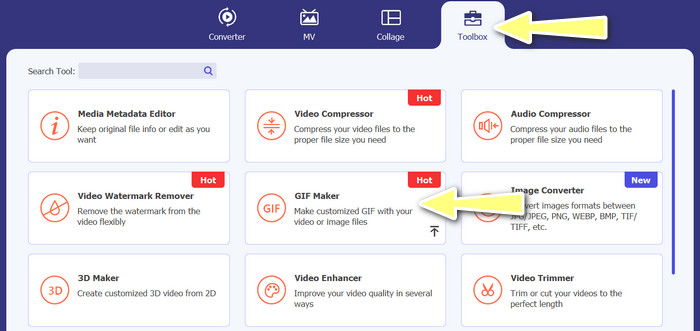
Step 2. Next, go to the Toolbox tab located from the upper interface of the program. Then, you will be redirected to a collection of options offered by the program. From here, select GIF Maker and add GIF files by ticking the Photos to GIF button. Afterward, choose all the GIF files you wish to merge into one.
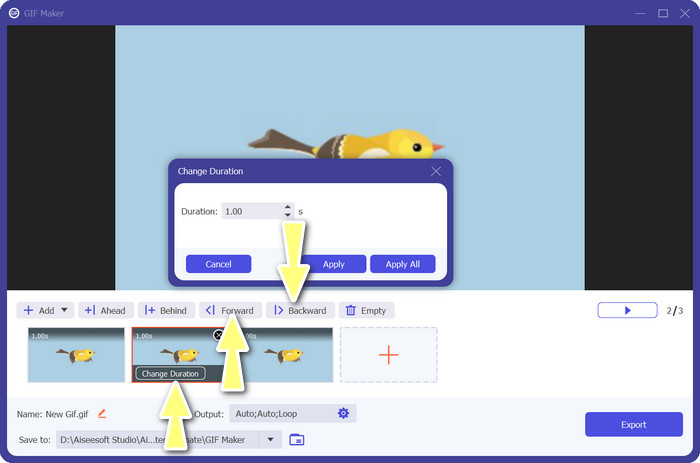
Step 3. From the editing panel, hover your mouse to each GIF to see the Change Duration option and adjust the length of each GIF. Also, you can change the sequence by choosing between the Backward and Forward buttons from the main menu.
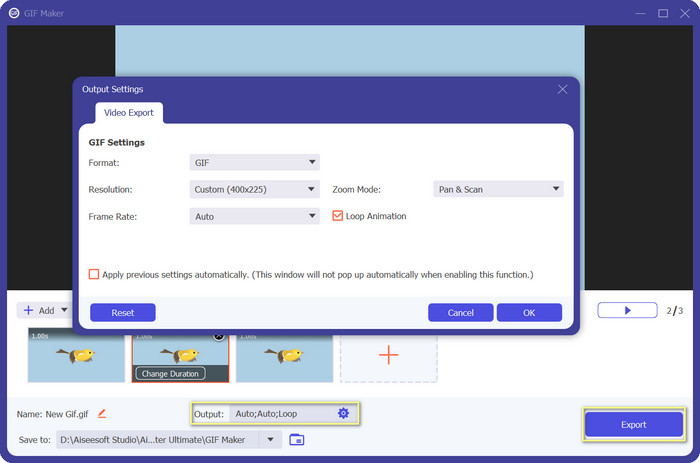
Step 4. Next, you may adjust other settings, such as the format, resolution, frame rate, and zoom mode, from the Output settings. Finally, hit the Export button to produce the final output.
Parte 2. Os 4 principais combinadores de GIF on-line
Existem também algumas alternativas online para combinar GIFs em um. Portanto, você pode facilmente juntar seus GIFs sem baixar nenhum programa em seu computador. Verifique-os verificando os programas apresentados abaixo.
1. EZGIF
EZGIF é um serviço web amplamente utilizado para fazer e modificar GIFs. A função GIF Joiner permite combinar vários GIFs em um único, com a opção de alterar a velocidade de reprodução e outros parâmetros. Abaixo está um guia simples sobre como usar o EZGIF para combinar GIFs em um.
Step 1. Launch your favorite web browser and visit the program's official site. From here, go to the GIF Maker option.
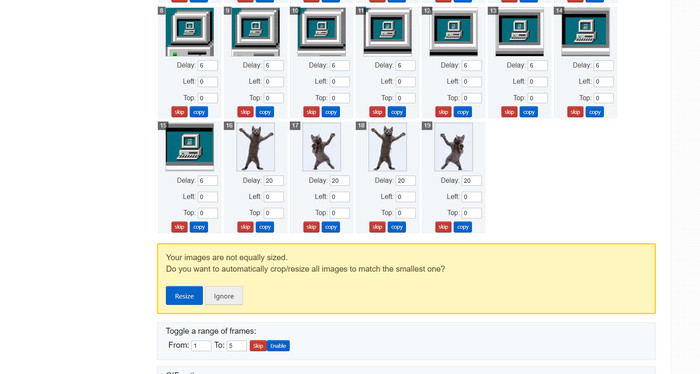
Step 2. Next, upload the GIF files you'd like to combine, and the tool will load each and every frame of your GIF file from the next page.
Step 3. Now, you can adjust which frame of a GIF you wish to include or exclude.
Step 4. Other options are available on the below page. If you are satisfied with the settings, tick the Make a GIF button.
2. GIPHY
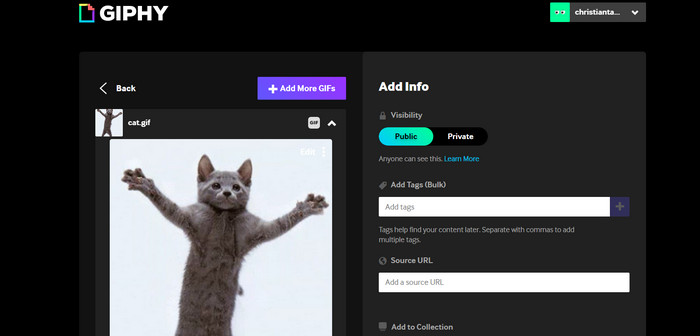
Embora a maioria das pessoas conheça o GIPHY como um local para pesquisar e compartilhar GIFs, elas podem não perceber que o site também possui um criador de GIF que permite aos usuários combinar GIFs e adicionar texto ou adesivos. Por outro lado, aqui está um processo passo a passo para juntar GIFs com GIPHY.
Step 1. To start making GIFs, head over to the GIPHY website and use the Create tab. Choose GIF Creator from the menu that appears.
Step 2. Select the GIFs you wish to combine from your computer by clicking the Choose Files button.
Step 3. The selected GIFs can be dropped onto the timeline at the screen's base. Simply by dragging the GIFs into a new order, you can change their display order.
Step 4. To change the length of each GIF, use the slider provided. Using GIPHY's editing tools, you can personalize your GIF with text, stickers, and more. After you're happy with the outcome, select Create GIF to save the combined GIF to your computer.
3. Kapwing
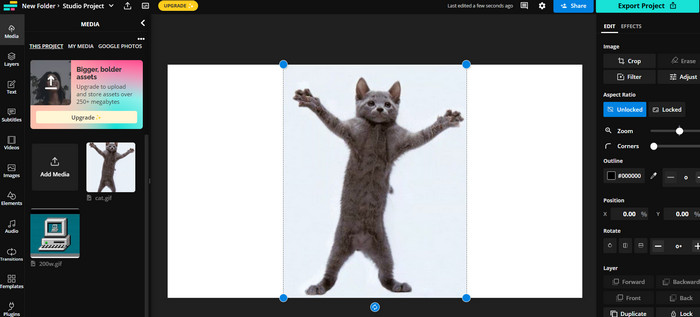
Kapwing is a free, web-based service that allows users to edit videos and create GIF from images. It allows users to submit several GIFs, combine them into one, select the playback speed, and change other parameters. To learn how to put two GIFs together with Kapwing, take a look at the instructions below.
Step 1. Go to Kapwing's website and click on Get Started to get started. Click on Click to Upload and select the GIFs you want to merge from your computer.
Step 2. Drag and drop the selected GIFs onto the timeline at the bottom of the screen. You can rearrange the order of the GIFs by dragging them to the desired position.
Step 3. Adjust the playback speed and duration of each GIF by using the editing tools provided by Kapwing. You can also add text, stickers, and other elements to your GIF by using the editing tools provided by Kapwing.
Step 4. Once you are satisfied, click on Publish to save your merged GIF to your computer.
4. Imgflip
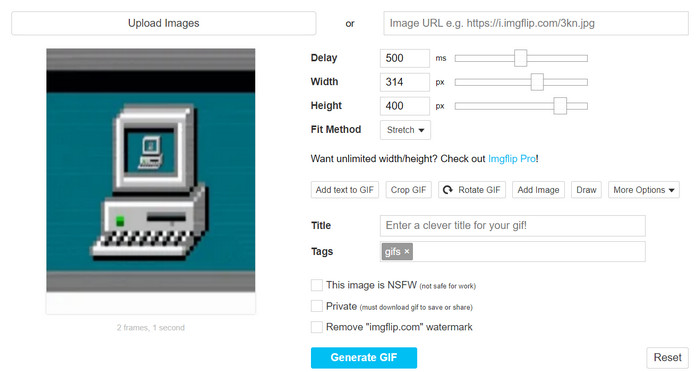
O popular criador de GIFs e memes online Imgflip também possui um Gerador de GIFs. Os usuários podem adicionar sobreposições de texto, alterar a velocidade de reprodução e postar vários GIFs de uma só vez. Veja as etapas e informe-se sobre como combinar GIFs em um.
Step 1. Go to Imgflip's website and click on Create at the top of the page. Click on Video to GIF in the dropdown menu.
Step 2. Click on Upload Video and select the GIFs you want to merge from your computer. After your GIFs are uploaded, click on Join GIFs at the top of the page.
Step 3. Arrange the order of the GIFs by dragging and dropping them to the desired position. Adjust the playback speed and other settings as desired.
Step 4. Once satisfied with the final result, click Create GIF to save your merged GIF to your computer.
Parte 3. Perguntas frequentes sobre GIF Combiners
Posso combinar GIFs de tamanhos diferentes?
Sim, a maioria das fusões de GIF permite combinar GIFs de diferentes tamanhos e proporções. No entanto, é importante observar que a saída final pode ser cortada ou redimensionada dependendo das dimensões dos GIFs individuais.
É legal mesclar GIFs que não são meus?
É importante respeitar as leis de direitos autorais e mesclar apenas GIFs que você tem o direito de usar. Isso pode incluir GIFs de domínio público ou criados por você.
Posso adicionar texto ou adesivos ao meu GIF mesclado?
Yes, most GIF mergers offer editing features that allow you to add text, stickers, and watermarks to your GIF. This can help enhance the visual appeal and message of your GIF.
Conclusão
In a world where visual content is becoming increasingly important, GIF merging is a valuable skill to acquire. With the ability to combine GIFs into one file, you can create something truly unique that will grab the audience's attention and make them want to engage with your content.
-
 5 dos melhores redimensionadores de GIF disponíveis em todas as plataformas [2023]
 Quer conhecer os redimensionadores de GIF que você pode usar? Nesse caso, as informações fornecidas abaixo falarão sobre os redimensionadores que você pode usar em seus GIFs em todas as plataformas.
-
 Loop GIF com o melhor Looper GIF animado no Windows e Mac
 Quer saber o segredo do melhor GIF em loop? Quer fazer um? Se sim, você está no lugar certo. Então, aprenda a criar um loop com o melhor looper disponível.
-
 6 maneiras principais de combinar arquivos MP4 no Windows / Mac / Online
 Quer mesclar seus arquivos MP4 brutos para o seu projeto? Esta postagem reúne as 6 melhores maneiras de ajudá-lo a combinar vídeos MP4 no Windows, Mac e online com facilidade.
