


 Video Converter Ultimate
 Gravador de ecrã
 Reparo de vídeo
Como cortar um GIF com a ajuda dos melhores cortadores de GIF
Choosing the right GIFs for the message is a must to deliver the right tone on what you are pertaining to. But some GIFs need to be cropped to show the real intention of the GIFs. Also, if you ever try to crop your GIFs the quality of the GIFs shouldn't be affected and it should retain the same fps. At some point, choosing the right cropper to crop your GIF might be a bit hard. Because not all tools deliver you the cropping ability. And some of the tools that have a cropping ability lose the quality and fps of the GIFs. In this article you can choose your best GIF cropper, all of the tools that are listed have already been tested by us to provide you with the correct evidence. Also, we provide you the best GIF cropper available on all platforms and how to use it. Continue reading this write-up to know more about it.

Parte 1. O melhor cortador de GIF compatível com os sistemas operacionais Windows e Mac
1. FVC Free Video to GIF Maker
This tool is available on all platforms like Windows and Mac. It is the best animated gif cropper developed by the FVC this is the FVC Free Video to GIF Maker. This software allows their users to explore and improve their already made GIFs or if they want to create new GIFs as well. So, if you're looking to crop your GIF this tool helps you to do it even without any internet connections. So, crop your GIF to be more distinguishable with ease and in an effective way. To know how to crop your GIF follow the steps below to know more.
Step 1. Install the tool into your drive and adjust the preference according to your demand.
Free DownloadFor Windows 7 or laterSecure Download
Free DownloadFor MacOS 10.7 or laterSecure Download
Step 2. A mini-interface like this will show on your screen after launching the tool.
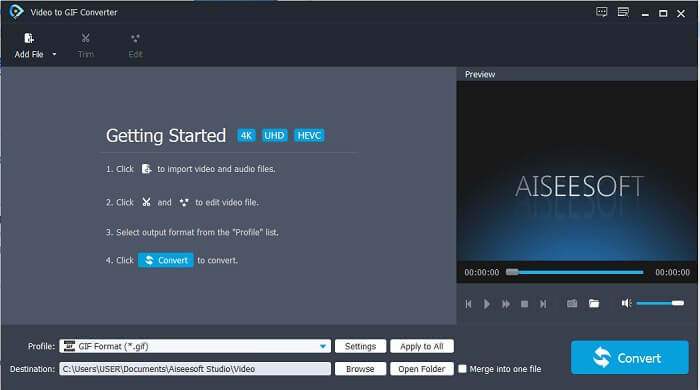
Step 3. Click the Add File or you may as well drag and drop the video file into the tool interface.
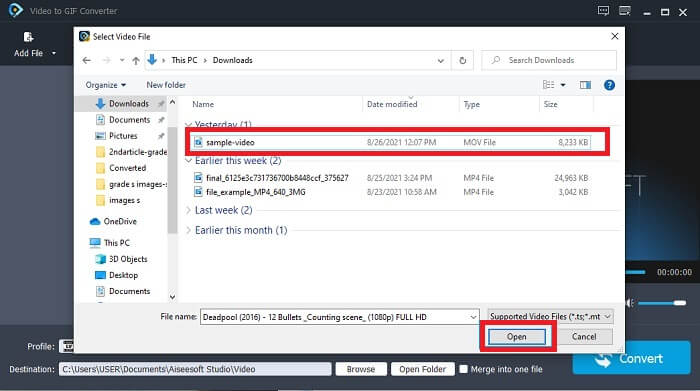
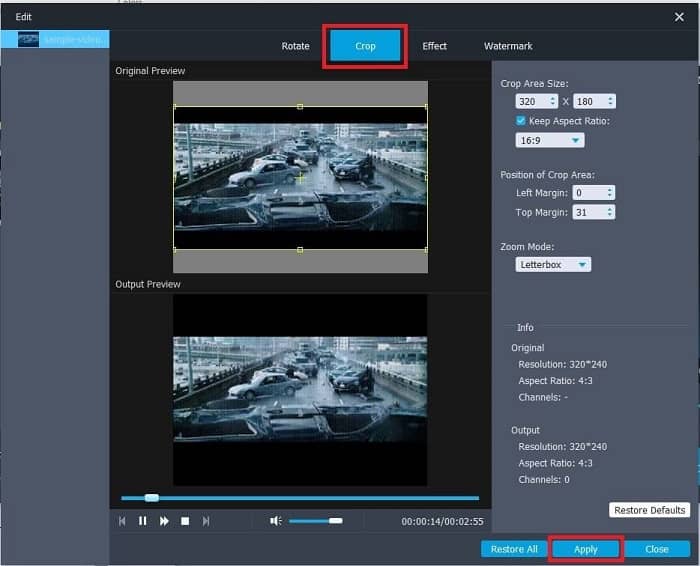
Step 4. Hit the Edit to enhance your GIF. Go to the Crop and adjust the size of your GIF. You may as well change the Aspect Ratio and Zoom Mode as well. Click Apply to save the adjustment you have made.
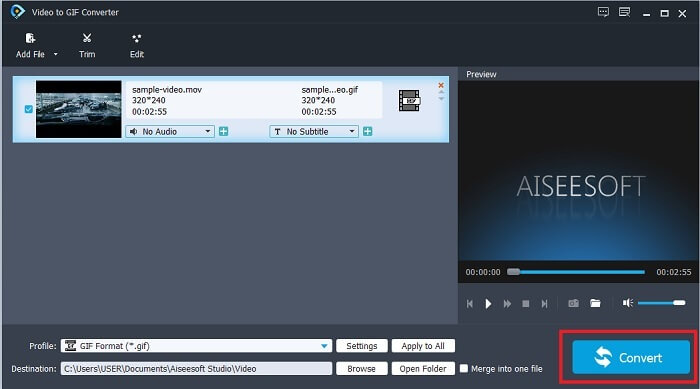
Step 5. Click the Convert to start the conversion of your video to GIF. If the conversion is completed, you can check the final output to the file explorer by typing the name of the video.
Prós
- Todos os recursos secundários estão disponíveis aqui.
- É muito melhor do que a ferramenta online e também algumas das ferramentas para download.
- Crie seu GIF com facilidade com esta ferramenta.
Contras
- Você não pode usar os principais recursos que a versão Ultimate oferece.
- Ele oferece suporte a um formato de vídeo inferior, em vez da versão premium.
2. Video Converter Ultimate
A versão gratuita desta ferramenta pode fazer o trabalho simples, mas sua versão premium é o melhor cortador de GIF. Video Converter Ultimate não é apenas no nome, mas também que esta ferramenta é a última palavra em conversão de qualquer vídeo em um arquivo GIF. Ao contrário de sua versão gratuita e da ferramenta abaixo, esta ferramenta pode tornar seu GIF simples mais esplêndido. Transforme seu GIF em algo excepcional adicionando efeitos que essa ferramenta só pode oferecer. Ele também fornece a conversão de um vídeo em GIF, como MP4 em GIF, mesclando vídeos em um, criador de 3D e muitos mais. Portanto, use esta ferramenta como seu cortador pessoal e ela nunca o decepcionará. Além disso, continue lendo as etapas abaixo para saber como cortar seu GIF para entregar uma mensagem mais específica ao seu receptor.
Step 1. Before you may use this tool, you'll need to download it. Install the tool to your drive, change the preferences according to your demand, and click finish to start running the tool to your screen.
Free DownloadFor Windows 7 or laterSecure Download
Free DownloadFor MacOS 10.7 or laterSecure Download
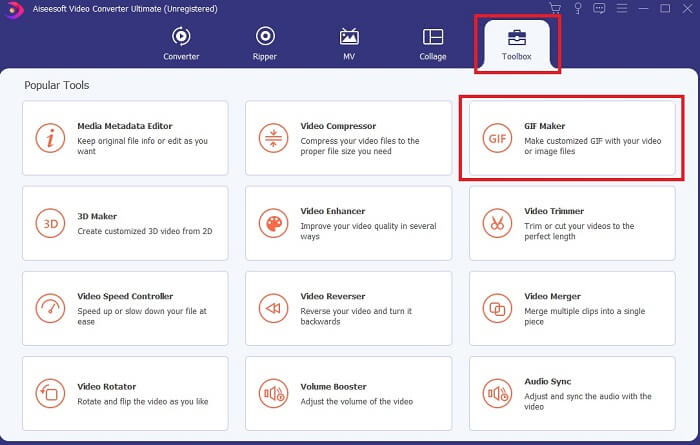
Step 2. If the tool is completely downloaded to your drive. A manageable interface like this will show up on your screen. Click the Toolbar and in the toolbar click the GIF Maker.
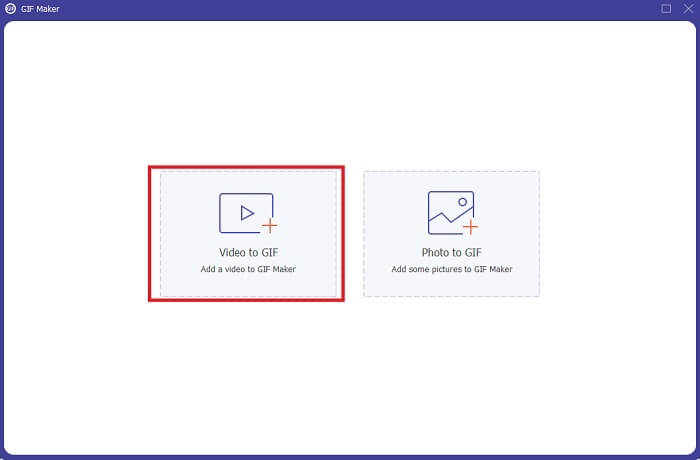
Step 3. To add the video, click the Video to GIF and locate the GIF you want to crop or edit as well. After selecting the video click the Open to start the GIF Maker.
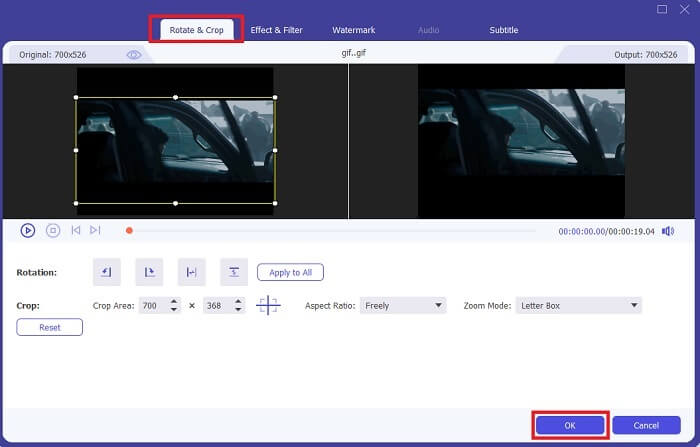
Step 4. Click the button with a star image on it to start editing. Click the Rotate & Crop to start cropping the GIF. You may as well add effects & filters, watermark, and subtitles as well. If everything is done adjusting, hit the OK to save changes.
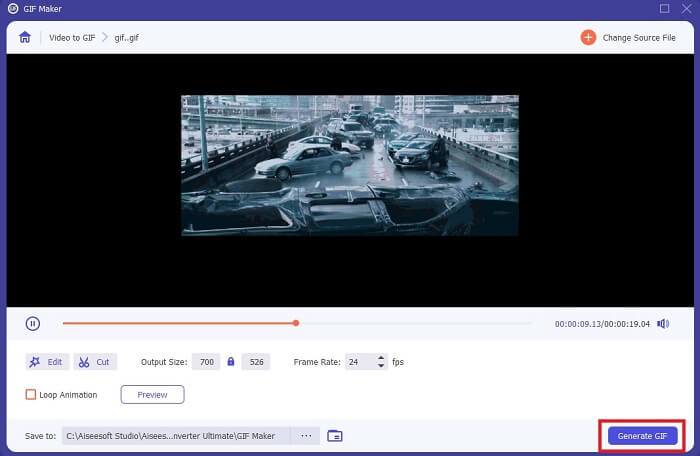
Step 5. Change the location where you want to save the final output for easier find. Click the Generate GIF to start the conversion. If the conversion is 100% done find the final output to where did want to save it or in the file manager.
Prós
- Sua ferramenta ideal se você deseja aprimorar seu GIF para torná-lo muito mais interativo. Use sua imaginação para incrementar as coisas em seus GIFs.
- Ele pode transformar seu GIF em uma saída impressionante, usando os principais recursos que ele oferece que a outra versão premium não pode oferecer.
- Mais de um milhão de usuários escolhem esta ferramenta como sua ferramenta de versão premium de primeira escolha.
Contras
- Para usar a ferramenta, você deve primeiro efetuar o pagamento, mas não é tão caro com certeza. Portanto, você não deve esperar nada menos se comprou esta ferramenta.
- Baixe a ferramenta antes de iniciá-la. Mesmo que você não tenha internet, você ainda pode usar esta ferramenta porque ela não depende da internet.
Parte 2. Os 5 melhores cortadores de GIF que você pode acessar pela Internet
1. iLoveIMG
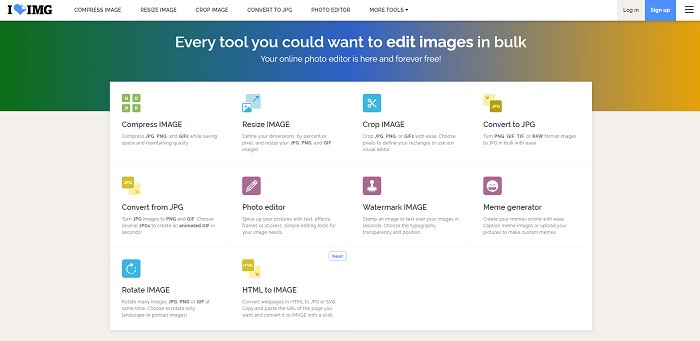
Crop your GIF with the help of this GIF cropper online. iLoveIMG is known as the best online GIF, JPG, and PNG cropper online. Although the tool can't convert videos to a GIF format because it only focuses on enhancing your GIF, JPG and PNG only. But also, the website interface is more than expected because it is not just as simple but it is more interactive. So, expect not to get bored while using the website. To rate it is a 7 out of 10 which is great for an online web-based application.
Prós
- Melhor para aprimorar seu GIF, JPG e PNG.
- A interface do site é incrivelmente bonita.
- Não há necessidade de fazer download.
Contras
- Há uma chance de ocorrer perda de dados se a conexão for interrompida.
- Você não pode converter o formato de vídeo em um formato GIF.
2. RedKetchup
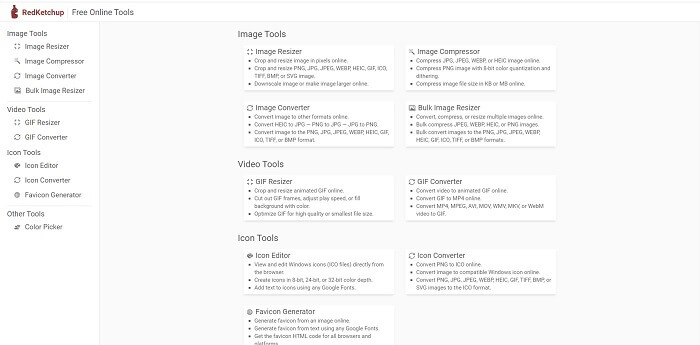
If iLoveIMG is not the one for you then you must try to use this online GIF cropper. RedKetchup is very informative because of the description it provides on each of the editing tools it gives. So, it becomes easier for you to understand how this feature functions if you don't have an idea about it. Also, you can convert your images into a GIF, PNG, JPG, WEBP, and more. It supports more formats than the iLoveIMG but the down side of this tool is that the interface of the webpage is so boring. The whole background of the website is only in the color of white and the one thing that has color in it is the RedKetchup name and icon.
Prós
- Ele suporta mais formatos de imagem do que o iLoveIMG.
- Cada recurso da ferramenta possui uma breve descrição para que o usuário possa entender suas funções.
- É uma ferramenta online gratuita.
Contras
- A página da web dessa ferramenta é tão entediante de se olhar por causa de sua cor monótona.
- É possível que o arquivo não seja salvo corretamente se a Internet estiver instável.
3. Kapwing
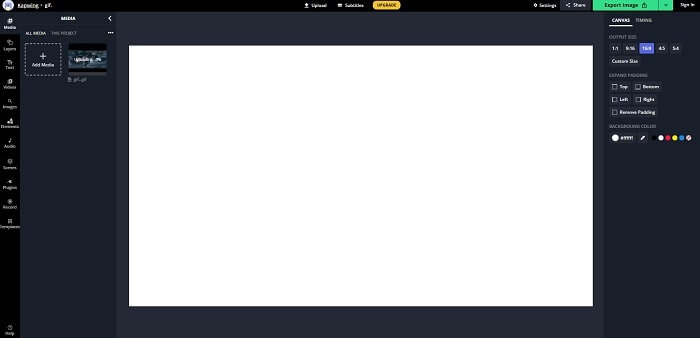
This tool has almost the same features as Photoshop but it is online. It is the best GIF frame cropper online. Kapwing is known for creating the best GIF you want to share with your friends. Unlike the first two tools above, this tool supports some of the video formats to convert them into a GIF format. Although, learning how to use this tool will take some of your time but it will be worth it. But if you want to create a simple GIF then this tool is the best at doing that. This tool has almost the same features as Photoshop but it is online. It is the best GIF frame cropper online. Kapwing is known for creating the best GIF you want to share with your friends. Unlike the first two tools above, this tool supports some of the video formats to convert them into a GIF format. Although, learning how to use this tool will take some of your time but it will be worth it. But if you want to create a simple GIF then this tool is the best at doing that.
Prós
- A interface do site da ferramenta oferece quase a mesma vibração do Photoshop.
- Converta seu vídeo para o formato GIF.
- Recursos básicos de edição são fornecidos.
Contras
- O processamento da saída final do vídeo sempre dependerá da velocidade da sua internet. Portanto, é necessário ter muita paciência para produzir o resultado final.
- Você precisará se inscrever para remover a marca d'água de sua saída. Portanto, espere um e-mail a cada atualização que ele disser e alguns anúncios irritantes. Porque você permite que eles acessem sua conta.
4. GIFGIFs
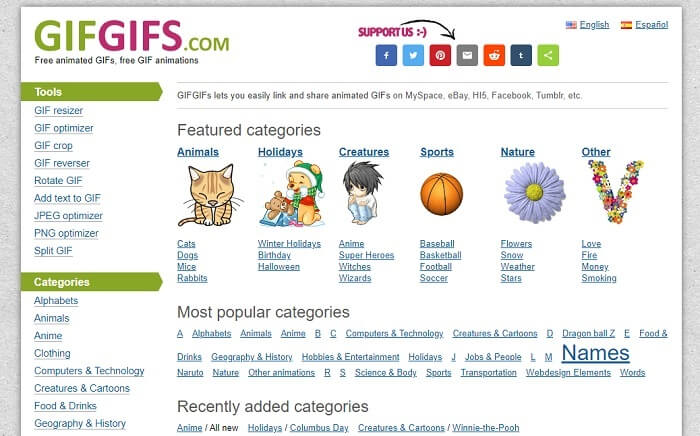
You can crop your GIFs with this GIF cropper without quality loss. GIFGIFs provides you with the best already done GIFs online. You can choose from the categories it provides like alphabet, sports, anime, clothing, etc. Also, this tool only provides the best feature to enhance your but you can also optimize JPG and PNG as well.
Prós
- É uma boa opção para aprimorar seu GIF e torná-lo ainda melhor.
- Ele suporta a otimização de JPEG, PNG e GIF.
- Escolha GIFs já prontos em suas seções de categoria.
Contras
- Ele não fornece uma barra de pesquisa, por isso é difícil encontrar o GIF perfeito que deseja usar.
- A interface está bem. Não é nada especial ou devemos dizer que não é bom, mas não é ruim.
5. VEED.IO
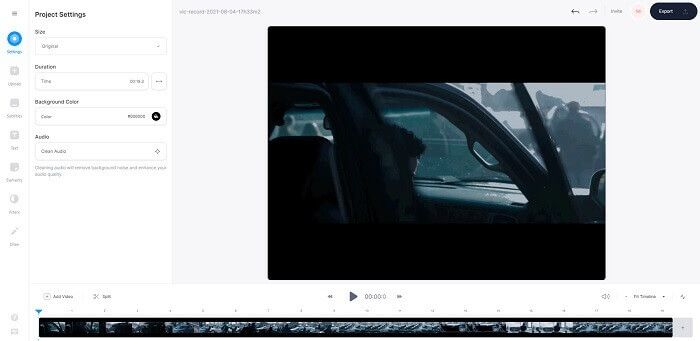
Escolha este como seu cortador de GIF gratuito online de primeira escolha, mas também pode ser atualizado para uma versão premium, se desejar. O VEED.IO é uma das melhores ferramentas online para melhorar seus GIFs. Mas a versão gratuita da ferramenta suporta apenas 50 MB de tamanho de arquivo GIF e para adicionar mais tamanho de arquivo você deve comprar a versão premium da ferramenta.
Prós
- Ele fornece um ótimo recurso de edição para tornar seu GIF melhor.
- Interface de usuário simples.
- Você também pode adicionar legendas, se quiser.
Contras
- Ele não fornece um fabricante 3D para melhorar suas imagens 2D.
- Em algumas ocasiões, o software trava quando você tenta aumentar o zoom na linha do tempo.
Parte 3. Perguntas frequentes sobre GIF Cropper
Existe algum formato melhor do que o formato GIF?
Embora seja bem conhecido que GIF é o melhor formato de imagem em movimento na web. Mas você sabia que existe um formato melhor do que GIF? Este é o APNG. Esse formato fornece uma paleta de cores mais do que o GIF e também é melhor na compactação. Mas você também pode usar WEBP, MNG, FLIF e AVIF.
Qual é a razão pela qual os GIFs são criados?
In late 1987, a named Steve Wilhite asked himself if there is a chance to create a small file size of an image computer display and that time as well GIF was born. To know more about GIFs, you can click here.
Qual é o melhor? JPG ou GIF?
O formato JPG fornece uma imagem mais detalhada porque suporta uma ampla gama de cores, por isso é o melhor para tirar fotos. O GIF fornece uma pequena quantidade de paleta de cores, mas é bom para criar uma imagem estática.
Conclusão
To end the discussion, you must choose the best GIF cropper that will provide you the cropping you need. Without affecting the quality of the GIF, itself even you crop it in. But it is clearer that you must choose the ultimate tool developed by the FVC. Because it provides you with the best GIFs features you want to add into your GIF to make it look more outstanding rather than the other GIFs. So, cropping your GIF is easier than ever if you use the Video Converter Ultimate.
-
 Tutorial para compactar GIF e reduzir o tamanho do arquivo com alta qualidade
 Aqui estão duas maneiras fáceis de compactar GIF em seu computador ou telefone celular. Você pode usar o FVC Free Online Video Compressor e o Photoshop para reduzir o tamanho do arquivo GIF em diferentes aspectos.
-
 GIF Player - 5 melhores reprodutores de GIF para Windows PC, Mac, Android e iPhone
 Qual programa abre arquivos GIF? Como faço para visualizar GIFs no Android? O iPhone tem um GIF player para abrir GIFs? Esta postagem compartilha 5 melhores jogadores de GIF para você.
-
 Como converter vídeos AVI em arquivos GIF animados no Windows / Mac
 Quer selecionar os segmentos AVI interessantes para criar memes GIF? Este artigo apresentará os 2 melhores métodos para recortar os vídeos AVI e converter arquivos AVI em GIF animados gratuitamente.
