


 Video Converter Ultimate
 Gravador de ecrã
 Reparo de vídeo
Top 9: o melhor software de edição de GIF animado para iniciantes [online e offline]
A melhor maneira de expressar melhor seus sentimentos é inserir GIFs em sua mensagem. O principal objetivo é armazenar e suportar imagens animadas e estáticas. Sabe-se que os GIFs carregam melhor que os outros formatos disponíveis na web e são bem menores. É mais emocionante ver um GIF do que apenas uma imagem. Mas nem todos os GIFs que você pesquisa na Internet podem fornecer a emoção que você deseja transmitir.
So instead of searching GIFs over the internet they use a GIFs editor software to create their own GIFs. But maybe you're wondering what tool you should use to create a majestic GIF that will impress your receiver. Here are some lists of the best tools to create a GIF. All of the tools below can be used to convert, edit, make, and more to GIF. So, if you're looking for the right tool for the right job then continue reading below to know more about the tools.

Parte 1. Melhor Editor GIF Offline que Funciona Efetivamente para PC e Mac
1. FVC Free Video to GIF Maker
Convert your favorite video to a GIF format so you can send them over to your friends, family, and someone with ease. This FVC Free Video to GIF Maker gives you the chance to create your own GIFs. Its main job is to convert any video file format whether it is an MP4, MOV, AVI, and many more, and change them into a GIF format. It provides editing and trimming features as well. This GIF editor is available in all system programs. To know how to use this tool, here are some step-by-step procedures provided to you to follow.
Step 1. Download the tool into your drive, install it and set it up.
Free DownloadFor Windows 7 or laterSecure Download
Free DownloadFor MacOS 10.7 or laterSecure Download
Step 2. An interface like this will show into your screen. Click the Add File or drag-and-drop the file into the converter.
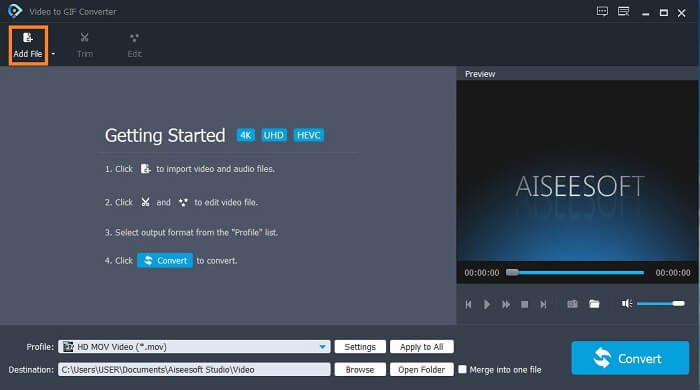
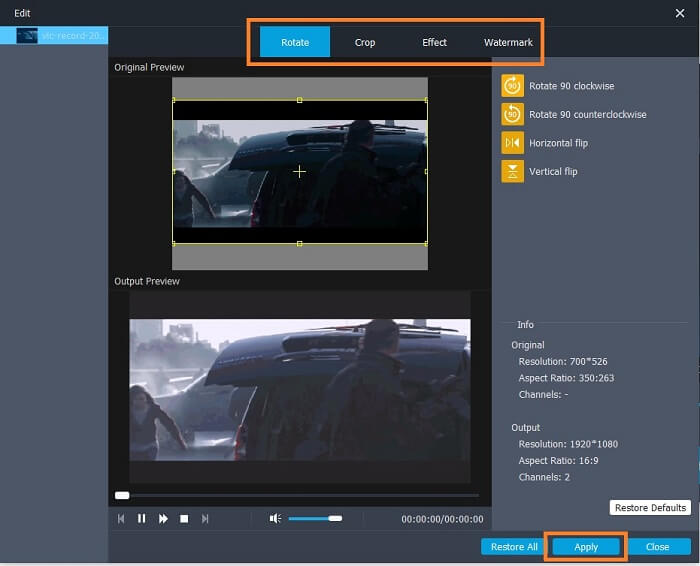
Step 3. If you have already added the GIF, you can also Trim it to make it shorter and click OK to save the changes. You may as well rotate, crop, add effects and watermark your GIF in the Edit to save the changes you made by clicking the Apply.
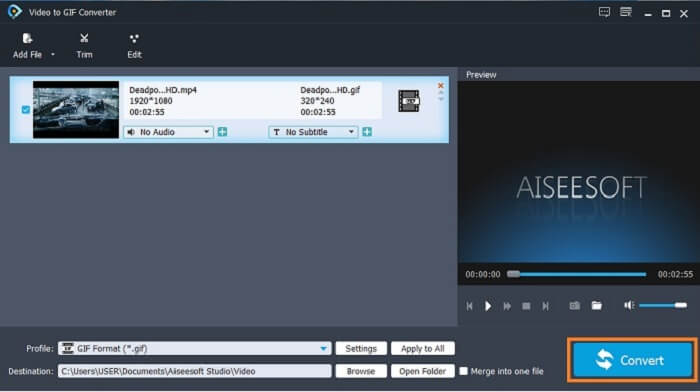
Step 4. Select the destination to place your final output. To start the conversion, click the Convert.
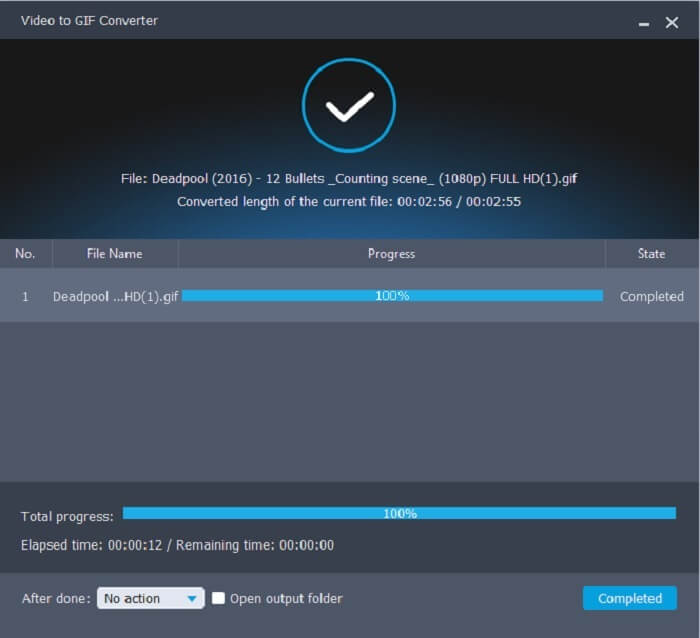
Step 5. If everything is done, you will see this in your display; it means that the conversion is completed.
Prós
- A melhor ferramenta gratuita para converter o formato de vídeo em GIF.
- Ele está disponível em todas as plataformas conhecidas e sempre produz resultados incríveis.
- Funciona mesmo se a Internet não estiver disponível.
Contras
- Nem todos os recursos finais são apresentados aqui.
- É uma ferramenta para download também como a versão premium.
2. Video Converter Ultimate
It is known that the GIF editor above gives you the class-A on making a GIF. But did you know that there is another tool that is much better than the tool above and below as well? The Video Converter Ultimate lives up to its name as the ultimate GIF maker available in all software. It is not just best at making GIFs but also it functions as a converter and many more. Add effects into your GIF to stand out among other GIFs. So, if you are in a battle of making the best GIF with your friends and want to win. Then this must be your chance to deliver the wow factor to them. Also, to know how to use the tool you must follow these steps correctly to have a successful GIF.
Step 1. Click the download button and install it on your computer drive. Change the preference and click finish to save and launch the tool.
Free DownloadFor Windows 7 or laterSecure Download
Free DownloadFor MacOS 10.7 or laterSecure Download
Step 2. If the tool is already running into your system an interface like this will pop up on your screen. Go to the Toolbox and GIF Maker to start making GIFs.
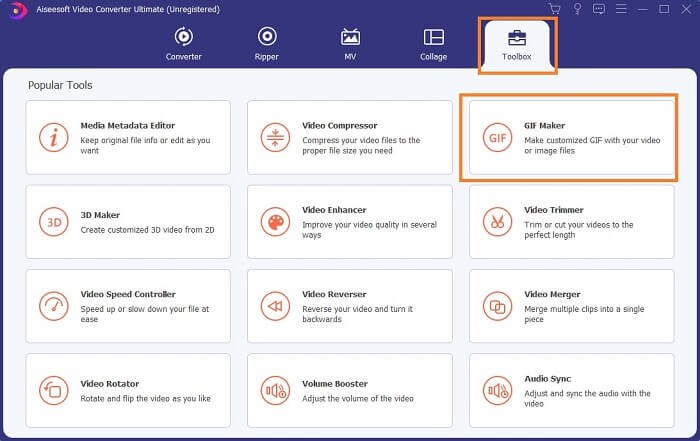
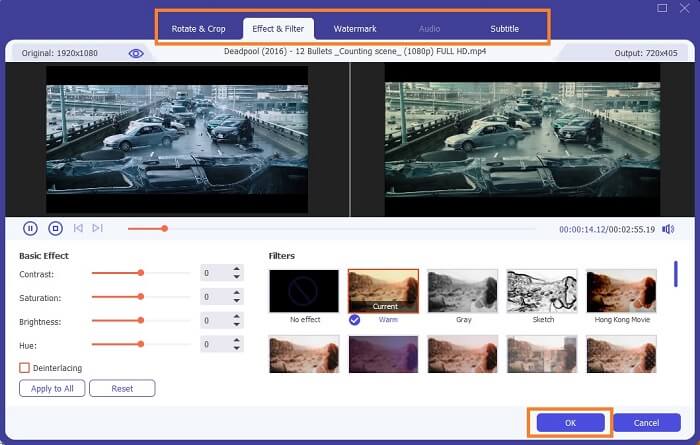
Step 3. Then click the Video to GIF and select what video you want to convert. After selecting the video file, you may as well edit the video like rotate and crop, effect filter, watermark, and subtitle as well. Click OK to save the adjustment.
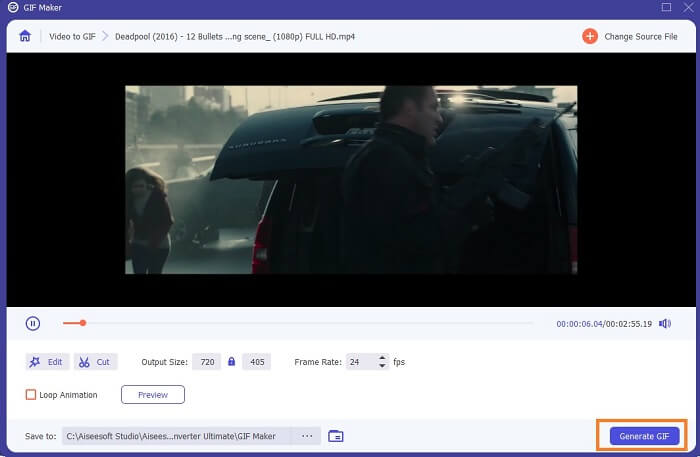
Step 4. Click the Preview to watch the first 10 seconds of the video you created. Hit on Generate GIF to start the conversion.
Step 5. If everything is done, locate the file into your file explorer and watch or send the final output.
Prós
- O melhor conversor de vídeo para um GIF com a ferramenta definitiva para aprimorar o GIF.
- Suporta todos os formatos de vídeo e áudio conhecidos e desconhecidos na web.
- Ferramenta multifuncional com excelente resultado final.
Contras
- É uma ferramenta paga para usar, mas é mais barata.
- Precisa ser baixado em seu armazenamento antes de poder usá-lo.
Parte 2. 3 dos melhores editores de GIF online
1. Ezgif
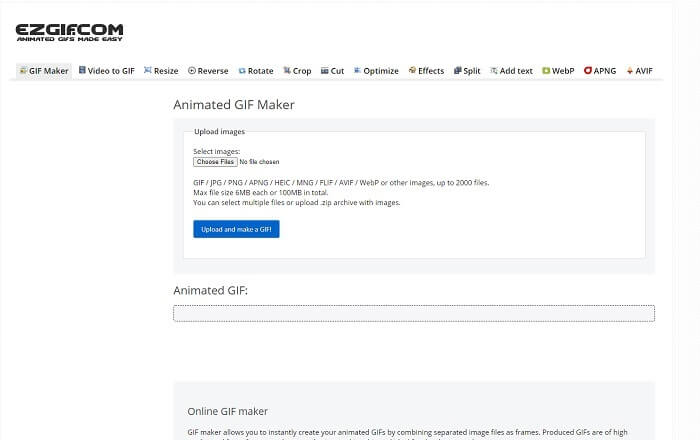
One of the GIF editors online that you might already encounter over the internet. Ezgif is known as one of the best GIF makers. Although this tool provides you numerous features like rotating the video, cropping the video, reversing it, and so on. They are all separated from one another, so instead of focusing on making GIFs and editing. You'll need to transfer the file to the editing tools you want to enhance it which is a hassle for you. Also, the interface has a white background which is simple yet boring to look at. It seems like the online tool doesn't get an update from the interface itself.
Prós
- Ferramenta pontual com diferentes opções.
- A ferramenta da página da web é simples.
- Eficaz na criação de GIFs.
Contras
- Ele é limitado a 6 MB cada e 100 MB no total.
- Não é fácil de usar porque todos os recursos da ferramenta estão em todo o site. E é um pouco chato de se olhar por causa de seu fundo branco liso.
2. VEED.IO
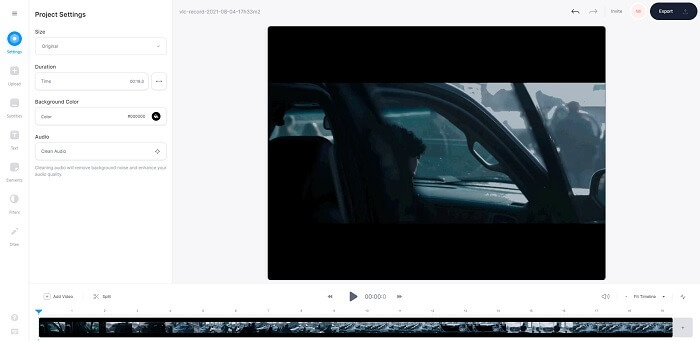
Another online GIF editor tool for making a GIF is VEED.IO. Create, edit, and convert your own video to a GIF format with this tool. The main website of the tool is somehow nice to look at, unlike Ezgif. But if you start making GIFs online, the webpage of the tool becomes unresponsive and somehow they are not secure. Also, don't try to put your password or credit cards because there is a chance that it can be stolen by the attacker.
Prós
- Melhor suporte ao cliente.
- Ele fornece uma versão profissional da ferramenta.
- Fácil acesso pela internet.
Contras
- A ferramenta da web está desprotegida. Portanto, visite por sua própria conta e risco.
- Sem recursos de edição 3D.
3. Giphy
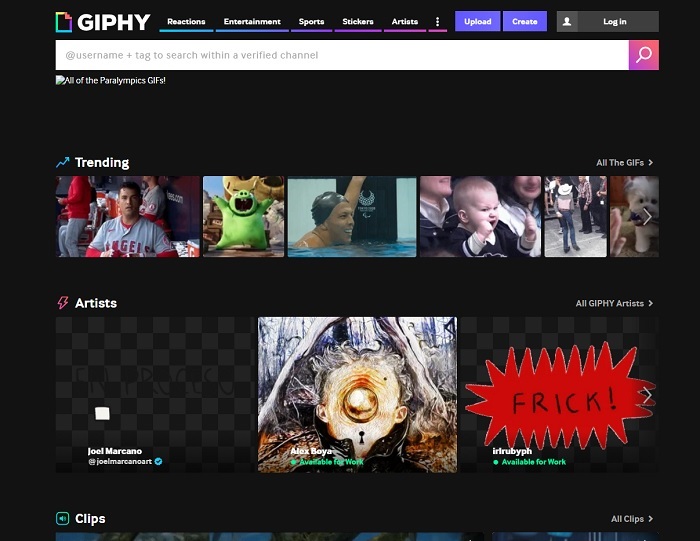
Giphy is an online animated GIF editor. This tool provides sample GIFs like reactions, entertainment, sports, and stickers. Though it is one of the best GIF makers, this tool needs your account before you may use it. It basically allows the website to gain access to your account. So, keep in mind that updates, new features, or new GIFs of the tool will always pop up into your mail.
Prós
- Carregue e crie GIFs online.
- A maior biblioteca de GIFs, clipes e adesivos gratuitos na web.
- A interface está atualizada e parece incrível.
Contras
- Você precisará se inscrever antes de usar a ferramenta. Portanto, se você não se inscrever ou fizer login, a ferramenta ficará inacessível.
- O comprimento máximo do GIF é de apenas 30 segundos.
Parte 3. Aplicativos do Editor GIF no Android e iOS
1. GIPHY: GIF e teclado de adesivos e criador
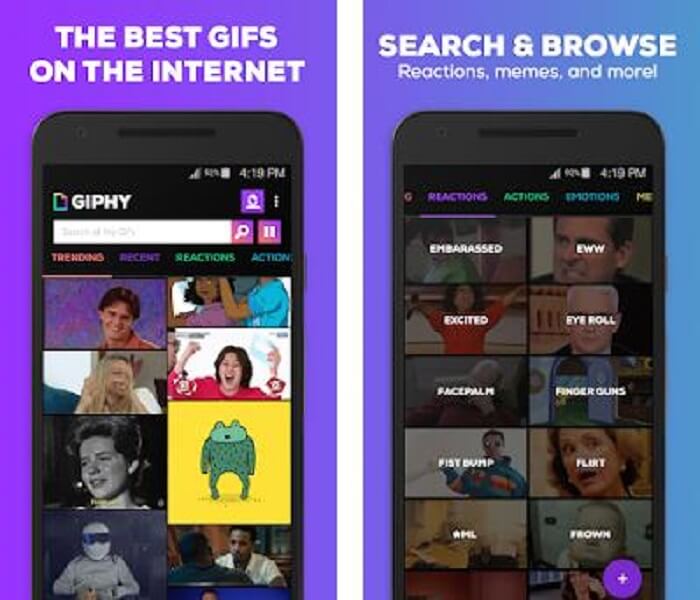
Another GIF editor app available on Android and iOS is the GIPHY: GIF & Sticker Keyboard & Maker. It is known as one of the largest storages of GIFs in the entire Play store and App Store. But not only that, this app can provide already done GIFs or maybe you want to create your own. Also, you can share your own GIFs in the app as well. In some cases, when you upload GIFs that work perfectly during the making or the one that is already on your phone. The app makes it a bit buggy and in some parts of the GIFs are faster and some are slow.
Prós
- GIFs incríveis, adesivos e videoclipes.
- Poucos ou nenhum anúncio no aplicativo.
- Edite seus Gifs e adicione mais animação estética aos GIFs.
Contras
- Em algumas ocasiões, ao baixar GIFs deste aplicativo, você obterá imagens estáticas. Em vez de baixá-lo para um formato .gif, ele se tornou um .jpeg.
- O login no aplicativo é um pouco chato porque, em alguns casos, você não consegue fazer o login corretamente e precisa fazer mais.
2. ImgPlay – GIF Maker
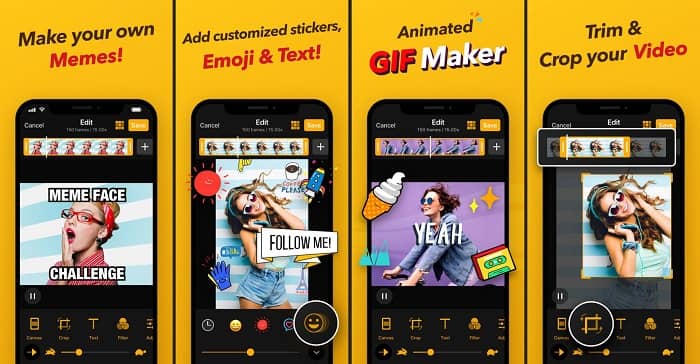
The best and easiest way to create a GIF whether it is a video or images. Imgplay can make your images or videos into a fully functional GIF. This app gives you the best features to make your GIF stand out as possible. If you were to save the final output of your GIF there will be a watermark at the bottom right side of the final GIF. To remove the watermark, you need to pay for the premium version of the tool.
Prós
- Suporta dispositivos Android e iOS.
- Aplique mais de 30 filtros em seu GIF para torná-lo melhor, se você comprar a versão premium da ferramenta.
- Crie GIFs de seus vídeos e imagens com facilidade.
Contras
- Funciona melhor no iOS do que no Android. Basicamente, você não pode ajustar o brilho, o contraste, a saturação e a taxa de quadros também com outros recursos principais do Android.
- Além disso, espere anúncios nesses aplicativos também. Para removê-los, você precisa comprar a versão premium. Seu fps é super baixo também.
3. GIFX
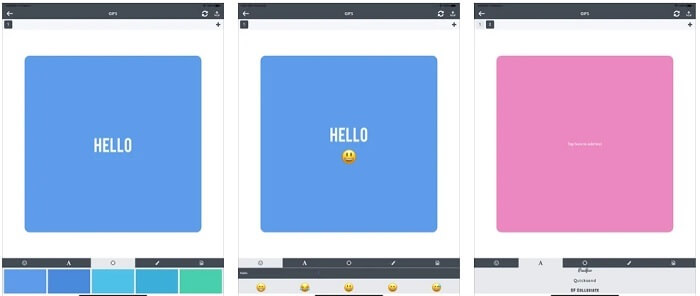
This GIF editor is only available on iOS. GIFX can do the work on making the best GIF you want to have. It also supports images and videos to become a GIF format. You can also share it via your mms and emails. Also, it provides adding emoji to your own GIF to express your emotion better with text as well.
Prós
- Crie seu próprio GIF animado com este aplicativo no iOS.
- Ele também oferece suporte a diferentes produtos da Apple, como iPad, iPhone, iPod touch e Mac.
- Ajuste a velocidade do seu GIF com esta ferramenta.
Contras
- A ferramenta diz que suporta vídeos, mas não permite que você adicione vídeos ao seu GIF.
- A avaliação do aplicativo é de apenas 1 estrela e recebe apenas 2 avaliações, o que é muito baixo para um aplicativo.
4. Estúdio GIF
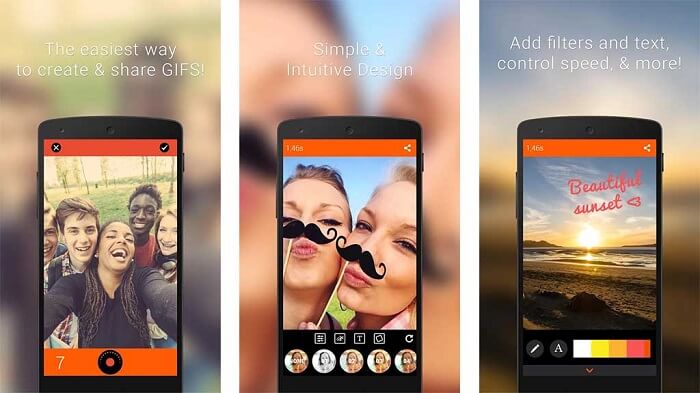
If you're looking for the best GIF editor app then this GIF Studio must be it. It gives you the chance to let your imagination play into your GIFs. Create, edit and play animated GIFs with this app. Also, if you're a user who finds making GIFs a bit troubling making GIFs this tool makes it easier for you. It also provides you with more features to add on to make it more amazing.
Prós
- Junte vários GIFs em um.
- Adicione texto aos seus GIFs para fazer um cartão de felicitações.
- Compartilhe seus GIFs e salve-os com facilidade.
Contras
- Porque os desenvolvedores simplificam. A interface do usuário é horrível. Aprender a usar este aplicativo será um pouco difícil.
- Ele não suporta GIFs feitos de outro fabricante de Gifs.
Parte 4. Perguntas frequentes sobre o Editor GIF
Existem outros formatos que podem armazenar imagens em movimento como o GIF pode fornecer?
Após 30 anos sendo um dos mais famosos formatos de imagem-vídeo. Já criou um concorrente: APNG, AVIF, MNG, WebP e FLIF.
Qual compactação de dados é GIF?
It is a lossless compression, so when you compress the data there will be no loss and it is easy to transfer the format over the internet. If your GIF is large, you can check on How to Compress Animated GIF into Small File Size
Qual gravador de GIF posso usar para gravar o formato GIF?
Você pode usar o FVC Screen Recorder, um gravador de GIF para download disponível em todas as plataformas diferentes, fornecendo formato GIF e muito mais. Com uma qualidade super alta e muito mais opções também. Baixe FVC Free Screen Recorder para Windows Baixe FVC Free Screen Recorder para Mac
Conclusão
E agora está muito claro que a melhor maneira de transmitir uma boa mensagem é usar GIFs. Embora usar uma mensagem bruta seja bom, adicionar um GIF é muito melhor. Portanto, escolher o melhor editor de GIF é essencial para transmitir o tom certo da mensagem que você deseja compartilhar e ter uma declaração clara ou adicionar um tom hilariante. Escolha a ferramenta definitiva para criar um GIF definitivo para causar a melhor impressão que você deseja compartilhar.
-
 Como converter vídeos AVI em arquivos GIF animados no Windows / Mac
 Quer selecionar os segmentos AVI interessantes para criar memes GIF? Este artigo apresentará os 2 melhores métodos para recortar os vídeos AVI e converter arquivos AVI em GIF animados gratuitamente.
-
 [Resolvido] Como converter vídeos FLV em arquivos GIF animados gratuitamente
 Se você deseja criar GIFs a partir de segmentos de vídeo FLV para melhor envio, você pode aprender mais sobre como converter vídeos FLV em arquivos GIF facilmente neste artigo.
-
 [2 Soluções] Como converter arquivos SWF em GIF de forma fácil e gratuita
 Se você não conseguir exportar o formato GIF por meio do software Flash, tente primeiro salvar os arquivos no formato SWF. Em seguida, você pode aprender duas maneiras fáceis de converter arquivos SWF em GIF neste artigo.
