


 Video Converter Ultimate
 Gravador de ecrã
 Reparo de vídeo
5 redimensionadores de GIF que você pode usar para redimensionar seu GIF animado online e offline
Resizing a GIF is an easy task with any editor, but not all editors support this type of format. Instead of testing different tools and wasting much time, why don't you participate in reading this article? Why? Because we provide the resizers, you can use and will only state facts about these five tools. So, are you ready to know the resizers for animated GIFs available on your platforms? If that's the case, we must now proceed with a detailed review of these five GIF resizers below and know the differences of each tool.

Parte 1. Os 5 principais redimensionadores de GIF online e offline
1. FVC Video Converter Ultimate [Recomendado]
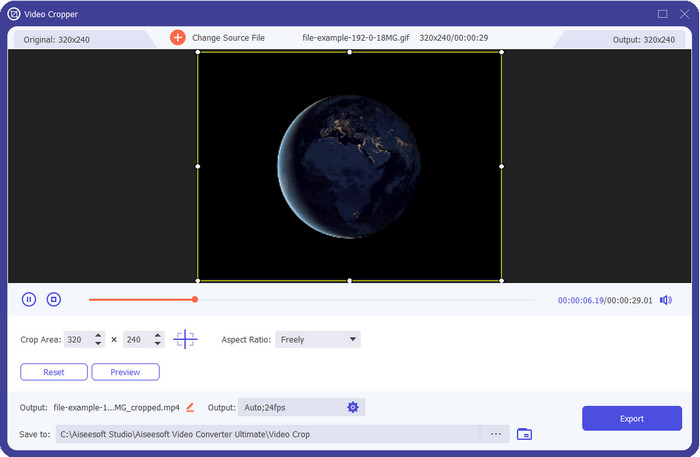
All tools here don't have what FVC Video Converter Ultimate can bring to your GIFs. Maybe you're wondering what it takes to make this tool unique? This ultimate tool provides an all-out and inexpensive resizing GIF that you would love to use. This tool is excellent for having a professional output like Photoshop can bring to you but much quicker for starters and pros. Moreover, this tool can resize your GIF, but you can also convert your GIFs to MP4, MOV, AVI, MKV, and other 200+ formats to make it compatible with other devices. Suppose you need to make a GIF and want to set it as wallpaper, then you are lucky to have the ultimate tool because it has a GIF maker that will help you. If you want to know how to create and set GIFs as wallpaper, click this link. Nevertheless, this tool is recommended for all users to learn how to resize GIF relaxed without reading a manual on using it.
Free DownloadFor Windows 7 or laterSecure Download
Free DownloadFor MacOS 10.7 or laterSecure Download
Prós
- Redimensione seu GIF de acordo com o tamanho desejado arrastando os pontos livremente.
- Ele tem uma visualização que você pode procurar para garantir que seja do tamanho exato que você precisa em seus GIFs.
- Ele possui uma renderização ultrarrápida integrada para um processo de exportação relâmpago.
- Disponível em qualquer sistema operacional de desktop, como Windows e Mac.
Contras
- Precisa ser comprado.
2. Adobe Photoshop
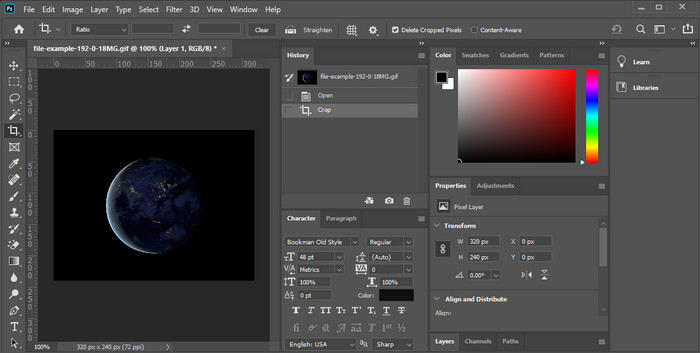
What if you want a professional resizer tool? Then Adobe Photoshop is a choice. This downloadable tool helps you resize any GIFs easily in a split of minutes. Into detailed information, this tool is the choice of every professional user who wants to edit their images, like GIFs, to look better and eye appealing. Although the tool is professional, it is still hard for those who aren't technology-oriented to use it. Also, if you want to resize your GIF, this is an expensive tool for the job. But if you're going to use PhotoShop to resize GIFs and add some kin details, then this tool will help you; however, learning to use it will take more time than the other tools.
Prós
- É a melhor escolha para edição de imagem profissional.
- Ferramenta profissional para uso profissional.
- Recursos avançados de edição para GIFs.
Contras
- Dispendioso.
- Difícil de usar se você é novo na área de edição.
3. GIFs
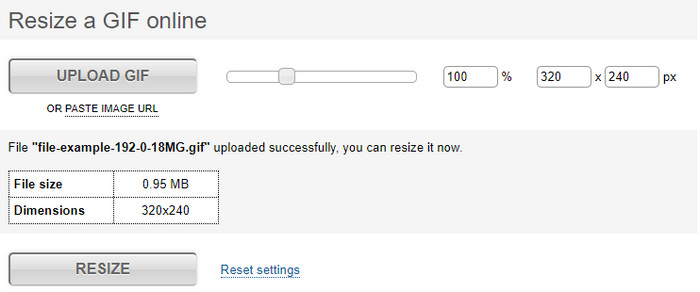
GIFGIFs has one of the most extensive GIF libraries you can use to save pre-made GIFs in your drive and has a simple editor for resizing large GIFs. This tool has been there to help users adjust their GIFs if needed thru online services. Although this web resizer is free and online, it has no ads on the interface that can disturb you, which is excellent. But the main problem with its resizer is that you will need to indicate the exact size of the ratio of the image you want to have. This problem is more stressful than the ads because you will need to try and try to make sure that it is the exact resizing you want. However, if you have an idea about the aspect ratio you need, this is a choice to resize your GIFs.
Prós
- Biblioteca integrada para GIFs.
- Não possui anúncios na web que possam incomodá-lo ou incomodá-lo ao redimensionar o GIF.
- Fácil e gratuito de usar.
Contras
- A Internet é necessária para terminar a tarefa de redimensionar GIFs.
- Difícil saber se esse é o tamanho exato que você precisa.
4.RedKetchup.io
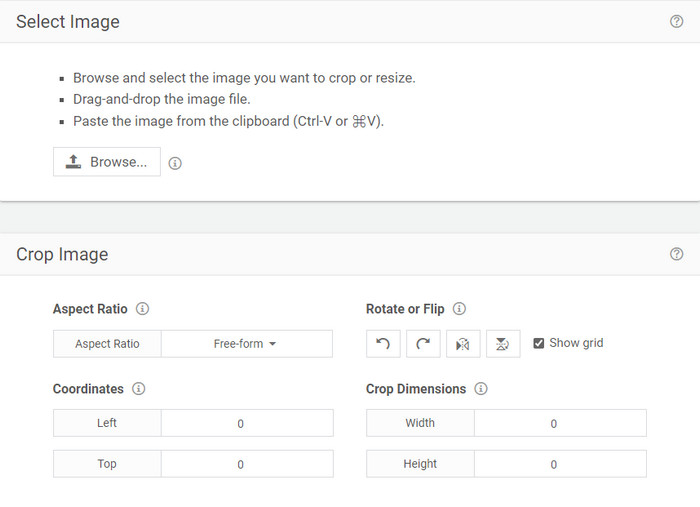
RedKetchup.io provides a simple and interactive way to resize animated GIFs in a specific limit you want. This web tool allows internet users to make their GIFs look better by the editing features this tool provides. Furthermore, you can do a much more detailed resizing here than what Ezgif can provide to you. Even though this tool is much simpler to use than the first, its interface lacks some colors to look professional. The only color you will when you access this tool is its name, and it is in the color red. Moreover, the tool is free to access; still, some ads on the interface can be a bit tiresome to look at.
Prós
- Disponível para ser acessado por qualquer pessoa que tenha uma conexão com a internet.
- Redimensionador de GIF muito detalhado.
- Gratuito ainda, é simples de usar.
Contras
- Tem anúncios irritantes na interface.
- Depende da Internet.
5. Ezgif
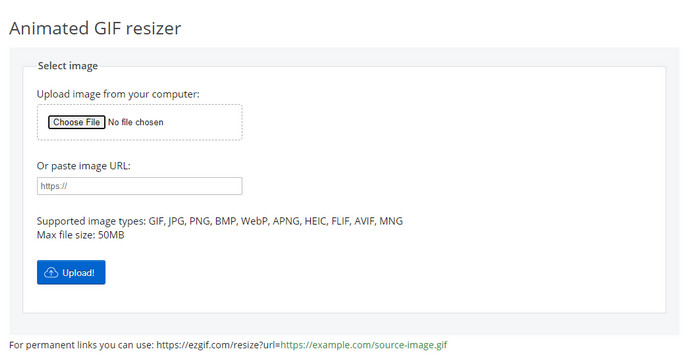
Is known for being one of the top GIF makers and can also resize GIFs online if you need it. Ezgif provides an intuitive interface to make your GIF better without exerting much effort. Moreover, if you are not technology-oriented, this tool is an excellent choice for this users type. However, if you don't have an internet connection, this tool is not a choice for resizing your GIF because it is internet-dependent like the other web tool below. Also, ads on the interface can disturb you while resizing the GIFs. Suppose you use this editor; make sure to know the number of width and length you want to set because there is no preview to check if the resize GIF is your needs, and you can't drag the ratio to set it accordingly to your wants.
Prós
- Melhor criador de GIF online.
- Possui recursos simples de edição de GIF que você precisará.
- Acesse-o gratuitamente.
Contras
- Não tem pré-visualização para verificar se o tamanho do GIF está correto.
- Os anúncios estão na interface que podem irritá-lo.
Parte 2. Gráfico de comparação sobre os 5 redimensionadores de GIF
| Recursos | Video Converter Ultimate [Recomendado] | Photoshop | GIFGIFs | RedKetchup.io | Ezgif |
| Recursos de edição |  | | | | |
| Sem anúncios | | |  | | |
| Amigo do usuário | | | | | |
| Dependente da Internet | | | | | |
| Barato ou sem custo | | | | | |
| Painel de visualização | | | | | |
Parte 3. Perguntas frequentes sobre o GIF Resizer
Após o redimensionamento, a qualidade do GIF muda?
Em termos de qualidade, o GIF não deve ser alterado drasticamente para um desfocado, mas a qualidade mudará depois que você redimensionar o GIF, mas não deve estar longe do GIF original. Portanto, se você encontrar esse problema, significa que a qualidade mudou durante a exportação e não durante o redimensionamento do GIF.
O tamanho do arquivo do GIF fica pequeno?
Depois de comparar os dois GIFs, o original e o redimensionado, vimos uma mudança significativa no tamanho do arquivo. Mesmo sendo uma pequena mudança, podemos dizer que seu tamanho ficou menor que o original.
Posso voltar ao GIF original após o redimensionamento?
Depois de redimensionar seu GIF, você pode transformá-lo no estado original se ainda não o exportou. No entanto, se você exportar o GIF e não estiver satisfeito com o resultado, não poderá voltar ao tamanho original do GIF. Para evitar esse problema, você deve usar um redimensionador de GIF que tenha uma visualização para verificar a saída antes de exportá-la.
Depois de converter JPG para GIF, ele se moverá?
No, it won't because JPEGs are not moving like animated GIFs. But you can turn your multiple JPEG into a GIF if you turn it into a photo GIF instead. Want to learn how to do it? In that case, this article will greatly help you turn your compilation of JPEG into GIF.
Conclusão
Now that we know what the GIF resizer you can use is, it is now the time to choose. All online and offline individually tested to provide a piece of accurate information about the tools and their capabilities. But we figure out that the Video Converter Ultimate offers the best output regarding resizing the GIF. Although the tool needs to be purchased, we can confidently say that your money won't turn into waste after acquiring the ultimate tool. So now, if you still doubt what we are talking about, then you must try and download the ultimate tool by clicking the download button.
Free DownloadFor Windows 7 or laterSecure Download
Free DownloadFor MacOS 10.7 or laterSecure Download
-
 Como fazer um GIF no iPhone a partir de várias fotos que você tirou e salvou
 Quer saber como fazer GIFs no iPhone a partir de suas fotos? Esta postagem compartilha 3 softwares que você pode usar para criar GIFs no seu iPhone.
-
 Os 3 principais conversores que você não deve perder para converter PNG em GIF animado
 Você quer dar vida ao seu PNG? Em seguida, tente converter o formato PNG para GIF animado com as ferramentas úteis disponíveis e as etapas para fazer isso.
-
 Quatro maneiras principais de transformar GIF animado em FLV no PC / Mac / Online / Android / iOS
 Quer converter seu GIF em FLV e compartilhá-lo online? Em caso afirmativo, vamos dar uma olhada nos melhores conversores de GIF para FLV que você pode usar no PC, Mac, Online, Android e iOS.
