


 Video Converter Ultimate
 Gravador de ecrã
 Reparo de vídeo
Como converter GIF para MOV sem perder a qualidade do vídeo
GIFs became very popular all around the world because of its multi-purpose use. For instance, if you want to make your text more funny, sad, horrified or whatever you want to deliver. And in some platforms GIFs aren't allowed to be used because they aren't supported. For example, on Twitter, this program does support GIF if it is in a loop which basically means if it is in a repeated action. But if your GIF is not on a loop and you share it via Twitter the GIF will become a still image. But don't worry because you can use these tools to convert your GIF files. So, you can share it via any platform that doesn't support the GIF without losing the quality. Take a look at the list to know which one is the best to convert GIF to MOV.

Parte 1. Melhores opções para converter GIF para MOV com formato MOV de alta qualidade
1. FVC Video Converter Ultimate
Learning to use FVC Video Converter Ultimate is a big advantage for you because this tool is multi-purpose which means it is more than a converter for GIF to MOV. If you have a problem converting your GIF to videos or vice versa, video to audio, or making an image to a GIF. You name the problem this tool can solve. In addition, this tool is not only just named Video Converter Ultimate just to make a good impression on the customer. But the tool lives up to its name as an ultimate converter. So, you won't feel ashamed using this tool because it is the perfect tool to convert any file to a new format. Here are the basic steps on how to convert your GIFs to mov file format with bonus steps on how to enhance the video into a more appealing one.
Step 1: To download the tool choose between the two supported platforms and install it to your drive. Modify the preferences and click finish to save the settings.
Free DownloadFor Windows 7 or laterSecure Download
Free DownloadFor MacOS 10.7 or laterSecure Download
Step 2: Click the plus sign to add the GIF file you need to convert. But if you have a bunch of GIF files to be converted into MOV it is ideal to drag-and-drop them to the tool.
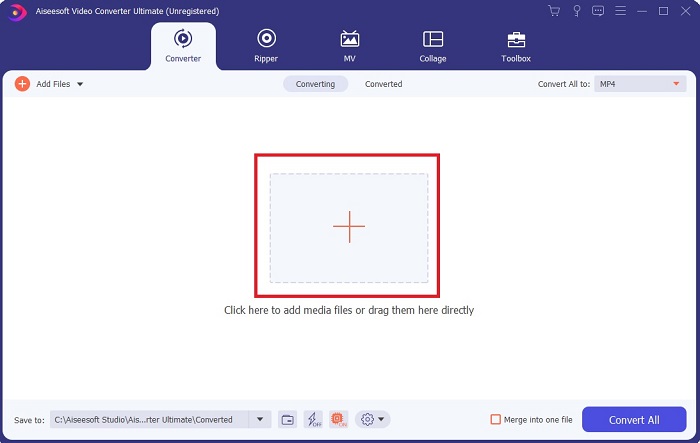
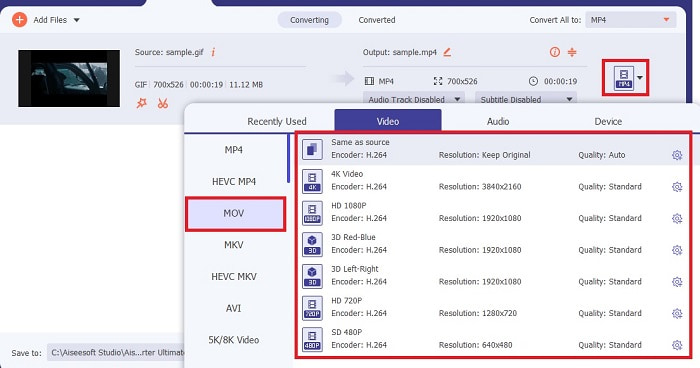
Step 3: In the submenu of Convert All to, click the MOV from the Video tab, and choose what quality you want it to be. Keep in mind that the higher the resolution and quality is the bigger the file size will be.
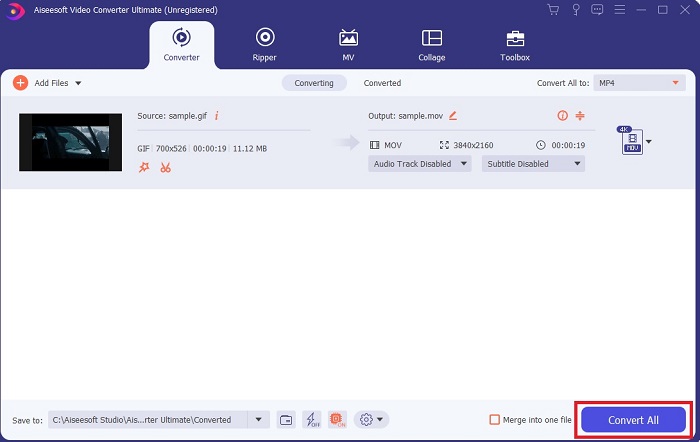
Step 4: Click the Convert All to start the conversion.
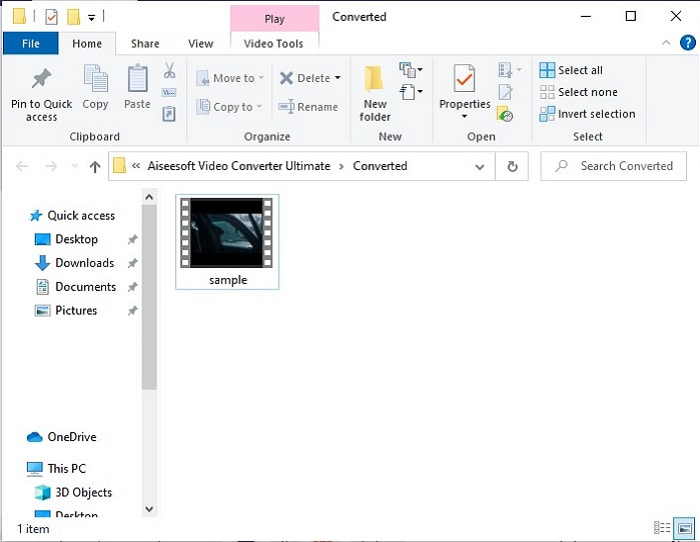
Step 5: A file directories will show on your screen on which the file has been saved.
Etapa de bônus para aprimorar seu vídeo:
This free step is only available in this tool and not on free or any other premium tool that can do conversion. Follow these steps on how to improve your MOV file to a better quality with the help of Video Enhancer, one of the best features of Video Ultimate Converter.
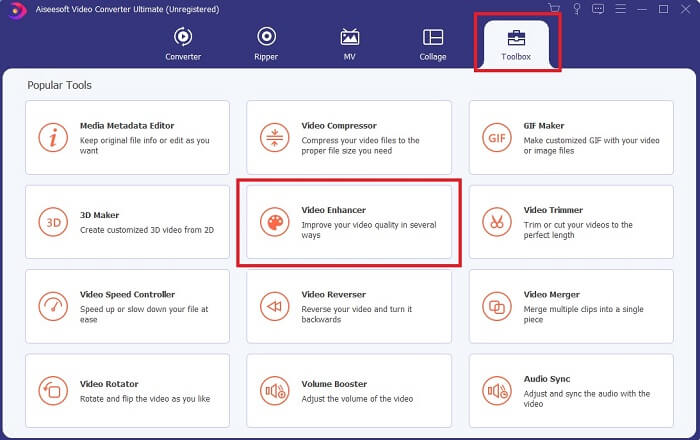
Step 1: On the main interface find the Toolbox and click the Video Enhancer.
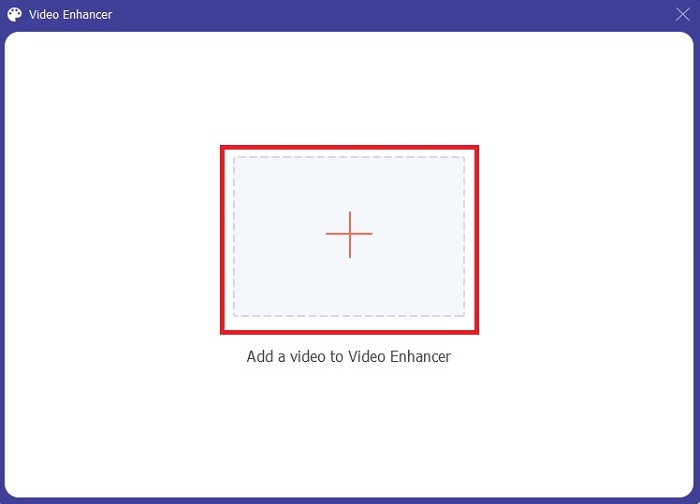
Step 2: Click the plus button to place the video you want to be enhanced.
Step 3: Choose what you want to enhance on your video. Click the Enhance - and voila - your fuzzy video comes back to life.
2. FVC Free Video to GIF Maker
FVC Free Video to GIF Maker is the free version of the tool above. This tool is a Class-A converter if you were to compare another tool. And in some cases, this tool is better than the other premium tools. So, converting GIF to MOV is a piece of cake if you use this tool. Though the down side of the FVC Free Video to GIF maker is that the major features like video enhancing are not supported in this tool. Also, the supported audio-video file format is lesser than the premium tool. But unlike another online tool, this tool is much more capable than them because you can use it even if you don't have internet access like the tool above. Other than that, the conversion process of these first tools is safer than in the other online tools or offline. So, without further ado let's start converting with the help of this tool.
Step 1: Click the download button and install it to your disk drive.
Free DownloadFor Windows 7 or laterSecure Download
Free DownloadFor MacOS 10.7 or laterSecure Download
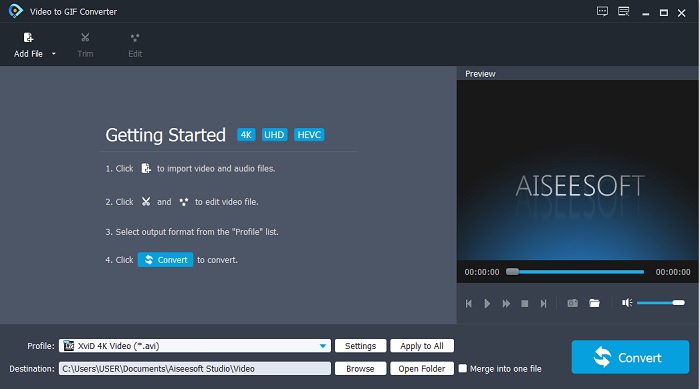
Step 2: Launch the tool by clicking the tool icon on your screen. And an interface like this will be displayed on your screen.
Step 3: Click the Add File to add the file. Or you can also drag and insert the file to the interface for much less work if the files are too many.
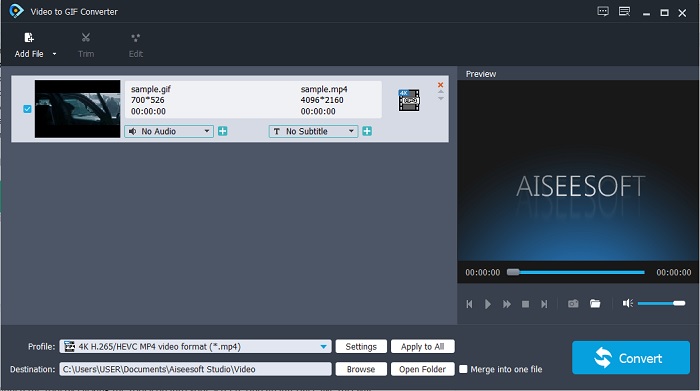
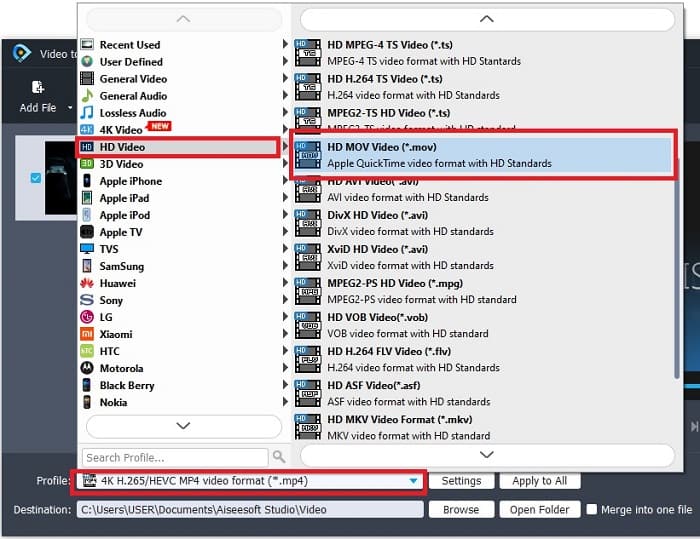
Step 4: Hit the pull-down button then go to the HD video and click the MOV format.
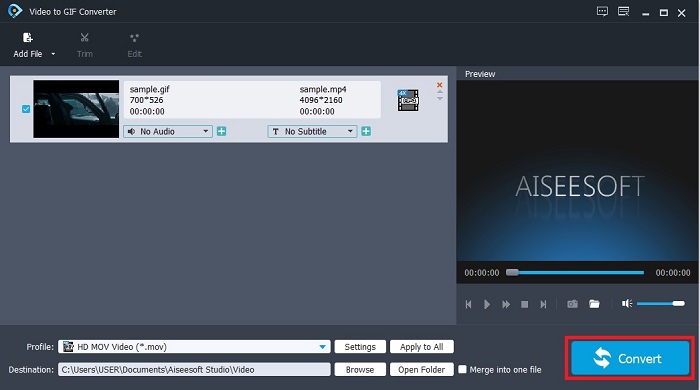
Step 5: Click the Convert button to start the conversion. And the file will automatically be saved into your file manager.
Parte 2. Melhor substituto online para converter GIF para MOV
Escusado será dizer que existem algumas outras alternativas para a ferramenta definitiva e para sua versão gratuita sem baixar arquivos extras no seu PC ou Mac.
1. CloudConvert
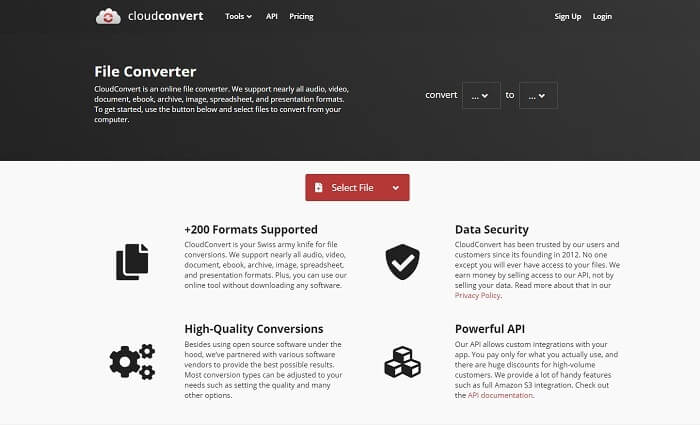
Convert GIF to MOV without losing the quality online by using CloudConvert. You can basically convert different formats by using this tool and choose from more than 200+ formats that it supports. You can also convert eBooks, spreadsheets, documents, and presentations but you can't enhance them by using this tool. So, using this as your converter is like converting it as it is.
2. Converter vídeo online
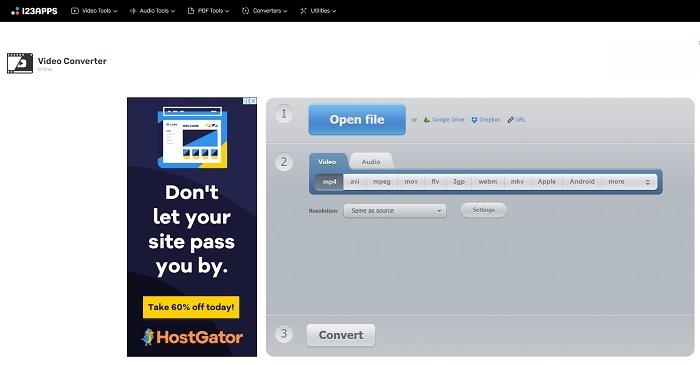
This online tool supports basic video formats like MP4, AVI, MOV, FLV, 3GP, WMV, MKV, and WEBM. Convert-video-online can only do a simple conversion but remember that this tool is only limited to video and audio formats. Also, if you insert the video or audio into this online tool, it will take some time to be inserted. Because there is a process of identifying the file, converting it might take some time. This tool also has some ads on its website.
3. onlineconvertfree.com
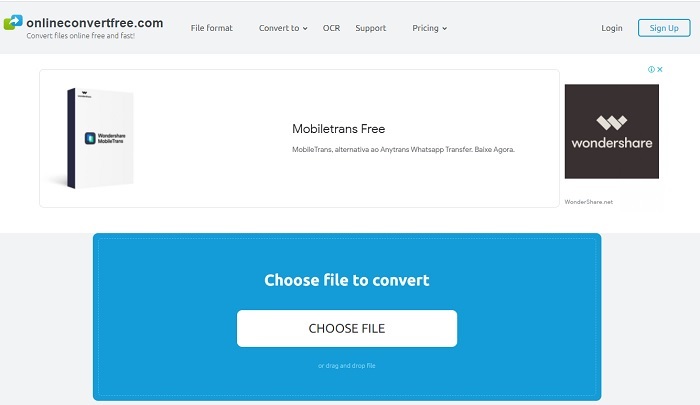
Choose this online tool if you want to convert animated GIF to MOV format. Because this onlineconverterfree.com has some basic editing features that the first two tools don't provide. Other than converting files you can also resize, compress, crop, flip, merge and rotate. But the downside of this tool is that it only supports only a small amount of format for video and only MP3 for audio.
Parte 3. Perguntas frequentes sobre GIF para MOV
O MOV é uma compactação sem perdas ou com perdas?
MOV has two types of compression: it is either uncompressed or lossless. If your MOV files are large, you can choose to compress those MOV files.
Quem desenvolve o formato de arquivo MOV?
Esta extensão de arquivo é desenvolvida pela Apple Inc., que é feita para ser usada especialmente em seu reprodutor de mídia local, que é o QuickTime Player.
Por que não consigo reproduzir meu arquivo MOV? Quais são as outras alternativas para o QuickTime Player?
There are a lot of reasons why your MOV files can't be played over your media player. In this case it is common if you're a Windows user who doesn't have a Quicktime Player or if you have a Mac but the QuickTime is an old version. Here are some of the best alternatives to QuickTime you may rely on.
Conclusão
No final, agora temos uma ideia mais clara do que devemos fazer se quisermos converter o formato GIF para MOV. Às vezes é difícil escolher entre as ferramentas porque todas são incrivelmente boas, mas sempre há uma que brilha mais. E esse é o FVC Video Converter Ultimate. Esta ferramenta oferece a capacidade de brincar com seu vídeo e melhorá-lo para ficar muito melhor. Portanto, escolha a ferramenta perfeita para fazer o trabalho e também ter uma saída perfeita.
-
 [Guia] Como converter vídeos M4V em GIFs animados no Windows / Mac
 Se você deseja fazer arquivos GIF animados de seus vídeos M4V favoritos, você pode aprender sobre 2 maneiras fáceis e eficientes de converter vídeos M4V em GIFs com configurações personalizadas.
-
 WebM para GIF - 3 conversores gratuitos de WebM para GIF para criar seus próprios GIFs
 O WebM é um GIF? Como transformar um vídeo em GIF? Existe algum conversor gratuito de WebM para GIF? Esta postagem compartilha 3 maneiras gratuitas de ajudá-lo a converter WebM em GIF.
-
 Como converter vídeos MKV em GIFs animados sem Photoshop / FFmpeg
 Depois de baixar e assistir a filmes MKV em seu computador, você pode querer compartilhar alguns momentos maravilhosos com amigos ou na Internet como GIFs. Neste artigo, você pode aprender sobre as 2 maneiras mais fáceis de converter MKV em GIF.
