


 Video Converter Ultimate
 Gravador de ecrã
 Reparo de vídeo
Melhores conversores de GIF para vídeo acessíveis em dispositivos digitais [2021]
GIF is a well-known meme generator for Android and iOS devices. Despite the fact of having this kind of reputation some platforms like Instagram and Twitter don't accept this type of format. Instead of using GIFs we used other valid formats like MOV, MP4, AVI and more. Although, we can convert it and still have the same quality of the GIF. So, if you're ready to start to convert and want to know what are the best apps to make GIF videos. Keep up on reading this article to determine what are the tools you should use to convert GIF files into a new video format.

Parte 1. 2 Melhores aplicativos de conversão de GIF para vídeo para iOS
1. GIF para MP4
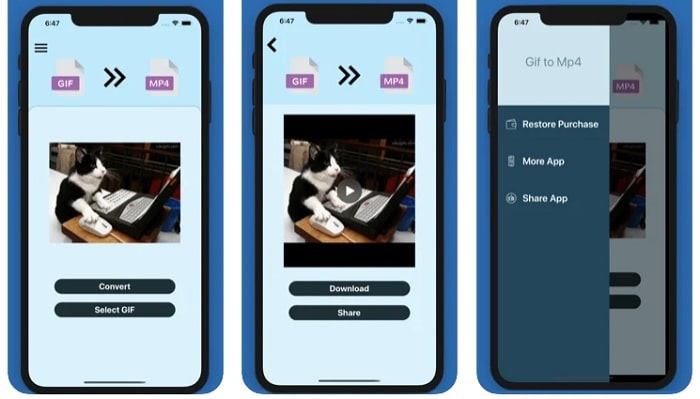
You can use this app to make GIF videos on iOS. The GIF to MP4 has a 4.7 star on rating which means it is a good converter of GIF. The tool is very on-point which means you can use it even if you don't have any idea how to convert it. Though this gets a great number of praises, the customer service of this is totally bad. It doesn't leave any response to the customers' concerns to improve the tool. So, if you have a question about this app, you can leave a comment below but don't expect an immediate response.
2. GIF Cracker - GIF para vídeo
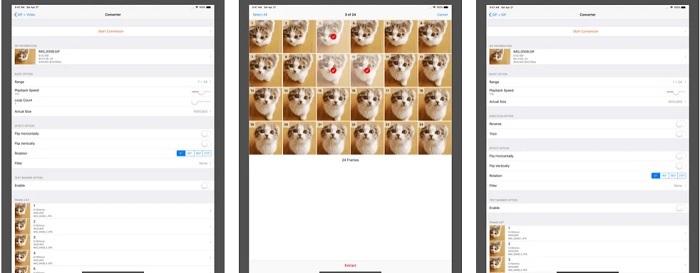
Another iOS tool that you can use to convert GIF to any video format you want is this. GIF Cracker this tool supports more formality than the first one. Also, it provides GIF to images so if you want to make a JPG out of your GIF you can use this. Looking at it seems like the app is perfect but to be honest the app also faces some bugs as well. Some minor bugs are fixed but not all of the bugs. But you can buy the pro version of it for a better experience.
Parte 2. 3 Melhores aplicativos de conversão de GIF para vídeo para Android
1. Criador de GIF - Vídeo para GIF, Editor de GIF
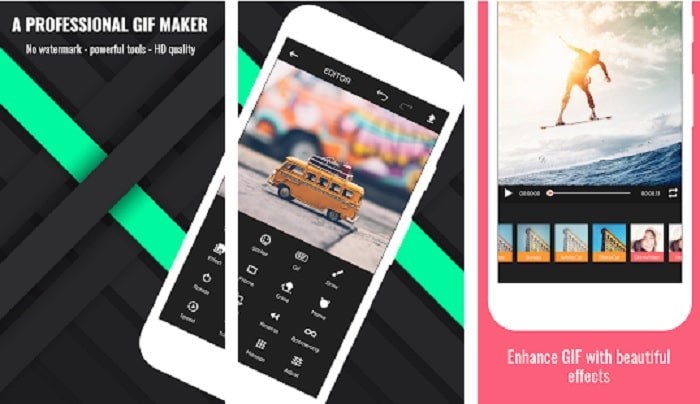
You can use this app to make GIF videos. But not only that it also supports editing features as well so you can make GIFs while on your phone. Some major features on desktop editing tools aren't provided in this tool because it is large in size. Moreover, you can make your original GIFs with this tool because it features more than 30 effects, 20fps per images, add emojis or text and trim video as well. But it features ads on the app so to remove them you'll need to buy the app itself.
2. GIF para vídeo
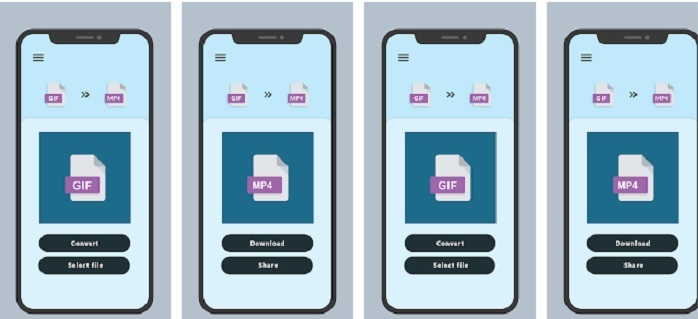
One of the best tools to convert GIF into a new format. Select any GIF from your gallery and convert them all by using this GIF to VIDEO. Just like the first tool on the iOS above it only offers GIF to MP4 conversion format only. But you can convert GIFs with ease with the help of this tool. It has an exactly right command so no need to worry because it only focuses on conversion. Also, this app just got a recent update from its developer, RAYO INNOVATIONS PRIVATE LIMITED.
3. GIF2VIDEO- trans GIF para VÍDEO
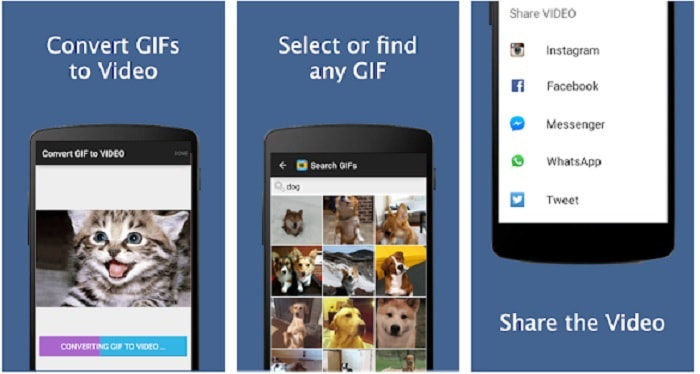
Convert your GIF into a new video format that is allowed to be shared on other platforms. As well, you can easily find your GIF in the search bar with the help of GIF2VIDEO. Also, you can set the video output to 1:1 or 4:3 with ease. Although it is effective on its job, the interface is a bit off the standard. In some cases, you can't download GIFs and if you download them the quality will drop.
Parte 3. GIF recomendado para conversor de vídeo no Windows ou Mac
Por exemplo, se você deseja ter um método mais preciso de conversão e deseja adicionar seu próprio toque especial ao vídeo. Você pode usar a ferramenta Video Converter Ultimate que está disponível no PC e Mac e é obrigatório seguir as etapas na ordem correta.
It is known for the fact that cellphones are like mini computers of our generation. But not all of the apps you will see on your mobile phones are available on the computer or vice versa. Video Converter Ultimate, a GIF to video app for computer is far greater than any converter available on Play Store or App Store. No mobile software can do more than just converting. Also, you can improve your video and audio quality as well in the making or after. So, if you want to experience how powerful this tool is, you must follow these steps below accordingly. Because they are all important to make the perfect conversion that you want to deliver.
Step 1. Download the tool to your computer. Alter the settings according to your needs and click finish to save adjustment.
Free DownloadFor Windows 7 or laterSecure Download
Free DownloadFor MacOS 10.7 or laterSecure Download
Step 2. Run the program of the tool onto your desktop. Click the Add Files button to add the files. But if your GIFs have more than two, it is much better to drag-and-drop it to the tool interface.
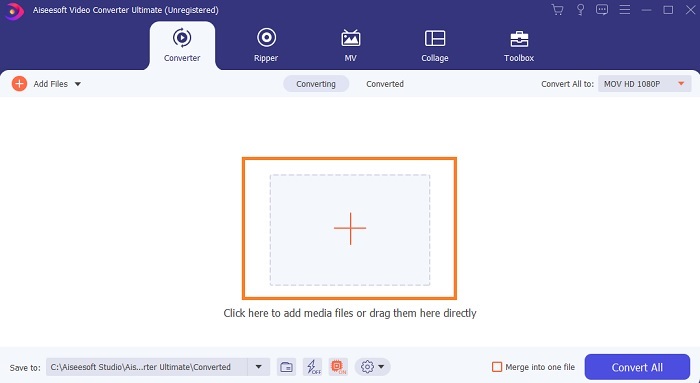
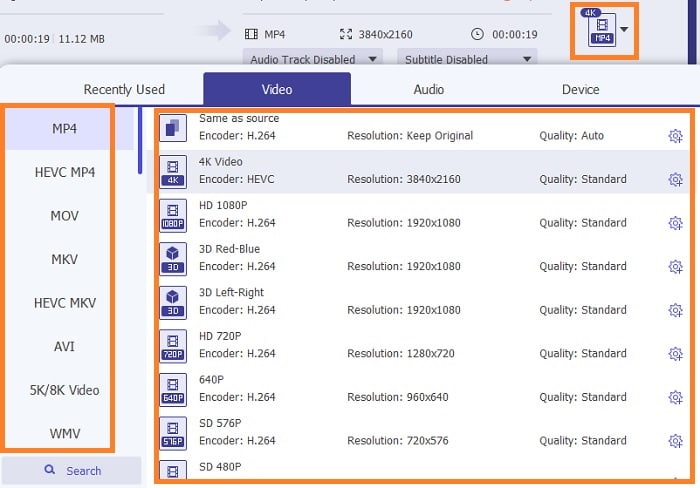
Step 3. Choose the format according to your want on the drop-down menu of Convert All to. After that, click the Convert All button to start the conversion.
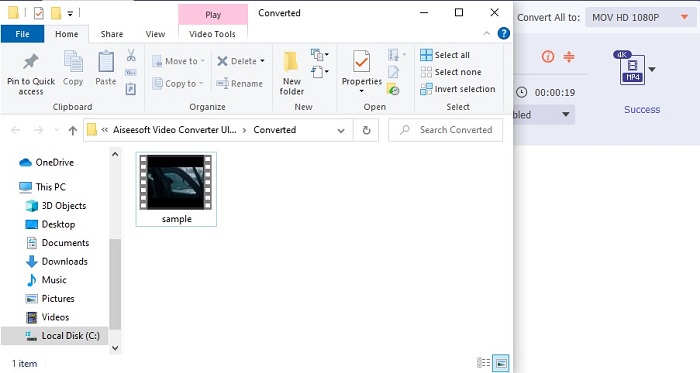
Step 4. It will only need an ample of your time for the conversion. And you can check the file and transfer it to your mobile device later. After all of that you are now done, you can now enjoy the converted video you just made.
Further Reading
Parte 4. Perguntas frequentes sobre o aplicativo GIF to Video
Quão alto é o fps de um único arquivo GIF?
Alguns dos GIFs padrão podem chegar a 15 ou 24 quadros por segundo, mas, devido à tecnologia, agora podem ir de 30 a 50 fps por GIF, o que exige mais armazenamento se você fizer o download para o telefone.
Quais são os diferentes tipos de GIFs?
Se você não percebeu, existem 5 tipos diferentes de GIFs: replay, GIF de reação, gráfico de cinema, técnico e GIFs de loop perfeito.
O que é o interior de um GIF?
Todos os GIFs contêm uma série de dados de imagens que podem ser uma imagem animada, clipes curtos sobre os filmes e uma imagem em movimento se estiver na web.
Conclusão
Para concluir, todas as ferramentas escolhidas neste artigo são escolhidas adequadamente para o usuário conhecer. Aprender a criar um GIF é um grande talento que até você pode fazer se tiver dedicação e se usar a ferramenta certa. Por exemplo, você usa um martelo para abrir uma lata? Então, se você usar um martelo, abra uma lata e retire o que está dentro. A substância na lata agora está destruída. Assim como na conversão, se você usar a ferramenta errada, há uma grande possibilidade de que a conversão falhe. Portanto, escolha a ferramenta certa para o trabalho, como o Video Converter Ultimate.
-
 [Guia] Como converter vídeos M4V em GIFs animados no Windows / Mac
 Se você deseja fazer arquivos GIF animados de seus vídeos M4V favoritos, você pode aprender sobre 2 maneiras fáceis e eficientes de converter vídeos M4V em GIFs com configurações personalizadas.
-
 WebM para GIF - 3 conversores gratuitos de WebM para GIF para criar seus próprios GIFs
 O WebM é um GIF? Como transformar um vídeo em GIF? Existe algum conversor gratuito de WebM para GIF? Esta postagem compartilha 3 maneiras gratuitas de ajudá-lo a converter WebM em GIF.
-
 Como converter vídeos MKV em GIFs animados sem Photoshop / FFmpeg
 Depois de baixar e assistir a filmes MKV em seu computador, você pode querer compartilhar alguns momentos maravilhosos com amigos ou na Internet como GIFs. Neste artigo, você pode aprender sobre as 2 maneiras mais fáceis de converter MKV em GIF.
