


 Video Converter Ultimate
 Gravador de ecrã
 Reparo de vídeo
 Secure Download
Como aparar GIFs habilmente para aprimorar sua narrativa visual
GIFs, ou imagens animadas, tornaram-se onipresentes na comunicação online e na criação de conteúdo. Se você deseja adicionar um toque visual às suas postagens de mídia social, criar materiais de marketing atraentes ou simplesmente se expressar por meio de uma animação divertida, não há como negar o apelo de um GIF bem feito. No entanto, com a popularidade dessas imagens animadas, surge a necessidade de editá-las e personalizá-las para atender às suas necessidades específicas.
One of the most important aspects of working with GIFs is knowing how to cut them effectively. Fortunately, there are a variety of tools available for both online and offline users that make the process of cutting GIFs simple and straightforward. From beginner-friendly options to advanced software for professionals, there's something here for everyone who wants to take their GIF editing skills to the next level. So, let us dive in and learn how to cut GIFs online and offline.

Parte 1. Corte GIF offline
1. FVC Video Converter Ultimate
The GIF-cutting function in FVC Video Converter Ultimate is a game-changer for anyone serious about making professional-quality GIFs. This tool is the best option for trimming GIFs, whether you're a video editor making animations for a client or a social media marketer trying to come up with fresh ideas for posts.
Com ele, você pode definir os pontos inicial e final do seu arquivo GIF. Esse recurso é especialmente útil quando o arquivo GIF é muito longo. Além disso, permite dividir um GIF com grande facilidade. Além disso, você pode aplicar efeitos como fade in e fade out. Se você deseja aprender a cortar GIFs offline ou no seu PC, siga os passos indicados:
Step 1. Download and Install the program
First, click any of the Free Download buttons provided below to start. Then, follow the installation process to install the software on your device completely. Once installed, launch the program to access its main interface.
Free DownloadFor Windows 7 or laterSecure Download
Free DownloadFor MacOS 10.7 or laterSecure Download
Step 2. Upload a GIF file
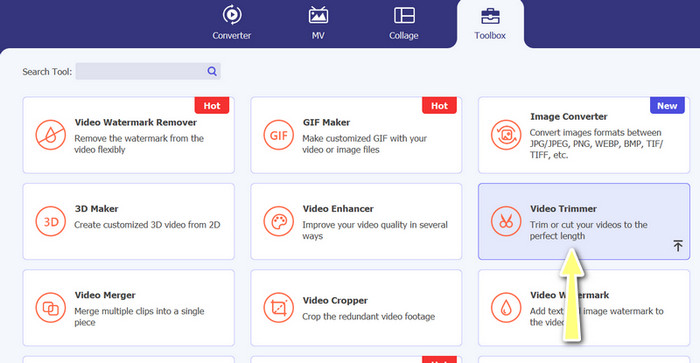
Now, go to the Toolbox tab and access the Video Trimmer option. Then, you can upload a GIF file by ticking the plus sign button.
Step 3. Trim the GIF file
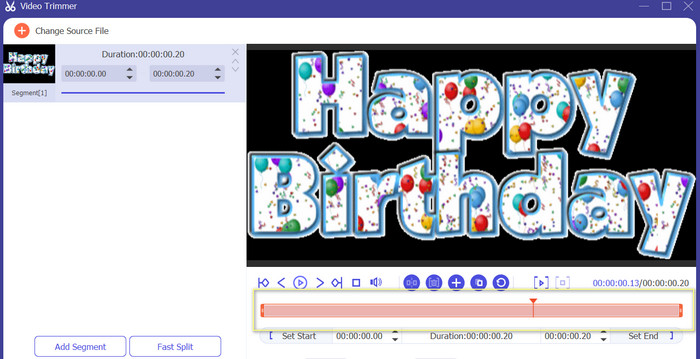
Depois que o GIF for carregado, você o verá na interface de edição do programa. Usando o controle deslizante, identifique o início e o ponto final do arquivo GIF que você deseja remover.
Step 4. Save the GIF file
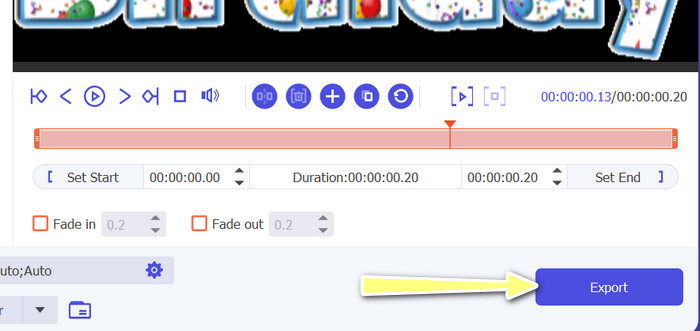
Once you finished cutting parts of the GIF, hit the Export button located at the bottom right-hand side of the interface to start rendering the file.
2. Criador de GIFs
Criar um GIF pode ser um desafio para quem não tem experiência em edição de vídeo ou design gráfico. É aí que entra o GIF Maker, fornecendo uma maneira fácil e eficiente de criar, editar, compartilhar e cortar GIFs animados. Além disso, este programa permite aos usuários cortar GIFs, ajustar a velocidade de reprodução e adicionar texto ou outros efeitos para criar o GIF perfeito para suas necessidades. Aqui estão os passos sobre como cortar GIFs animados offline usando seu telefone
Step 1. First of all, get the program from the Play Store by typing its name in the search bar. Then, install it on your mobile device.
Step 2. Now, launch the mobile app on your device. Upon launching, the program will show everything that is stored on your device, including your GIF files. Next, select your target GIF.
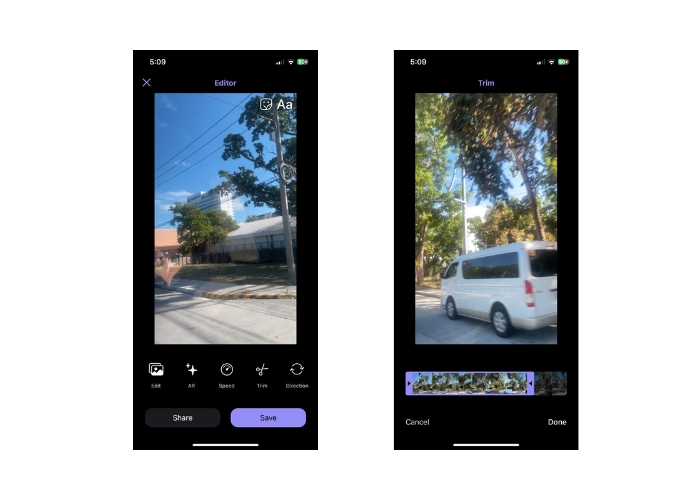
Step 3. After that, it will load the GIF file. Then, tap on the Trim button and determine the start and endpoint of the GIF and adjust the slider.
Step 4. Finally, tap the Done button to finish the process of cutting GIF files.
Parte 2. Corte GIF Online
1. EZGIF
If you wish to have an easy procedure for cutting and editing GIF files online using your computer, you may use EZGIF. Its main features include the ability to crop or resize the GIF, adjust playback speed, add text or stickers, optimize the file size, and even convert the GIF to other file formats such as MP4 or WebM. Follow the simplified steps on how to cut GIFs online using EZGIF.
Step 1. Fire up your preferred browser on your computer and navigate to the EZGIF's official site.
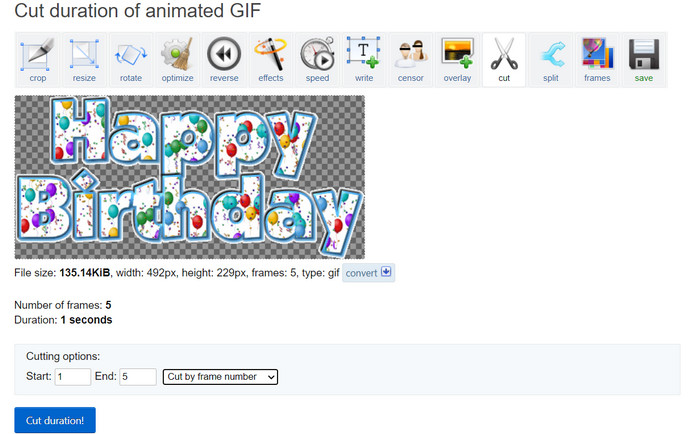
Step 2. Now, go to the Cut option to cut GIF length online. Then, tick the Choose File button, followed by the Upload button.
Step 3. In the cutting options section, identify the start and endpoint with the frame number.
Step 4. Once determined, hit the Cut duration button to begin cutting the GIF file.
2. GIPHY
Você também pode tentar usar o aplicativo móvel do GIPHY para editar ou cortar GIFs online usando seu telefone. Com o aplicativo móvel Giphy, os usuários podem acessar e compartilhar facilmente seus GIFs favoritos, bem como criar seus próprios GIFs personalizados usando a câmera do smartphone ou arquivos de vídeo existentes. Além disso, este aplicativo possui recursos de edição, como cortar e aparar. Sem mais delongas, aqui estão os passos a seguir para cortar GIFs online em seu dispositivo móvel:
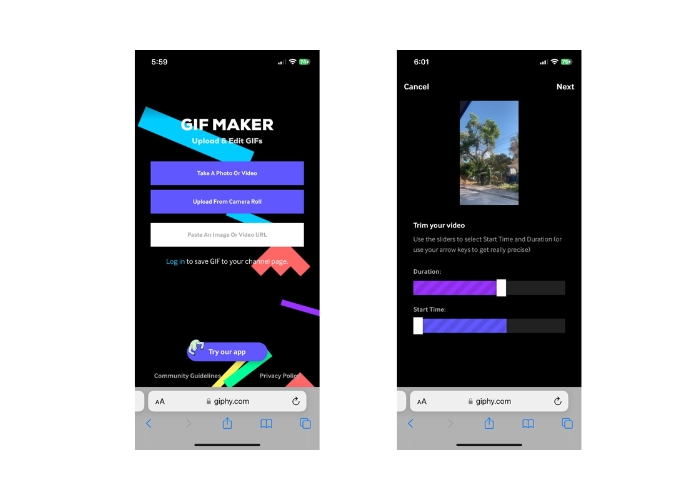
Step 1. Download and install the Giphy app from your app store. Open the app and select the GIF file you want to edit from your phone's camera roll or gallery.
Step 2. Use the slider to select the start and end points of the section you want to keep. You can also add text or stickers to the GIF.
Step 3. After making your edits, tap on the Next button and make some adjustments according to your taste. Then, you can share your work with others online.
Parte 3. Perguntas frequentes sobre como cortar GIFs online
Posso desfazer edições feitas em um GIF usando um cortador online?
Depende do cortador de GIF on-line específico que você está usando, mas muitos oferecem um botão de desfazer ou uma opção para reverter as alterações feitas em um GIF. No entanto, vale a pena notar que nem todos os cortadores de GIF on-line podem oferecer a capacidade de desfazer edições, por isso é sempre uma boa ideia salvar um backup do arquivo original antes de fazer qualquer alteração.
Posso colaborar com outras pessoas em um projeto de edição de GIF usando um cortador online?
A maioria dos cortadores de GIF online é projetada para uso individual e pode não oferecer recursos de colaboração integrados. No entanto, algumas ferramentas on-line permitem que você carregue e compartilhe seus GIFs editados com outras pessoas, fornecendo um link ou código de incorporação que pode ser compartilhado em plataformas de mídia social ou sites. Além disso, você pode usar ferramentas de colaboração de terceiros, como Google Drive ou Dropbox, para compartilhar o arquivo GIF original e quaisquer versões editadas com outras pessoas para feedback ou edição posterior.
Posso converter um GIF para outro formato de arquivo usando um cortador online?
Sim, muitos cortadores de GIF online oferecem a opção de converter GIF em formato de vídeo, como MP4, AVI, WebM ou MOV. Converter um GIF para outro formato de arquivo pode ser útil se você quiser usá-lo em um projeto de edição de vídeo ou carregá-lo em uma plataforma que suporta apenas determinados tipos de arquivo.
Conclusão
Cutting GIFs online is a quick and easy way to edit and modify animated GIF files without the need for specialized software or technical expertise. Online GIF cutters offer a variety of features, such as trimming, resizing, adjusting playback speed, adding text and stickers, optimizing file size, and converting to other file formats. On the other hand, offline tools are not limited by the processing power of a website or server and can run locally on your computer or device. As a result, offline tools can offer more precise editing controls, higher-quality output, and greater customization options. Luckily, numerous online and offline tools help you cut GIFs.
-
 5 software mais recente que você pode usar para criar um GIF reverso incrível
 Quer saber como deixar seu GIF melhor? Em seguida, tente reverter o GIF para adicionar efeitos incríveis com a ajuda dessas ferramentas.
-
 5 dos melhores redimensionadores de GIF disponíveis em todas as plataformas [2023]
 Quer conhecer os redimensionadores de GIF que você pode usar? Nesse caso, as informações fornecidas abaixo falarão sobre os redimensionadores que você pode usar em seus GIFs em todas as plataformas.
-
 [Grátis] 4 maneiras fáceis de cortar GIFs animados online e offline
 Quer cortar GIFs facilmente? Bem, você pode fazer isso com a ajuda desses cortadores de GIF disponíveis neste artigo, leia-o bem e aprenda como fazê-lo.
