


 Video Converter Ultimate
 Gravador de ecrã
 Reparo de vídeo
 Secure Download
Divisores de GIF: Principais ferramentas para dividir e personalizar imagens animadas
Se você sempre quis usar uma parte específica de um GIF, mas ficou preso com toda a animação, você não está sozinho. Os GIFs são populares por sua capacidade de transmitir emoções e reações em um curto espaço de tempo, mas às vezes precisamos apenas de parte da coisa para transmitir nossa mensagem. É aqui que entra a importância de dividir arquivos GIF.
With the help of GIF splitters, you can easily extract the exact part of the GIF that you need and use it for your project or social media post. This post will give you a look at some of the top GIF splitters available in the market today.

Parte 1. Maneira fácil de dividir GIFs
1. FVC Video Converter Ultimate
If you only need to trim a small part of a GIF, then you can use FVC Video Converter Ultimate. It is a versatile software tool that offers a range of features for video conversion and editing. Furthermore, the tool supports a wide range of video formats and allows users to adjust video settings such as resolution, bitrate, and frame rate. While it does not have a specific feature for splitting GIF files, the video trimmer function can accomplish this task.
O FVC Video Converter Ultimate pode ser uma ferramenta valiosa para quem procura uma maneira simples e direta de dividir arquivos GIF. Com sua interface intuitiva e recurso de corte de vídeo fácil de usar, ele fornece uma solução conveniente para usuários que precisam apenas fazer pequenas edições em seus GIFs. Além disso, ele vem com uma variedade de outros recursos, como processamento em lote e aceleração de GPU, que o tornam uma ferramenta abrangente de conversão e edição de vídeo. Se você deseja aprender como dividir GIFs offline, aqui estão os passos que você pode seguir:
Step 1. Get the software
To get started, simply select a link from the list of Free Download buttons below. Afterward, just stick to the on-screen prompts to finish setting up the program on your gadget. After setup is complete, you can run the app and enter its main menu.
Free DownloadFor Windows 7 or laterSecure Download
Free DownloadFor MacOS 10.7 or laterSecure Download
Step 2. Attach a GIF image file
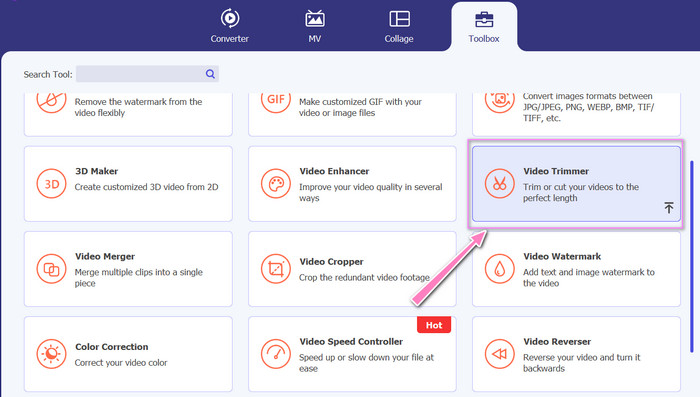
Choose the Video Trimmer tool from the Toolbox menu. Once that's done, select the + button to upload a GIF.
Step 3. Split the GIF file
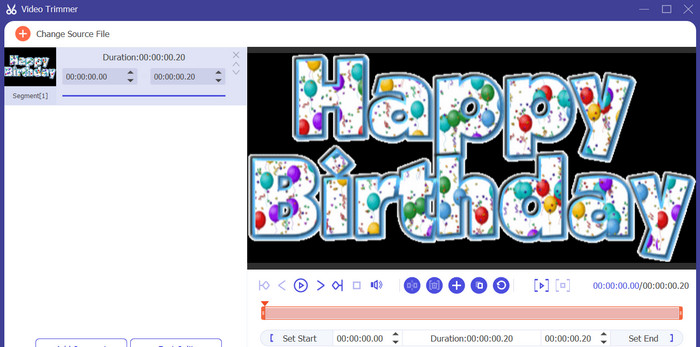
Depois que o GIF for carregado, ele será mostrado na interface do programa para fazer alterações. Escolha os pontos inicial e final do GIF que deseja excluir usando o controle deslizante.
Step 4. Keep the GIF you created
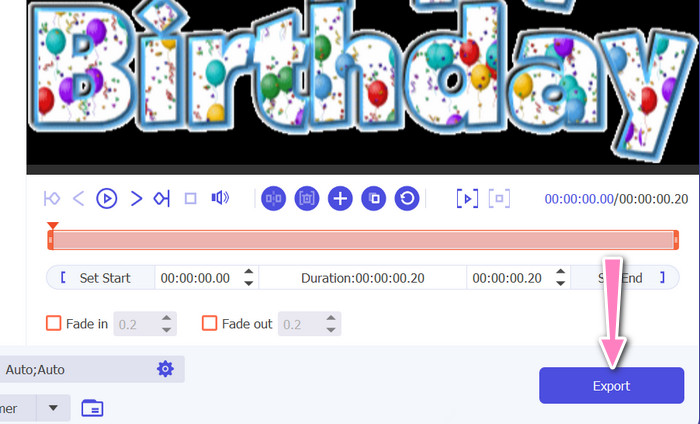
When you're done customizing the GIF, click the Export button in the tool's bottom right corner to begin the rendering process.
2. EZGIF
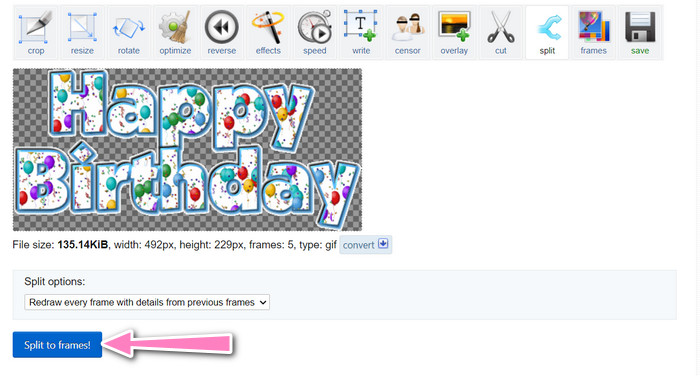
EZGIF is an online tool that offers a range of features for working with GIF files. The website provides a variety of tools for creating, editing and optimizing GIFs, including GIF resizing, cropping, and splitting. It also includes features for adding text and special effects to your GIFs and even allows you to convert videos and images to GIF format. Therefore, if you wish to split GIFs into frames online, this is a perfect choice. Moreover, EZGIF is a user-friendly platform that requires no downloads or installation, making it easily accessible from any web browser. Find out how this tool works and split GIFs into images.
Step 1. To split a GIF using Ezgif, open the EZGIF website in your web browser.
Step 2. Select the Split option from the top menu, and then adjust the settings as needed.
Step 3. Click on the Choose File button to upload the GIF file you want to split. Alternatively, you can drag and drop the File onto the EZGIF interface.
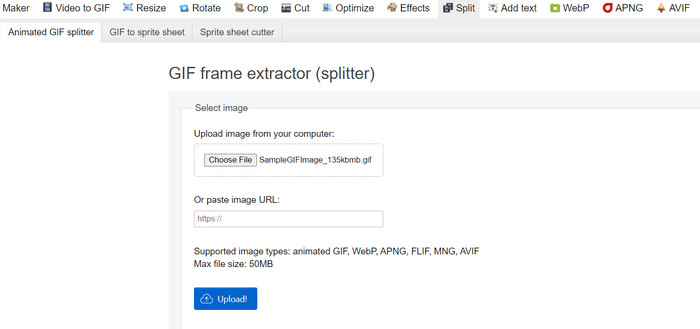
Step 4. Next, choose the splitting method you want to use. You can split the GIF by a specific number of frames, by specific time intervals, or by selecting specific frames to keep.
Step 5. Adjust the settings for the splitting method you chose. Click on the Split to frames! button to begin the splitting process. There are also available options to split GIF into PNG or JPG, depending on your needs.
Parte 2. Maneira Profissional de Dividir Arquivos GIF
Split GIF into frames in Photoshop can be realized. It offers a lot of flexibility and control when working with animated GIFs. With Photoshop, you can open a GIF file and edit each individual frame of the animation, allowing you to make adjustments and add filter to each frame separately. This means you can create complex animations, add text or graphics, and adjust the timing of each frame to create a smooth and polished animation. To learn more about the editing options available in Photoshop for GIFs, check out the steps below:
Step 1. Open the GIF file in Photoshop by going to File > Open and selecting the File.
Step 2. Once the File is open, go to Window > Timeline to open the Timeline panel.
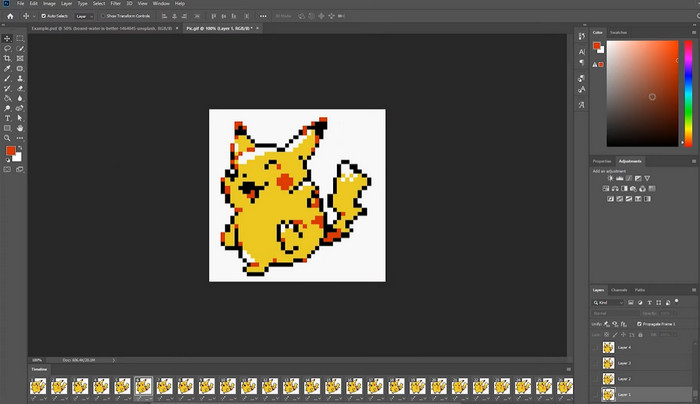
Step 3. In the Timeline panel, you should see each frame of the animation represented as a separate layer. If you don't see the Timeline panel, click on the menu button in the upper right corner of the panel and select Create Frame Animation.
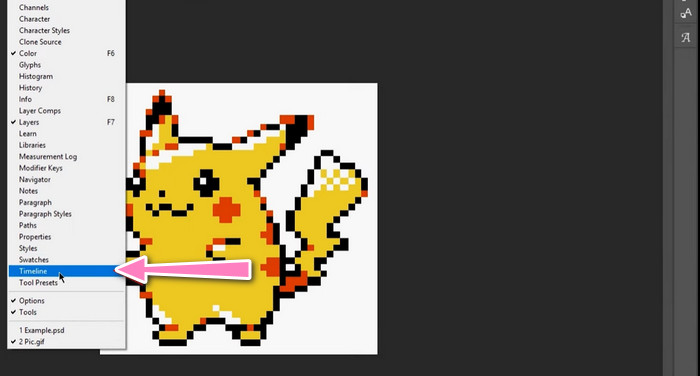
Step 4. To split the GIF, click on the menu button in the Timeline panel and select Make Frames From Layers. This will create a separate frame for each layer in the animation.
Step 5. Now you can edit each frame individually by selecting it in the Timeline panel and making any desired changes.
Step 6. Go to File > Export > Layers to Files to export each frame as a separate file. In the export dialog box, select your desired file format and destination folder, then click Run to export the files.
Parte 3. Perguntas frequentes sobre a divisão de GIFs
Posso dividir um GIF em seções ou intervalos de tempo específicos?
Sim, você pode dividir um GIF em seções específicas ou intervalos de tempo usando ferramentas online ou software de edição de imagem.
Posso usar software de edição de vídeo para dividir GIFs?
Sim, muitos aplicativos de software de edição de vídeo podem ser usados para dividir GIFs. Por exemplo, FVC Video Converter Ultimate, Adobe Premiere Pro e Final Cut Pro X são opções populares.
Como faço para ajustar o tempo de quadros individuais em um GIF?
Você pode ajustar o tempo de quadros individuais em um GIF usando uma ferramenta online ou um software de edição de imagem como o Photoshop.
Conclusão
Splitting a GIF file can be a helpful technique for creating new animations, editing existing ones, or sharing specific frames or sections. Whether you prefer to use online tools or image editing software like Photoshop, there are several options available to split GIFs. By following the steps outlined in this article and exploring the different tools available, you can easily split your GIFs and create new animations.
-
 Métodos excelentes sobre como dividir vídeos com eficácia
 Este artigo explica como dividir um vídeo em partes. Portanto, se você estiver interessado, clique neste post, pois oferecemos as maneiras mais diretas de experimentar.
-
 Aprenda 4 maneiras de criar GIFs a partir de imagens [online e offline]
 Quer saber como criar GIFs a partir da compilação de suas imagens? Em seguida, clique neste link e leia os exemplos a seguir.
-
 3 maneiras mais fáceis de adicionar marca d'água a um GIF online e offline
 Adicionar uma marca d'água a um GIF pode ser tão fácil quanto 1-2-3 se você usar corretamente a ferramenta certa. As ferramentas no mercado são muito amplas, mas apresentaremos as três ferramentas nas quais você pode confiar.
