


 Video Converter Ultimate
 Gravador de ecrã
 Reparo de vídeo
Como fazer um GIF de suas fotos salvas em seu iPhone
We used GIFs to make our plain text more engaging and became a better version than the images. Because they are moving animated static images. Also, because of the format's popularity a lot of users already try creating their own GIFs as well, whether on computers or phones. So now, we will be going to talk about how to make a GIF on an iPhone from photos you saved on your storage. Continue reading this write-up as we explain how to make GIFs and what are the different software you can use.

Parte 1. Como salvar Live Photo como GIF no aplicativo Fotos
Did you know that you can create simple GIFs through your photos on iPhone? By using Photos. This pre-installed app stores a lot of images and videos on your phone. Basically, it is a storage of photos you take like Gallery on Android. But this tool does provide editing features that you might not know. Although it has that GIF maker like it still lacks some major editing features. To make your GIFs great and new to the eyes. Moreover, if you want to try the tool then follow the steps below and learn how to make a gif on iPhone from Photos.
Step 1. Open your pre-installed Camera on your iPhone.
Step 2. Then click the Live Photo on the top center and click the Capture button.
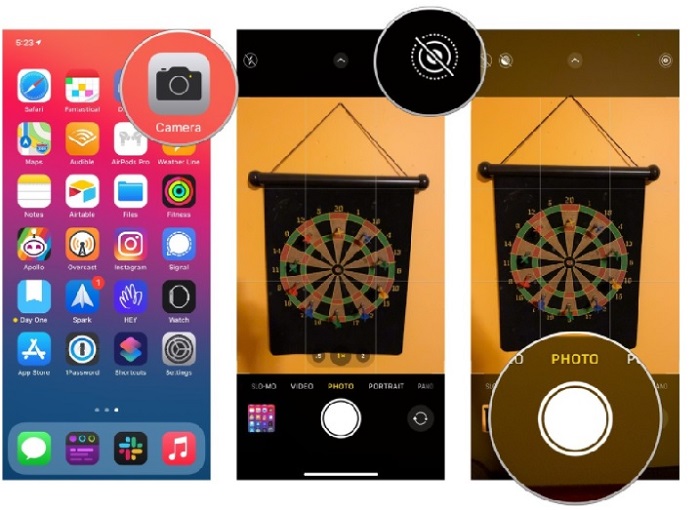
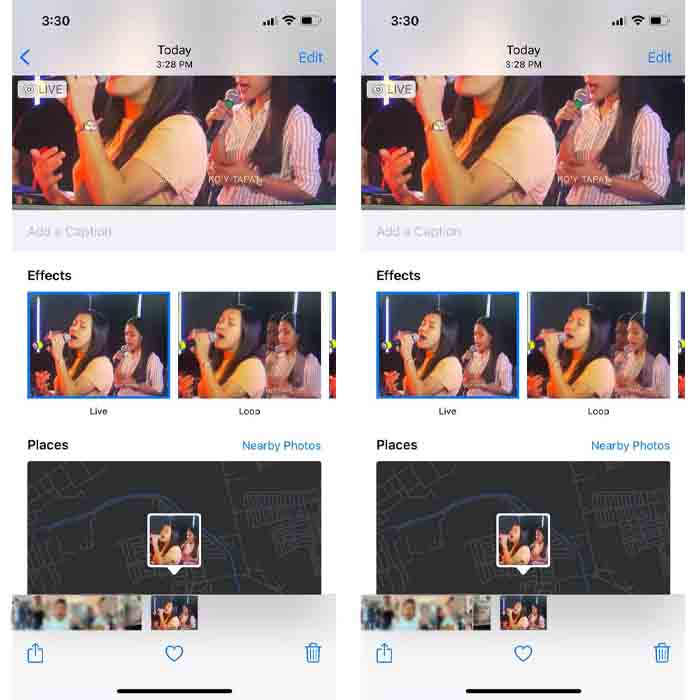
Step 3. After that, click the small square photo on the lower left side of the camera's interface. Then swipe the photo up and choose the GIF effects in there. After selecting it will automatically be saved and ready to share to the other people or social media.
Prós
- Não há necessidade de baixar porque já está pré-instalado no seu iPhone.
- Simples de usar como ferramenta de edição.
Contras
- Você não pode transformar imagens em GIFs se não for uma foto ao vivo.
- Ele não fornece muitos recursos de edição para tornar seu GIF incrível.
Parte 2. Como fazer um GIF no iPhone com GIPHY
GIPHY is the gigantic GIF storage you can access for free but if you register. And also, you can share your pre-made GIFs here to help other people by using your own made GIFs. But the tool doesn't support multiple images to make it as one. However, the filters in here are great and easy to use. So, if you want to GIPHY and create GIFs then follow the steps below.
Step 1. Download the GIPHY on your iPhone first and launch it after.
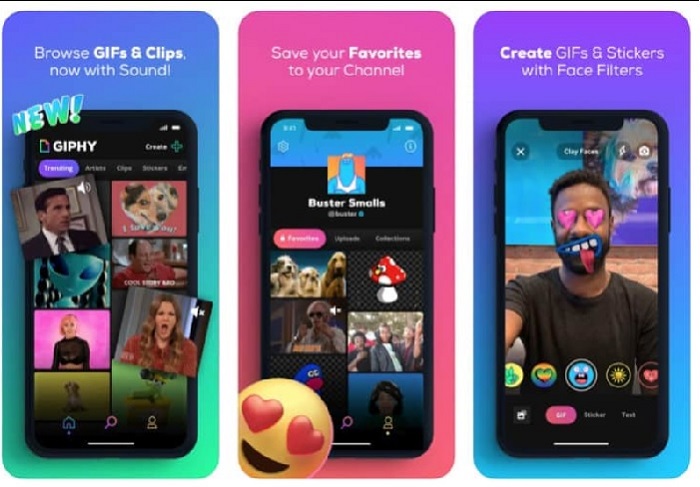
Step 2. Click the Create and on the upper left side click the album button and allow the tool to access your images.
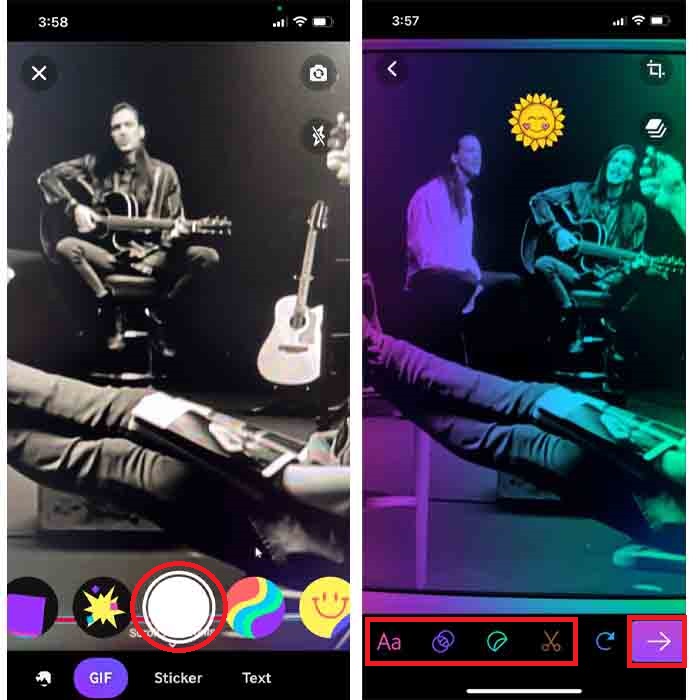
Em seguida, selecione a imagem que deseja transformar em GIF e faça a edição na interface.
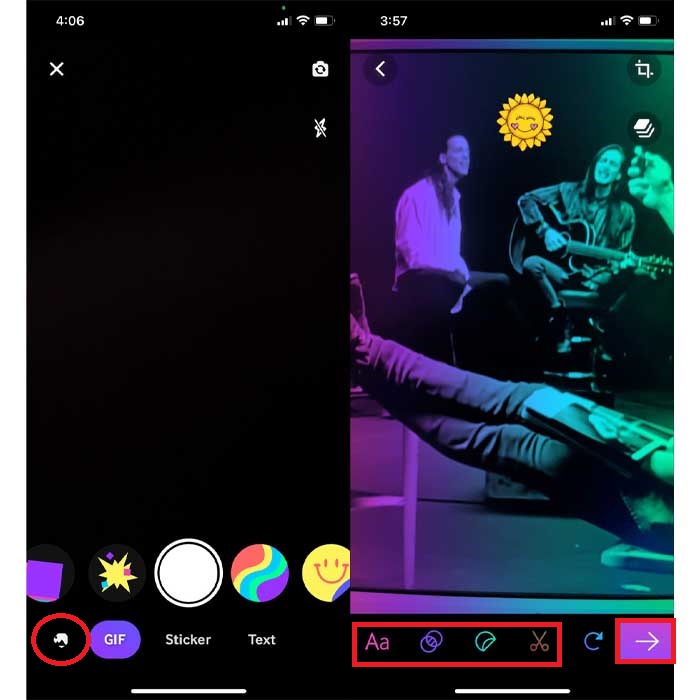
Step 3. You can't save the GIF directly to your iPhone, so you have two options. The first is to upload it to the GIPHY cloud storage then make it public or private or share it immediately.
Prós
- É uma enorme biblioteca de GIFs.
- Tem um efeito melhor do que as Fotos podem oferecer.
Contras
- Você não pode salvar o GIF finalizado diretamente no seu armazenamento. Ou você vai salvá-lo na conta que você criou no GIPHY ou compartilhá-lo.
- Não é possível compilar imagens para fazer GIFs.
Parte 3. A ferramenta mais profissional para criar GIFs de várias fotos
If the tool presented first doesn't achieve the GIFs you want to make then try to use the Video Converter Ultimate. As this tool can create your photo GIFs better than the other two native apps and downloadable presents. But the tool is only available on desktop so you must transfer the multiple photos first to your desktop before you can make GIFs. Also, the filters you can use here are phenomenal that can make you amaze. So, to learn how to make a GIF on iPhone from multiple photos then follow the steps provided below.
Step 1. Download the Video Converter Ultimate first and install it.
Free DownloadFor Windows 7 or laterSecure Download
Free DownloadFor MacOS 10.7 or laterSecure Download
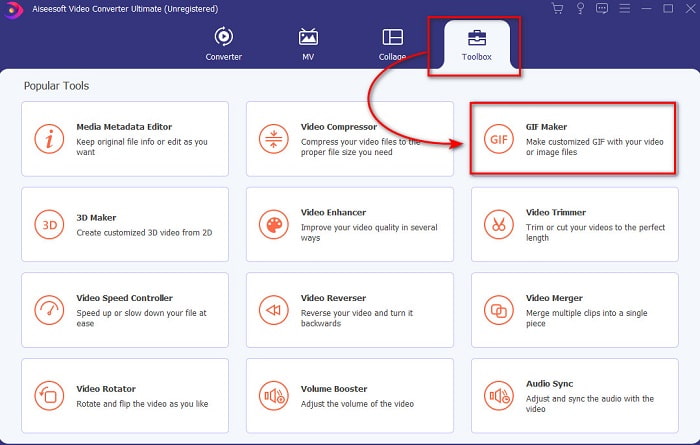
Step 2. And on the Toolbox section click the GIF Maker.
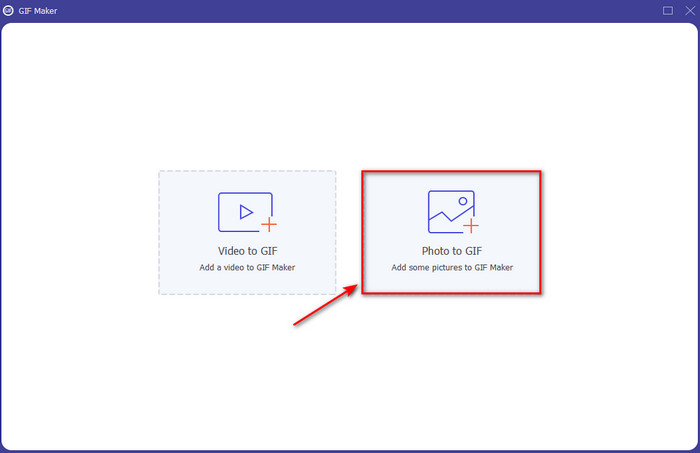
Step 3. Click the Photos to GIF and select the photo you want to be turned into GIF and click Open. Additionally, you can't add multiple images at first but you can add later. Then change the Output Settings for the GIF and click OK.
Step 4. To add the other images, you'll need to click the + button and select. Then after all the images have already been inserted, click the Export.
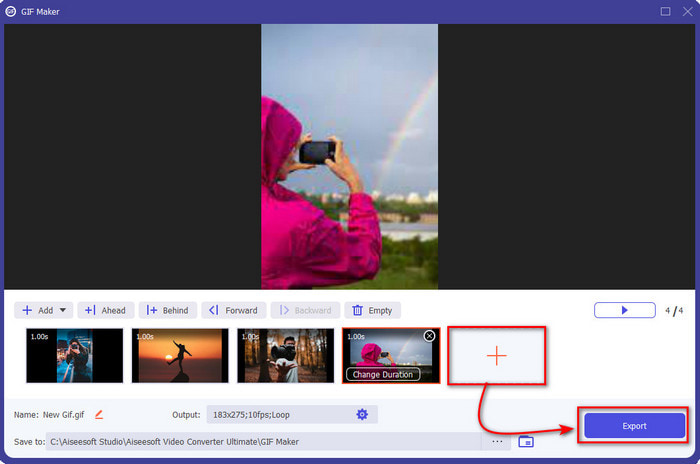
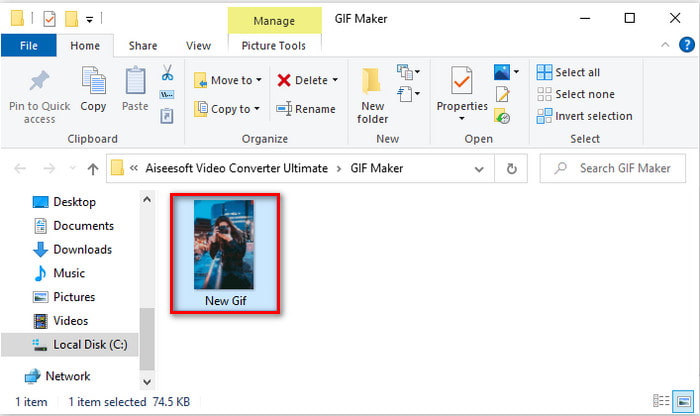
Step 5. Wait for several seconds, and a folder will show to your screen with the GIF you did earlier.
Prós
- O editor fenomenal no qual você pode confiar para tornar seu GIF excelente.
- Ele tem muitos recursos avançados que você pode usar.
- Aprender a usar esta ferramenta é mais fácil por causa de seu ponto.
Contras
- Você precisará transferir as imagens do seu iPhone para a área de trabalho.
- Precisa ser baixado em sua área de trabalho primeiro antes de poder acessar.
Parte 4. Perguntas frequentes sobre Criar GIF a partir de fotos no iPhone
Como fazer um GIF no Android a partir de fotos?
Você pode repetir as etapas da Parte 3 e fazer a mesma coisa. Basicamente, você precisará transferir todos os vídeos que deseja que sejam transformados em GIFs para sua unidade. Em seguida, siga as etapas fornecidas abaixo.
O que é um GIF?
GIFs are very popular nowadays because they can make our plain message more meaningful than ever. So, to know more about what a GIF is, click this link and read what it is.
Por que minhas imagens ficam desfocadas quando eu as transformo em GIFs?
Porque os GIFs suportam apenas 256 cores diferentes no máximo. Ao contrário de JPEG e PNG, este formato de imagem suporta mais de 16 milhões de combinações de cores. Portanto, JPEG e PNG estão produzindo a mais alta qualidade de imagem em comparação com GIFs. Mas JPEG e PNG não podem conter animação em movimento como os GIFs.
Conclusão
As we come to an end, it is now easier for us to manage and create GIFs even on our iPhones. Although all of the tools mentioned in this article can help you to create simple GIFs, still Video Converter Ultimate is the best. As it presents a lot of different features you can use to make your video even more amazing that you can't believe you did that GIF. So, don't settle on a simple software if you can have the best tool you can use on. Download the tool right now and turn your compilation of images into GIFs.
-
 Escolha o melhor GIF Cropper online e offline para cortar GIFs [2021]
 Escolher a melhor ferramenta de corte é uma obrigação e alguns dos criadores de GIFs não forneciam esse recurso. Mas qual é a melhor ferramenta de recorte GIF para usar e como usá-la?
-
 5 melhores opções para gravar formato GIF com gravadores GIF para PC e Mac
 Qual é o melhor gravador de GIF que você deve usar para gravar GIFs? A lista abaixo fornece evidências de qual é o melhor gravador de tela.
-
 Como converter MPG para formato GIF [online e offline]
 Quer expressar uma emoção muito melhor? Então você deve usar GIF. Este artigo irá ensiná-lo a converter um arquivo MPG em GIF para expressar melhor seus sentimentos.
