


 Video Converter Ultimate
 Gravador de ecrã
 Reparo de vídeo
 Secure Download
Como converter MOV para GIF: um guia completo para aumentar a presença online
Manter a atenção do seu público no mundo digital acelerado de hoje requer a criação de um conteúdo visual envolvente. Os GIFs animados são amplamente utilizados devido à sua capacidade de transmitir conceitos complexos, sentimentos e mensagens de marca de uma forma divertida e memorável. Mas nem todos os formatos de vídeo são acessíveis por meio de várias plataformas e dispositivos. Para fazer isso, você pode usar um conversor de MOV para GIF.
A lightweight, high-quality animation that can be readily shared on your website, social media, and messaging apps can be created by converting your MOV files to animated GIFs. You can further improve the promotional efficacy of your GIFs by adding text, filters, and branding to them. Converting from MOV to GIF may seem complicated, but there are several converter software available online and offline that simplify the process. This article will demonstrate you how to convert MOV to GIF and will go into greater detail about the advantages of doing so.

Parte 1. Converter MOV para GIF offline
Embora as ferramentas off-line exijam uma instalação única, elas oferecem maior flexibilidade e controle sobre os processos de conversão de arquivos. É importante escolher um fornecedor de software respeitável e manter o software atualizado para garantir desempenho e segurança ideais. Dito isso, fornecemos aqui uma lista de programas para ajudá-lo a converter MOV para GIF no Mac, Windows e iPhone. Confira-os para saber mais.
FVC Free Video Converter has the ability to convert MOV video files to GIF image files. It makes this process easy by providing a simple and intuitive interface for selecting your MOV file and specifying the output settings for the GIF file. When converting MOV to GIF using FVC Free Video Converter, you can specify the output size and quality of the GIF file, as well as the frame rate and other settings. The software also provides a preview function that allows you to preview the GIF file before you save it. Overall, FVC Free Video Converter is a useful tool for anyone looking to convert MOV videos to GIF images for various purposes. Learn more about this program by checking out its key features.
Key Features:
◆ Converta vários vídeos de uma só vez.
◆ Conversão de alta velocidade com tecnologias de aceleração.
◆ Projetado para ser fácil de usar pelos usuários.
Step 1. Get the program on your computer
To master how to convert MOV to GIF, kindly download and install FVC Free Video Converter on your computer. You can get this program by ticking the Free Download button below. You can choose between Mac and Windows installer.
Free DownloadFor Windows 7 or laterSecure Download
Free DownloadFor MacOS 10.7 or laterSecure Download
Step 2. Add the target MOV file(s)
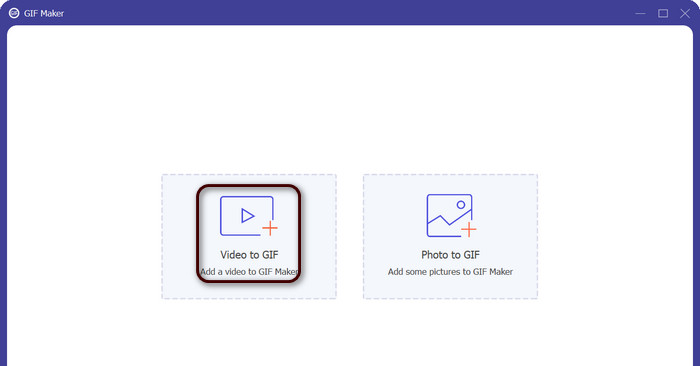
Launch the program to see its main interface. From here, go to the Toolbox tab and click the GIF Maker tool. Then, hit the Video to GIF button to add your target MOV files.
Step 3. Edit the video
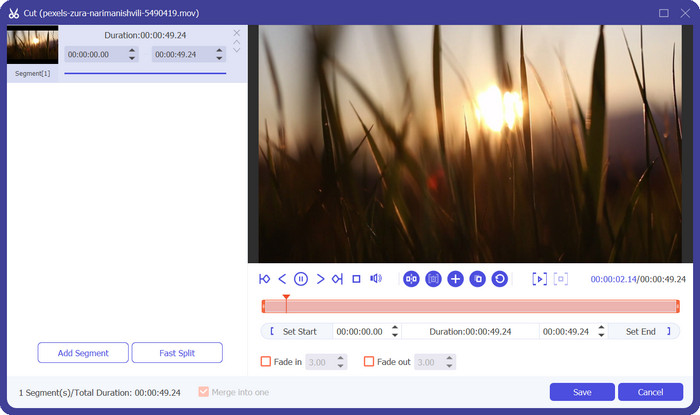
If you wish to cut some parts of the video, tick the Cut button. Now, use the slide bar or enter specific start and end times to select the portion of the video you want to use for your GIF. Next, customize the GIF settings, including the output size, frame rate, and quality. You can also add text or stickers to the GIF by clicking on the Edit button.
Step 4. Change MOV to GIF
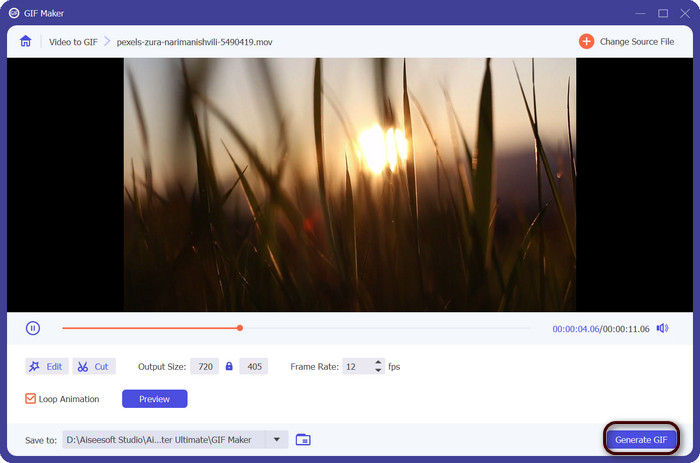
Preview the GIF to make sure it looks the way you want it to. Click on the Generate GIF button to create your GIF. The GIF will be saved to your computer in the location that you specified in the output settings.
2. FFmpeg
O FFmpeg é uma ferramenta de software versátil e poderosa que oferece aos desenvolvedores, profissionais de mídia e amadores uma variedade de recursos para trabalhar com arquivos de áudio e vídeo. Com sua compatibilidade multiplataforma, você pode usar o FFmpeg em diferentes sistemas operacionais, tornando-o uma solução ideal para projetos que exigem flexibilidade e versatilidade. Um dos recursos de destaque do FFmpeg é sua capacidade de lidar com vários formatos de arquivo de áudio e vídeo, incluindo formatos populares como MP4, MOV, AVI e muito mais. Aprenda como transformar MOV em GIF usando as seguintes instruções.
Key Features:
◆ Conversão e transcodificação.
◆ Suporte para uma ampla variedade de formatos de vídeo e áudio.
◆ Streaming e transmissão.
◆ Interface de linha de comando.
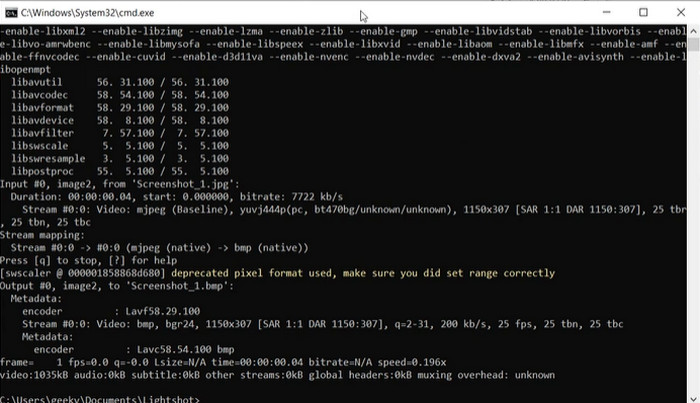
Step 1. Launch a command prompt or terminal window on your computer. Then, navigate to the directory where your MOV file is located to start the FFmpeg MOV to GIF conversion.
Step 2. Enter the following command: ffmpeg -i input.mov output.gif. Replace input.mov with the name of your MOV file, and output.gif with the desired name for your GIF file. Optionally, you can customize the output by adding additional flags to the command. For example, you can set the frame rate of the output GIF by adding the -r flag, like this: ffmpeg -i input.mov -r 10 output.gif. This will set the frame rate to 10 frames per second.
Step 3. Press Enter to run the command. FFmpeg will convert your MOV file to a GIF, and the resulting file will be saved in the same directory as your input file. That is how to turn a MOV into a GIF.
3. Photoshop
O Photoshop da Adobe Systems é um software padrão da indústria para edição e design de imagens digitais. Inúmeros profissionais nas áreas de fotografia, design gráfico e arte dependem dele para gerar e modificar fotos digitais, gráficos e obras de arte. Felizmente, as muitas ferramentas do Photoshop facilitam a transformação de vídeos MOV em GIFs. Alguns dos destaques incluem o seguinte:
Key Features:
◆ Recurso de linha do tempo de vídeo para importar arquivos de vídeo.
◆ Exportar GIFs em diferentes tamanhos e resoluções.
◆ Crie animações quadro a quadro com um painel de animação.
Step 1. Open Photoshop on your computer and go to File > Import > Video Frames to Layers. In the Import Video to Layers dialog box, select your MOV file and click Open.
Step 2. In the Video Layer dialog box, select From Beginning to End if you want to use the entire video or Selected Range Only if you only want to use a portion of the video. Then click OK.
Step 3. Photoshop will import the video frames as layers. Go to Window > Timeline to open the animation panel. In the animation panel, click on the Create Frame Animation button.
Step 4. Click on the menu icon in the top right corner of the animation panel and select Make Frames From Layers. In the animation panel, you can adjust the duration of each frame by clicking on time under each frame and entering a new value.
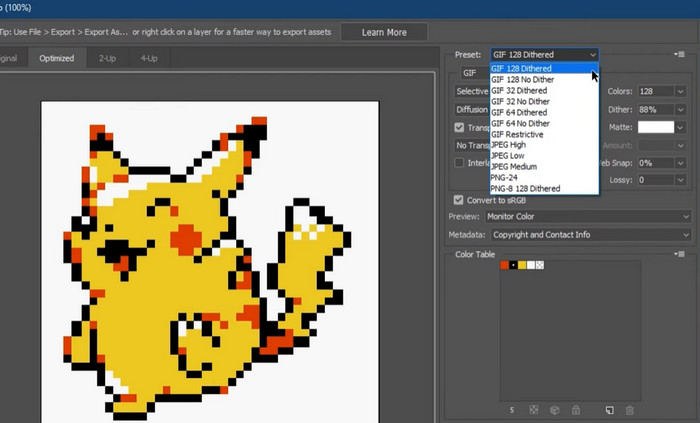
Step 5. Once you're happy with your GIF, go to File > Export > Save for Web (Legacy). In the Save for Web dialog box, choose GIF as the file type. Adjust the settings to your preference, such as the size, color palette, and optimization options. Click Save to save your GIF. That is how you export MOV to GIF in Photoshop.
Parte 2. Converter MOV para GIF Online
O uso de programas online para converter arquivos oferece uma maneira conveniente e acessível de converter arquivos sem a necessidade de instalar nenhum software ou navegar em interfaces complicadas. Se você está curioso sobre qual programa usar, você pode dar uma olhada nos melhores conversores online de MOV para GIF abaixo.
1. Conversor de Vídeo Gratuito Online
Free Video Converter Online by FVC offers a simple and user-friendly interface, allowing users to quickly and easily convert their video files. Users can select the input file and choose the desired output format and quality. The tool also allows users to customize various settings, including video resolution, bitrate, and frame rate.
Step 1. Start by opening a web browser and navigate to the FVC Free Video Converter Online website.
Download the Desktop Version to convert files in batch.
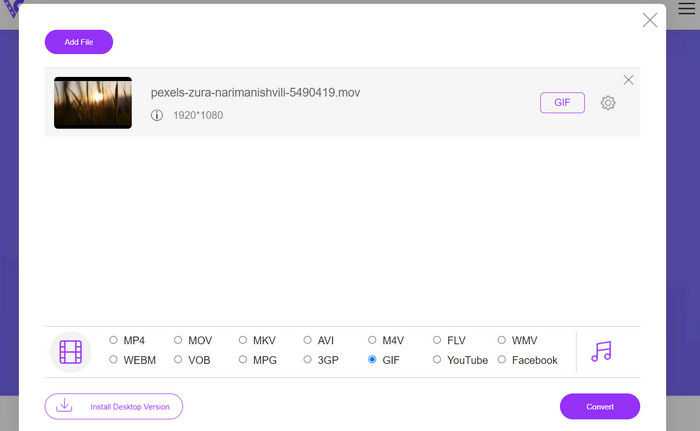
Step 2. Now, click the Add Files to Convert button to upload the MOV video file you want to convert. You may also drag and drop the file into the designated area.
Step 3. Select the output format by ticking on the GIF radio button. Hit the Convert button to begin with the conversion process.
2. CloudConvert
CloudConvert é um aplicativo da web de conversão de arquivos online que permite aos usuários converter vários tipos de arquivos, incluindo vídeos, imagens, documentos e muito mais. Ele oferece uma ampla gama de opções de conversão, suportando mais de 200 formatos de arquivo, incluindo formatos populares como MP4, MOV, GIF e outros.
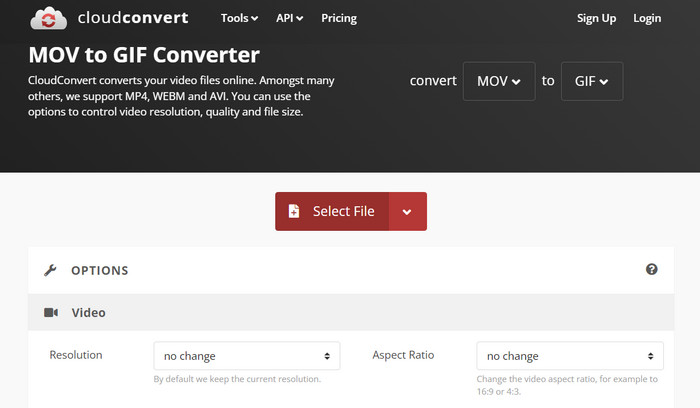
Step 1. To use CloudConvert for MOV to GIF conversion, open a web browser and navigate to the CloudConvert website. Click on the Select Files button to upload your MOV file.
Step 2. Once the file is uploaded, select GIF as the output format from the drop-down menu. Optionally, you can customize the output settings, such as the frame rate and the image size.
Step 3. Tick on the Convert button to begin the conversion process. Once done, you can download the converted GIF file to your computer. That is how this MOV to GIF converter online free tool works.
3. EZGIF
EZGIF é um aplicativo da web flexível que oferece uma ampla gama de opções para trabalhar com GIFs. O programa é um recurso gratuito para criar, editar e otimizar GIFs de arquivos de vídeo, fotos e até mesmo outros GIFs. A capacidade do EZGIF de transformar rapidamente arquivos de vídeo em GIFs é um de seus pontos de venda mais atraentes. Os usuários podem fazer upload de vídeos em formatos como MP4, AVI ou MOV e convertê-los em GIFs com configurações como taxa de quadros e tamanho da imagem que podem ser ajustados ao seu gosto. Use EZGIF para conversão de MOV para GIF seguindo as etapas abaixo.
Step 1. Launch your web browser and go to EZGIF to convert your video to an animated GIF.
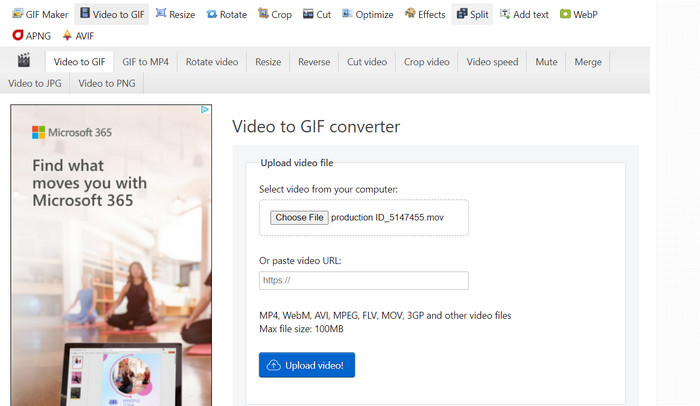
Step 2. To change a MOV into a GIF, simply click Choose File and locate the file you wish to alter.
Step 3. Use the provided sliders to set the beginning and ending times for the GIF after the file has been submitted. The size and caption of the GIF can be changed as well. To begin the transformation, select the Convert to GIF option.
Further Reading
[Free & Online] 4 Methods to Convert MOV to MP4
Loop GIF with the Best Animated GIF Looper on Windows & Mac
MOV vs. GIF
O formato MOV pode ser usado para armazenar um filme, programa de TV, videoclipe curto ou filme caseiro. Na verdade, ele é salvo no formato de arquivo QuickTime (QTFF), que foi introduzido pela Apple em 1991. Os arquivos MOV são frequentemente usados quando as pessoas desejam salvar um vídeo com alta qualidade.
GIF é um formato de imagem comum para gráficos da web. Além de salvar pequenas imagens e imagens que contenham texto, o GIF também pode conter e exibir animações básicas em sites. É um formato sem perdas e a compactação GIF não degrada a clareza da imagem.
Parte 3. Perguntas frequentes sobre MOV para GIF
Quais configurações devo usar ao converter um MOV em um GIF?
As configurações que você deve usar ao converter um MOV em GIF dependerão de suas necessidades específicas. Geralmente, você desejará ajustar a taxa de quadros, o tamanho da imagem e a profundidade de cor para otimizar o GIF para o uso pretendido.
Posso converter uma parte de um arquivo MOV em um GIF?
Sim, a maioria das ferramentas permite selecionar uma parte específica de um arquivo MOV para converter em GIF. Isso pode ser útil se você quiser apenas
Quais são alguns usos comuns para GIFs criados a partir de arquivos MOV?
Os GIFs criados a partir de arquivos MOV podem ser usados para uma ampla variedade de finalidades, incluindo postagens em redes sociais, animações de sites e campanhas de marketing por e-mail.
Conclusão
Converting MOV to GIF can be a useful process for a variety of purposes, from creating engaging social media content to demonstrating product features or creating tutorials. There are many tools available to perform this conversion, ranging from online tools like EZGIF and CloudConvert to more advanced desktop applications like Photoshop and Adobe After Effects.
-
 5 melhores maneiras de alterar a imagem para GIF animado [Atualizado em 2023]
 Precisa de um conversor de imagem para GIF? Este artigo fornecerá os cinco melhores conversores que podemos encontrar no mercado. Então, vamos descobrir essas ferramentas lendo este artigo.
-
 Converta facilmente MOV para WMV usando esses conversores incríveis
 Quer converter seu arquivo MOV para arquivo WMV? Aqui estão as maneiras simples de converter facilmente MOV para WMV usando esses conversores online e offline que recomendamos usar.
-
 Melhor guia sobre como cortar GIFs para incrementar seu conteúdo
 Não perca este guia de leitura obrigatória. Aprenda a aparar e cortar GIFs para chamar a atenção do seu público com ótimos cortadores de GIF online e offline.
