


 Video Converter Ultimate
 Gravador de ecrã
 Reparo de vídeo
 Secure Download
Etapas rápidas e fáceis Como girar e inverter GIFs usando off-line e on-line
You’re editing a video on landscape layout, and you want to put some video effects using GIFs. However, your created and downloaded GIF is on a portrait layout, and since it is on a portrait layout, the GIF is not fitting in. Now that you want to rotate it and flip some of it. Meanwhile, downloading from untrusted sites online gives you a hard time, and these sites give viruses to your device. Fear not! Because this article will help you use the best tools to rotate and flip GIFs online and offline.

Parte 1: Como girar e virar GIFs com as melhores ferramentas [Offline]
1. Video Converter Ultimate
This is one of the best tools this article recommends using out of all the online ways and software to help with the problem. Install the FVC Video Converter Ultimate on your computer, a program with many video-enhancing features. One of the features offered can rotate and flip GIFs in which pattern you like without losing their quality. Take a look at the steps below to learn how to use the software:
Step 1. Get the program
Hit the Free Download button to download the software to your desktop. Then install the software and customize the setup as desired. If everything is in order, launch the software after installing it and click Start Now.
Free DownloadFor Windows 7 or laterSecure Download
Free DownloadFor MacOS 10.7 or laterSecure Download
Step 2. Access the Video Rotator
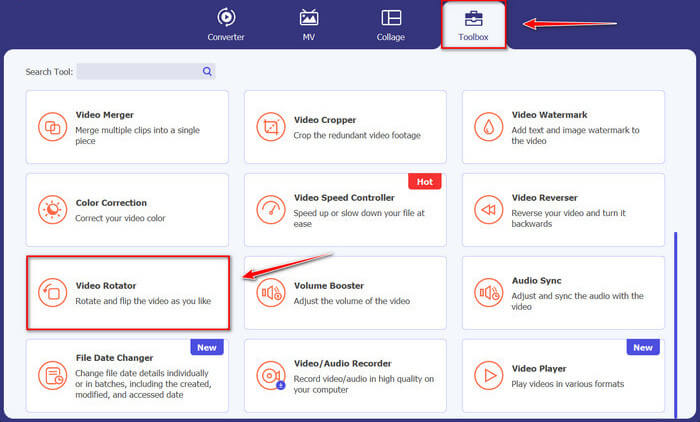
Then, by clicking the Toolbox feature, drag your screen down and select the Video Rotator.
Step 3. Import a GIF file
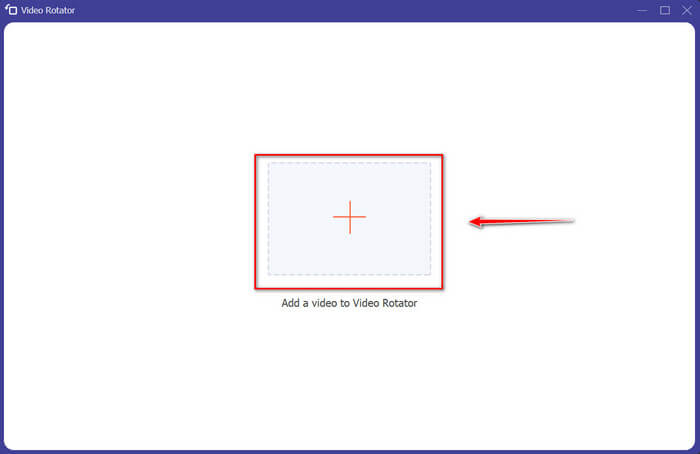
Importe os arquivos que deseja girar e virar arrastando os arquivos para a interface, você também pode clicar no botão + e selecionar os arquivos para o seu computador.
Step 4. Rotate the GIF
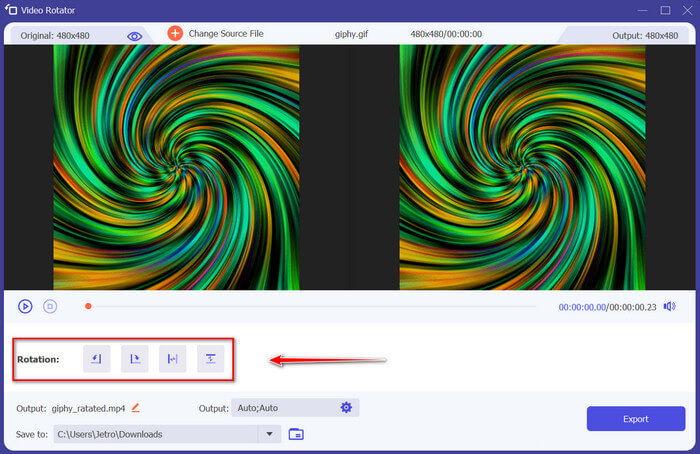
Escolha como você vai virar e girar seu GIF. Você pode girá-lo 90 graus para a esquerda ou direita e girá-lo verticalmente ou horizontalmente.
Step 5. Download the rotated GIF
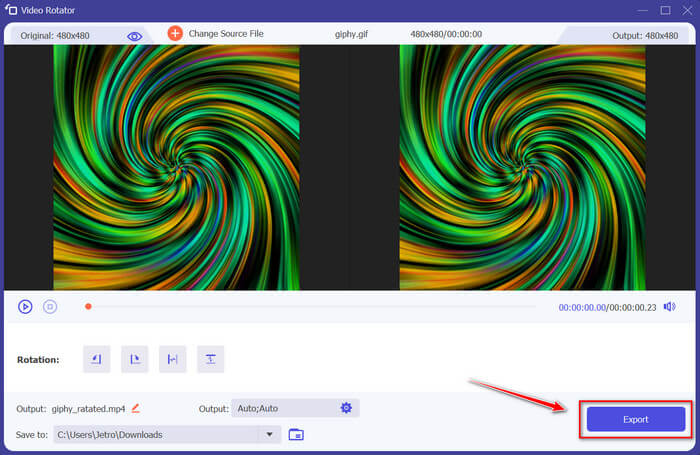
Download your file by clicking Export at the bottom right corner of the interface. After that, a window will appear on your screen. Click Rotate Again to rotate another video clip or Okay if you’re done.
2. Photoshop
Outra ótima ferramenta off-line recomendada para uso ajudará você a aprender como girar e inverter GIFs. Esta ferramenta é grande em tamanho e mais complicada de usar, mas possui os mesmos recursos do FVC Video Converter Ultimate. Com o Photoshop, você pode girar e virar GIFs como um profissional sem desintegrar sua qualidade. Siga os métodos abaixo para obter conhecimento sobre seus recursos e detalhes técnicos.
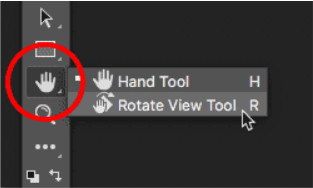
Step 1. Download and open Photoshop on your computer. After that, click Hand Tool on the list of features in the Toolbar. The Hand Tool is visible by default, with the Rotate View Tool hidden behind it. Click and hold on to the Hand Tool's icon until a fly-out menu appears to select the Rotate View Tool. Then, from the menu, select the Rotate View Tool.
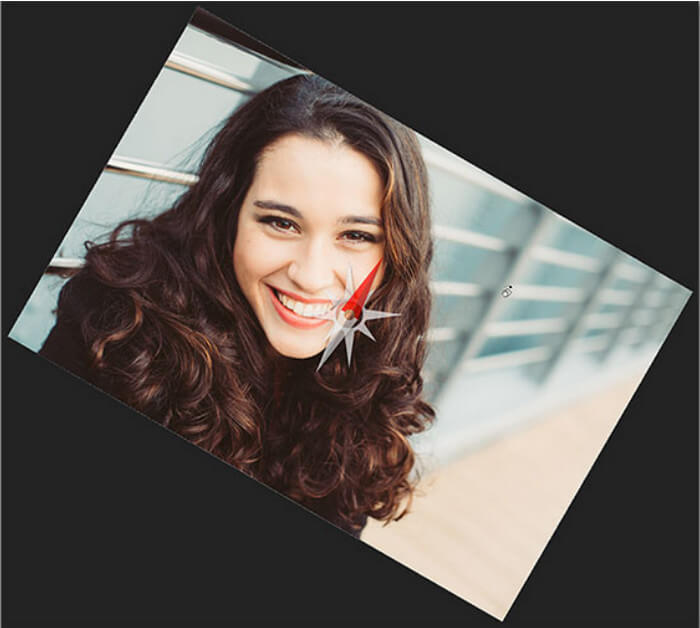
Step 2. Hold down the left mouse button while clicking on the image with the Rotate View Tool. Then, a compass appears in the center. After that, the red direction marker at the top of the compass always points to the actual top of the image, so even if you rotate the angle, you'll always know which way is up.

Step 3. Hold the mouse button and drag the image to rotate the view. As needed, drag clockwise or counterclockwise. As you rotate the view, the compass points to the actual top of the image. Photoshop allows you to rotate the angle by default freely. However, if you press and hold the Shift key while dragging, the view will rotate 15 degrees.
3. Fotos
Às vezes, problemas simples precisam apenas de soluções simples. Com esta ferramenta, você não precisa baixar software e instalar aplicativos em seu dispositivo apenas para girar e virar GIFs. Usando seu telefone Android, agora você pode girar e virar GIFs conforme sua conveniência. Se você não tiver certeza de como fazê-lo, siga todas as etapas fornecidas abaixo:
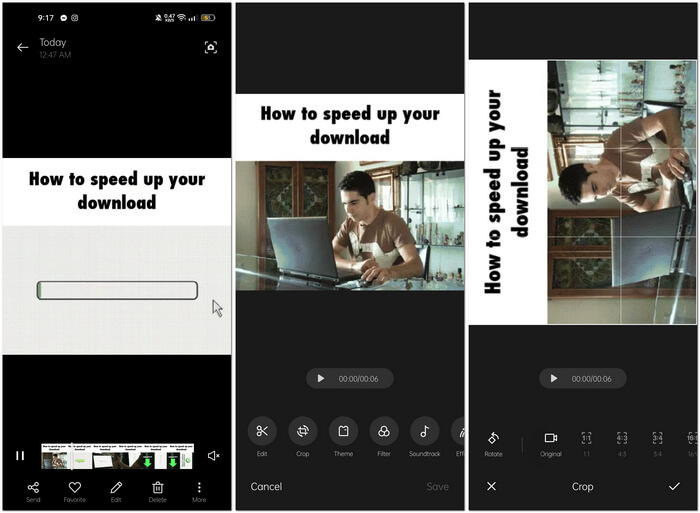
Step 1. Open your phone and search for Photos or Image Folder. Select a GIF you want to rotate and flip. Choose Edit to start editing your GIF.
Step 2. At the bottom of the screen, choose Crop after choosing a clip.
Step 3. Rotate your GIF by clicking the Rotate. You can only adjust the GIF vertically or horizontally. After that, click the Check icon to save the adjusted GIF.
Parte 2: Melhores ferramentas alternativas on-line para girar e inverter GIFs
1. LunaPic
Esta ferramenta da web é um editor de baixo orçamento que abrange várias ferramentas disponíveis para uma ferramenta da web gratuita que pode fornecer uma perspectiva de edição profissional. Como essa ferramenta da web abrange a maioria dos formatos e mídias sociais disponíveis, a edição se torna muito fácil, proporcionando uma excelente experiência para alguns editores profissionais. Você verá ferramentas que outras ferramentas da Web não fornecem, especialmente aquelas que ajudam a girar e inverter GIFs. A interface é direta e pode ser adaptada às preferências de cada usuário. Siga as etapas fornecidas abaixo para usar esta excelente ferramenta online.
Step 1. Click the Upload tab in the upper left corner of the web’s interface and add files by clicking Choose file.
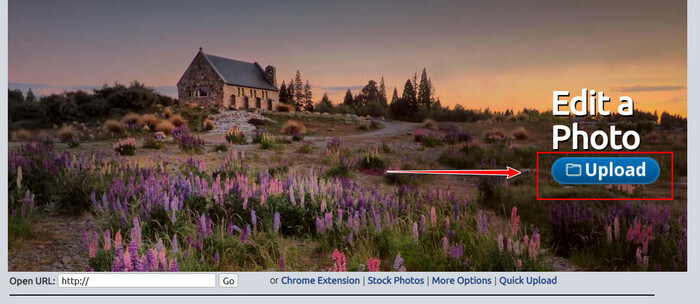
Step 2. You can edit your GIF at the first interface after uploading your file. But if you adjust your GIF’s rotation, proceed by clicking the Edit tab and then Rotate Image.
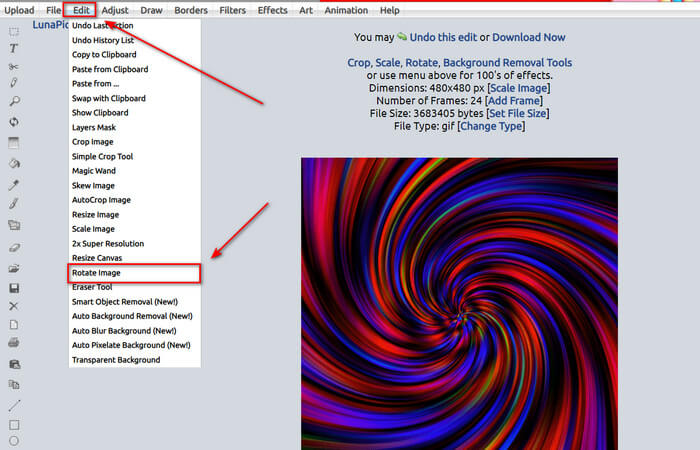
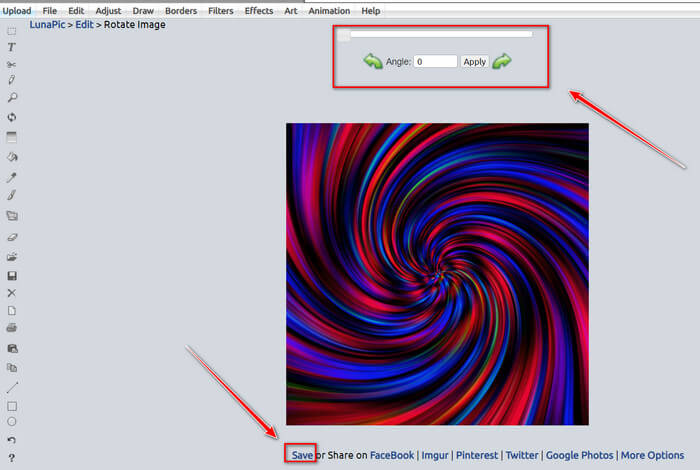
Step 3. Adjust the rotation of your GIF by putting a particular degree or by clicking the left and right arrows. Then, download it by clicking the Save located at the bottom part of the screen.
2. Ezgif
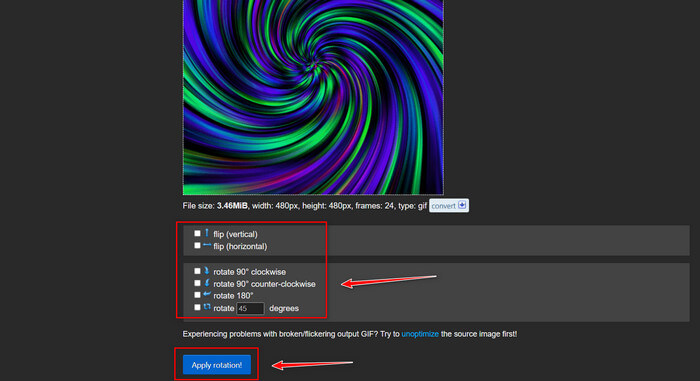
Ezgif.com is a simple online GIF creator and toolkit for creating and altering basic animated GIFs. Ezgif can resize, crop, enhance, optimize, and reverse GIFs using this tool. One of its best features is you can rotate GIFs with easy steps. To learn how to use it, follow the steps provided below:
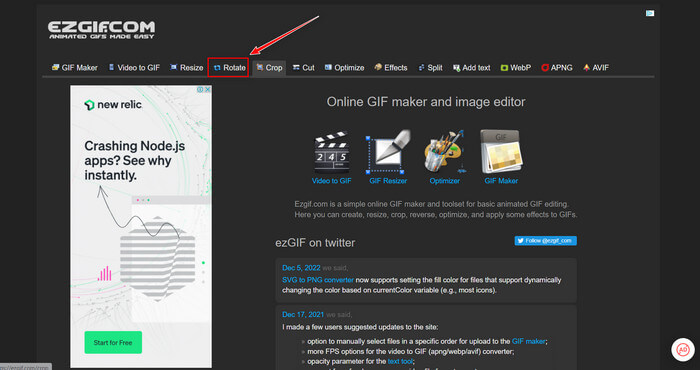
Step 1. Choose Rotate on the Toolbar at the screen's top.
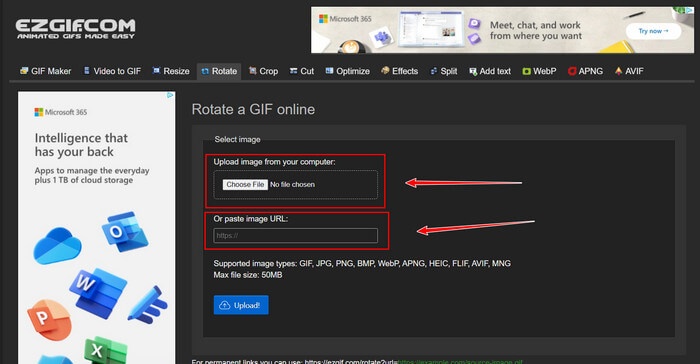
Step 2. Import a file by clicking the Upload File or copy a GIF’s URL and paste it on the interface. Then click Upload.
Step 3. Put a check on what direction you will rotate your GIF. You can also put a specific amount of degree so that you can tilt or rotate your GIF to your preference. Then, click Apply Rotation and click the Save icon to download the adjusted GIF.
Parte 3. Perguntas frequentes sobre girar e inverter GIFs
Posso girar GIFs no meu iPhone?
Comparado a um telefone Android, é impossível girar GIFs usando um iPhone. Você só pode girar GIFs no iPhone baixando um aplicativo de terceiros online.
Você pode transformar GIFs de vídeo do iPhone?
On the App Store, several third-party apps allow you to create GIFs from videos, such as MP4 to GIF. You may have already tried one or more of them on your device. The difference with this technique is that we'll use the built-in Shortcuts app on your iPhone or iPad. If you are unaware, Shortcuts provides access to tools not natively available in iOS and iPadOS.
Como você não consegue usar GIFs nas configurações do iPhone?
Role a página do aplicativo Configurações e toque em 'Acessibilidade'. Na parte superior da tela, toque em 'Movimento' e certifique-se de que 'Reduzir movimento' não esteja selecionado. Se for esse o caso, desative-o e veja se os GIFs funcionam novamente.
Conclusão
Throughout the article, we know GIF format needs to be rotated and flipped its orientation, which is necessary for editing videos. There are many ways to do it, either free or paid or offline and online; these web tools and software emphasize editing to the next level. But if you want to access the editing software so that an internet connection can’t cause any trouble using it. Download Video Converter Ultimate and use it as the editor and reliable in other video clip formats. It helps you professionally edit video clips, especially by rotating and flipping GIFs.
-
 Loop GIF com o melhor Looper GIF animado no Windows e Mac
 Quer saber o segredo do melhor GIF em loop? Quer fazer um? Se sim, você está no lugar certo. Então, aprenda a criar um loop com o melhor looper disponível.
-
 4 melhores maneiras de remover a marca d'água do GIF [online e offline]
 Precisa remover marca d'água do GIF? Com a ferramenta deste artigo, você aprenderá os diferentes estilos com os diferentes removedores de marca d'água disponíveis em sua plataforma.
-
 Os 4 principais ampliadores de GIF offline e online que você não deve perder
 Este post é para você que está procurando os melhores ampliadores de GIF. Listamos os ampliadores de GIF online e offline de melhor desempenho para o seu computador.
