


 Video Converter Ultimate
 Gravador de ecrã
 Reparo de vídeo
 Secure Download
Tutoriais passo a passo sobre como converter GIF para JPG
GIF is the most popular file format we use to send exaggerated emotions we want, like memes. It also contains animation and static images, but not all platforms support GIF format. There are some cases when you want to share a GIF image because it’s funny. However, you can send it because the program or browsers you use don’t support this format. Well, it is frustrating. If you want to send the image without encountering problems, converting your GIF image to other formats like JPG is better. Since the JPG format is trendy, you can use it on every browser and program. Thankfully, in this article, you will learn various procedures to convert GIF to JPG with the help of image converters. In that case, if you don’t want to encounter the same problem in the future, read the article and start converting your images.

Parte 1. GIF vs. JPG/JPEG
| Formato de arquivo | GIF | JPG / JPEG |
| Extensão de nome de arquivo | .gif | .jpg / .jpeg |
| Desenvolvido por | Compuserve | Grupo Conjunto de Especialistas em Fotografia |
| Tipo de mímica | imagem/gif | imagem/jpeg |
| Descrição | GIF é o formato de arquivo favorito da internet por causa de sua capacidade de animar imagens. Arquivos GIF usam fotos bitmap e permitem até 8 pixels/bits. Além disso, permite 256 cores no espaço de cores RGB de 24 bits. Nem todas as fotos GIF são animadas. | JPG formato, que é um formato de arquivo popular hoje em dia. Seu objetivo é compactar imagens para reduzir o tempo de download e upload. Todos os programas podem acessar este formato. Isso elimina a necessidade de considerar como abrir esse arquivo em vários programas e navegadores. |
| Programas / Navegadores Associados | Adobe Photoshop Corel Draw Corel PaintShop Pro Tela Google Chrome Internet Explorer Microsoft borda | Pintar Adobe Photoshop programa de fotos IrfanViewGenericName Visualizador de fotos Internet Explorer Mozilla Firefox Google Chrome |
Parte 2. Métodos diretos para converter GIFs para JPG online
Como converter GIF para JPG usando o FVC Free Image Converter
FVC Free Image Converter is the best online image converter to convert GIF to JPG. You can quickly convert your GIF file format to JPG using its straightforward procedures. In this manner, the online tool is excellent, even for beginners. You may be able to use the batch converting option of the FVC Free Image Converter. This tool allows you to convert several photographs in just a single procedure. Also, the tool won't add any unpleasant elements to the converted and saved photographs. Thus, you may view the photographs neatly. Moreover, no advertisements will appear on your screen during the conversion process. In that case, you can convert files without being distracted. Start using the straightforward instructions below to convert your GIF to a JPG image.
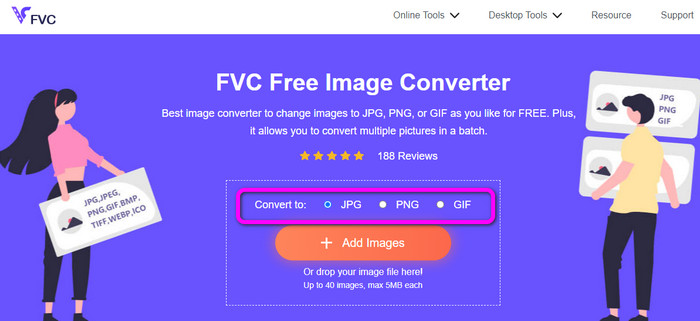
Step 1. Visit the main website of FVC Free Image Converter. You can use any browser from your computer to access the online converter. Then, click the JPG format from the Convert to option.
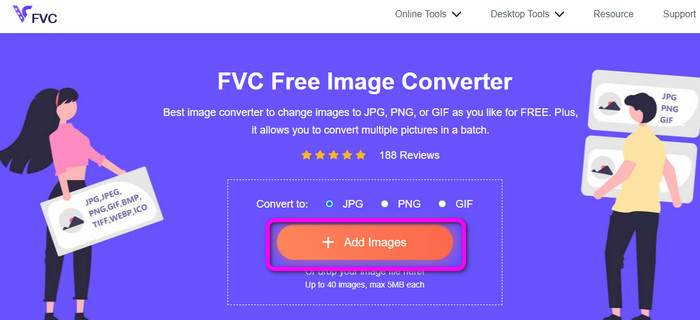
Step 2. Click the Add Images button. When the folder pops up on the screen, open the GIF image you want to convert. You can also open your computer folder and drop or drag the image file on the box. You can upload up to 40 images if you want to convert multiple files.
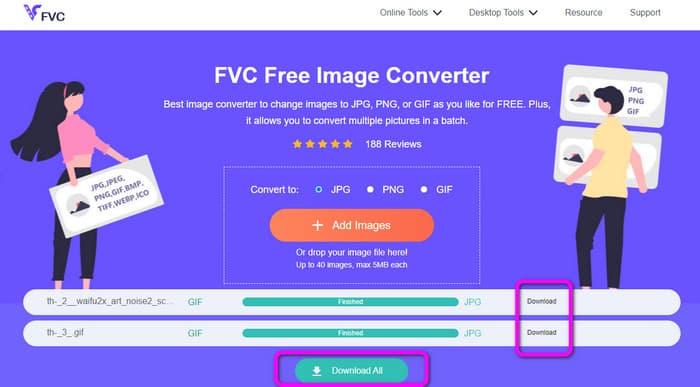
Step 3. The tool will automatically convert your images after the uploading process. When the conversion process is done, click the Download All button. But, if you want to save the image manually, click the Download button on the side. You also can use this tool to convert WebP to GIF.
Como converter GIF para JPG usando o conversor online
Another useful and helpful online tool to convert GIFs to JPG is Online Convert. With the help of this online tool, you can convert different files, including JPG, PNG, GIF, TIFF, BMP, and more. The conversion process is fast. Also, it is easy to use, which gives an advantage to non-professional users. Additionally, Online Convert offers a batch conversion process. You can insert more than one image you want to convert. You can also trust this tool to convert videos, audio, documents, and more. The image converter online is available in almost all browsers. It includes Firefox, Chrome, Explorer, and more. However, you can only upload three images during batch conversion. You must get the paid version if you want to upload numerous images simultaneously.
Step 1. Navigate your browser to the Online Convert website. Click the Choose Files button on the web page to upload the GIF image. You can also drop the file in the green box.
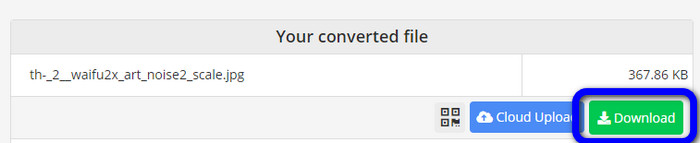
Step 2. After uploading the GIF image, click the Start button. After clicking, the conversion process will start. Then, click the Download button to save the converted image on your computer.
Parte 3. Como converter GIF para JPG offline rapidamente
You can also use Video Converter Ultimate to convert GIF to JPG. This offline program has an exceptional method of conversion. It also has an intuitive interface, making it suitable for non-professional users. In addition, Video Converter Ultimate offers a batch conversion feature. It means that you can convert images in a single click. It also provides a fast conversion process. With this feature, you can convert lots of files quickly. Moreover, it supports various image formats. It includes JPG, PNG, BMP, GIF, TIFF, and more. Aside from converting, you can also change your photo’s quality from the output settings. This way, you can alter your image quality based on your needs. Lastly, Video Converter Ultimate is available on both Windows and Mac, making it convenient.
Step 1. Download the Video Converter Ultimate on your desktop. There are two Download buttons below. If you are a Windows user, click the Windows version. And if you are using a Mac computer, use the Mac version. Launch the program after the installation.
Free DownloadFor Windows 7 or laterSecure Download
Free DownloadFor MacOS 10.7 or laterSecure Download
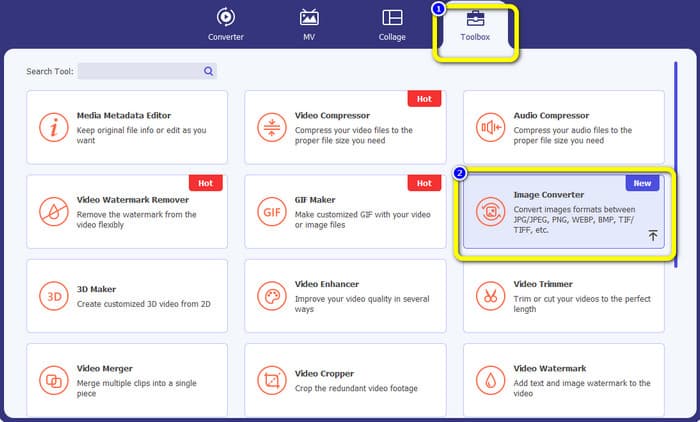
Step 2. On the upper interface, click the Toolbox panel. Then, choose the Image Converter Tool. Another interface will show up on the screen.
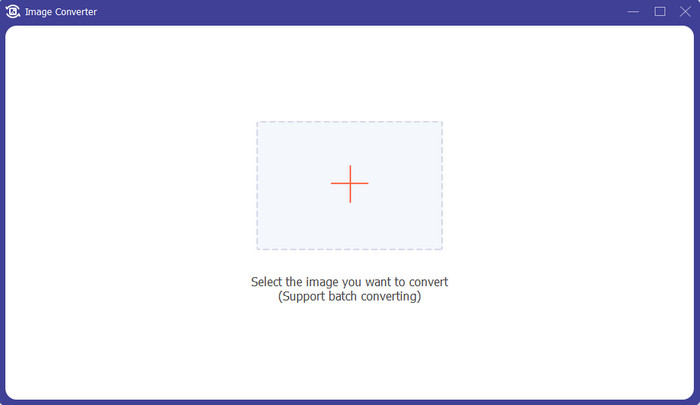
Step 3. Click the Plus sign on the middle interface. When the file folder shows up, choose the GIF format and open it. You can add more files since the program offers a batch conversion feature.
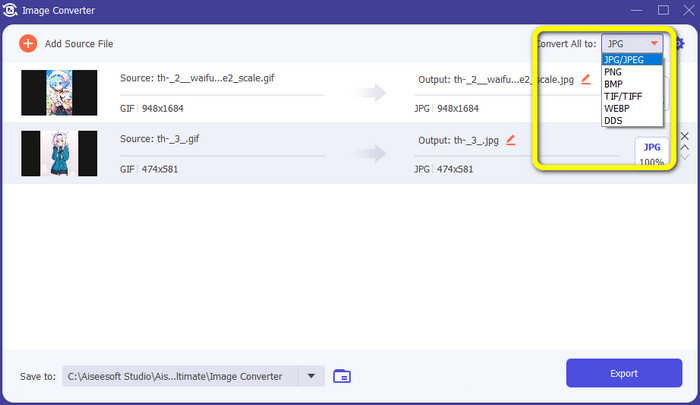
Step 4. Go to the right part of the interface and proceed to the format option. Select the JPG as your output format.
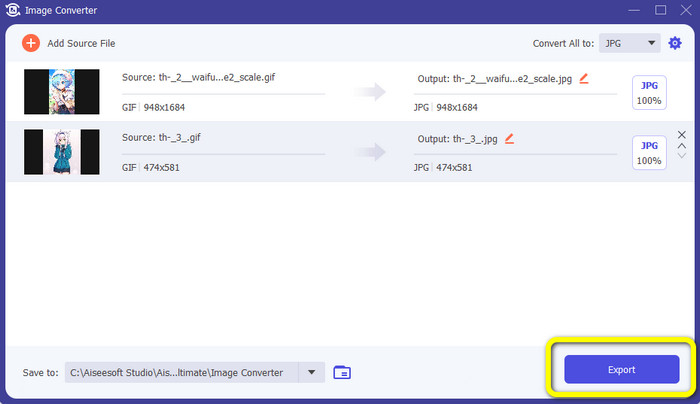
Step 5. When you are done selecting the JPG format, click the Export button. After the process, you can already open your converted images in your output folder.
Parte 4. Como converter GIF para JPG no Android e iPhone
If you want to convert GIFs to JPG using iPhone and Android devices, use File Converter. This application offers an easy way to convert four files to JPG. Also, File Converter is free to download. It is available on Google Play Store and App Store. However, when it comes to the installation process, it is too slow. Also, some options are hard to understand. Lastly, it will only perform well with an internet connection.
Step 1. Go to the Google Play Store and App Store. Download the File Converter and launch the app.
Step 2. On the interface, select the Image Converter option. After that, select the JPG as your output format.
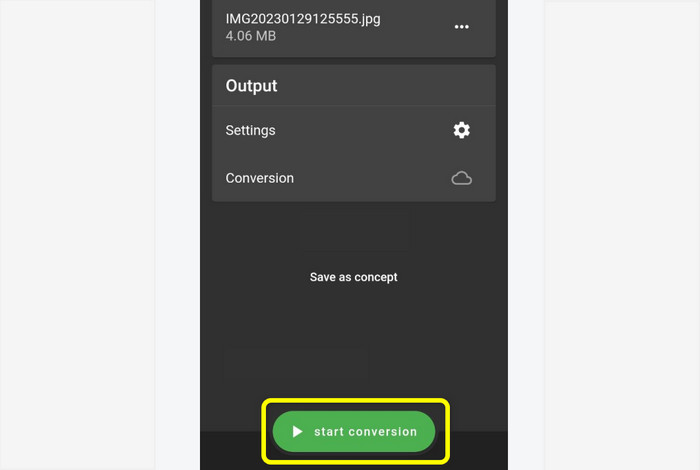
Step 3. Click the File option to insert the GIF image you want to convert. Then, click the Start Conversion process. After that, you can save your image to your Gallery.
Parte 5. Perguntas frequentes sobre a conversão de GIF para JPG
1. É possível editar um arquivo GIF?
Absolutamente sim. Se você deseja editar seu arquivo de imagem GIF, pode usar uma ferramenta offline como o Video Converter Ultimate. Possui várias ferramentas de edição que você pode usar, como girar, recortar, adicionar filtros e muito mais.
2. Como faço para salvar fotos do iPhone como JPG?
By default, when capturing a photo from an iPhone, it will be saved automatically in HEIC format. However, most devices do not recognize this file format. You can save photos by going to your iPhone settings. Go to Settings > Camera. Then, click the Format option. From the format option, click the Most Compatible option and save the photo as JPG.
3. Como converter GIF para JPG no Photoshop?
Launch Photoshop on your desktop. Then, navigate to the File menu and click Open to add the GIF file to the program. After that, you can improve your photo using the editing tools from the program. Then to save the photo in a JPG format, go to the File > Save as option. Then, go to the format option and select the JPG format.
Conclusão
It is the right choice to convert your GIFs to JPG if you want to share photos using all browsers and programs. So, this article offers you the easiest way to convert your image files using FVC Free Image Converter.
-
 Aprenda as abordagens mais fáceis para converter WebP em JPG rapidamente
 Vamos todos aprender maneiras eficazes de converter imagens da Web em JPG facilmente. Este artigo fornecerá excelentes conversores de imagem que você pode usar para converter arquivos de imagem.
-
 Excelentes técnicas para converter GIF para M4V instantaneamente
 Este guia fornece as estratégias mais eficazes para converter GIF em M4V. Além disso, apresentaremos os dois melhores conversores que você pode experimentar.
-
 Instruções simples sobre como converter GIF para MKV na área de trabalho
 Consulte este artigo se estiver procurando os métodos mais excelentes de conversão de formatos de arquivo GIF para MKV usando um conversor para download excepcional.
