


 Video Converter Ultimate
 Gravador de ecrã
 Reparo de vídeo
 Secure Download
Aprenda os métodos perfeitos para criar um URL a partir de uma imagem
Nowadays, image file formats have become popular. These formats are one of the best ways to share and open images in different browsers and programs. However, there are some instances when you can’t share your images, no matter what extension you use. This situation might be troublesome for other people. But little did we know there was a solution to this type of struggle. If you want to share your photos everywhere and anywhere, the best way is to transcode the image into the URL. This way, you can share the photo to others without the help of any extensions. Fortunately, the article has an exceptional solution for you. Please read this post as we give you the best tutorials on how to turn your images into a link.

Parte 1. Métodos eficazes para transformar uma imagem em um link
Converter imagem em link usando o i-Converter
Some image to URL converters online are not working well, so we want to introduce you to i-Converter. It is an online converter you can rely upon to change your image files into a URL link. You can access the online tool on different browsers. It includes Firefox, Chrome, Edge, Explorer, and more. It also has a simple process of converting files. This way, the tool is suitable for you whether you are a skilled user or a beginner. Additionally, it supports various image file formats. You can convert your images to JPEG, BMP, TIFF, PNG, GIF, DOC, and more. Moreover, the i-Converter is free. It means that you can convert your images without purchasing a subscription plan. However, the i-Converter is only exclusive to JPG image files. If your image doesn't have a .jpg file extension, you can't upload it on this online tool. Also, there are times when the tool is not performing well. Since it is an online tool, an internet connection is highly recommended.
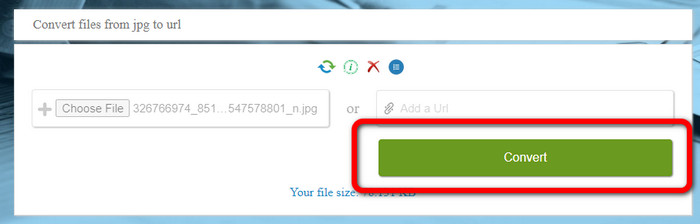
Step 1. Open any browser from your desktop and visit the i-Converter website. When you are already on the main webpage, click the Choose File button. When the computer file appears on the screen, open the image you want to turn into a URL.
Step 2. After uploading the image file you want to convert, click the Convert button. Then, wait for the conversion process. After a few seconds, the tool will give you the link. You can copy the link to the browser to open the image by clicking the Copy Code button.
Como transformar uma imagem em um link usando Image to Link
Another online tool you can utilize to convert images to HTML is Image to Link. Compared to the first tool above, the tool supports various input formats like JPG, PNG, and GIF. Also, it offers straightforward methods. After uploading the image, the tool will convert the image automatically. The conversion process is fast so you can get the link quickly. Additionally, Image to Link is available on various web browsers. You can use it on Google, Mozilla, Explorer, and more. All users are capable of operating this tool because of its understandable options. The best thing is that you can convert multiple images at once. This way, converting more files is perfect when using the tool. However, when using the converter, some ads appear on the screen, making it frustrating for users. Also, when converting multiple files, you can only upload up to five images. You also need internet access to use the online image converter.
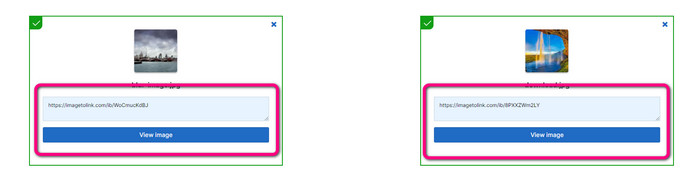
Step 1. Navigate to the Image to Link website from your browser. On the webpage, click the Start Uploading button. Then open the image file you want to convert from your computer file. You can upload up to five images when doing a batch conversion process.
Step 2. After uploading, the tool will automatically turn the image into a link. Afterward, the tool will provide a link that you can use to open the image. To open the image, copy the given link and paste it into your browser.
Parte 2. Como alterar imagens para JPG, PNG e GIF
Converta imagens para JPG, PNG e GIF no FVC Free Image Converter
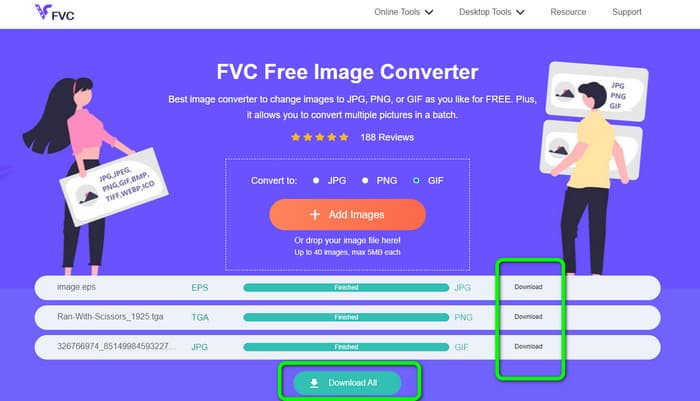
One of the leading online image converters you can use is the FVC Free Image Converter. The tool can transcode your image into various formats like JPG, PNG, and GIF. Also, it supports various input formats, including BMP, SVG, ICO, WebP, and more. You can convert images in just a simple method, which is perfect for users. Additionally, The image converter has great features you can enjoy. It is the batch conversion feature. It allows you to upload multiple images and convert them in a single click. Note that you can convert up to 40 image files. It also offers a fast conversion process wherein you can convert images in a few seconds.
Além disso, FVC Free Image Converter em todos os navegadores, para que você possa operá-lo em qualquer lugar, desde que tenha uma conexão com a Internet. A ferramenta também garante sua privacidade. Durante o processo de conversão, você nunca encontrará anúncios irritantes em sua tela. Depois de salvar suas imagens convertidas, a ferramenta excluirá seus dados, para que ninguém possa ver suas fotos carregadas e convertidas. Use os métodos listados abaixo para converter facilmente imagens em formato JPG, PNG ou GIF.
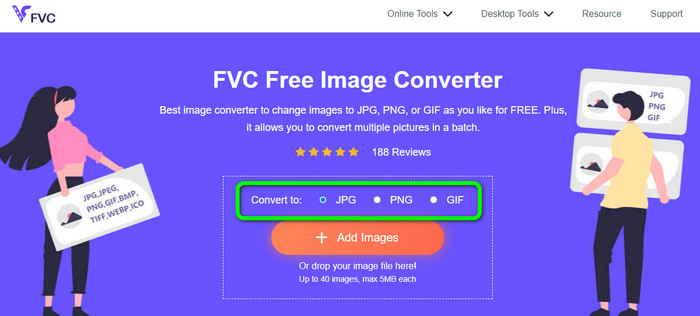
Step 1. Navigate to the official website of FVC Free Image Converter. You can access this online image converter on all browsers. After that, you can click the JPG, PNG, or GIF format from the format option.
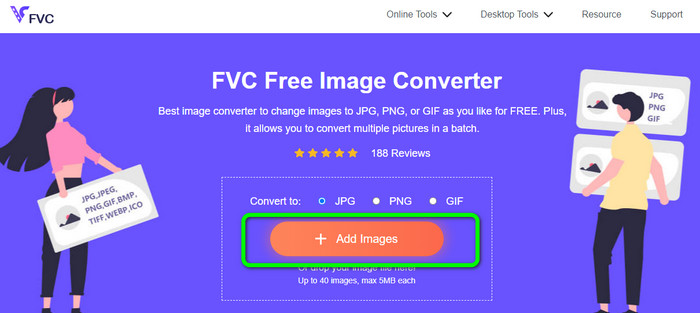
Step 2. Click the Add Images to upload the image file from your computer. You can also drop and drag the file into the box. Since the tool offers a batch conversion process, you can upload multiple files simultaneously.
Step 3. You will see that the image converter will convert the images automatically after the uploading process. When the conversion process is done, click the Download All button to save them in one click. But, if you prefer to save the image manually, click the Download button on the right.
Parte 3. Perguntas frequentes sobre a conversão de imagens em links
1. Por que transformar uma imagem em um link?
Você pode usar uma imagem como botão se tiver um site ou blog. Dessa forma, os usuários podem acessar sua página inicial ou uma página específica. Além disso, é possível vincular fotos em postagens de mídia social ou assinaturas de e-mail. Além disso, é uma maneira fantástica de anunciar seu site ou blog e aumentar o tráfego. Aqui estão apenas algumas das justificativas mais importantes para a conversão de URL de uma imagem.
2. Quais são os benefícios de transformar uma imagem em um link?
Pode ser mais simples para os usuários clicarem no seu link se você converter uma imagem em um link. Se você deseja que os visitantes cliquem em uma pequena imagem, transformar a imagem em um URL dará a eles uma área mais extensa para clicar. Compartilhar seu material com outras pessoas pode facilitar muito a descoberta de novos produtos ou serviços.
3. Como encontro o URL de uma imagem em um site?
Clique com o botão direito do mouse na imagem e escolha Copiar link da imagem para obter o URL de uma imagem em um site. Você pode abrir o URL em uma nova guia para salvar a imagem ou compartilhar o URL por e-mail, mídia social e outros canais.
Conclusão
There you go! Now you have learned the best methods to convert images to links. In addition to that, you discovered the most straightforward ways of converting images to JPG, PNG, and GIF formats. Thus, if you want to change your images to URL links, see the effective methods above. On the other hand, if you want an outstanding image converter to convert images to other formats, use FVC Free Image Converter.
-
 Métodos sobre como converter imagens para JPG online e offline
 Deseja converter o arquivo para o formato JPG por algum motivo? Então esse artigo é para você. Ensinaremos o melhor método para converter sua imagem para JPG
-
 Métodos úteis para converter facilmente imagens para o formato PNG
 Você está procurando a melhor maneira de salvar sua imagem como PNG? Este guia oferece excelentes soluções para você converter imagens em PNG online e offline
-
 O que é JPEG/JPG: Converta suas imagens para JPG sem esforço
 Você está curioso sobre o significado do JPEG? Temos uma resposta para você. Além disso, você aprenderá como converter diferentes formatos de imagem em arquivos JPG. Leia o post agora.
