


 Video Converter Ultimate
 Gravador de ecrã
 Reparo de vídeo
 Secure Download
Como editar a clareza da foto em menos de um minuto com dicas e truques
Every photography enthusiast loves to make the image they capture looks the best amongst the other photos other photographer captured. With different techniques, you can easily do it, sharpen, and add intense color to make it simple be detailed. What if you want to add a touch of crispiness to the image? Or want to smoothen everything? That is the role of clarity. With it, you can set the mid-tone and contrast on your image to add that extra punch you want to make the appearance stunning. Are you interested in learning how to do it? In that case, read the information we add here and learn how to edit the clarity of photos.

Parte 1. Como melhorar a nitidez da foto on-line gratuitamente com o upscaling de imagens
FVC Free Image Upscaler is the best photo clarity app you can use on your browser without downloading any files on your desktop. This app can fix photo quality, and beautifully improves the photo's quality that you have never seen before. Even though you aren’t tech-savvy, you can quickly master how to use this software in less than a minute. So, if you want to try using this software, you can follow the tutorial we add below.
Step 1. Go to the official website of this upscaler by clicking this link.
Step 2. Import the image you want to clarify by clicking the Upload Image. A folder will be open next, where you can search the file and press Open.
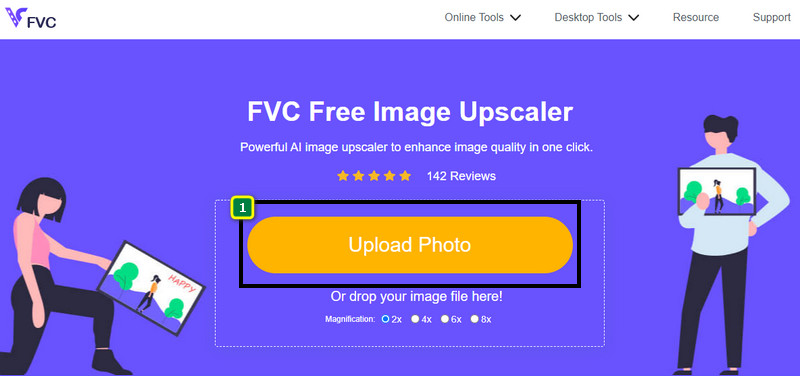
Step 3. Now that the image is uploaded, select the option you want to use to make your image improve clarity.
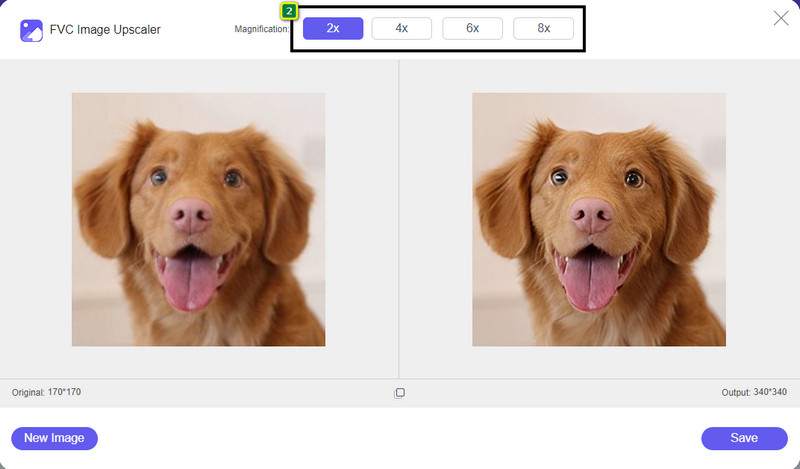
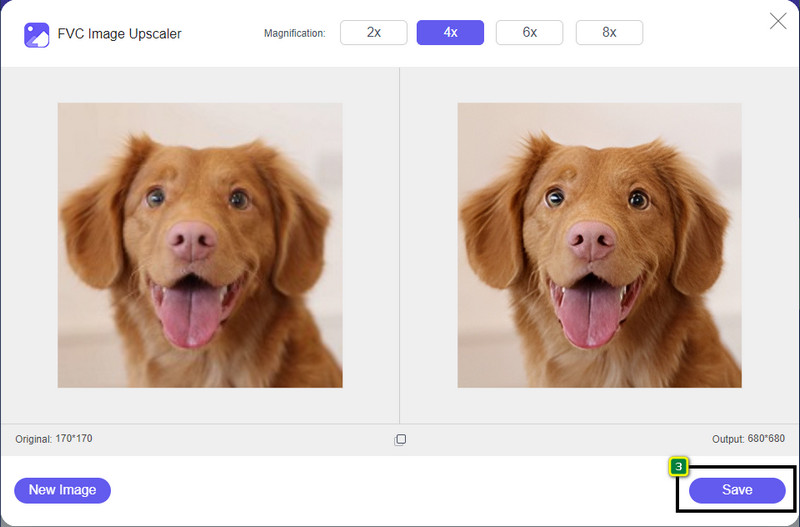
Step 4. After improving the clarity of it, click the Save button to download the image you enhance here.
Parte 2. Como aumentar a clareza das fotos no Photoshop rapidamente
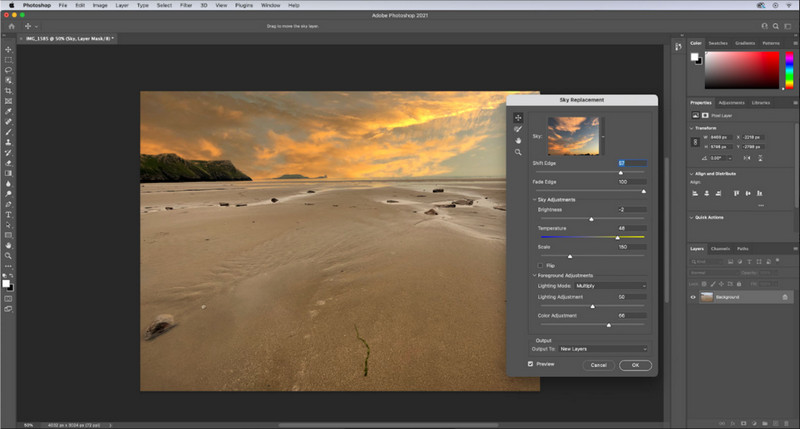
Adobe Photoshop is your photo clarity app to download if you want a professional tool on your device. This tool provides all-out image editing features to make your image look better by adjusting the options to impress people who are about to see it. There isn’t enough software to provide you with the same performance as this software can bring. To improve the clarity of your image then, you will need to adjust the contrast and the mid-tone. Want to know how to do it? Copy the provided tutorial.
Step 1. Download Adobe Photoshop and open the software. Start uploading the image by clicking the File and then Open.
Step 2. In the upper part, click the Image, under it, press the Adjustment, and choose the Brightness/Contrast.
Step 3. A dialogue box will show on your screen; change the image's contrast by dragging the slider. You can freely move it to increase or decrease the contrast, which could affect clarity.
Step 4. Press OK to save your changes on your image, which will be applied automatically.
Parte 3. Como melhorar a clareza de uma foto no Adobe Lightroom em menos de um minuto
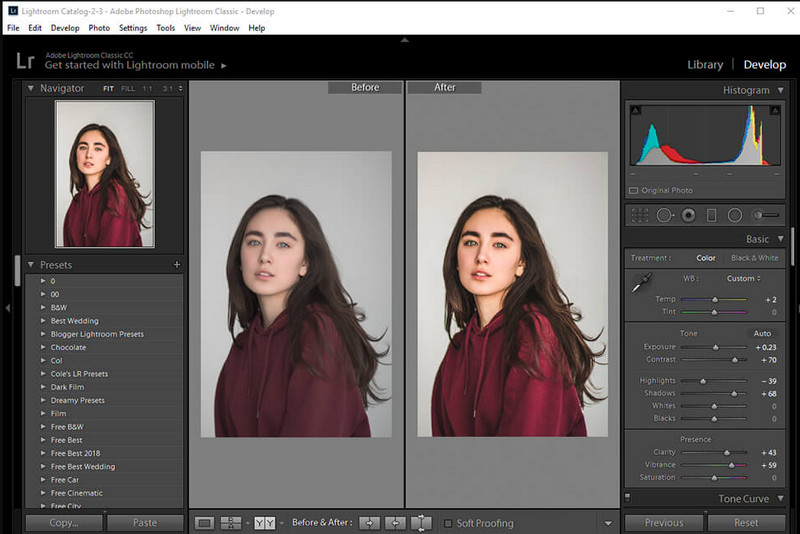
Unlike Photoshop, Adobe Lightroom has a reliable clarity option that you can use to increase image quality and make your image detailed with the colors on it once it is increased and smoother if you decrease it. Adobe manufactures Photoshop and Lightroom, so the assurance of having a professional output is 100%. You can follow the steps to add clarity to photos and improve the color of the raw image.
Step 1. Download and install the official software on Adobe, then launch the software and upload the image you want.
Step 2. Open the Develop module to open the options on where you can start adding clarity to your image.
Step 3. Under the presence option, move the slider of the clarity to your preferred percentage that you want to be applied. You can adjust other options to make your image look detailed and better than the original images.
Parte 4. Dicas sobre como editar fotos Clareza que você deve saber
Agora que você tem o melhor aplicativo de nitidez de fotos que pode usar na Web e offline, as informações a seguir fornecerão dicas sobre como ajustar a claridade de uma imagem.
Dica 1. NÃO ESQUEÇA DE CLAREZA!
O que queremos dizer com isso? Esses meios não adicionam muita clareza à sua imagem, pois ela se tornará granulada. Todo mundo não gosta de ter uma imagem granulada, então não a aumente muito. Além disso, não diminua a claridade ao seu potencial máximo para evitar que a imagem pareça desfocada.
Dica 2. Contraste e clareza não são a mesma coisa
Contraste e clareza geralmente são conhecidos da mesma forma, mas não são. Se você ajustar a clareza de uma imagem, estará ajustando o tom médio dela e, em seguida, uma determinada região. Enquanto se você usar contraste, estará alterando, destacando e sombreando a imagem geral.
Dica 3. Conheça o propósito da clareza nas imagens antes de adicioná-las
Muitos editores de imagem estudaram essas opções que podem ser ajustadas para melhorar a imagem, como clareza, exposição, gama e muito mais. Portanto, se você é um novo usuário, é melhor saber o propósito da clareza antes de aplicá-la à imagem. Além disso, se você ler informações sobre clareza, saberá se é a opção certa de ajustar para melhorar a aparência da imagem. Se não, então não adicione clareza.
Dica 4. Use Clareza em Grande Escala
Se você estiver lidando com uma imagem em pequena escala, é melhor aprimorá-la em vez de alterar sua clareza. Ele irá ajudá-lo a afiar as bordas da sua foto com facilidade e melhor. Mas se a imagem que você tem você considera em grande escala, então é melhor você usar a clareza.
Parte 5. Perguntas frequentes sobre como editar a nitidez das fotos
Por que minha imagem fica granulada depois de adicionar clareza?
Se você definiu a clareza para 100%, a possibilidade de ter uma imagem granulada, sem dúvida, certamente acontecerá. Sugerimos que você defina a porcentagem de 40% para 70%; você pode ir mais alto dependendo de sua preferência.
Preciso de um editor para adicionar clareza às fotos?
Na verdade, você precisará baixar ou usar software para adicionar clareza à sua imagem. Muitos softwares dizem que podem ajustar a clareza, mas não se deixe enganar por eles. Você pode usar o software que adicionamos neste artigo, pois provamos que eles podem alterar a clareza da sua imagem para torná-la mais detalhada do que antes.
Posso adicionar contraste à imagem para torná-la clara?
Sim, você pode adicionar contraste à imagem para torná-la mais clara e apresentável. Mas se você quiser ser mais preciso em vez de afetar a imagem inteira, é melhor ajustar a clareza dela.
Conclusão
Esperamos que este artigo tenha ensinado como editar clareza em fotos com diferentes ferramentas e etapas adicionadas. Se você acha que fizemos um ótimo trabalho, adoraríamos se você nos desse 5 estrelas abaixo. Obrigado por ler este artigo!
-
 Como aumentar a resolução da imagem [5 maneiras de melhorar]
 Está com problemas porque a resolução da sua imagem é baixa? Não se preocupe mais! Aqui, vamos te ensinar como aumentar a resolução da imagem.
-
 Melhore a resolução da foto do iPhone com os principais aprimoradores
 Você quer precisar melhorar a resolução da foto do iPhone? Bem, neste artigo abordamos as melhores ferramentas que você pode usar e outros truques que você deve conhecer!
-
 Restauração de fotos antigas online e offline [etapas fáceis]
 Quer restaurar uma foto antiga? Com essas ferramentas, você conhecerá o processo de restauração de fotos antigas. Leia este post para aprender os métodos mais simples.
